

Introduction
Before a school can use Google Workspace, it must first prove ownership of its domain.
This step is called domain verification, and it is required for all schools setting up Google services like Gmail, Google Classroom, and Google Drive.
A domain is the part of your school email address after the “@” sign, such as:
- schoolname.edu
- schoolname.edu.pk
- schoolname.org
- schoolname.sch.uk
Google cannot activate accounts or services until it confirms that your school actually controls this domain.
This guide explains the full process in a simple way so school IT teams and administrators can complete verification without confusion.
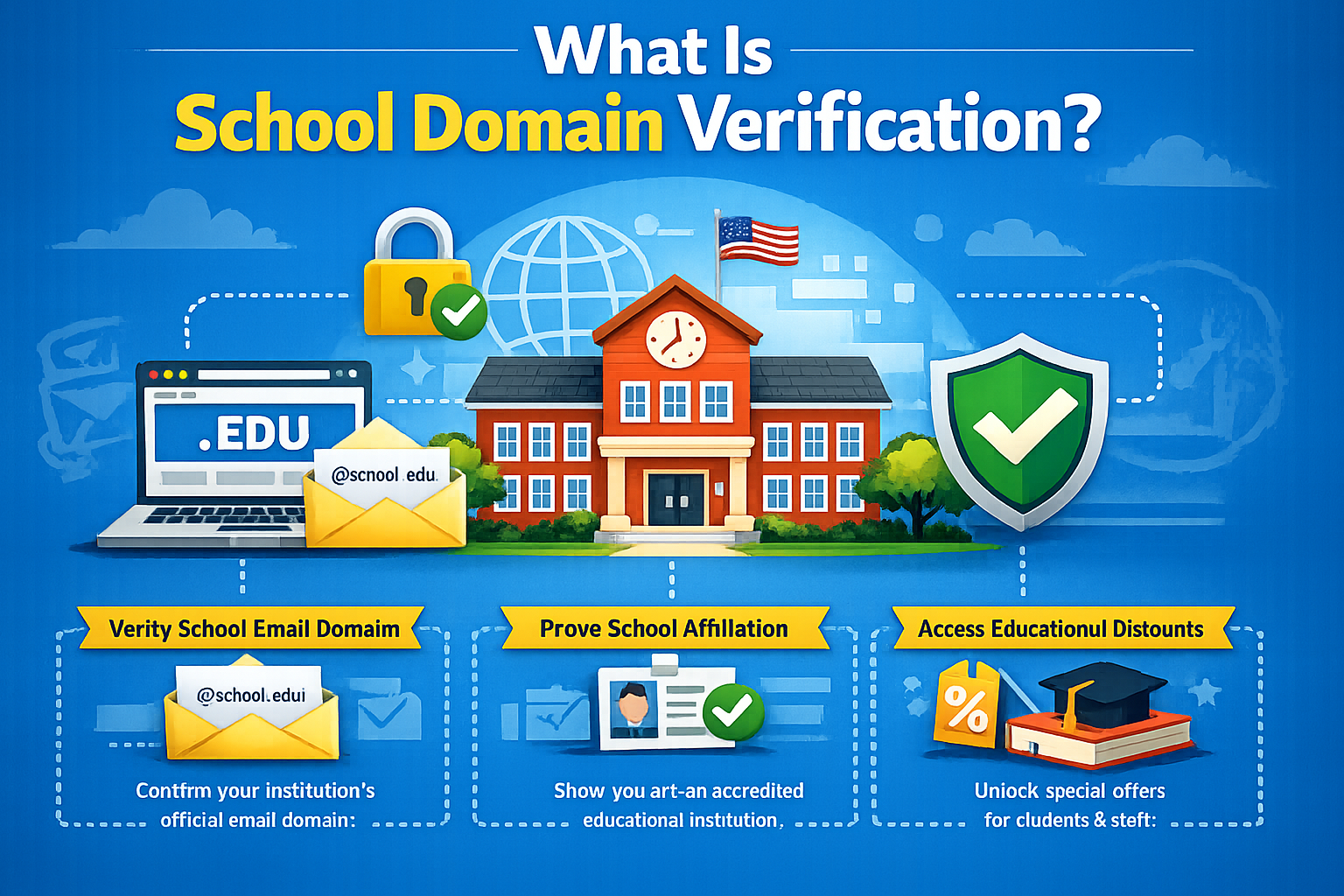
What Is School Domain Verification?
Domain verification is the process of proving ownership of your school’s domain to Google.
It tells Google:
“This school controls this website and email domain.”
Once verified, your school can:
- Create official student and teacher emails
- Use Google Classroom
- Activate Google Drive storage
- Manage accounts inside the admin system
Without verification, Google Workspace setup cannot continue.
Where Domain Verification Happens in Google Workspace
Verification is done inside the setup process of:
Google Admin Console
During setup, Google asks you to:
- Enter your school domain
- Confirm ownership
- Add a DNS record (TXT record)
- Verify inside Admin Console
This usually happens during the first-time setup wizard.
Why Google Requires Domain Verification
Google uses domain verification to protect schools and student data.
It ensures:
- Only real school owners can create accounts
- No one can fake a school domain
- Student emails are connected to the correct institution
- Admin control stays secure
This is a security requirement for all schools worldwide.
Before You Start (Checklist)
Make sure you have:
- Domain login access (GoDaddy, Cloudflare, Namecheap, etc.)
- Access to DNS settings
- Google Workspace Admin setup access
- Your school domain name ready
Without DNS access, verification cannot be completed.
Step-by-Step: Verify Your School Domain with Google
Step 1: Start Google Workspace Setup
Go to the Google Workspace for Education signup process and enter:
- School name
- Country
- Admin contact details
- Domain name
Google will then move you to the verification step.
Step 2: Get Your Verification Code
Google will generate a TXT record like this:
google-site-verification=xxxxxxxxxxxxxxxx
This code is unique to your school.
Do not change it.
Step 3: Open Your Domain DNS Settings
Login to your domain provider:
Common platforms include:
- GoDaddy
- Cloudflare
- Namecheap
- cPanel hosting panel
Find settings like:
- DNS Management
- Zone Editor
- Advanced DNS
Step 4: Add TXT Record
Create a new DNS record:
| Field | Value |
| Type | TXT |
| Name | @ (or blank) |
| Value | Google verification code |
| TTL | Default |
Important rules:
- Copy the code exactly
- Do not add extra spaces
- Do not delete existing records
Step 5: Save and Wait for DNS Update
DNS changes are not instant.
Typical time:
- 5–30 minutes (fast providers)
- 1–4 hours (most common)
- Up to 24 hours (rare cases)
Google cannot speed up this process.
Step 6: Verify in Google Admin Console
Return to the setup screen and click Verify.
Google will check your DNS records.
If correct, your domain will be verified instantly.
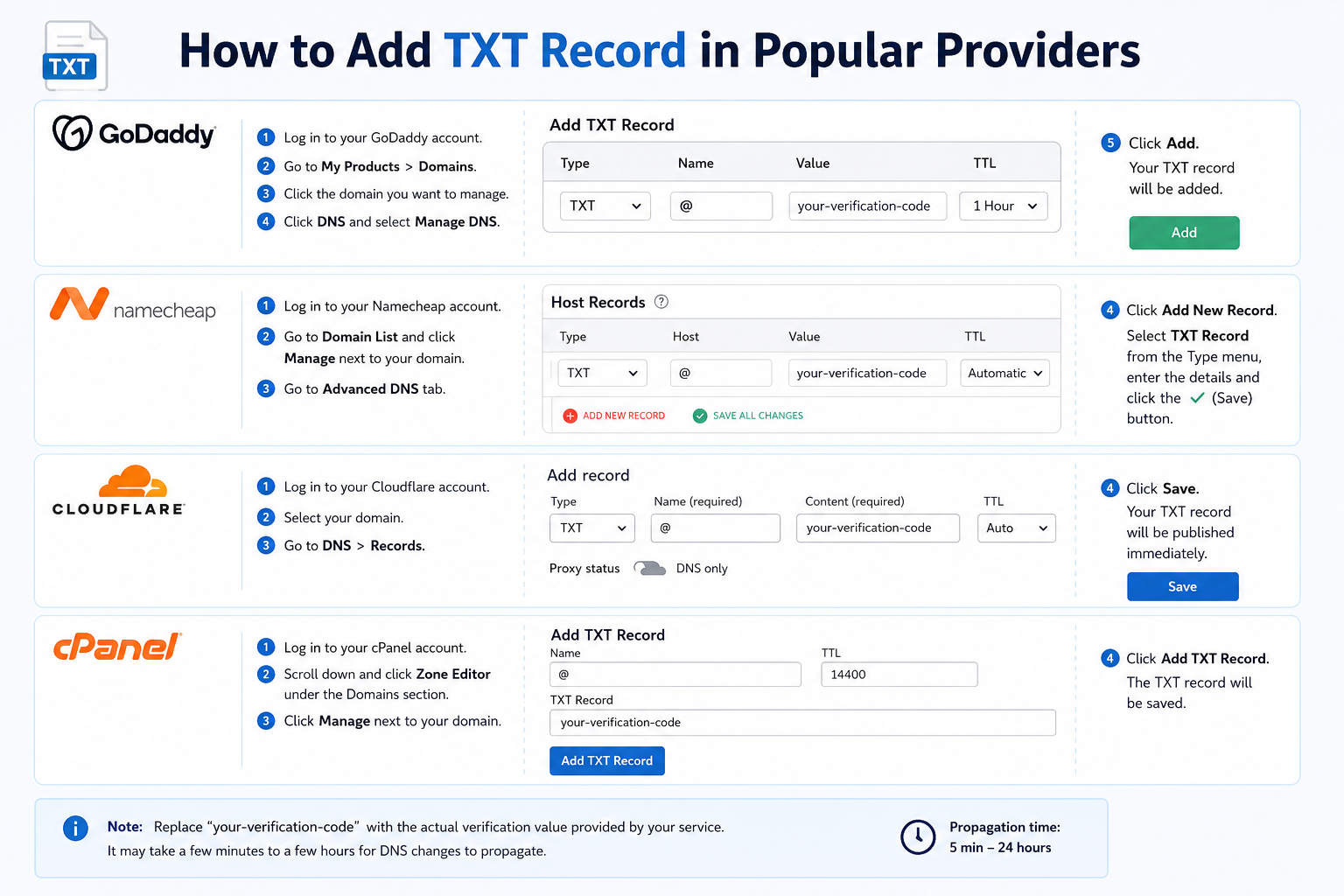
How to Add TXT Record in Popular Providers
GoDaddy
- Go to DNS Management
- Select your domain
- Click “Add Record”
- Choose TXT
- Paste Google code
- Save
Cloudflare
- Open DNS tab
- Click “Add Record”
- Select TXT
- Add @ as name
- Paste verification code
- Save
Namecheap
- Go to Advanced DNS
- Add new TXT record
- Enter host @
- Paste value
- Save changes
cPanel
- Open Zone Editor
- Select domain
- Add TXT record
- Insert Google verification value
- Save
Common Domain Verification Problems
1. TXT Record Not Found
Cause:
- Wrong DNS provider
- Record added in wrong domain
Fix:
- Check correct DNS panel
- Wait for propagation
2. DNS Changes Not Updating
Cause:
- DNS propagation delay
Fix:
- Wait up to 24 hours
- Clear browser cache
3. Incorrect Host Value
Cause:
- Using “www” instead of “@”
Fix:
- Use root domain (@ or blank)
4. Old Verification Code Used
Cause:
- Using expired token
Fix:
- Generate new code in Admin Console
5. Multiple DNS Systems
Cause:
- Domain managed in one place, DNS in another
Fix:
- Identify correct DNS host
How Long Does Verification Take?
| Stage | Time |
| Fast verification | 5–15 minutes |
| Normal cases | 1–4 hours |
| Slow DNS providers | 24–48 hours |
Most schools complete verification same day.
What Happens After Domain Verification?
Once your domain is verified, your school can:
- Create staff and student accounts
- Activate Gmail for school emails
- Use Google Classroom
- Set up Google Drive storage
- Configure security rules in Admin Console
This is the foundation step for full deployment.
Best Practices for Schools
Keep DNS Access Secure
Only trusted IT staff should manage DNS settings.
Document Verification Details
Save:
- TXT record value
- Verification date
- Domain provider login details
Avoid Changing DNS During Setup
Changes during verification can cause delays.
Verify Early
Complete verification before:
- Adding students
- Setting up Classroom
- Email migration