
Introduction
Setting up teacher and student accounts in Google Workspace is one of the first steps schools take when moving toward digital learning. It allows a school to manage all users—teachers, students, and staff—under one secure system with a single domain.
Schools usually manage this setup through the Google Admin Console. From here, administrators create accounts, organize users, assign permissions, and control access to learning tools.
This guide explains the full setup process in a practical, school-focused way, including deployment stages, account structure, and security practices.
Understanding School Account Setup
Account setup means creating managed user identities for teachers and students under the school’s domain (for example: name@school.edu).
Each account gives users:
- A school-managed email address
- Access to approved learning tools
- Centralized login controlled by the school
- Security policies defined by administrators
These accounts are different from personal Google accounts because the school fully manages them.
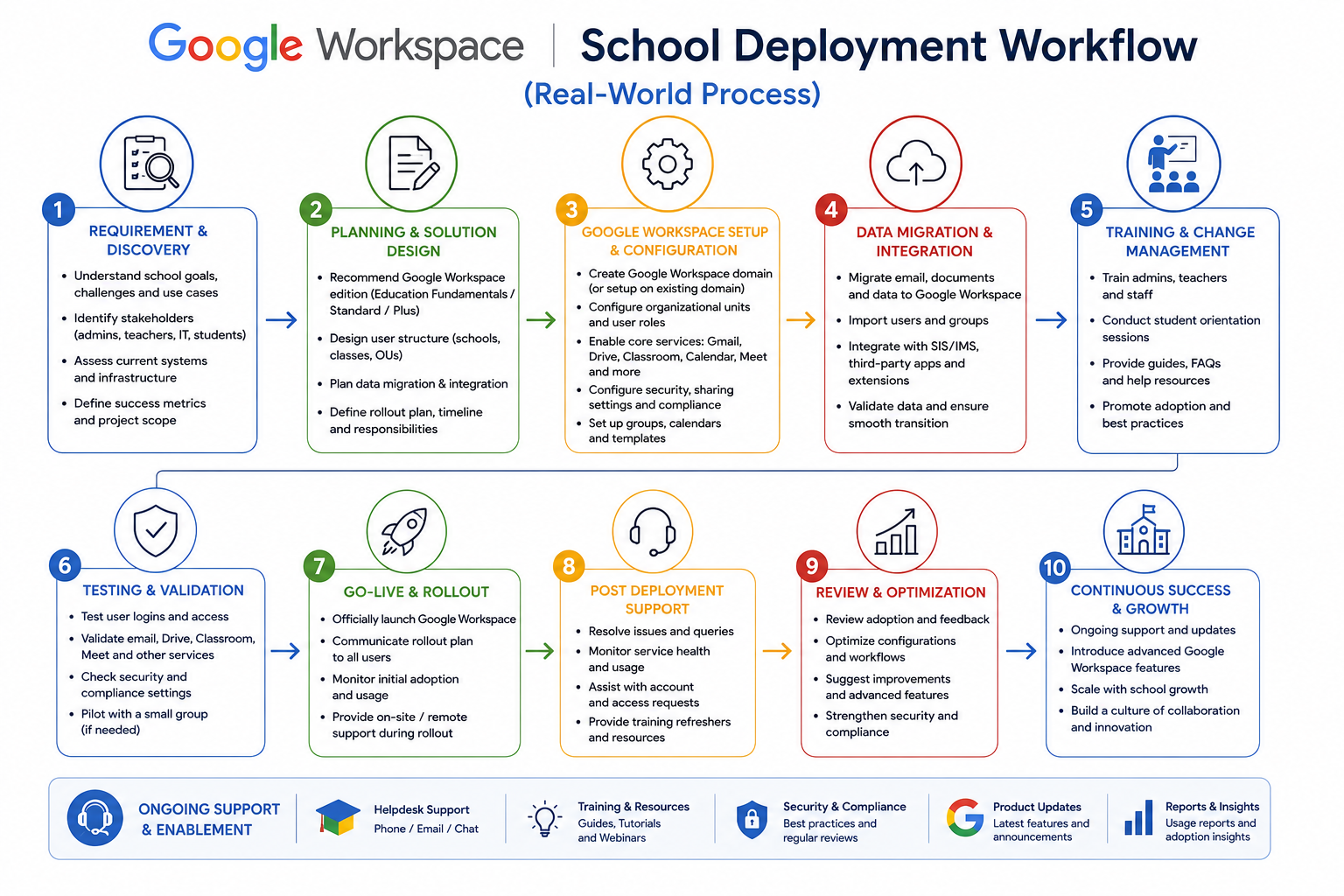
School Deployment Workflow (Real-World Process)
Before creating accounts, schools usually follow a structured rollout process:
1. Planning Phase
- Define number of teachers and students
- Decide school structure (grades, departments, classes)
- Assign IT administrator responsibilities
2. Pilot Phase
- Create accounts for a small group of teachers
- Test classroom usage and communication tools
- Identify configuration issues early
3. Full Teacher Rollout
- Create accounts for all teaching staff
- Train teachers on classroom tools and communication flow
4. Student Account Creation Phase
- Bulk create student accounts by grade or class
- Assign organizational units (OU structure)
5. Full Activation
- Enable classroom use school-wide
- Monitor usage and fix access issues
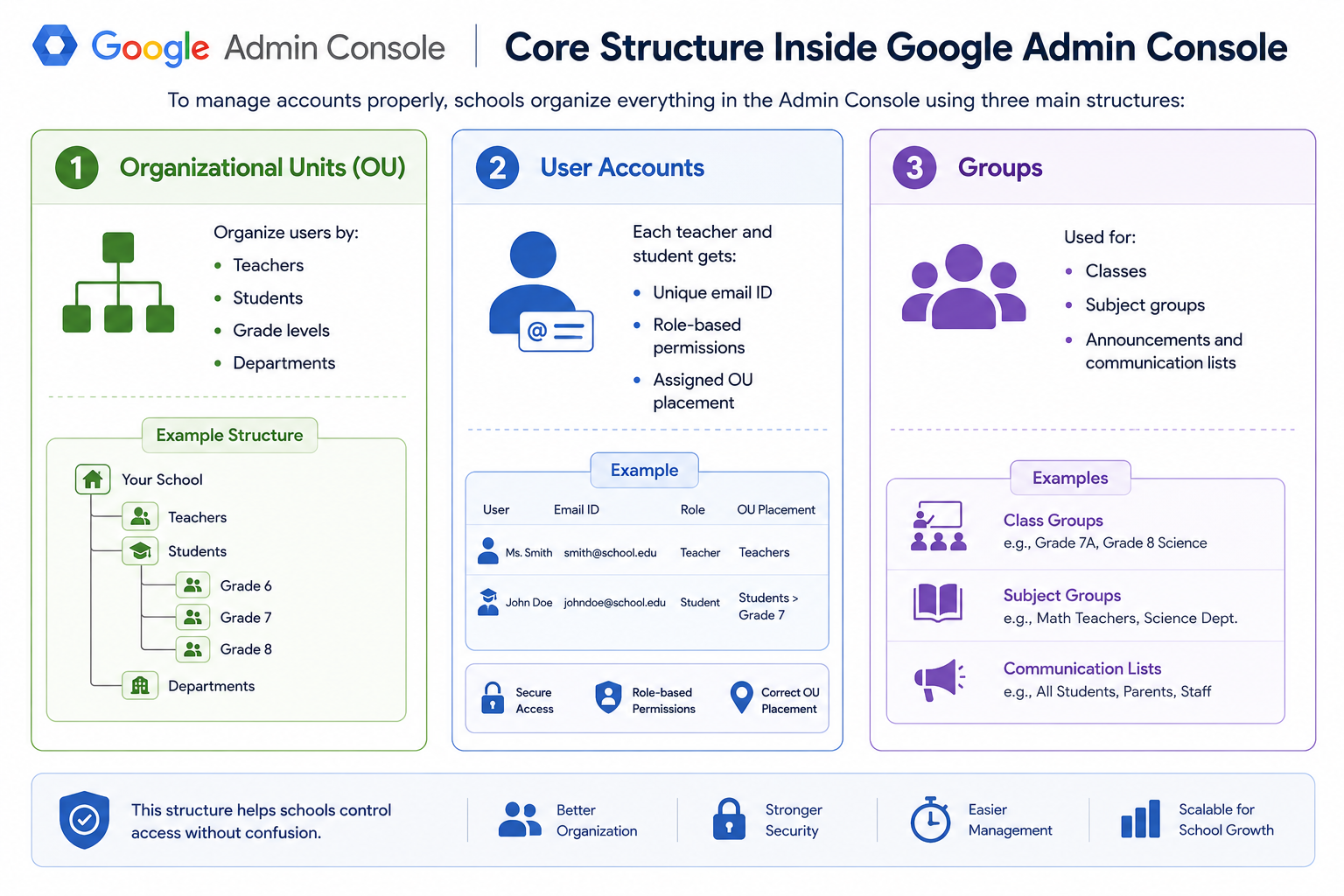
Core Structure Inside Google Admin Console
To manage accounts properly, schools organize everything in the Admin Console using three main structures:
1. Organizational Units (OU)
Organize users by:
- Teachers
- Students
- Grade levels
- Departments
2. User Accounts
Each teacher and student gets:
- Unique email ID
- Role-based permissions
- Assigned OU placement
3. Groups
Used for:
- Classes
- Subject groups
- Announcements and communication lists
This structure helps schools control access without confusion.
Step-by-Step: Setting Up Teacher and Student Accounts
1. Verify School Domain
The school connects its official domain (like school.edu) to Google Workspace.
This step confirms ownership and activates school email services.
2. Access Admin Console
Admins log into the Google Admin Console and navigate to:
- Users
- Organizational Units
- Security Settings
- Apps Management
3. Create Teacher Accounts (First Priority)
Teachers are created first because they lead classroom setup.
For each teacher:
- Enter full name
- Assign official school email
- Set temporary password
- Place in “Teachers” OU
- Assign admin or staff role if needed
After login, teachers can immediately set up classes.
4. Bulk Create Student Accounts
Student accounts are usually created in bulk using a CSV file.
Typical CSV includes:
- Name
- Username
- Password
- Grade level
- OU assignment
Admins upload the file into the Admin Console to generate accounts instantly.
This method supports large schools efficiently.
5. Assign Organizational Units (OU Structure)
Schools separate users into structured groups:
- Teachers OU
- Students OU
- Grade-wise OUs (Grade 1, Grade 2, etc.)
- Staff/Administration OU
This ensures:
- Controlled access
- Easy policy application
- Better security management
6. Enable Core Learning Tools
After accounts are active, admins enable tools such as:
- Google Classroom for assignments and class management
- Google Drive for storage and sharing
- Gmail for communication
- Google Meet for online classes
7. Security Configuration (Critical for Schools)
Before full rollout, administrators must configure security settings:
Password Policies
- Minimum strength requirements
- Mandatory password reset on first login
Two-Step Verification
- Enabled for teachers and admin accounts
- Optional or restricted for students depending on age
Sharing Controls
- Limit external file sharing in Drive
- Restrict public link access for students
Account Recovery Rules
- Recovery email policies for staff accounts
8. Secure Distribution of Login Credentials
Once accounts are created:
- Teachers receive credentials first
- Students receive credentials in batches
- Passwords are shared securely (not publicly or in open groups)
- First login requires password change
Benefits of Proper Account Setup
For Teachers
- Structured class management
- Easy assignment distribution
- Centralized communication system
For Students
- One login for all learning tools
- Organized access to coursework
- Simple collaboration with peers
For School Administrators
- Full control over user access
- Centralized security policies
- Easy scaling for new academic years
Common Mistakes Schools Should Avoid
- Creating accounts without OU structure
- Mixing teachers and students in one group
- Skipping security configuration before rollout
- Sharing passwords in unsecured channels
- Not planning bulk onboarding in advance
Classroom Example (Real Usage Flow)
A school setting up Grade 9:
- Teachers receive accounts first
- Students are added using bulk CSV upload
- Students are placed into “Grade 9 OU”
- Teacher creates a class in Google Classroom
- Assignments are posted and submitted digitally
- Communication happens through school email system