

When schools start using Google Admin Console, one of the first real tasks is organizing users properly. This is where Organizational Units (OUs) become important. They help schools separate students, teachers, and staff so each group gets the right access and settings.
If everything stays in one group, things quickly become messy. Teachers may get access they should not have, and students may miss important tools. OUs fix this by giving structure to your school inside Google Workspace.
What Organizational Units Actually Do
Organizational Units are like folders for your school users. Each folder holds a specific group, such as:
- Students of different grades
- Teachers by department
- Administrative staff
- IT team
Each group can have different rules. For example, you can allow teachers to use Google Meet freely but restrict student meeting creation.
This separation keeps your school system clean and easier to manage.
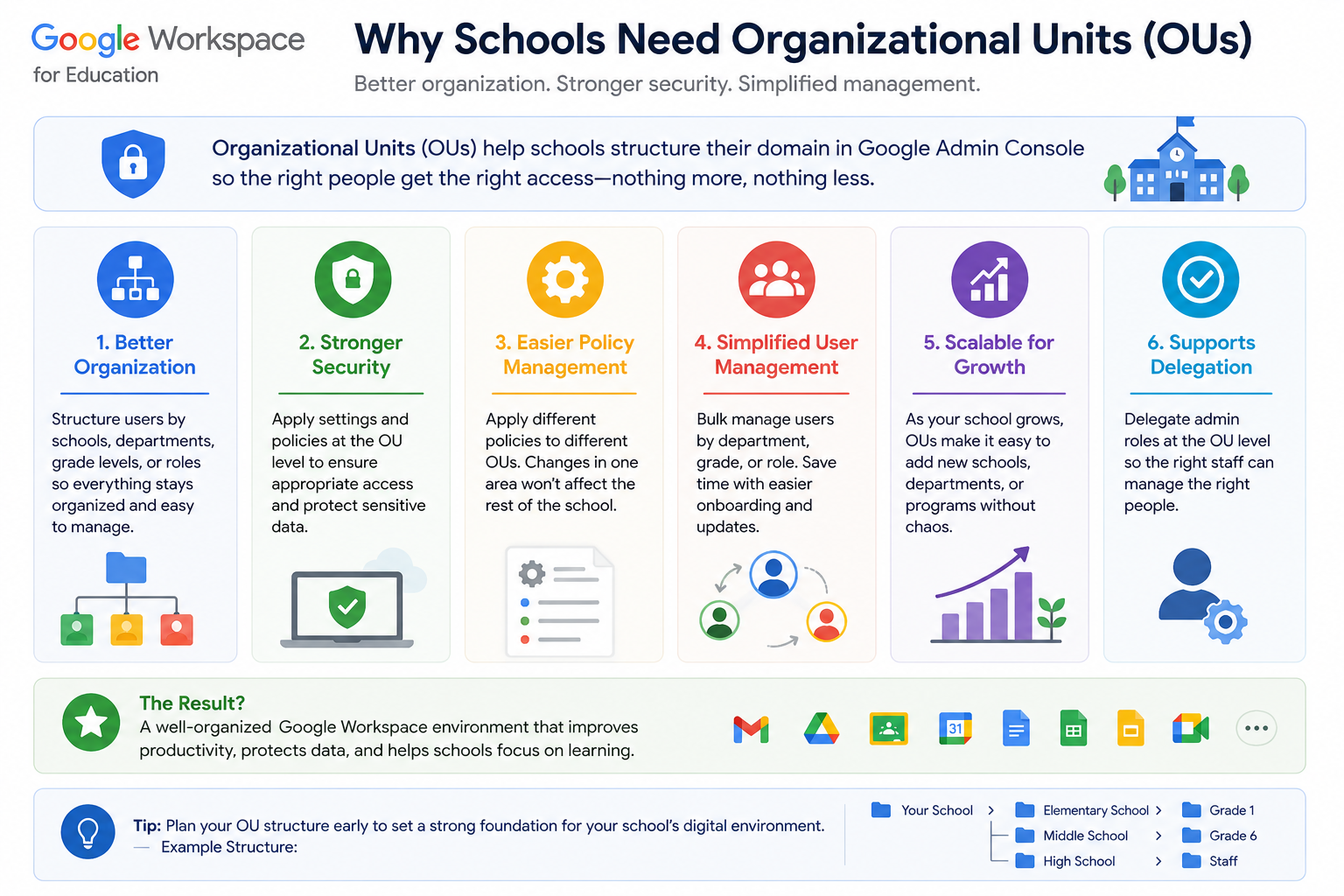
Why Schools Need Organizational Units
In a school environment, not every user should have the same access. OUs help solve this problem in a simple way.
For example:
- A Grade 5 student should not install apps
- A teacher should be able to create classes
- IT admins should control security settings
Without OUs, everything becomes one mixed group, which makes control difficult.
Step-by-Step: Setting Up Organizational Units
1. Open Admin Console
Sign in to the Google Admin Console using your admin account.
2. Go to Organizational Units
From the dashboard:
- Click Directory
- Select Organizational Units
You will see your main school structure here.
3. Create a New Unit
Click Create OU and give it a clear name.
Examples:
- Students
- Teachers
- Admin Staff
- Grade 1, Grade 2, etc.
Keep names simple so your team can understand them easily later.
4. Assign Users to Units
Now move users into the correct OU:
- Select a user
- Choose “Change Organizational Unit”
- Move them to the right group
For example, a new teacher goes into the “Teachers” OU.
5. Apply Settings to Each Unit
This is the most powerful part.
You can control:
- App access (Drive, Gmail, Meet)
- Security rules
- Login restrictions
- Device permissions
Each OU can behave differently depending on school needs.
🏫 Real School Example
Imagine a school with 3 groups:
- Primary Students
- Secondary Students
- Teachers
You can set it like this:
- Primary Students → restricted YouTube access
- Secondary Students → allowed Google Classroom + Meet
- Teachers → full access to teaching tools
This makes day-to-day management much easier for IT staff.
⚠️ Common Mistakes Schools Make
Many schools struggle at the beginning. Here are common issues:
- Putting all users in one OU
- Using confusing names like “Group1” or “Test OU”
- Not separating students by level
- Forgetting to apply settings after creating OUs
These mistakes create long-term management problems.
🔧 Troubleshooting Tips
If things are not working properly:
- Check if the user is in the correct OU
- Verify if settings were applied to that OU
- Refresh policy changes (can take some time)
- Avoid overlapping rules between OUs
Most issues come from incorrect placement, not system errors.
👩🏫 Teacher and Student Impact
For teachers:
- Easier classroom setup
- Less restriction issues
- Better control over tools
For students:
- Safer environment
- Only necessary tools visible
- Reduced distractions
For IT admins:
- Full control without micromanaging each user
- Cleaner system structure
- Easier troubleshooting