
When a school starts using Google Workspace for Education, the first accounts and tools often get attention. But the real foundation of a safe and stable setup is the default domain settings inside the Admin console.
These settings decide how teachers and students use Gmail, Drive, Meet, and Classroom across the entire school. If they are not set correctly at the beginning, schools often face problems like unwanted file sharing, unsafe communication, or confusion in user access.
This guide explains how to correctly configure default settings for a school domain in a practical, step-by-step way for administrators.
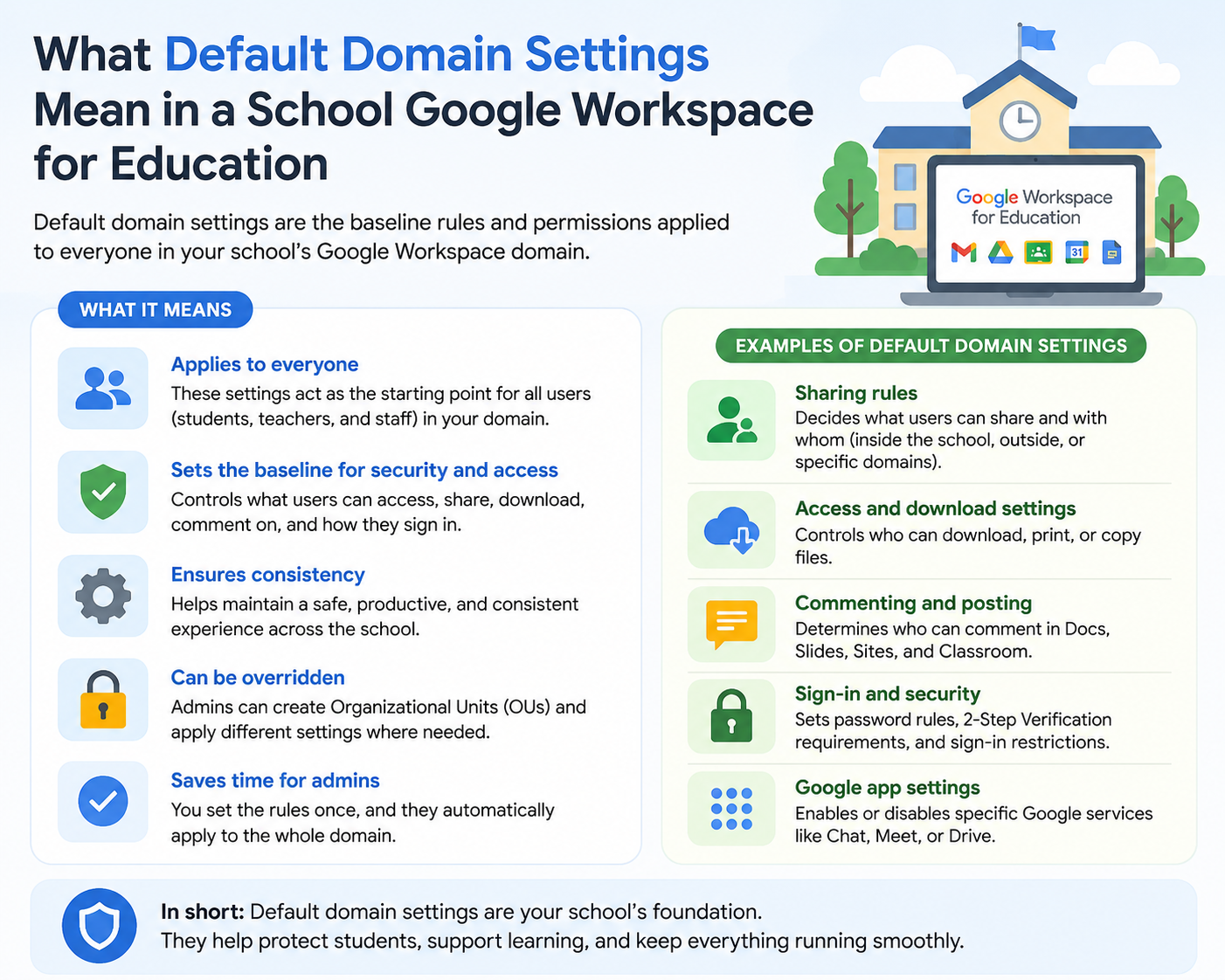
What Default Domain Settings Mean in a School
Default domain settings are global rules applied to all users in your school domain. Instead of configuring each account separately, you set one rule that applies everywhere.
These settings control things like:
- Who can share files outside the school
- Whether students can email external users
- How Google Meet meetings are accessed
- What information appears in user profiles
- Which Google services are available
Think of it as the basic rulebook for your entire school’s digital system.
Where These Settings Are Managed (Admin Console Path)
Most configuration work happens in the Google Admin console:
Admin Console → Directory → Settings / Apps / Security sections
Key areas you will use:
- Apps → Google Workspace (Gmail, Drive, Meet, Classroom)
- Directory → Users & profile sharing
- Security → Access and login control
- Devices → Mobile and session control
Each area controls a different part of your school’s system.
Step 1: Set Up Safe Organization-Wide Defaults
Before adjusting individual apps, set a safe baseline for all users.
Recommended baseline settings:
- Default sharing = internal only
- External communication = restricted by default
- File visibility = private to organization
- Service access = enabled only for required apps
This ensures no user accidentally exposes school data.
Step 2: Configure User Profile Visibility
Schools need balance between collaboration and privacy.
Recommended configuration:
- Allow internal directory access (teachers + students can find each other)
- Hide sensitive personal details like:
- Phone numbers
- Alternate emails
- Recovery contacts
Why this matters:
Students should collaborate easily but not access unnecessary personal data.
Step 3: Configure Gmail Default Settings
Gmail is the main communication tool, so incorrect settings can create security risks.
Recommended Gmail setup:
External Email Access
- Teachers: allowed
- Students: restricted or limited (based on age group)
Spam and Security
- Enable phishing protection
- Enable malware detection
- Enable spam filtering
Attachments
- Block executable files (.exe, .bat, .js)
- Allow only safe document types
This reduces email-based threats inside schools.
Step 4: Configure Google Drive Sharing Defaults
Drive is where most school data lives, so this is one of the most important settings.
Recommended Drive settings:
File Sharing
- Default: Restricted to school domain
- External sharing: disabled for students
- External sharing: allowed for teachers (controlled)
Link Sharing
- Turn OFF “Anyone with link” for students
- Allow internal sharing only
Example rule:
A student project file should only be visible to:
- Teacher
- Classmates (if required)
Not the public internet.
Step 5: Configure Google Meet Settings
Google Meet is used for online classes, so control is critical.
Recommended Meet settings:
Meeting access
- Only users in the domain can create meetings (students)
- Teachers can create meetings with external participants if needed
Recording
- Allowed for teachers only
- Disabled for students
External access
- Block unknown users from joining school meetings
Why this matters:
It prevents strangers from joining virtual classrooms.
Step 6: Configure Google Calendar Rules
Calendar controls school scheduling and visibility.
Recommended settings:
Teachers:
- Can view and manage schedules
- Can create and share events
Students:
- Limited visibility of detailed staff calendars
- Can view class schedules only
This avoids exposing staff routines unnecessarily.
Step 7: Control Google Classroom Access
Google Classroom is central to teaching workflows.
Recommended setup:
- Only verified teachers can create classes
- Students can only join using invitation codes
- Guardian summaries enabled (where needed)
- Class visibility limited to school domain
Why this matters:
It prevents fake or unauthorized classes from being created.
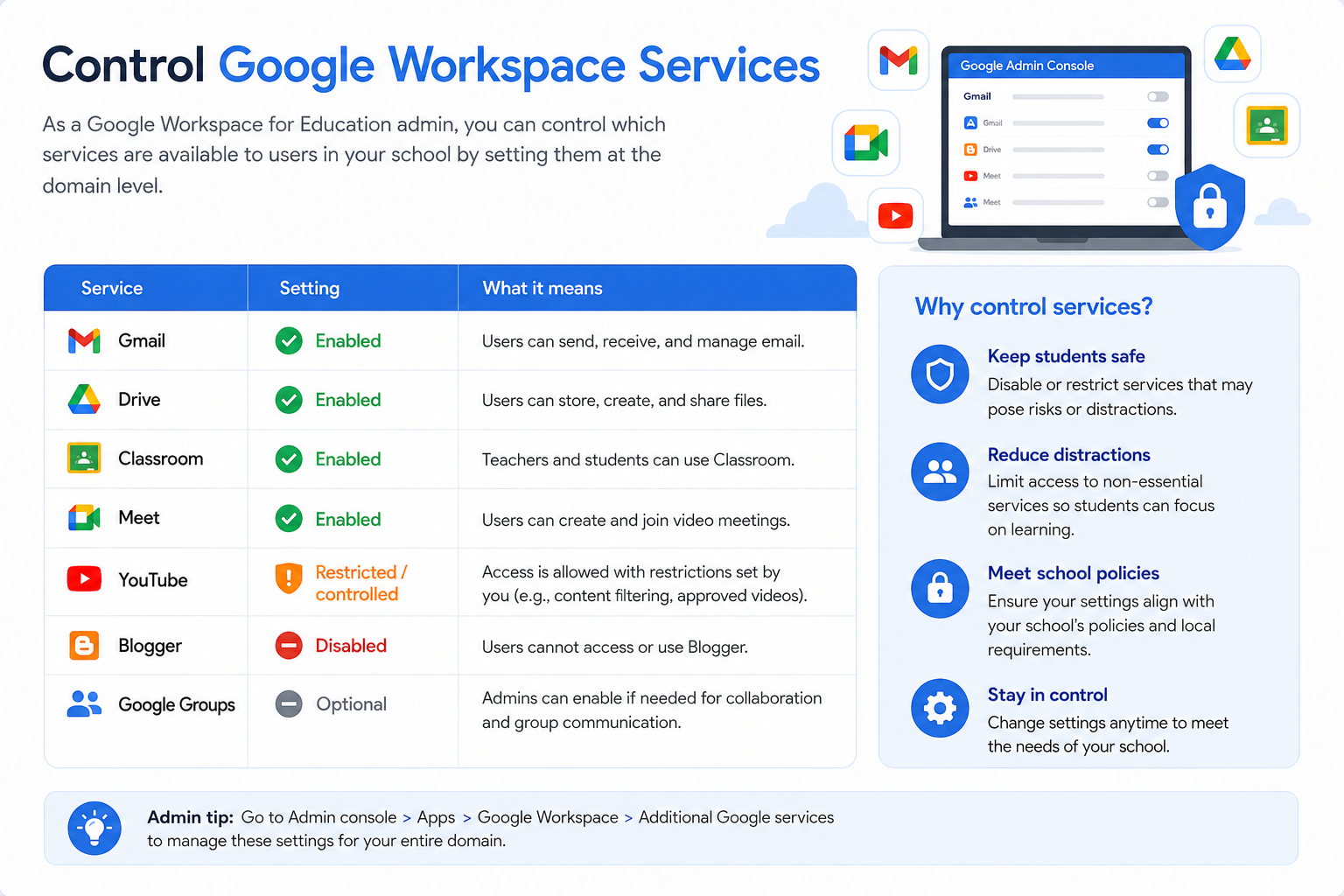
Step 8: Control Google Workspace Services
Not all Google services are needed in schools.
Recommended service access:
Service | Setting |
Gmail | Enabled |
Drive | Enabled |
Classroom | Enabled |
Meet | Enabled |
YouTube | Restricted / controlled |
Blogger | Disabled |
Google Groups | Optional |
Only enable what supports learning.
Step 9: Apply Role-Based Settings (Very Important)
One of the most common mistakes is treating all users the same.
Teachers
- Full Drive collaboration
- Meet recording access
- Classroom creation allowed
- External communication (controlled)
Students
- Restricted file sharing
- Limited external communication
- Controlled Meet participation
- Classroom join only
Administrators
- Full access to Admin console
- Security reports
- Audit logs
This structure keeps control clear and organized.
Step 10: Apply Security and Login Controls
Security settings protect school accounts from misuse.
Recommended settings:
Password rules
- Strong passwords required
- Regular reset policy (optional)
Login controls
- Enable 2-step verification for staff
- Limit login sessions on unknown devices
Device control
- Allow managed devices only (for staff where possible)
Step 11: Test Settings Before Full Rollout
Never apply settings to the whole school without testing.
Create a pilot group:
- 2–3 teachers
- 5–10 students
- 1 admin account
Test:
- Gmail sending/receiving
- Drive sharing
- Meet access
- Classroom access
Fix issues before full deployment.
Common Problems Schools Face (and Fixes)
1. Students cannot share files
Cause: Drive sharing restricted
Fix: Enable internal sharing for student OU
2. External emails not working
Cause: Gmail external access disabled
Fix: Enable for teacher OU only
3. Students cannot join Meet
Cause: Meeting access blocked
Fix: Allow domain-based access
4. Classroom not visible
Cause: Service not enabled for OU
Fix: Enable Classroom in Apps settings
Best Practices for School Domain Setup
To maintain a stable system:
- Use separate Organizational Units for students and staff
- Review settings every term
- Document all configuration changes
- Restrict external sharing by default
- Enable only required services
- Train teachers on safe sharing practices
Internal Setup Flow (Recommended Order)
For best results, configure settings in this order:
- Organizational Units setup
- User creation
- Gmail + Drive policies
- Meet settings
- Classroom setup
- Security settings
- Testing phase
This prevents configuration conflicts later.
Summary
Configuring default settings for a school domain is one of the most important steps in Google Workspace for Education setup. It defines how teachers and students communicate, share files, attend classes, and stay secure online.
A properly configured domain ensures:
- Safe communication
- Controlled file sharing
- Structured learning environment
- Reduced administrative workload
- Strong data protection
When done correctly from the start, it prevents most common school IT problems later.