
Introduction
Schools using Google Workspace need a structured way to control who can access emails, files, classrooms, and collaboration tools. Teachers, students, and administrative staff all require different permissions, and managing them one by one quickly becomes difficult.
Inside Google Admin Console, schools can organize users into groups and assign controlled access to services. This helps IT administrators manage accounts consistently, reduce security risks, and keep school data organized.
This guide explains how user groups work, how access control is applied in schools, and how administrators can structure everything in a clean, scalable way.
Search Intent
Intent Type: Workflow Guide (School IT Administration)
This article focuses on:
- Setting up user groups
- Applying service access control
- Managing school users at scale
It does NOT cover pricing, licensing, or migration.
What Are User Groups in Google Workspace?
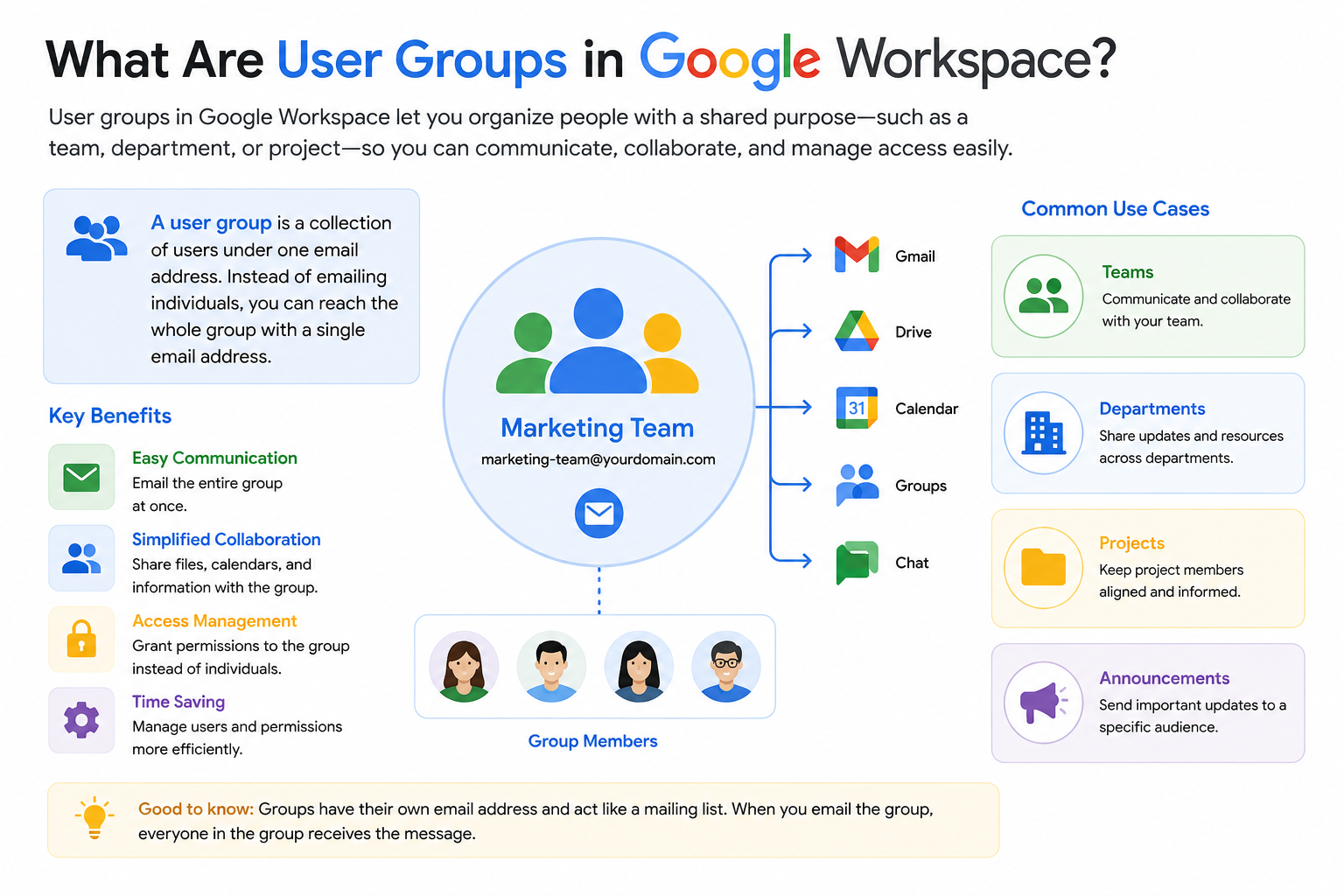
User groups are collections of users who share a common role or function inside a school environment.
A group is typically used for:
- Communication (email distribution)
- File sharing permissions
- Access control to apps and services
- Classroom and department organization
Common school group examples:
- Teachers Group
- Students Group
- Admin Staff Group
- Exam Committee Group
- IT Support Group
Groups help schools avoid assigning permissions manually to each user.
What “Access Control” Means in Schools
In Google Workspace for Education, “access control” refers to how administrators decide which users can use which services and features.
This is managed through:
- Group-based permissions
- Organizational Units (OUs)
- Admin roles and privileges
- App access settings (Gmail, Drive, Classroom, Meet)
Important clarification
“Access levels” is not a single button or setting in Google Workspace. Instead, it is a combination of multiple control systems that work together.
Key Difference: Groups vs Organizational Units vs Admin Roles
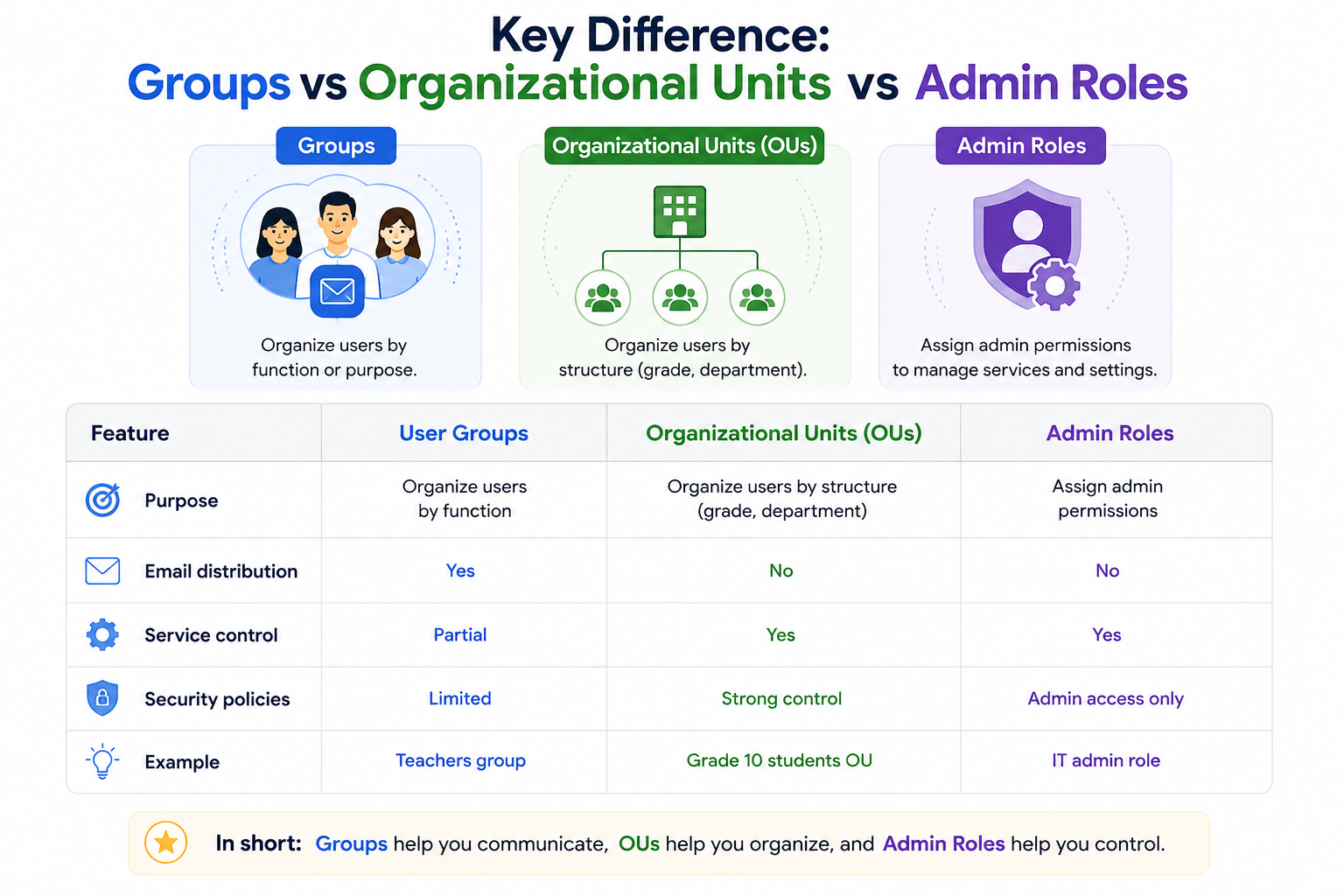
Understanding this difference is critical for school administrators.
| Feature | User Groups | Organizational Units (OUs) | Admin Roles |
| Purpose | Organize users by function | Organize users by structure (grade, department) | Assign admin permissions |
| Email distribution | Yes | No | No |
| Service control | Partial | Yes | Yes |
| Security policies | Limited | Strong control | Admin access only |
| Example | Teachers group | Grade 10 students OU | IT admin role |
👉 Schools usually use all three together for full control.
How Schools Typically Structure Google Workspace
A standard school setup often looks like this:
Organizational Units (Structure Layer)
- Students
- Grade 6
- Grade 7
- Grade 8
- Teachers
- Staff
- Administration
User Groups (Functional Layer)
- Subject Teachers Group
- Class Teachers Group
- Exam Committee Group
- Library Staff Group
Admin Roles (Control Layer)
- Super Admin (IT head)
- User Management Admin
- Security Admin
- Helpdesk Support
This layered model ensures both structure and flexibility.
Step-by-Step: Creating User Groups in Admin Console
Step 1: Sign in to Admin Console
Access Google Admin Console using an administrator account.
Step 2: Open Groups Section
Navigate to:
- Directory → Groups
Step 3: Create a New Group
Enter:
- Group name (e.g., Grade 8 Teachers)
- Group email address
- Description (optional but recommended)
Step 4: Add Members
Add users such as:
- Teachers
- Students (if needed for announcements)
- Staff members
Step 5: Configure Group Permissions
Set what the group can do:
- View members
- Post messages
- Manage group settings (admin only)
Step 6: Apply Service Access Settings
Go to:
- Apps → Google Workspace services
Then define access for the group:
- Gmail access
- Google Drive access
- Google Classroom access
- Google Meet access
Step 7: Save and Validate
Review settings carefully before applying changes across the school domain.
Real School Example: Group-Based Access Model
A practical school setup might look like this:
Teachers Group
- Full access to Classroom
- Drive file sharing enabled
- Meet hosting allowed
Students Group
- Classroom access only
- Restricted external Drive sharing
- No admin controls
Admin Staff Group
- Full access to Admin Console (limited roles depending on responsibility)
- Access to reports and user management tools
Exam Committee Group
- Temporary access to Google Forms and Drive folders
- Restricted sharing outside group
Best Practices for Schools
To maintain a stable system, schools should follow these practices:
- Use clear and consistent naming conventions (e.g., “Grade 8 Teachers”)
- Avoid mixing students and teachers in the same group
- Assign permissions based on role, not individual requests
- Review group membership every academic term
- Limit external sharing for student groups
- Use OUs for structure and groups for functionality
Common Issues and Fixes
1. Users not receiving group emails
Check:
- Group posting permissions
- Member status
- Email delivery settings
2. Students cannot access Google Classroom
Check:
- OU assignment
- Classroom service enabled
- Group access restrictions
3. Drive sharing not working
Check:
- Sharing settings at OU level
- Group-level restrictions
- Admin security policies
4. Confusion between groups and OUs
Fix:
- Use OUs for structure (grades, departments)
- Use groups for communication and workflows
When Schools Should Use Groups vs OUs
- Use OUs when controlling policies (security, app access, restrictions)
- Use Groups when organizing communication or shared access
- Use Admin Roles when assigning IT responsibilities
This separation keeps the system scalable and secure.
Internal Linking Suggestions (Topical Cluster)
This article should connect to:
- Google Classroom Setup Guide for Schools
- Google Meet for Online Learning
- Google Drive for Students and Teachers
- Google Admin Console Security Settings
- Google Workspace for Education Overview
Summary
User groups and access control in Google Workspace provide schools with a structured way to manage digital learning environments. When combined with Organizational Units and Admin roles inside Google Admin Console, schools can build a secure, scalable, and easy-to-manage system.
A well-planned structure reduces IT workload, improves security, and ensures every user has the right level of access based on their role.