
As your organization grows, one person shouldn’t have to manage every administrative task. You may want your IT technician to reset passwords, your HR manager to manage user accounts, or your security officer to monitor security settings.
Google Workspace makes this possible through Admin Roles. Rather than giving everyone full administrative access, you can assign only the permissions they need to perform their job.
This approach follows the principle of least privilege, which means each administrator receives only the access required for their responsibilities. It reduces security risks while making day-to-day administration much easier.
In this guide, you’ll learn how to assign admin roles in Google Workspace, what each role is used for, and the best practices to keep your organization secure.
What Are Admin Roles in Google Workspace?
An admin role is a collection of permissions that allows a user to perform specific administrative tasks.
Instead of making every administrator a Super Admin, Google Workspace lets you delegate responsibilities by assigning predefined or custom roles.
For example:
- Your help desk staff can reset user passwords.
- Your HR department can create or suspend user accounts.
- Your security team can review alerts and security settings.
- Your device administrator can manage company-owned mobile devices.
This makes administration more organized while reducing unnecessary access to sensitive settings.
Who Can Assign Admin Roles?
Only users who already have permission to manage administrator roles can assign them to others.
In most organizations, this is typically the Super Admin, although custom administrator roles with the required privileges can also perform this task.
If you don’t see the option to assign roles, your own administrator account may not have the necessary permissions.
Types of Admin Roles
Google Workspace includes several predefined administrator roles designed for common business needs.
Some of the most commonly used roles include:
Super Admin
The Super Admin has complete control over the Google Workspace organization.
This role can:
- Manage users
- Assign admin roles
- Configure security settings
- Manage billing
- Change organizational settings
Because this role has unrestricted access, it should only be assigned to trusted individuals.
User Management Admin
This role is designed for administrators who manage employee accounts.
Typical responsibilities include:
- Creating users
- Updating user information
- Suspending users
- Restoring suspended accounts
- Resetting passwords
They cannot access billing or organization-wide security settings unless additional permissions are granted.
Groups Admin
A Groups Admin manages Google Groups across the organization.
Their responsibilities include:
- Creating groups
- Editing group settings
- Managing members
- Removing outdated groups
This role is useful for organizations that rely heavily on shared email groups and team collaboration.
Help Desk Admin
Help Desk Admins assist employees with common account issues.
Typical tasks include:
- Resetting passwords
- Assisting with account access
- Managing two-step verification for users
This role is ideal for first-level IT support staff.
Services Admin
A Services Admin can manage settings for selected Google Workspace services without having full administrative control.
For example, they may manage Gmail or Google Drive settings while being restricted from unrelated administrative functions.
How to Assign an Admin Role in Google Workspace
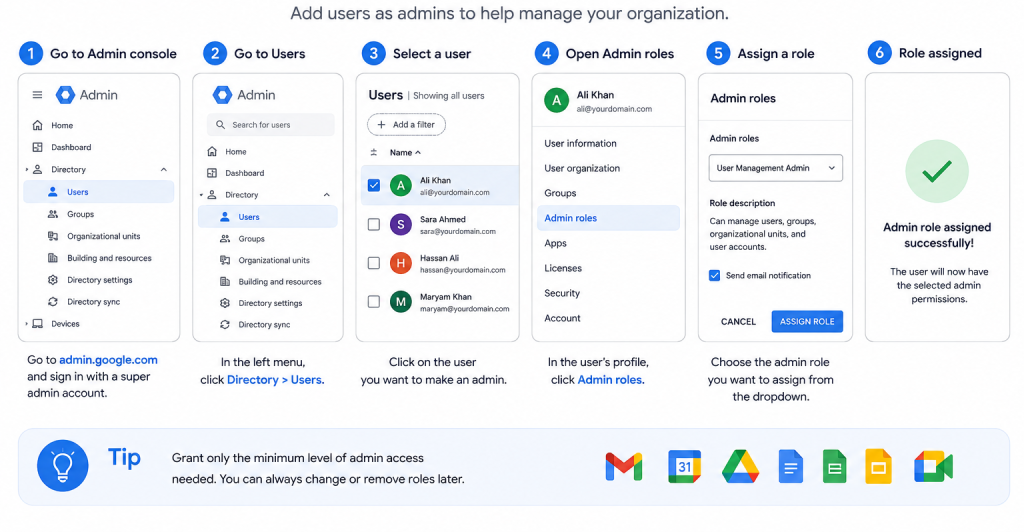
Once you’ve decided which level of access a user needs, assigning an admin role takes only a few minutes.
Follow these steps:
Step 1: Sign in to the Google Admin Console
Sign in using an administrator account that has permission to manage admin roles.
Step 2: Open Users
From the left navigation menu, select Directory, then click Users.
You’ll see a list of all users in your organization.
Step 3: Select the User
Click the name of the user who should receive administrative privileges.
This opens the user’s profile page.
Step 4: Open Admin Roles and Privileges
Scroll until you find Admin roles and privileges.
Click Assign Roles (or the edit option, depending on your Admin console interface).
Step 5: Choose the Appropriate Role
A list of available admin roles will appear.
Select the role that best matches the user’s responsibilities.
For example:
- Help Desk Admin for IT support staff
- User Management Admin for HR or IT administrators
- Groups Admin for collaboration management
- Services Admin for managing specific Google Workspace services
Avoid choosing Super Admin unless it is absolutely necessary.
Step 6: Save the Changes
Click Save.
The user will receive their new administrative permissions, although some changes may take a few minutes to become active across all Google Workspace services.
How to Verify That the Role Was Assigned
After saving, it’s a good idea to confirm that the assignment was successful.
You can verify this by:
- Opening the user’s profile again.
- Checking the Admin roles and privileges section.
- Confirming that the assigned role appears in the list.
You can also ask the administrator to sign in and verify that the appropriate management options are now available in the Admin console.
Best Practices for Assigning Admin Roles
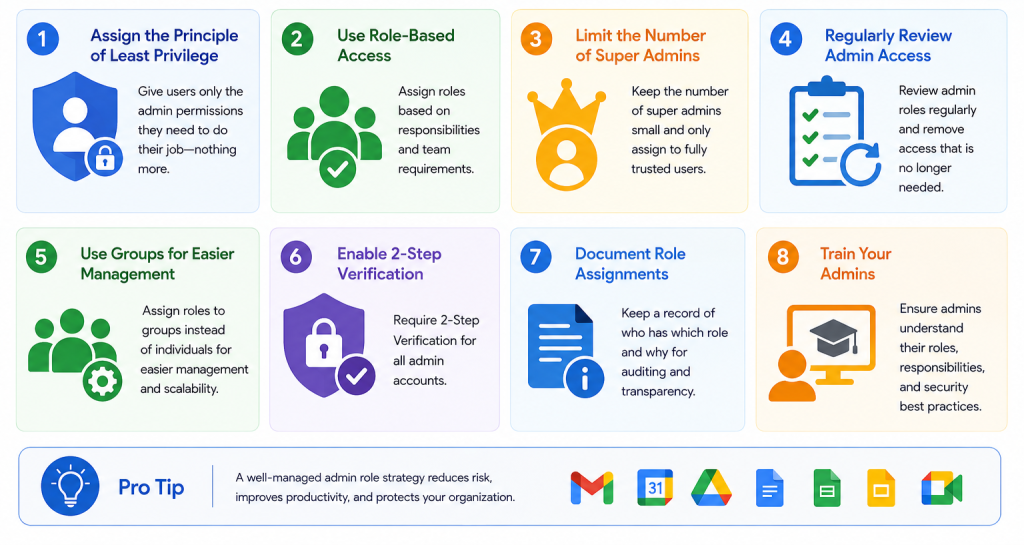
Assigning administrator privileges is more than just clicking a button. Following a few best practices can help protect your organization’s data and reduce security risks.
Follow the Principle of Least Privilege
Only grant the permissions a person needs to perform their job.
For example, if someone only resets passwords, they don’t need Super Admin access.
Limit the Number of Super Admins
Google recommends keeping the number of Super Admin accounts as low as possible.
Having too many Super Admins increases the risk of accidental changes or unauthorized access.
Many organizations operate successfully with just two or three trusted Super Admins.
Review Admin Roles Regularly
People change departments, receive promotions, or leave the company.
Schedule periodic reviews to ensure administrator permissions are still appropriate.
Removing unnecessary privileges improves your overall security.
Enable Two-Step Verification
Administrator accounts should always be protected with two-step verification.
This adds an extra layer of security, making it much harder for attackers to gain access even if a password is compromised.
Document Administrative Responsibilities
Keep a record of:
- Who has administrator access
- Which roles they have
- Why they need those permissions
This makes future audits and troubleshooting much easier.
Common Mistakes to Avoid
Many organizations accidentally assign more permissions than necessary. Here are some common mistakes to avoid.
Giving Everyone Super Admin Access
This is one of the biggest security mistakes.
Super Admins can make organization-wide changes, including deleting users, changing security settings, and assigning additional administrators.
Reserve this role for only a few trusted individuals.
Choosing the Wrong Role
Take a moment to review what each predefined role can do before assigning it.
Selecting the wrong role may either limit the user’s ability to work or give them access they don’t actually need.
Forgetting to Remove Old Permissions
When employees change roles or leave the organization, remember to update or remove their administrator privileges.
Unused admin accounts can become a security risk.
Skipping Regular Permission Reviews
Administrative access should not be a “set it and forget it” task.
Regular reviews help ensure your organization stays secure and compliant as it grows.
Frequently Asked Questions
Yes. A user can be assigned more than one admin role if their responsibilities require additional permissions. Google Workspace combines the permissions from all assigned roles. However, it’s still best to grant only the access they actually need.
In most cases, the changes take effect within a few minutes. Occasionally, it may take a little longer for the new permissions to apply across all Google Workspace services.
Yes. You can edit a user’s assigned roles at any time from the Google Admin console. Removing unnecessary administrator privileges is a good security practice, especially when an employee changes roles or leaves the organization.
Yes. Google Workspace allows organizations to create custom admin roles with specific permissions. This is useful when the predefined roles don’t match your organization’s requirements.
- It is recommended to keep the number of Super Admins as low as possible. Most organizations only need two or three trusted Super Admins for backup and business continuity. Limiting this role reduces the risk of accidental changes and improves overall security.
Conclusion
Assigning admin roles in Google Workspace is a simple but important task that helps you share administrative responsibilities while keeping your organization’s data secure.
Instead of giving every administrator full control, assign roles based on each person’s responsibilities. Whether you’re managing IT support, user accounts, or Google Groups, choosing the right role helps improve security, accountability, and day-to-day administration.
As your organization grows, make it a habit to review administrator permissions regularly and remove access that is no longer needed. Following these best practices will help you maintain a secure and well-managed Google Workspace environment.
Suggested Internal Links
To help readers continue learning without overlapping topics, consider linking to these related articles:
- How to Add, Edit, and Remove Users in Google Workspace
- How to Suspend or Restore Users in Google Workspace
- Google Workspace Admin Console Guide
- How to Reset User Passwords in Google Workspace
- Google Workspace Security Best Practices
- How to Create Custom Admin Roles in Google Workspace
Author Bio
This guide is brought to you by Asher Feroze.
I’ve worked in various roles at CreativeON, including Manager Operations, Manager Marketing, and Level 2 Client Support. These days, I focus on helping people like you understand our products—whether it’s Domains, Dedicated Servers, VPS, Cloud Hosting, or Google Workspace—in simple, practical language. My goal is to make technology work for your business, not against it.