
If you’re responsible for managing your company’s Google Workspace account, one of the first things you’ll notice is that not every administrator needs the same level of access. Giving every IT staff member full administrative control may seem convenient, but it also increases security risks and the chances of accidental changes.
That’s where Google Workspace Administrator Roles become important. They allow you to assign specific responsibilities to different administrators while limiting access to only the tools and settings they actually need.
Whether you’re managing a small business in the UAE or a growing organization with multiple IT team members, understanding administrator roles helps improve security, simplify management, and follow the principle of least privilege.
In this guide, you’ll learn what Google Workspace administrator roles are, the different types available, when to use each one, and the best practices for managing administrator access.
What Are Google Workspace Administrator Roles?
Google Workspace Administrator Roles are predefined or custom sets of permissions that determine what an administrator can view, manage, or modify within the Google Workspace Admin console.
Instead of giving every administrator complete control over your organization’s account, Google Workspace lets you delegate specific responsibilities based on job roles.
For example:
- Your IT manager may need full administrative access.
- Your help desk team may only need permission to reset user passwords.
- Your security officer may only manage security settings.
- Your HR administrator may only create and suspend employee accounts.
This role-based approach makes administration more secure and organized, especially as your business grows.
Why Google Workspace Uses Different Administrator Roles
Every organization has different teams handling different responsibilities. Giving everyone the same level of access isn’t necessary—and it can create unnecessary security risks.
By assigning appropriate administrator roles, organizations can:
- Reduce the risk of accidental configuration changes.
- Protect sensitive company settings.
- Limit access to confidential information.
- Improve accountability by assigning responsibilities clearly.
- Follow security best practices and compliance requirements.
- Delegate daily administrative tasks without exposing the entire environment.
For businesses in the UAE, especially those in industries such as finance, healthcare, education, and government contracting, role-based administration also helps meet internal security policies and regulatory requirements.
Built-in Google Workspace Administrator Roles
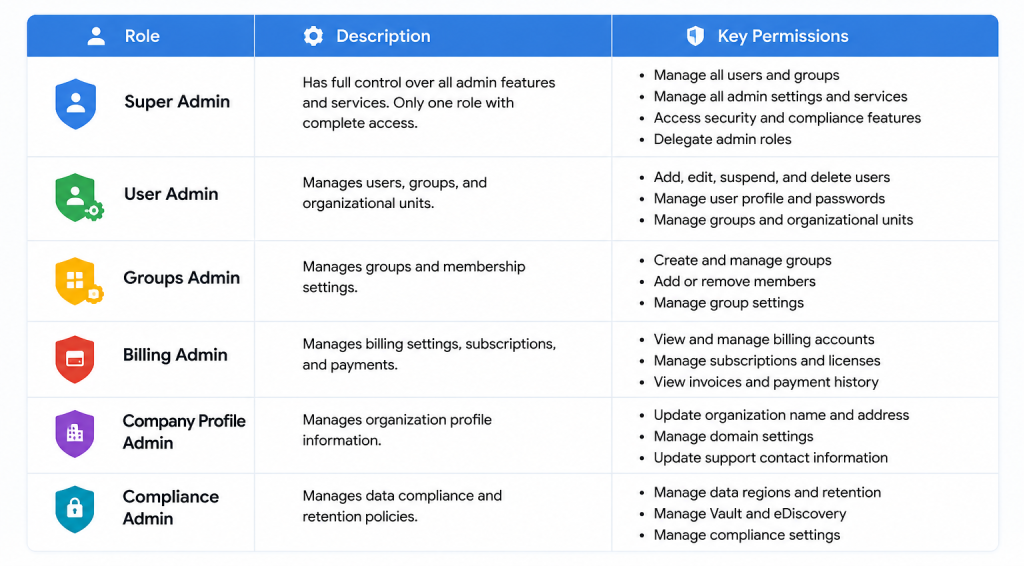
Google Workspace includes several predefined administrator roles, each designed for specific responsibilities. These built-in roles make it easier to delegate tasks without creating custom permissions from scratch.
In the following sections, we’ll look at the most commonly used administrator roles and when each one is appropriate.
Super Administrator
The Super Administrator has complete control over the entire Google Workspace organization.
This role can:
- Manage all users
- Reset passwords
- Configure Gmail, Drive, Meet, and other services
- Manage billing
- Create or delete administrator roles
- Configure security settings
- Manage domains
- Access all Admin console features
Because this role has unrestricted access, it should only be assigned to trusted individuals.
Best practice: Keep the number of Super Administrators to a minimum. Many organizations maintain two or three trusted Super Admin accounts to ensure business continuity while reducing security risks.
User Management Administrator
The User Management Administrator focuses on managing user accounts without having full control over the entire organization.
Typical responsibilities include:
- Creating new users
- Updating user information
- Suspending or restoring accounts
- Resetting passwords (depending on permissions)
- Managing organizational units
This role is ideal for HR teams or IT administrators who handle employee onboarding and offboarding.
Groups Administrator
The Groups Administrator manages Google Groups used for collaboration, communication, and email distribution.
Responsibilities include:
- Creating groups
- Managing group members
- Updating group settings
- Deleting groups
- Managing mailing lists
This role is useful for organizations that frequently create department-based or project-based collaboration groups.
Help Desk Administrator
The Help Desk Administrator role is designed for support teams that assist employees with common account issues.
Typical permissions include:
- Resetting passwords
- Viewing user account information
- Assisting with login-related issues
- Troubleshooting access problems
Because Help Desk Administrators cannot make major configuration changes, they can provide user support without exposing critical administrative settings.
Services Administrator
The Services Administrator is responsible for managing specific Google Workspace services without having full administrative control over the entire organization.
Depending on the permissions granted, this administrator can manage services such as:
- Gmail settings
- Google Meet configuration
- Google Calendar policies
- Google Chat settings
- Google Drive service controls
This role is ideal for organizations where different IT specialists manage different Google Workspace services.
For example, one administrator may manage Gmail security while another is responsible for Google Meet and Calendar settings.
Related guide: If you need to configure individual Google Workspace services, refer to CreativeON’s Google Workspace Admin Console Guide for detailed instructions.
Security Administrator
The Security Administrator role is designed for professionals responsible for protecting your Google Workspace environment.
This administrator can manage security-related settings, including:
- Two-Step Verification policies
- Security alerts
- Login monitoring
- Data protection settings
- Password policies
- Account security investigations
Organizations that have dedicated cybersecurity or compliance teams often assign this role separately from day-to-day IT administration.
Instead of managing users or billing, Security Administrators focus on reducing security risks and responding to potential threats.
Reports Administrator
Understanding what’s happening inside your Google Workspace environment is essential for effective management.
The Reports Administrator can access reporting and audit information without being able to change organizational settings.
This role allows administrators to:
- View usage reports
- Monitor login activity
- Review security reports
- Check application usage
- Analyze storage reports
- Review audit logs
Businesses often use this role for compliance officers, auditors, or IT managers who need visibility into system activity without administrative control.
Device Administrator
Many businesses manage company-owned laptops, smartphones, and tablets through Google Workspace.
The Device Administrator focuses on managing these devices rather than user accounts.
Typical responsibilities include:
- Managing mobile devices
- Enforcing device policies
- Approving company devices
- Removing lost or stolen devices
- Monitoring device compliance
This role is especially valuable for organizations with remote or hybrid employees using multiple company devices.
When Should You Use Custom Administrator Roles?
While Google’s built-in administrator roles meet the needs of many businesses, some organizations require more precise control.
That’s where Custom Administrator Roles become useful.
Custom roles allow you to combine only the permissions an administrator actually needs.
For example, you may want someone who can:
- Reset passwords
- Manage Google Groups
- View reports
…but cannot:
- Change security policies
- Modify billing settings
- Add new administrators
- Manage domains
Creating a custom role allows you to grant exactly those permissions without giving unnecessary access.
This approach follows the Principle of Least Privilege, which means users receive only the permissions required to perform their job.
Custom roles are particularly useful for:
- Large businesses
- Educational institutions
- Government organizations
- Healthcare providers
- Companies with multiple IT teams
- Businesses following strict compliance requirements
How to Choose the Right Administrator Role
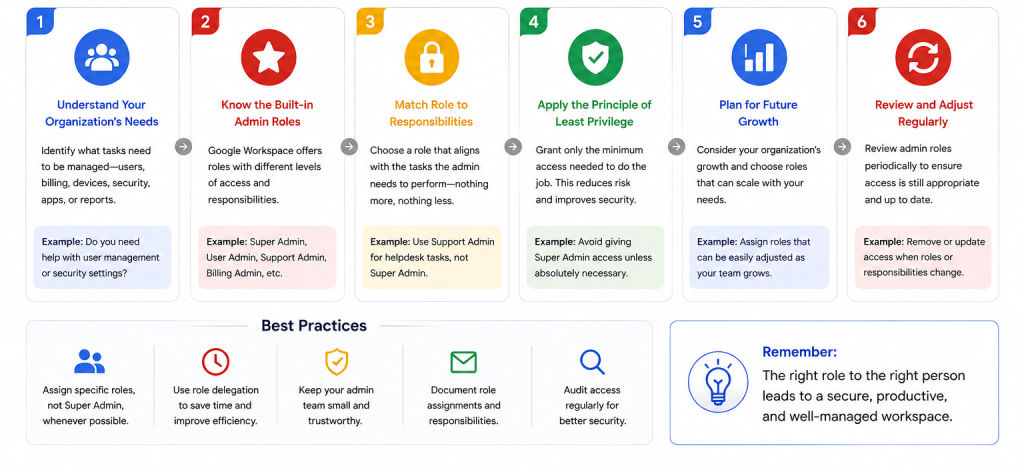
Choosing the correct administrator role depends on the responsibilities of each team member rather than their job title.
Before assigning administrative access, ask yourself:
- What tasks does this person perform?
- Which settings do they actually need to manage?
- Can their responsibilities be handled with a limited role instead of full access?
- Would granting additional permissions increase security risks?
For example:
Responsibility | Recommended Role |
Full Google Workspace management | Super Administrator |
Employee account management | User Management Administrator |
Password support | Help Desk Administrator |
Security monitoring | Security Administrator |
Mobile device management | Device Administrator |
Group management | Groups Administrator |
Reporting and audits | Reports Administrator |
Selecting the appropriate role keeps your environment secure while allowing administrators to work efficiently.
Administrator Role Best Practices
Using administrator roles effectively involves more than simply assigning permissions. Following a few best practices can significantly improve your organization’s security and operational efficiency.
Some recommended practices include:
- Assign only the permissions required for each job.
- Keep the number of Super Administrators as low as possible.
- Review administrator accounts regularly.
- Remove administrative access when employees change roles or leave the company.
- Enable Two-Step Verification for all administrator accounts.
- Monitor administrator activity using audit logs.
- Use custom roles when built-in roles provide more access than necessary.
- Document who has administrative access and why.
Regular reviews help ensure that administrator permissions remain appropriate as your organization grows.
Related guide: Learn more about protecting administrator accounts in CreativeON’s Google Workspace Security Best Practices article.
Common Mistakes to Avoid
Even with Google Workspace’s flexible administrator roles, mistakes in permission management can create security and operational challenges. Avoiding these common errors will help keep your organization secure and well-organized.
Giving Everyone Super Administrator Access
One of the biggest mistakes is assigning the Super Administrator role to every IT team member. While it may seem convenient, it significantly increases the risk of accidental changes, security breaches, and unauthorized access.
Instead, reserve this role for only a few trusted individuals who genuinely need complete control over the Google Workspace environment.
Not Reviewing Administrator Roles Regularly
As employees change roles or leave the organization, their administrative permissions should also be reviewed. Outdated access rights can become a security risk if they’re no longer needed.
It’s a good practice to audit administrator accounts periodically and remove unnecessary privileges.
Ignoring Custom Administrator Roles
Many organizations rely only on Google’s built-in roles, even when they provide more permissions than necessary. Creating custom administrator roles allows you to grant only the permissions required for a specific job, helping reduce unnecessary access.
Forgetting to Protect Administrator Accounts
Administrator accounts are among the most valuable targets for cybercriminals. Protect them by:
- Enabling Two-Step Verification (2SV)
- Using strong, unique passwords
- Monitoring login activity regularly
- Reviewing security alerts in the Admin console
Taking these precautions can greatly reduce the risk of unauthorized access.
Conclusion
Understanding Google Workspace Administrator Roles is essential for managing your organization’s Google Workspace environment securely and efficiently.
Rather than giving every administrator full access, you can assign roles based on specific responsibilities. This approach improves security, reduces the risk of accidental changes, and ensures each team member has the permissions they need—no more and no less.
Whether you’re a small business or a growing enterprise in the UAE, using the right administrator roles helps create a more secure and organized IT environment.
If you’re planning to assign administrator permissions, review your current admin structure, or implement Google Workspace for your business, CreativeON can help you choose the right setup based on your organization’s needs.
Internal Linking Opportunities
To continue learning about Google Workspace administration, you may also find these guides helpful:
- Assign Admin Roles in Google Workspace – Learn how to assign, modify, and remove administrator roles.
- Google Workspace Admin Console Guide – Explore the main features and settings available in the Admin console.
- Google Workspace Security Best Practices – Discover practical ways to secure your organization’s accounts and data.
- Google Workspace User Management Guide – Learn how to create, suspend, and manage user accounts.
- Google Workspace Pricing Guide – Compare plans and features to choose the right edition for your business.
Frequently Asked Questions
The Super Administrator is the highest-level role in Google Workspace. It has complete access to all settings, users, services, security options, and administrative features.
Yes. Google Workspace allows eligible editions to create custom administrator roles with specific permissions, enabling organizations to follow the principle of least privilege.
Most organizations should keep the number of Super Administrators as low as possible. Having two or three trusted Super Administrators is generally considered a good balance between security and business continuity.
Yes. A user can be assigned multiple administrator roles if their responsibilities require permissions from different areas of the Google Workspace Admin console.
Built-in roles come with predefined permissions created by Google, while custom roles allow organizations to select only the permissions needed for a particular job or responsibility.