
Managing Third-Party Apps in Google Workspace
Third-party applications can significantly improve productivity by connecting Google Workspace with business tools for communication, project management, accounting, customer management, automation, and collaboration.
However, every connected application creates a relationship with your organization’s data. An app that has access to Gmail, Google Drive, Calendar, or user information may have permissions that need regular review.
For Google Workspace administrators, managing third-party apps is not about blocking every integration. It is about ensuring employees can use approved tools while maintaining control over company information.
This guide explains how administrators can review, approve, restrict, and manage third-party app access in Google Workspace.
What Are Third-Party Apps in Google Workspace?
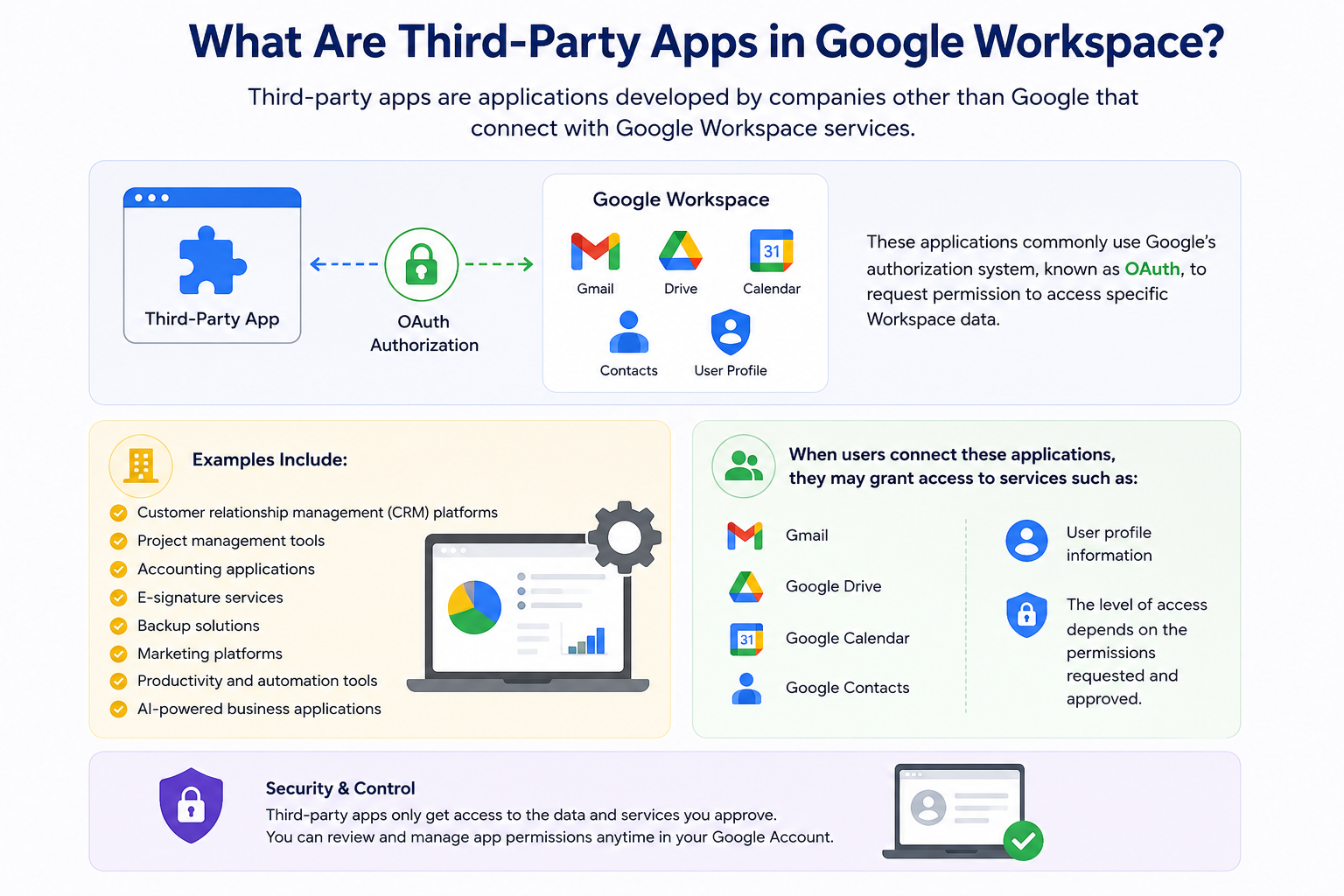
Third-party apps are applications developed by companies other than Google that connect with Google Workspace services.
These applications commonly use Google’s authorization system, known as OAuth, to request permission to access specific Workspace data.
Examples include:
- Customer relationship management (CRM) platforms
- Project management tools
- Accounting applications
- E-signature services
- Backup solutions
- Marketing platforms
- Productivity and automation tools
- AI-powered business applications
When users connect these applications, they may grant access to services such as:
- Gmail
- Google Drive
- Google Calendar
- Google Contacts
- User profile information
The level of access depends on the permissions requested and approved.
Why Managing Third-Party Apps Matters
Uncontrolled application access can create unnecessary security risks.
For example, an employee may connect an application that requests access to company documents without realizing how much information it can view.
Proper third-party app management helps organizations:
- Protect sensitive business information
- Reduce unauthorized data access
- Control employee-installed applications
- Improve security governance
- Maintain compliance requirements
- Apply least-privilege access policies
For businesses operating in the UAE, where organizations increasingly rely on cloud-based collaboration, controlling application access is an important part of maintaining a secure digital workplace.
How Third-Party App Access Works in Google Workspace
Most third-party integrations use OAuth authorization.
OAuth allows users to give an application limited access to their Google Workspace account without sharing their password.
For example:
A project management application may request permission to:
- View user profile information
- Access Google Calendar events
- Create calendar entries
A document management application may request:
- View Google Drive files
- Upload documents
- Manage file permissions
The permissions requested by an application are called OAuth scopes.
Some scopes provide basic access, while others allow access to sensitive business data.
How Administrators Can Review Third-Party Apps in Google Workspace
Google Workspace administrators can review and manage connected applications from the Admin Console.
The general process is:
- Sign in to the Google Admin Console.
- Open Security.
- Go to Access and data control.
- Select API Controls.
- Open App Access Control.
- Review applications requesting access to Workspace services.
- Allow, restrict, or block applications according to company policies.
The exact menu names may vary depending on your Google Workspace edition and administrator permissions.
Understanding App Access Control
Google Workspace App Access Control helps administrators decide which applications can access organizational data.
Administrators can classify applications based on their trust level.
Common controls include:
Trusted Apps
These are applications approved by administrators because they meet organizational requirements.
Examples:
- Verified business applications
- Approved productivity tools
- Company-standard software
Limited Apps
These applications may be allowed but with restrictions.
For example:
- Allowed only for specific departments
- Approved for selected users
- Limited based on organizational policies
Blocked Apps
Applications can be blocked when they:
- Request excessive permissions
- Come from unknown developers
- Do not meet security requirements
- Are unnecessary for business operations
Review App Permissions Before Approval
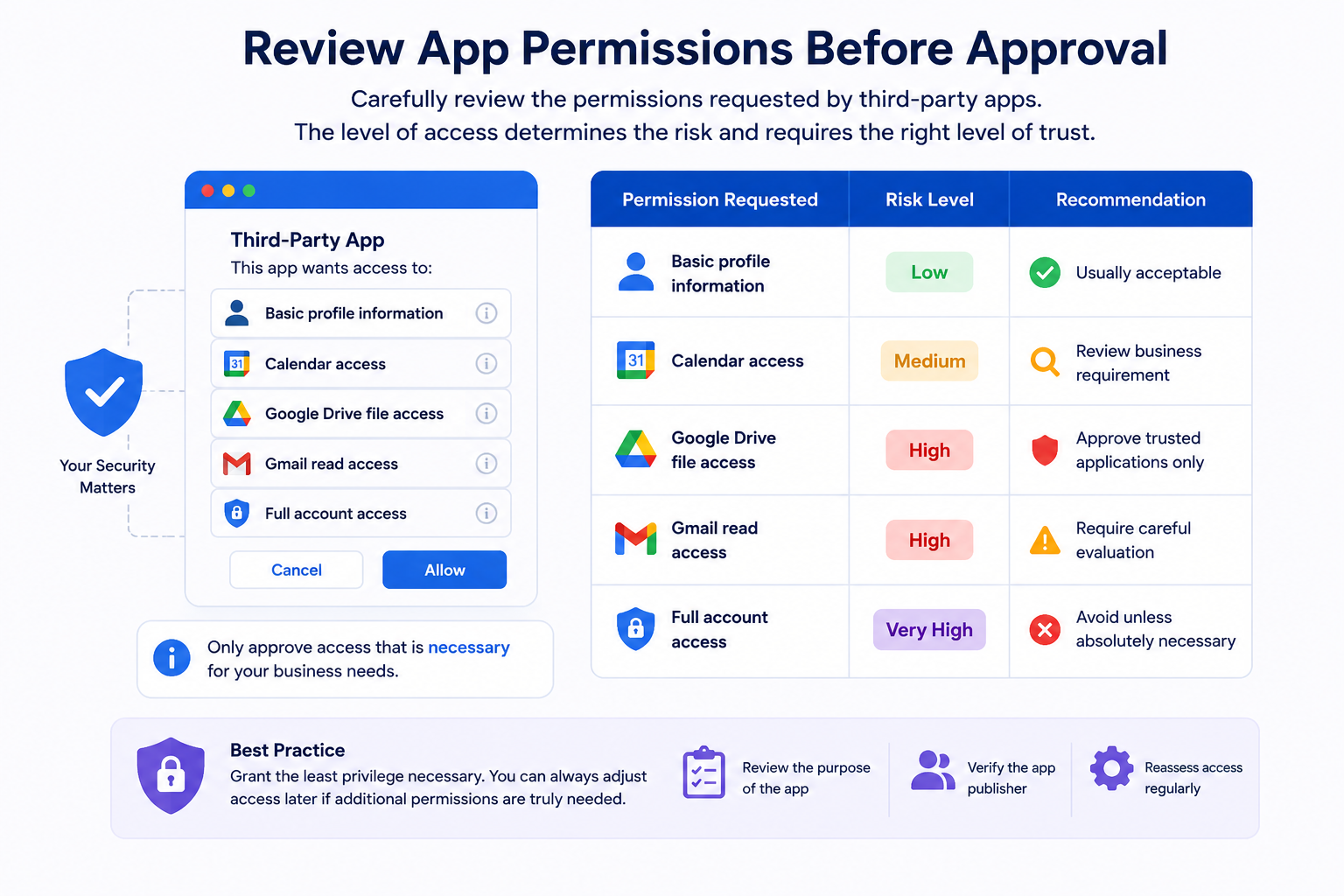
Not all permissions carry the same level of risk.
Administrators should review what information an application can access before approving it.
| Permission Requested | Risk Level | Recommendation |
| Basic profile information | Low | Usually acceptable |
| Calendar access | Medium | Review business requirement |
| Google Drive file access | High | Approve trusted applications only |
| Gmail read access | High | Require careful evaluation |
| Full account access | Very High | Avoid unless absolutely necessary |
An application requesting broad permissions does not automatically mean it is unsafe, but it requires additional review.
When Should You Block a Third-Party App?
Administrators should consider blocking an application when:
The Developer Is Unknown
Applications from unverified or unfamiliar developers require additional investigation.
The App Requests More Access Than Necessary
A simple tool should not require access to unrelated business data.
For example:
A calendar scheduling application should not need access to all company documents.
The Application Is No Longer Used
Unused applications increase unnecessary security exposure.
Removing access reduces the number of systems connected to your Workspace environment.
The App Does Not Meet Company Policies
Organizations may restrict applications based on:
- Data storage location
- Security standards
- Compliance requirements
- Internal approval processes
Best Practices for Managing Third-Party Apps
A strong app management strategy should include regular reviews and clear approval processes.
Review Connected Apps Regularly
Perform periodic audits to identify:
- Newly connected applications
- Unused integrations
- Apps with excessive permissions
- Applications requiring removal
Apply Least-Privilege Access
Only provide applications with the access they actually need.
Avoid approving broad permissions when limited access is sufficient.
Educate Users About App Permissions
Employees should understand that clicking “Allow” can give an application access to company resources.
Training users helps prevent accidental data exposure.
Remove Unnecessary Integrations
When a department stops using an application:
- Remove access
- Delete unnecessary connections
- Review affected accounts
Maintain Approval Policies
Create internal guidelines explaining:
- Which apps are approved
- Who can authorize applications
- Which permissions require administrator review
Practical Example: Managing Apps Across Different Departments
Imagine a UAE-based company using Google Workspace across multiple departments.
The marketing team uses collaboration tools, sales uses customer management software, and finance uses accounting applications.
Instead of allowing every employee to approve every application:
- Marketing apps are approved only for the marketing team.
- Finance applications are restricted to finance users.
- High-risk integrations require administrator approval.
- Unused applications are removed during regular reviews.
This approach allows employees to remain productive while maintaining control over company data.
Security Tips for Third-Party App Management
To improve Google Workspace security:
- Enable multi-factor authentication.
- Review OAuth app permissions regularly.
- Monitor security alerts.
- Remove inactive integrations.
- Use organizational units to apply different access policies.
- Follow the principle of least privilege.
- Keep administrator accounts protected.
Third-party app management should be part of your organization’s ongoing security process.
Visual Content Recommendations
Recommended graphics for this article:
1. Third-Party App Approval Workflow
Flow:
Employee requests app access
↓
Admin reviews permissions
↓
Approve / Restrict / Block
↓
Monitor usage
ALT Text:
Google Workspace third-party app approval workflow
2. OAuth Permission Flow Diagram
Show:
User → Google Workspace → Third-party Application
ALT Text:
How OAuth permissions work in Google Workspace
3. App Permission Risk Matrix
Display:
Low Risk → Medium Risk → High Risk → Restricted
ALT Text:
Google Workspace third-party app permission risk levels
Recommended Internal Links
Pillar Page
Feature Pages
- Google Workspace Admin Console
- Google Workspace Security
Supporting Articles
- Assign Admin Roles in Google Workspace
- Google Drive Sharing Permissions
- Google Workspace User Management
- Google Workspace Migration Checklist
- Recover Deleted Users in Google Workspace