
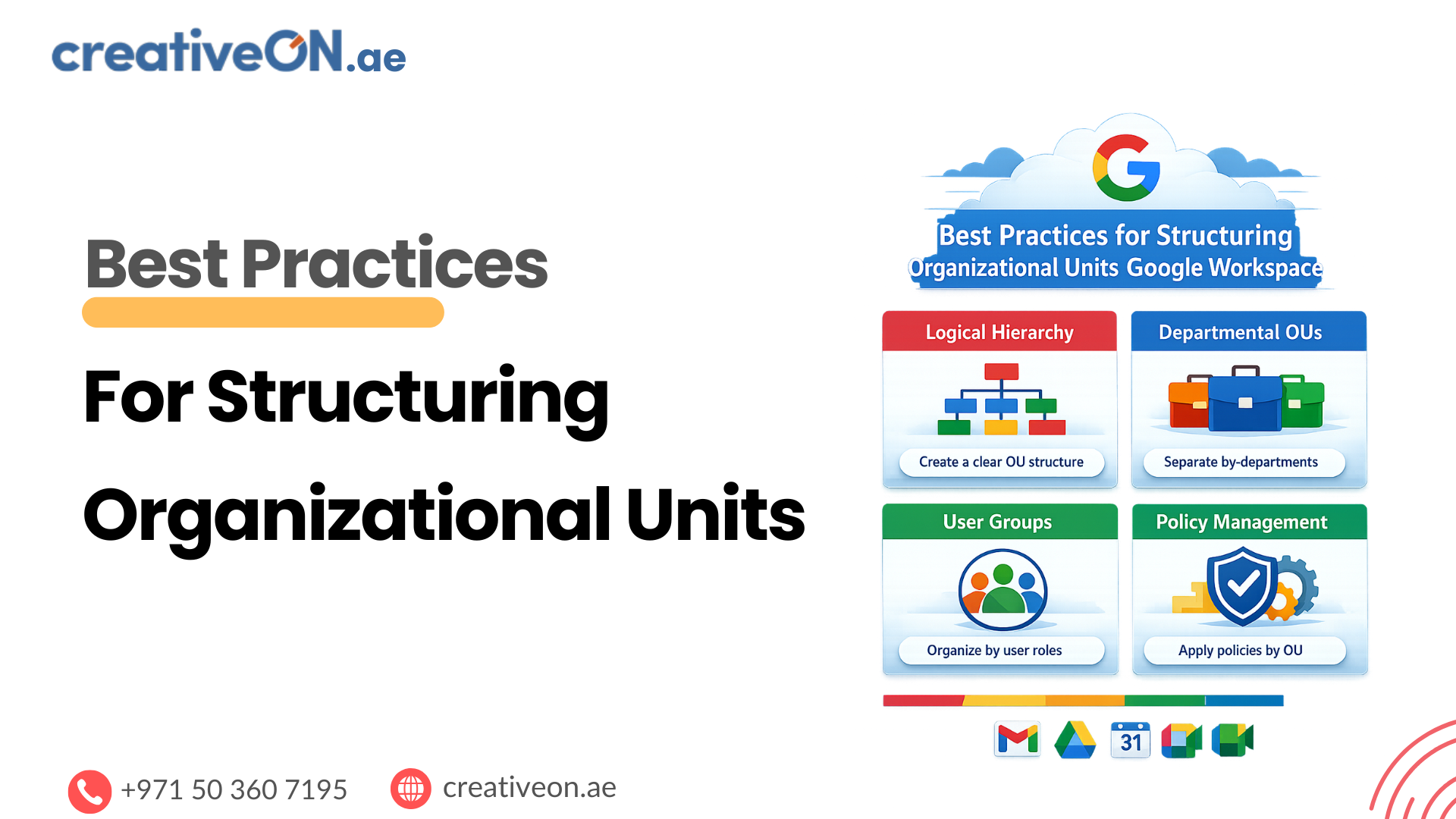
As your Google Workspace environment grows, managing every user under a single set of policies quickly becomes impractical. Different teams may need different security settings, application access, or device management rules. This is where Organizational Units (OUs) come in.
A well-planned OU structure lets administrators manage policies efficiently and scale without constant redesign. A poorly planned one leads to duplicated policies, unnecessary complexity, and difficult troubleshooting. This guide covers the planning principles behind a scalable, secure OU hierarchy — not the click-by-click steps to create one.
Where This Article Fits
Pillar Page: Google Workspace Feature Page: Google Workspace Admin Console Search Intent: Best Practices / Administration
What Organizational Units Actually Do
An Organizational Unit isn’t just a folder for grouping users — it’s a policy boundary. Every user belongs to exactly one OU, and the policies assigned to that OU automatically apply to everyone in it. These can include Two-Step Verification requirements, Drive sharing restrictions, Meet and Chat settings, Chrome and mobile device management, API access, and security configurations.
Instead of configuring individual accounts, admins manage policies once and apply them to entire groups through OUs — a significant reduction in overhead as headcount grows.
Understanding Policy Inheritance
OUs follow a parent-child hierarchy. A child OU automatically inherits the parent’s policies unless a specific setting is overridden. For example:
Company
├── Employees
│ ├── Sales
│ ├── Marketing
│ └── Support
└── Contractors
If Employees requires Two-Step Verification, Sales, Marketing, and Support inherit that requirement automatically — though Sales could still override a specific setting if needed. Understanding inheritance before designing your hierarchy prevents most common configuration mistakes.
Plan Around Policies, Not Your Org Chart
The biggest mistake administrators make is recreating the company’s org chart inside Google Workspace. Reporting structure and policy needs rarely match. Finance and HR may sit in different departments but need identical security settings; contractors across multiple teams may all need the same restricted policy.
Instead of asking “which department does this user belong to?” ask “does this user require different Workspace policies?” If the answer is no, they belong in the same OU. Designing around policy differences, rather than reporting lines, creates a far more sustainable structure.
Start Simple and Expand Only When Necessary
More OUs don’t mean better control — they mean more to maintain. Most businesses can run on a handful of OUs:
Company
├── Employees
├── Executives
├── Contractors
└── Service Accounts
Add child OUs only as genuine policy differences emerge. Starting simple means easier administration, fewer inheritance conflicts, and faster onboarding for new admins.
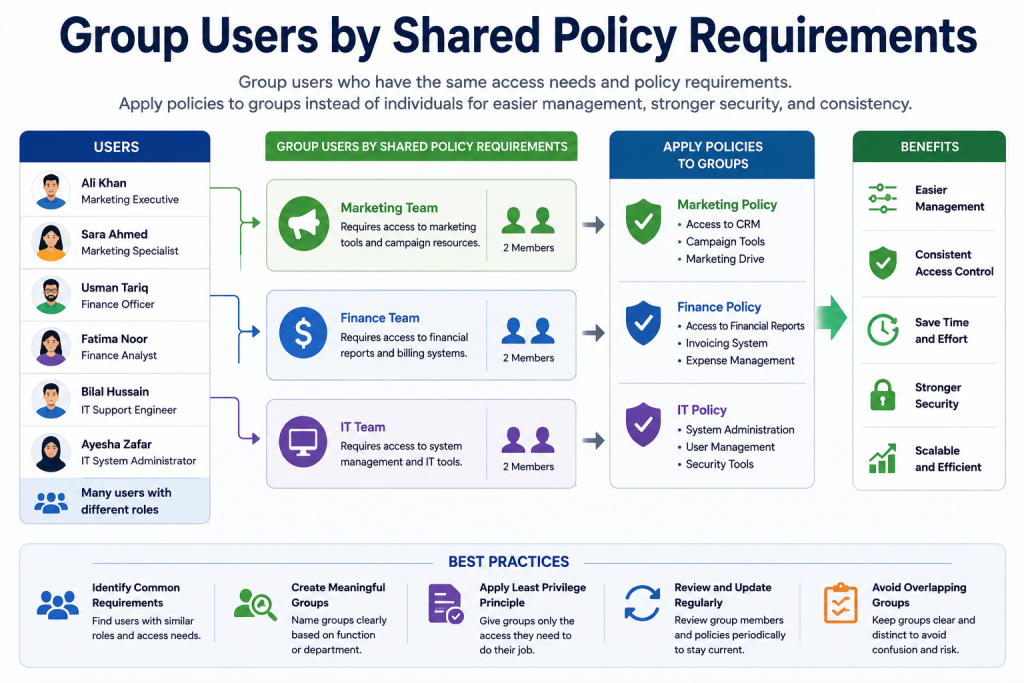
Group Users by Shared Policy Requirements
The most effective structures group users by what they need administratively, not by job title:
- Security requirements — executives, finance, HR, and IT often need stronger authentication (security keys, Context-Aware Access) than general staff.
- Application access — not everyone needs Google Vault, Gemini, or Meet recording; group users accordingly.
- Device management — users on managed laptops, ChromeOS devices, or shared/kiosk workstations often need distinct endpoint policies from standard staff.
- Compliance needs — Finance, Legal, HR, and similar teams handling sensitive data may need restricted sharing, stricter retention, or tighter authentication.
Note that device policies and user policies are managed as separate hierarchies in the Admin console — a retail business might manage all point-of-sale Chrome devices in one Device OU while keeping staff accounts in a completely separate User OU structure. Keeping the two independent avoids forcing unrelated policies into the same tree.
Design Around Exceptions, Not Every Department
If 90% of employees follow the same standard policies, don’t create separate OUs for Marketing, Sales, Support, and Operations. Put standard users in one Employees OU, then create child OUs only where policies genuinely diverge:
Employees
├── Standard Staff
├── Executives
└── Finance (Additional Security)
This keeps the hierarchy compact while still allowing precise control where it’s actually needed.
Keep the Hierarchy Shallow
Google Workspace supports deep nesting, but deeper isn’t better. Six or seven levels look organized on paper but make inherited settings hard to trace and troubleshoot. Two to three levels are enough for most environments:
Company
├── Employees
│ ├── Sales
│ ├── Marketing
│ └── Support
├── Contractors
└── Executives
A flatter structure is easier to maintain while still handling policy differences where they exist.
Use Clear, Consistent Naming
OU names should communicate purpose at a glance — “Finance – Restricted Sharing” rather than “Group A” or “Temp.” Consistent naming saves real time during policy reviews, troubleshooting, and admin handovers.
Document Your Design — and Revisit It
The Admin console shows your hierarchy, but not why each OU exists. Keep a short internal record of each OU’s purpose, which policies differ from its parent, and when major changes were made — this pays off during onboarding, troubleshooting, and audits.
Build for growth without over-engineering it: there’s little value creating separate OUs for Dubai, Abu Dhabi, and Sharjah offices before their policies actually diverge. Review your structure once or twice a year, checking for empty OUs, duplicate policies across units, and users sitting in the wrong place.
Organizational Units vs. Google Groups
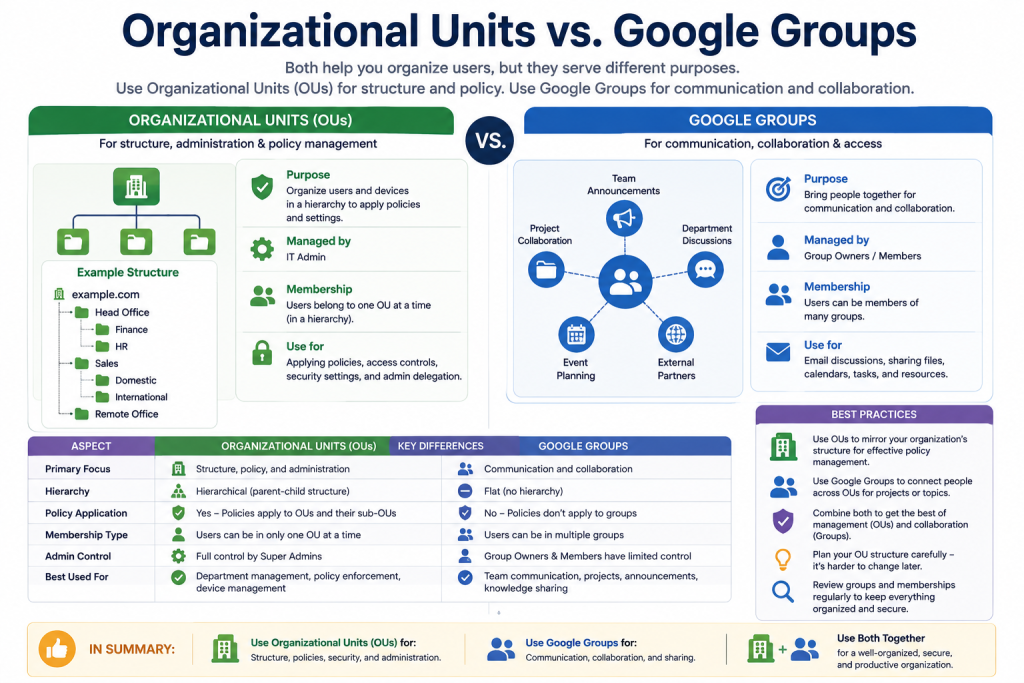
A quick distinction worth knowing: OUs apply Workspace policies (security, device management, app access); Google Groups manage communication and shared access (mailing lists, file sharing, collaboration). If you’re changing a policy, use an OU; if you’re organizing people around communication, use a Group. For a full comparison, see our guide on [Organizational Units vs. Google Groups].
Common Mistakes to Avoid
- Copying the org chart instead of designing around policy needs
- Creating an OU for every exception rather than considering Groups or a shared parent OU
- Ignoring inheritance, causing settings to cascade unexpectedly
- Mixing user and device hierarchies into one structure
- Inconsistent naming, which slows down troubleshooting and handovers
- Never reviewing the structure, letting it drift out of sync with the business
Organizational Unit Planning Checklist
- ✅ Design around policy requirements, not departments
- ✅ Keep the hierarchy as shallow as possible
- ✅ Create a new OU only when policies genuinely differ
- ✅ Understand inheritance before nesting further
- ✅ Use clear, consistent naming
- ✅ Document the purpose of every OU
- ✅ Keep user and device policies as separate hierarchies
- ✅ Review the structure at least annually
- ✅ Use Google Groups for collaboration, not policy management
Visual Content Recommendations
- OU hierarchy diagram (parent → child → exception)
- Policy inheritance illustration
- Good vs. poor OU structure comparison
- Planning checklist graphic
Suggested ALT text: “Google Workspace organizational unit hierarchy example,” “Google Workspace policy inheritance diagram,” “Google Workspace OU planning checklist”
Recommended Internal Links
- Pillar Pages: Google Workspace, Google Workspace Security
- Feature Page: Google Workspace Admin Console
- Supporting Articles: How to Create Organizational Units, Organizational Units vs. Google Groups, Assigning Policies to Organizational Units, Assign Admin Roles