
If you’ve just installed WordPress or switched to a new WordPress hosting plan, the first thing you’ll see after logging in is the WordPress dashboard. It’s the control center of your website — the place where you write posts, manage plugins, update themes, and keep an eye on how your site is performing.
For many business owners, the dashboard can feel a little overwhelming at first. There are menus, widgets, and settings everywhere. This guide walks you through the WordPress dashboard step by step, so you know exactly where everything is and what it does.
What Is the WordPress Dashboard?
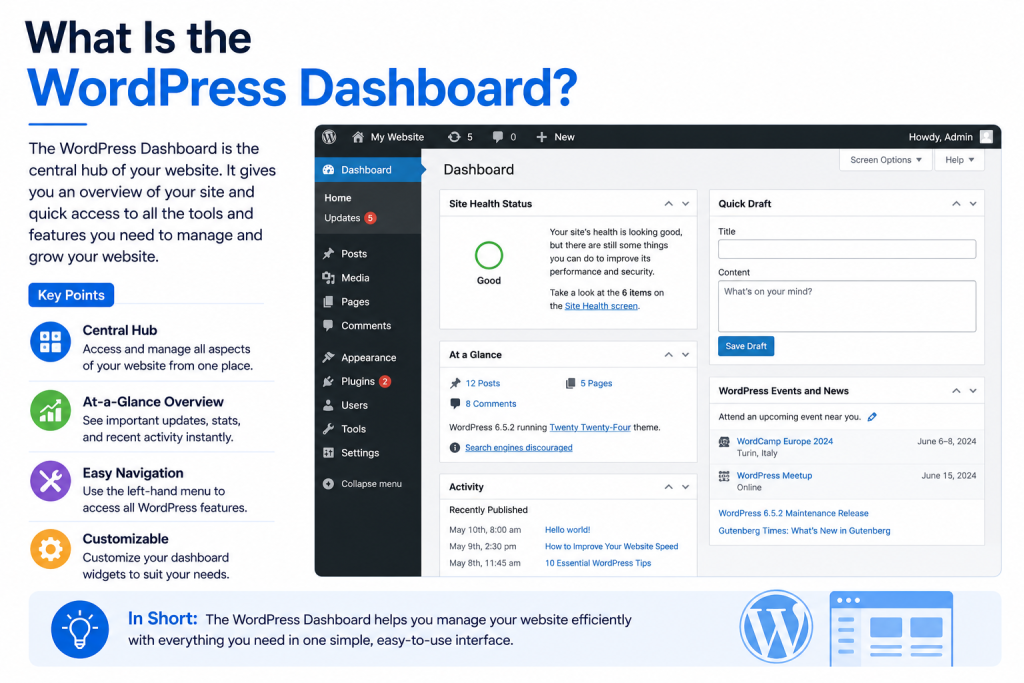
The WordPress dashboard (sometimes called wp-admin or the WordPress admin panel) is the backend interface you use to manage your website. You can access it by adding /wp-admin to your website’s URL, for example yourdomain.com/wp-admin.
Once you log in with your username and password, you land on the main dashboard screen. From here, everything related to your website — content, design, users, and settings — is just a few clicks away.
The Admin Toolbar: Your First Stop
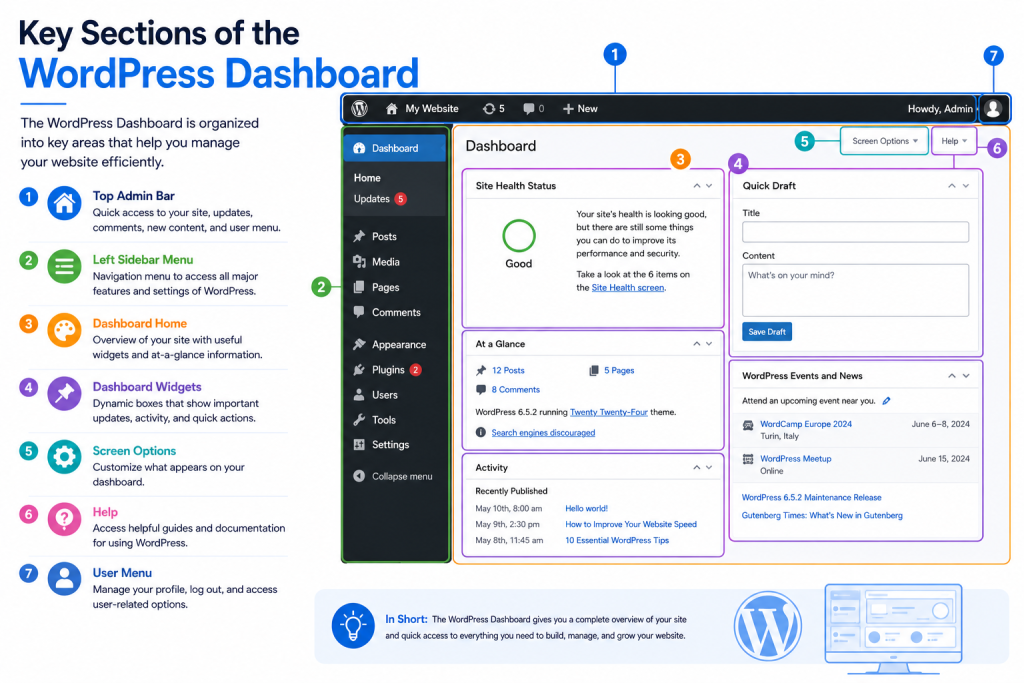
Before diving into the main menu, it’s worth getting familiar with the Admin Toolbar — the dark bar that runs across the top of your screen once you’re logged in. It’s one of the first things you’ll notice, and it stays visible no matter which dashboard screen you’re on.
From here you can quickly:
- Jump to your live site by hovering over the site name
- Add new posts, pages, or media through the + New menu
- Check and manage comments awaiting approval
- Access your user profile or log out
It’s a small feature, but it saves a lot of clicking once you’re used to it.
Why the WordPress Dashboard Matters
Your dashboard isn’t just an admin screen; it’s where day-to-day site management happens. Understanding it properly helps you:
- Publish and edit content without confusion
- Spot issues like outdated plugins or broken updates early
- Keep your site secure by managing users and permissions correctly
- Save time by knowing exactly where each setting lives
A well-organized dashboard workflow also reduces the chances of accidental changes that could affect your site’s performance or security — something that matters whether you’re running a small blog or a growing WooCommerce store.
Key Sections of the WordPress Dashboard
Let’s go through the main areas you’ll use most often.
1. At a Glance / Home Screen
When you first log in, you’ll see a summary panel showing:
- Number of posts, pages, and comments
- Your current WordPress version
- Quick draft tool for jotting down post ideas
- Activity feed showing recent site actions
This is a good habit-forming stop each time you log in — a quick glance tells you if anything needs attention, like a pending update.
2. Posts
This is where you create and manage blog content. From the Posts menu, you can:
- Add a new post
- Edit or delete existing posts
- Organize content using categories and tags
If your website relies on regular content publishing, you’ll spend most of your time here.
3. Media
The Media Library stores all images, videos, and documents uploaded to your site. Instead of uploading the same file multiple times, you can reuse existing media directly from this library, which helps keep your website’s storage and load times efficient.
4. Pages
Unlike posts, Pages are used for static content — think “About Us,” “Contact,” or “Services.” Most business websites structure their core content through pages rather than posts.
5. Comments
If your site allows comments, this section lets you approve, reply to, or delete them. Keeping this section tidy also helps prevent spam comments from affecting your site’s credibility.
6. Appearance
Here you manage how your website looks:
- Themes – install, activate, or customize your site’s theme
- Widgets – add elements like search bars or recent posts to sidebars
- Menus – build and organize your website’s navigation
7. Plugins
Plugins extend WordPress functionality — from contact forms to SEO tools. In this section, you can install, activate, deactivate, or delete plugins. It’s also where you’ll see notifications when plugin updates are available.
8. Users
If more than one person manages your website, the Users section lets you control access levels. WordPress offers different roles (Administrator, Editor, Author, Contributor, Subscriber), each with different permissions — an important detail for keeping your site secure.
9. Settings
This is where core site configurations live, including:
- Site title and tagline
- Timezone and date format
- Permalink structure (how your URLs are formatted)
- Reading and writing preferences
Getting these basics right early on saves you from having to make structural changes later.
10. Tools
The Tools menu is easy to overlook, but it holds a couple of useful features:
- Import/Export – move content in or out of your site, handy when migrating or restructuring
- Site Health – a built-in check that flags performance or security issues needing attention
You won’t need this section daily, but it’s worth checking Site Health every so often.
Personalizing Your View with Screen Options
Most dashboard screens include a Screen Options tab in the top-right corner. Clicking it lets you show or hide specific panels and columns, so you only see the information that’s relevant to how you work. It’s a simple way to declutter a busy screen without changing any actual settings.
Why Your Dashboard Might Look Different
If you’ve used WordPress on more than one site, you may notice the dashboard menu isn’t always identical. That’s usually because plugins can add their own menu items — an SEO plugin might add its own settings page, while a form builder or security plugin does the same. This is normal and simply reflects the tools installed on that particular site.
Best Practices for Using the WordPress Dashboard
A few habits go a long way toward keeping your dashboard organized and your site running smoothly:
- Log in with a dedicated admin account rather than sharing credentials across your team.
- Assign the right user roles. Not everyone needs full Administrator access — give team members only the permissions they need.
- Check the dashboard summary regularly for pending updates or unusual activity.
- Keep your plugin list lean. Deactivate and delete plugins you’re no longer using.
- Update WordPress core, themes, and plugins promptly to reduce security risks.
Common Mistakes to Avoid
Even experienced users run into a few recurring issues:
- Ignoring update notifications. Outdated plugins and themes are one of the most common causes of security vulnerabilities.
- Giving everyone admin access. This increases the risk of accidental changes or security gaps.
- Installing too many plugins. Beyond cluttering the dashboard, this can slow down your site — something closely tied to your WordPress hosting environment’s performance.
- Not backing up before making changes. Always have a recent backup before updating themes or plugins.
If backups aren’t already part of your routine, CreativeON’s WordPress Backup Guide covers how to set this up properly.
Where to Go From Here
The dashboard is just the entry point — how it performs day-to-day often depends on the hosting environment behind it. If your dashboard feels slow to load or your site takes time to respond, it may be worth reviewing your WordPress Caching Guide or looking into Managed WordPress Hosting, which typically includes performance and security optimizations out of the box.
For store owners, the dashboard also gains extra sections once WooCommerce is installed — our WooCommerce Hosting guide explains what changes and what to expect.
And if you’re managing sensitive customer data or logins through your dashboard, it’s worth pairing this with our WordPress Security Guide and SSL for WordPress article to keep access properly protected.