
A single stolen password can open the door to a company’s entire Google Workspace environment — emails, shared drives, calendars, and client data included. Two-Step Verification (2SV) closes that gap by requiring a second proof of identity before anyone can sign in, even if a password has been compromised.
This guide walks through how to enable Two-Step Verification for individual users and how administrators can turn it on across an entire organization in Google Workspace.
What Is Two-Step Verification?
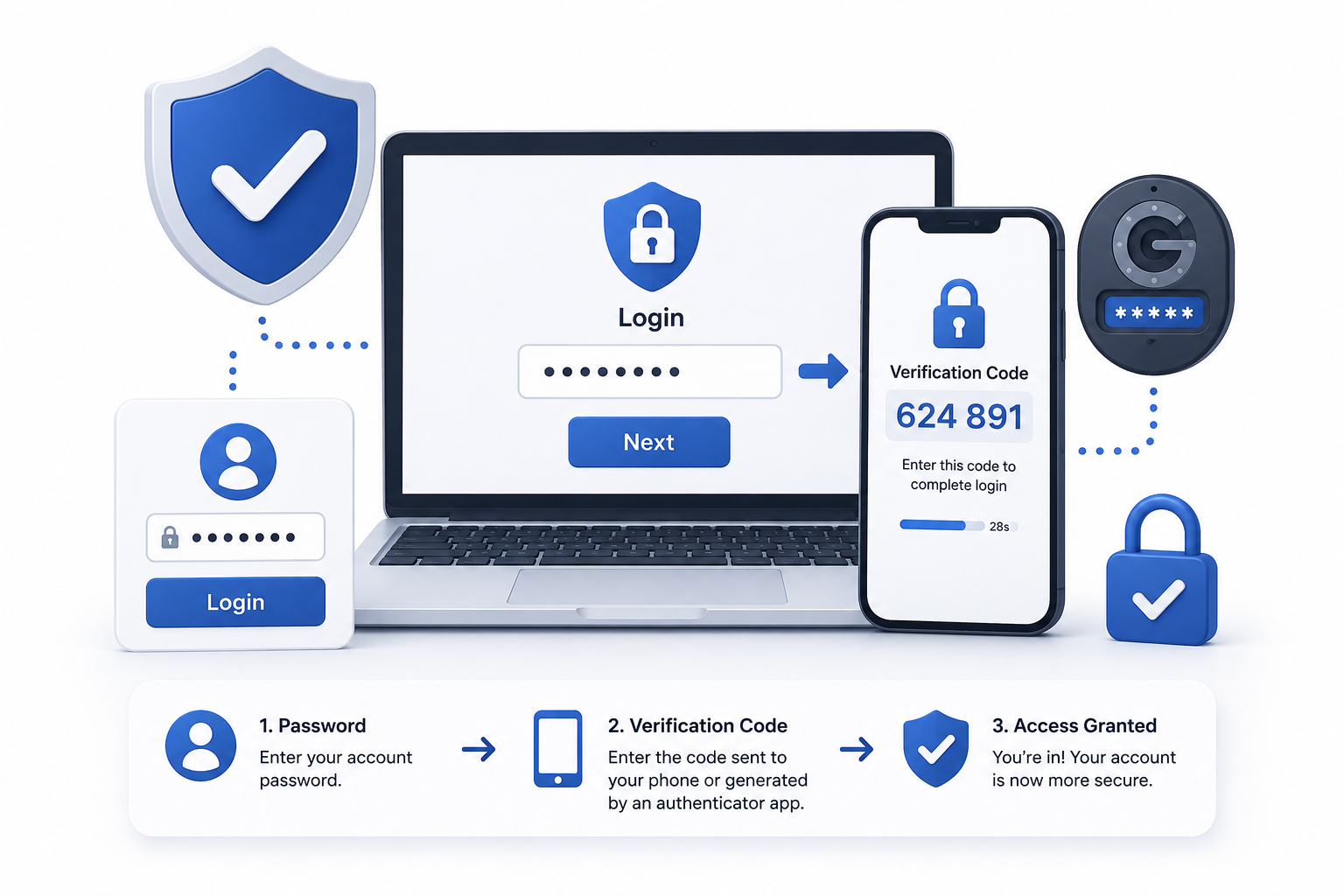
Two-Step Verification adds a second layer of authentication after the password, so a stolen password alone is no longer enough to sign in.
Google Workspace supports several second-step methods, including Google prompts, authenticator apps (like Google Authenticator), physical security keys, passkeys, and backup codes. Passkeys confirm sign-in using the device itself, so Google can rely on them instead of asking for a separate second step.
This is sometimes referred to as two-factor authentication (2FA) or multi-factor authentication (MFA). In Google Workspace, Google uses the term “2-Step Verification” consistently across its admin tools, so this guide uses that terminology throughout.
Who Should Enable It
Two-Step Verification is relevant for two groups:
- Individual users who want to secure their own Google Workspace account
- Administrators who want to enforce 2SV across their entire organization, or specific groups within it
For UAE businesses handling sensitive client data, enforcing 2SV organization-wide is one of the simplest, highest-impact ways to strengthen Google Workspace account security.
Requirements Before You Begin
Before enabling Two-Step Verification, confirm the following:
- Users have access to a second-step method, such as a Google prompt, authenticator app, passkey, or security key, plus a recovery option in case that device is unavailable.
- Admins enforcing 2SV organization-wide are signed in as a super administrator, since this task requires super admin access in the Admin console.
- Users should generate backup codes in advance in case their primary device is unavailable.
- If security keys will be used, they should be purchased and distributed before enforcement begins.
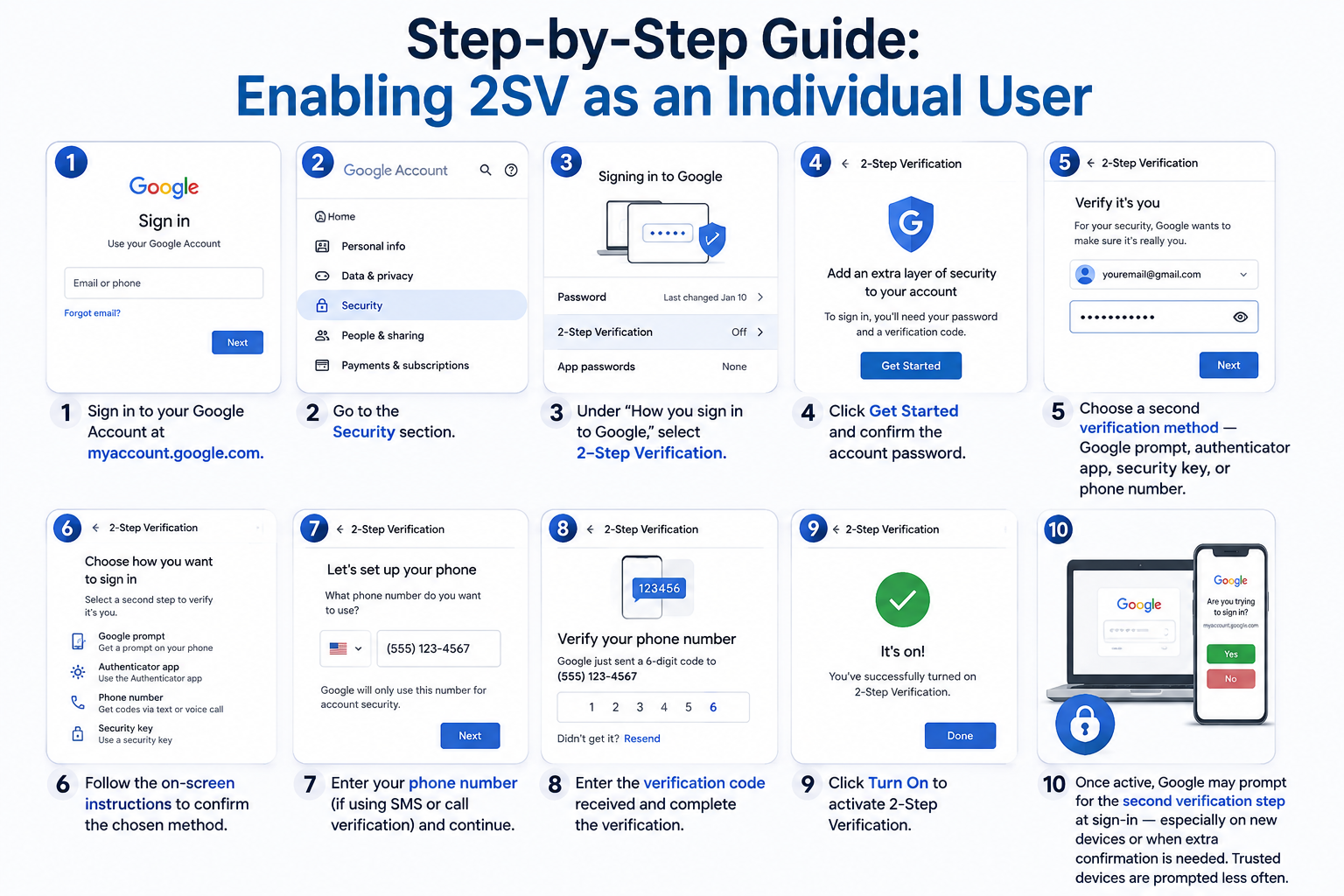
Step-by-Step Guide: Enabling 2SV as an Individual User
- Sign in to the Google Account at myaccount.google.com.
- Go to the Security section.
- Under “How you sign in to Google,” select 2-Step Verification.
- Click Get Started and confirm the account password.
- Choose a second verification method — Google prompt, authenticator app, security key, or phone number.
- Follow the on-screen instructions to confirm the chosen method.
- Click Turn On to activate 2-Step Verification.
Once active, Google may prompt for the second verification step at sign-in — particularly on a new device or when extra confirmation is needed. Trusted devices are prompted less often.
Step-by-Step Guide: Enforcing 2SV Across the Organization
Administrators can require 2-Step Verification for some or all users through the Admin console.
- Sign in to the Google Admin console with an administrator account.
- Go to Security > Authentication > 2-Step Verification.
- Select the organizational unit or group that should be affected.
- Check Allow users to turn on 2-Step Verification, then set enforcement to allowed or required, choosing a start date if required.
- Set a new user enrollment period to give staff time to set up their second verification method before enforcement begins.
- Choose which verification methods are permitted — for example, allowing security keys and authenticator apps while excluding text message or phone call codes.
- Save the settings. Users in the selected organizational unit will be prompted to complete enrollment.
Rolling out enforcement to a smaller group first — such as the IT team — before applying it company-wide helps catch configuration issues early.
Best Practices
- Set an enrollment grace period. This avoids locking users out on the day enforcement begins.
- Use phishing-resistant methods for high-risk roles. Security keys and passkeys give finance, HR, and admin accounts stronger protection than SMS.
- Generate and store backup codes. These allow sign-in if a phone is lost or unavailable.
- Review the Admin console’s 2SV enrollment report regularly. This shows which users have not yet enrolled.
- Pair 2SV with strong password policies for layered account protection.
Common Mistakes to Avoid
- Enforcing 2SV without warning, which leads to a spike in support tickets and locked-out users.
- Relying only on SMS verification, which is less secure than authenticator apps or security keys.
- Forgetting to set up backup codes before switching or losing a phone.
- Applying enforcement to the entire organization at once instead of a phased rollout by organizational unit.