
If you’ve ever read a hosting plan and felt lost somewhere between “SSD NVMe storage” and “PHP version 8.2,” you’re not alone. Understanding basic WordPress hosting terminology makes it much easier to choose the right plan, troubleshoot issues, and talk to your hosting provider without feeling out of your depth.
This guide explains the hosting-specific terms you’re most likely to encounter when choosing, managing, or troubleshooting WordPress hosting — no fluff, no unrelated jargon, just practical explanations you can use right away.
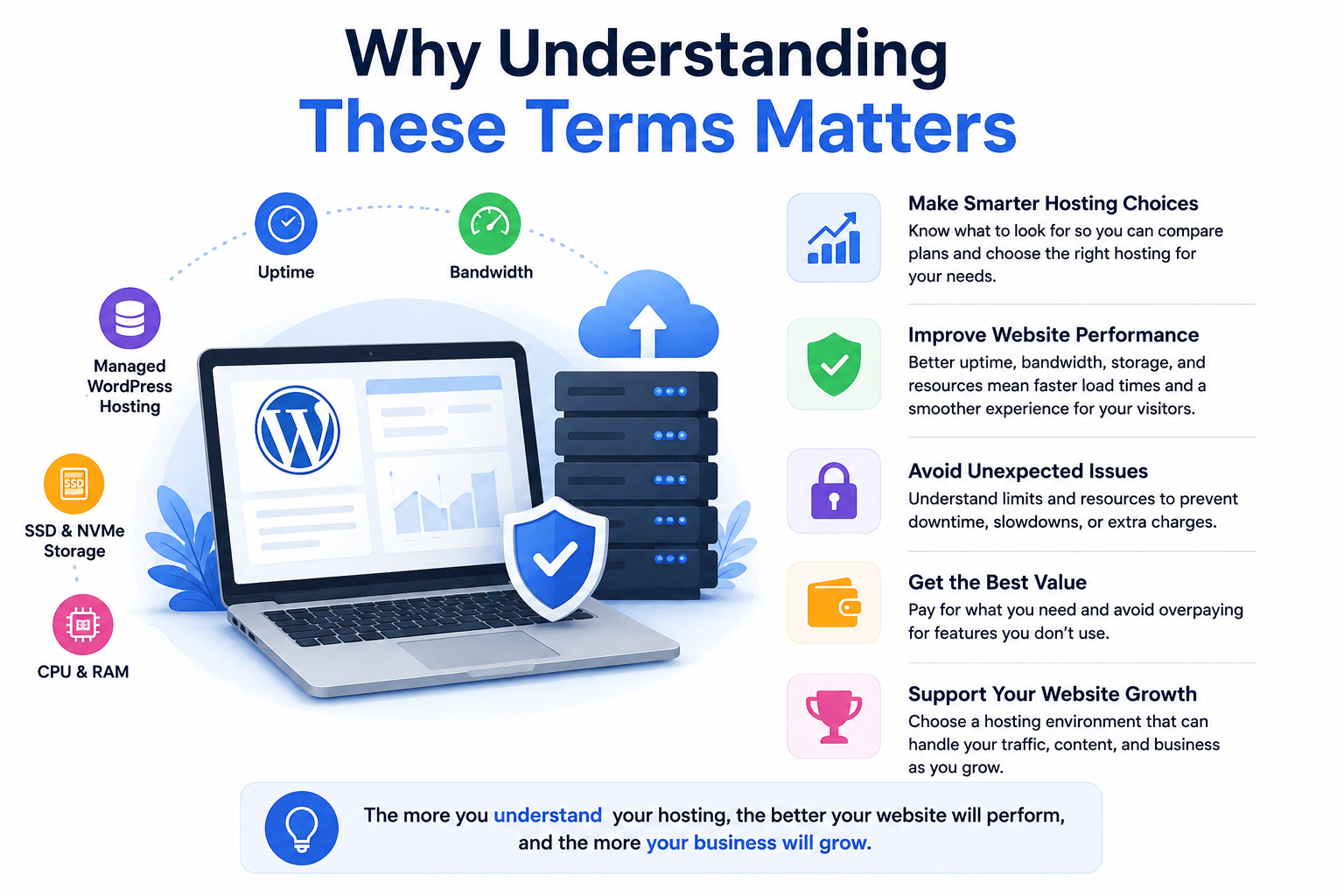
Why Understanding These Terms Matters
Hosting providers often use technical shorthand in their plans and support docs. If you don’t know what a term means, you might:
- Pick a plan that doesn’t match your site’s needs
- Misunderstand what’s included in your hosting package
- Struggle to describe an issue to support
- Overpay for features you don’t actually need
Knowing the basics of WordPress hosting terms helps you make confident decisions, whether you’re launching a small business site or managing an eCommerce store for a growing UAE-based brand.
Core WordPress Hosting Terms Explained
Managed WordPress Hosting
A hosting service designed specifically for WordPress, where the provider takes responsibility for some combination of server management, updates, security, backups, monitoring, and performance optimization. Exactly what’s included varies by provider and plan, so it’s worth checking the specifics before you sign up. For a deeper comparison, see our Managed WordPress Hosting guide.
Uptime
The percentage of time your website is accessible to visitors. Most quality hosts advertise 99.9% uptime or higher. Even small amounts of downtime can affect sales and search rankings, so this is worth checking before you commit to a provider.
Bandwidth
The amount of data that can move between your website and its visitors over a given period. Sites with high traffic or lots of images/videos need more bandwidth. If a plan has bandwidth limits, exceeding them can slow your site down or trigger extra charges.
SSD and NVMe Storage
These refer to the type of drive your website’s files and database are stored on. SSDs use flash memory instead of spinning disks, making them significantly faster than traditional HDDs. NVMe is a newer storage interface commonly used with high-performance SSDs, offering higher throughput and lower latency than older SATA-based SSD storage. Faster storage generally means quicker page loads, especially for database-heavy sites like WooCommerce stores.
CPU and RAM
CPU (processing power) and RAM (memory) determine how much work your hosting account can handle at once — things like running PHP scripts, processing database queries, and serving multiple visitors simultaneously. Plans with low CPU or RAM allocations can feel fine on a quiet day but struggle during traffic spikes or when several plugins run at once.
Resource Limits and Inodes
Beyond CPU and RAM, hosting plans often cap the number of files your account can store — known as an inode limit. This includes plugin files, theme files, cached files, and email attachments, not just uploads. Hitting resource or inode limits can cause slowdowns or temporary suspensions, which matters most for busy or resource-heavy sites like WooCommerce hosting setups.
Server Response Time and TTFB
TTFB (Time to First Byte) measures how long it takes for a browser to receive the first byte of a response after making a request. It’s a specific performance metric influenced by hosting resources, server processing, caching, and database queries. “Server response time” is often used as a broader, related term. Either way, a slow response drags down overall page speed, even if the rest of your site is well optimized.
Caching
A method of storing a temporary version of your site’s pages so they load faster for repeat visitors. Many hosts include built-in caching as part of managed WordPress plans. If you want a full breakdown of how this works, check our WordPress Caching Guide.
CDN (Content Delivery Network)
A network of servers spread across different locations that deliver your site’s content from the server closest to the visitor. This reduces load times, particularly useful if you have visitors outside your primary hosting region — for example, a UAE-based store serving customers across the GCC.
SSL Certificate
A security certificate that encrypts data between your website and its visitors, shown by the padlock icon in the browser. SSL/TLS is essential for website security and visitor trust, and HTTPS is also a lightweight Google ranking signal. See our SSL for WordPress guide for setup details.
Staging Environment
A private copy of your live website used to test changes — new plugins, theme updates, design edits — before they go live. This prevents mistakes from affecting your actual visitors.
Backups
Automated or manual copies of your website’s files and database, used to restore your site if something goes wrong. Backup frequency and retention periods vary by host. For a complete walkthrough, see our WordPress Backup Guide.
PHP Version
WordPress runs on PHP, a server-side programming language. Hosting plans specify which PHP version is used, and running an outdated version can cause compatibility issues or slower performance. Good hosts let you switch PHP versions easily from a dashboard.
PHP Workers
PHP workers process the PHP requests generated by WordPress. When all available workers are busy, additional requests have to wait their turn. This matters most on busy WordPress sites, WooCommerce stores, or sites using resource-intensive plugins, where too few workers can cause slow loading or timeouts even if storage and bandwidth are fine.
Malware Scanning
A security feature that regularly checks your site’s files for malicious code. Many managed WordPress hosts include this automatically, alongside firewalls and login protection. Our WordPress Security Guide covers this in more depth.
Site Migration
The process of moving a WordPress website from one host to another. Some hosts offer free migration tools or done-for-you migration services. If you’re planning a move, our WordPress Migration Guide walks through the process step by step.
Database
WordPress stores your content, settings, and site data in a database (typically MySQL or MariaDB) that runs alongside your files. Database performance directly affects how fast your site loads, especially for content-heavy or WooCommerce sites, which is why hosting plans often mention database resources alongside storage and RAM.
Best Practices When Reviewing Hosting Terms
- Compare uptime guarantees, not just price
- Check whether caching and SSL are included or cost extra
- Confirm backup frequency and how easy restoration is
- Ask if staging environments are available on your plan
- Look at resource limits if you expect traffic growth
- Check PHP worker and memory limits, not just storage
Common Mistakes to Avoid
- Assuming “unlimited” bandwidth or storage has no practical limits
- Ignoring PHP version compatibility with your theme and plugins
- Skipping backups because “the host probably handles it”
- Choosing a plan based on price alone, without checking included features
Conclusion
Getting comfortable with basic WordPress hosting terminology takes the guesswork out of choosing and managing your hosting plan. Once you understand terms like uptime, caching, staging, and PHP version, you’re in a much better position to pick a host that actually fits your site’s needs — rather than one that just sounds good on paper.
If you’re evaluating hosting options for your business, CreativeON’s WordPress Hosting guides can help you go deeper into specific topics like security, backups, and performance.