
WordPress user roles are built‑in permission levels that control what each user can and cannot do inside a WordPress site. In a managed WordPress hosting environment, using WordPress user roles correctly is essential for security, performance, and smooth collaboration—especially when multiple people access the same website.
This guide answers one specific question: how to configure WordPress user roles safely and efficiently on a managed WordPress hosting plan, so your team can work confidently without risking site stability.
Why WordPress User Roles Matter for Hosting
When you host WordPress, your hosting account and your WordPress dashboard both control access—but at different layers.
- Hosting logins manage server-level settings, billing, backups, DNS, and support.
- WordPress user roles control what people can do inside the site: content, plugins, themes, and settings.
If user roles are misconfigured, even a secure managed WordPress hosting setup can be weakened. Too many users with Administrator rights can accidentally change critical settings, disable caching, install risky plugins, or interfere with staging and backup tools provided by your host.
How WordPress User Roles Work
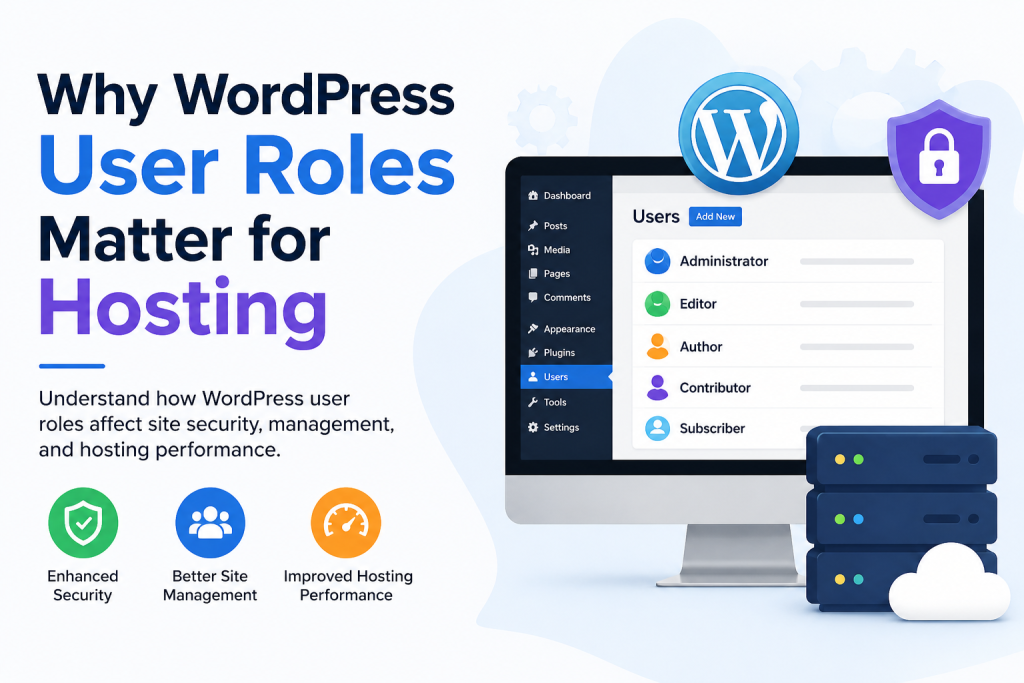
WordPress includes several default roles. Each role is designed for a specific level of responsibility inside your hosted site.
Administrator
The Administrator role has full control over the site: themes, plugins, users, settings, and all content.
On a managed WordPress hosting plan, Administrators can:
- Install and configure plugins that affect performance and security.
- Change themes, which can impact layout and speed.
- Manage integrations that rely on hosting features (caching, backups, CDN, staging).
Because Administrators can override many of the optimizations your hosting provider applies, limit this role to technical owners or trusted decision-makers.
Editor
The Editor role can manage and publish all posts and pages, including content created by other users, but cannot install plugins, change themes, or modify system-level settings.
For content‑driven WordPress sites, Editors are ideal for:
- SEO specialists
- Content managers
- Marketing leads
They can keep the content layer healthy while leaving hosting-level and technical changes to Administrators.
Author
The Author role can write, edit, and publish their own posts but cannot edit other users’ content or change site settings.
On a hosted WordPress site, Authors are perfect for:
- Regular blog writers
- Product copywriters
- In‑house content creators
Authors focus on content only, while hosting performance, security, and backups remain under administrative control.
Contributor
The Contributor role can write and edit their own posts but cannot publish them. An Editor or Administrator must approve and publish their work.
This role works well for:
- Guest writers
- Freelancers
- Interns
- External partners
Contributors help produce content without having the ability to push changes live or modify site structure.
Subscriber
The Subscriber role can only manage their own profile and, depending on your setup, access restricted or member‑only content.
Subscribers are typically used for:
- Membership sites
- Customer portals
- Email capture workflows
They are ideal when you need user accounts for visitors but do not want them to have any editing or administrative capabilities.
Role Setup Checklist for Hosted WordPress Sites
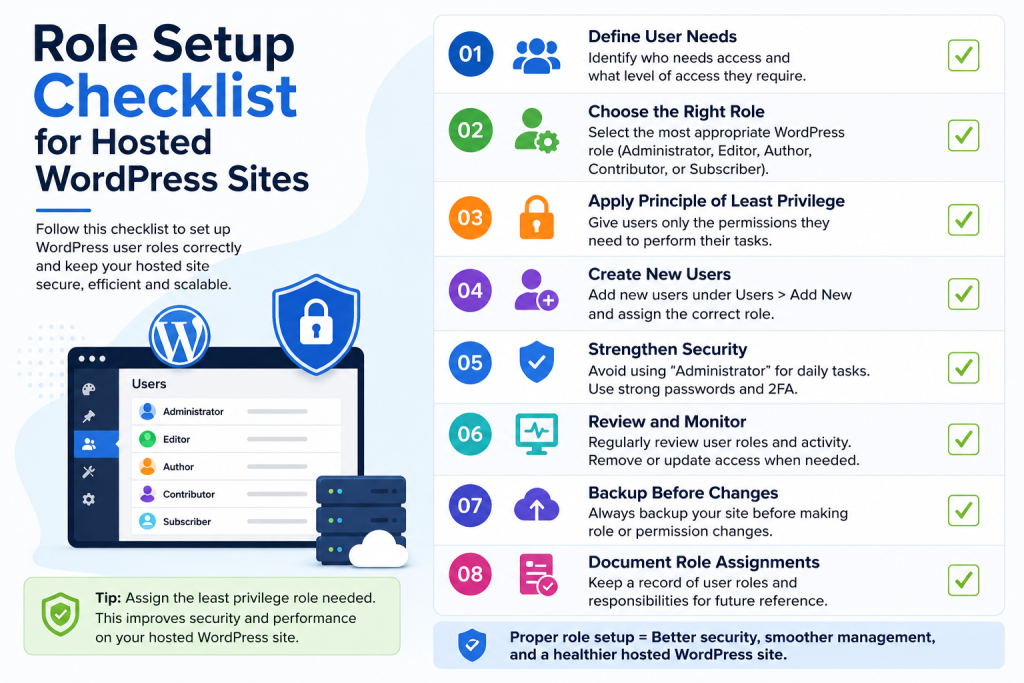
To keep your hosted WordPress site secure and efficient, a simple, practical role model helps. Here’s a rule‑of‑thumb setup many businesses can use:
- 1 Administrator
- Business owner or lead technical contact
- Handles plugins, themes, integrations, and hosting-related decisions
- 1–2 Editors
- SEO / content managers
- Control overall content quality, categories, and publishing schedule
- Authors
- Regular blog or product writers
- Publish their own content after internal review
- Contributors
- Guest writers and external partners
- Submit drafts for approval, no direct publishing rights
- Subscribers
- Customers, members, or newsletter subscribers
- Access restricted content and manage their profile only
You can adjust this checklist to your team size, but the principle is simple: give each person just enough access to do their job—no more.
WordPress User Roles and Hosting Security
Strong hosting security is not just about firewalls and malware scanning; it also depends on controlling who can do what inside WordPress.
Good security practices around user roles include:
- Keeping Administrator accounts to a minimum (ideally one or two).
- Using Editor and Author roles for content and SEO tasks instead of Administrator.
- Assigning Contributor and Subscriber roles for low‑risk, limited access.
- Regularly reviewing the Users list and removing accounts that are no longer needed.
- Changing or removing roles immediately when staff, agencies, or freelancers are offboarded.
A simple rule you can apply in practice:
If a user never needs to install a plugin, change a theme, or modify settings, they do not need Administrator access.
Pairing role management with dedicated resources like a WordPress Security Guide, SSL for WordPress, and a WordPress Backup Best Practices article gives you layered protection without extra complexity.
WordPress User Roles and Hosting Performance
Managed WordPress hosting platforms often include performance optimizations such as caching, CDNs, and tuned PHP/HTTP configurations. These can be undermined by misused roles.
An Administrator who is not careful can:
- Disable or misconfigure caching plugins.
- Install heavy or poorly coded themes and plugins.
- Change settings that conflict with server-side caching or optimization.
- Enable unnecessary features that consume resources.
To protect performance:
- Reserve Administrator access for people who understand how plugin and theme choices affect speed.
- Use Editor and Author roles for day‑to‑day publishing and SEO work.
- Refer to a dedicated WordPress Caching Guide or “How to Speed Up WordPress Hosting” resource before changing performance‑related settings.
Performance tuning deserves its own guides; this article focuses on user roles and how they support (or damage) those optimizations.
Best Practices for Assigning WordPress User Roles
1. Match Roles to Real Responsibilities
Start by listing what each person actually needs to do on your site, then assign the minimum role that allows those tasks.
Examples:
- Business owner / technical lead → Administrator
- SEO / content manager → Editor
- Regular writers → Author
- Guest writers → Contributor
- Customers / members → Subscriber
If you are unsure, start with a lower role (e.g. Editor instead of Administrator) and only upgrade if they genuinely need more access.
2. Separate Hosting and WordPress Access
Your hosting control panel and WordPress dashboard are different environments:
- Hosting logins: domain settings, backups, server configuration, invoices, support.
- WordPress logins: content, design, plugins, and site‑level settings.
Avoid sharing hosting credentials when a WordPress role is sufficient. This limits risk: even if a WordPress account is compromised, the attacker will not automatically gain access to your hosting account.
3. Use Roles to Support Workflow, Not Block It
Roles should make teamwork easier, not harder. For many agencies and eCommerce teams, a healthy workflow looks like:
- Contributors and Authors draft content.
- Editors review, optimize, and publish.
- Administrators manage plugins, themes, and major structural changes.
Review this workflow whenever you change your hosting plan, redesign your site, or bring in new partners. Role assignments that worked for a small blog may not be enough for a busy WooCommerce store or content-heavy site.
Common Mistakes with User Roles on WordPress Hosting
Even experienced site owners can misuse roles. Some of the most common hosting‑related mistakes include:
- Giving Administrator to “everyone”
- Often done for convenience, but dramatically increases risk.
- Using Administrator for content‑only tasks
- SEO managers or writers don’t need full access; Editor or Author is safer.
- Leaving old accounts active
- Former staff, agencies, or freelancers may retain access, creating security and brand risks.
- Ignoring lower‑privilege roles
- Not using Contributor or Subscriber roles leads to over‑privileged accounts.
A simple clean‑up habit: every quarter, review your Users list and ask, “Does this person still need this level of access?” If not, downgrade or delete.
WordPress User Roles in Advanced Hosting Scenarios
In more advanced hosting setups, user roles become even more important:
- Multisite WordPress hosting
- You may have both network administrators and site-specific administrators. Assigning the wrong role can allow changes that affect multiple sites at once.
- WooCommerce hosting
- Shop managers and support staff often need to manage orders and products, not plugins and themes. Combining WooCommerce capabilities with WordPress roles carefully prevents unnecessary Administrator access.
These scenarios deserve dedicated guides, such as “WordPress Hosting for WooCommerce” or “Managed WordPress Hosting for Multisite,” to avoid turning this supporting article into a pillar.
Internal Linking Opportunities
This article fits naturally into a broader WordPress Hosting knowledge base and can be supported by, and link to, several focused resources:
- Managed WordPress Hosting
- Explains what “managed” means and how hosting and WordPress work together.
- WordPress Security Guide
- Covers firewalls, malware scanning, and role‑based access control in more depth.
- WordPress Backup Best Practices
- Explains who should manage backups and restores, and how often.
- WordPress Staging Environment Guide
- Shows how to control who can push changes from staging to live.
- WordPress Caching Guide
- Focuses on performance optimizations that Administrators should understand before changing settings.
Each of these topics should have its own dedicated article; here, they are referenced only where they directly relate to user roles.