Enabling Core Services for Education Users (Google Workspace Admin Guide)
Introduction In Google Workspace for Education, core services like Gmail, Drive, Classroom, and Meet are not always active for every user by default. School administrators must enable them from the Admin Console based on roles such as students, teachers, and staff. This guide explains how to enable core services for education users in a controlled […]
Introduction
In Google Workspace for Education, core services like Gmail, Drive, Classroom, and Meet are not always active for every user by default. School administrators must enable them from the Admin Console based on roles such as students, teachers, and staff.
This guide explains how to enable core services for education users in a controlled and correct way so schools can manage learning tools safely and efficiently.
Search Intent Classification
Intent Type: Implementation Guide (Focused Service Activation)
This article is for:
- School IT administrators
- Google Workspace Education admins
It focuses only on turning core services ON/OFF for users and groups, not full system setup.
Primary Keyword
Enabling Core Services for Education Users
What Are Core Services in Google Workspace for Education?
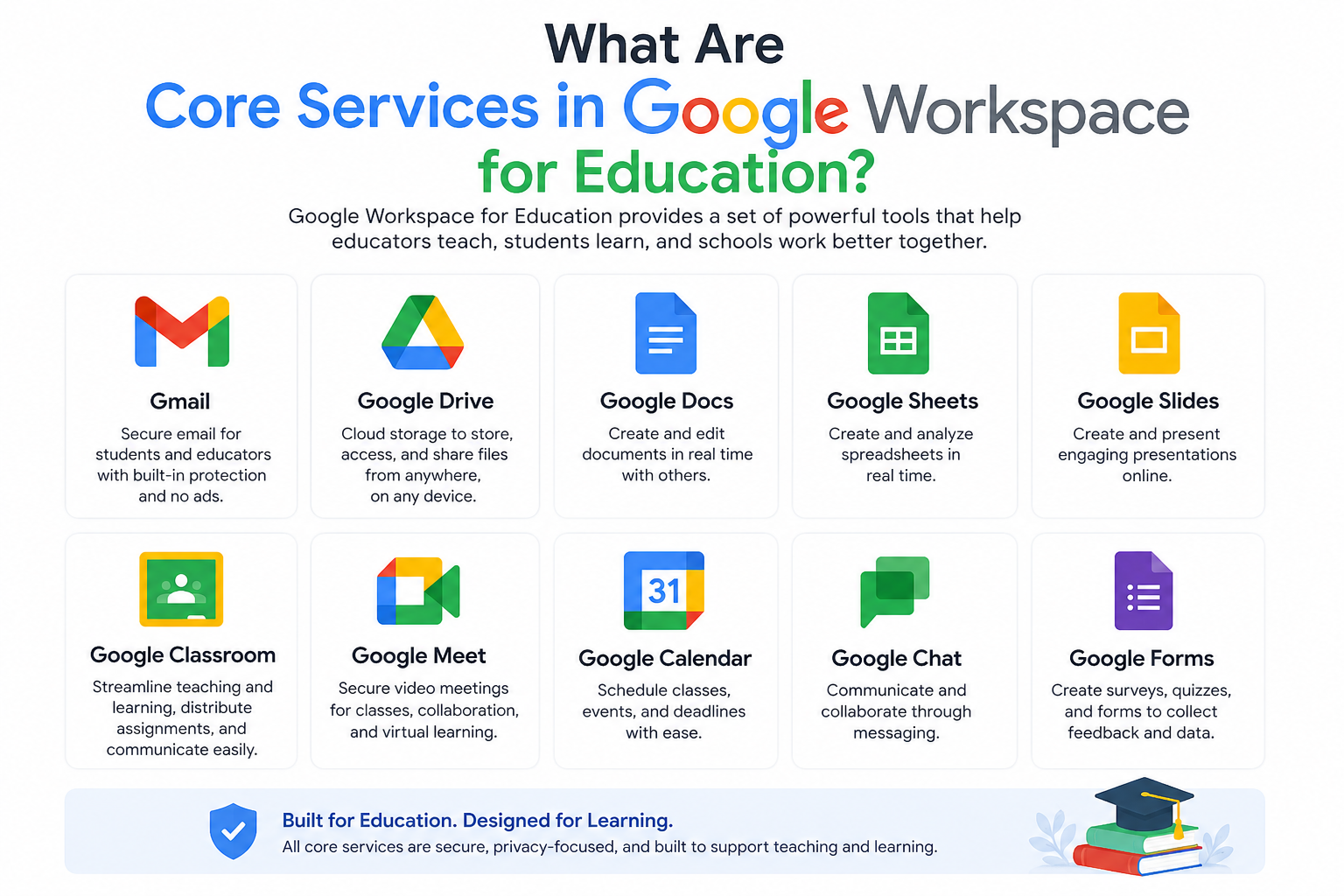
Core services are the main Google tools used for teaching and communication in schools.
These include:
- Gmail (school email communication)
- Google Drive (file storage and sharing)
- Google Docs (collaborative writing)
- Google Classroom (assignments and learning)
- Google Meet (online classes and meetings)
- Google Calendar (scheduling lessons and events)
Each service is controlled individually inside the Admin Console.
Why Schools Need to Enable Core Services
When a school creates user accounts, services are often restricted by default. This is done to maintain control and apply rules based on student age, role, or grade level.
Schools enable services to:
- Control which tools students can use
- Separate access for teachers and students
- Apply safety rules before activation
- Avoid unauthorized communication or sharing
For example:
- Teachers may need full access to Gmail and Meet
- Students may only need Classroom and Drive access
How Core Services Are Structured in Admin Console
Core services are managed through service controls, which apply based on:
1. Organizational Units (OUs)
Primary method of control in schools.
Example:
- Students OU
- Teachers OU
- Staff OU
2. Service Status
Each service can be:
- ON
- OFF
- ON for some OUs only
3. Inheritance Rules
Lower-level OUs can inherit settings from parent OUs unless changed.
Step-by-Step: Enabling Core Services for Education Users
Step 1: Open Google Admin Console
Sign in using a school administrator account.
Only admins can change service access.
Step 2: Go to Google Workspace Services
Navigate to:
Apps → Google Workspace
Here you will see all core services.
Step 3: Select the Service You Want to Enable
Click on any service such as:
- Gmail
- Google Drive
- Google Classroom
- Google Meet
Each service has its own settings page.
Step 4: Choose Organizational Unit (OU)
On the left side panel:
- Select the correct OU (Students / Teachers / Staff)
This step is very important because settings apply per OU.
Step 5: Turn Service ON or OFF
Inside service settings:
- Set service to ON
- Or restrict to specific OUs only
Example:
- Teachers OU → Gmail ON
- Students OU → Gmail ON or restricted
Step 6: Save Changes and Wait for Sync
After saving:
- Changes may take a few minutes
- Users may need to sign out and sign back in
Service Behavior After Activation
When a service is enabled:
Gmail
- Inbox is created automatically for the user
- Email becomes active after sync
Google Drive
- Storage becomes available instantly
- File sharing rules apply immediately
Google Classroom
- Teachers can create classes
- Students can join assigned classes
Google Meet
- Users can start or join meetings
- Access depends on OU permissions
Recommended Service Access Model for Schools
| Service | Teachers | Students | Staff |
| Gmail | ON | ON | ON |
| Drive | ON | ON | ON |
| Docs | ON | ON | ON |
| Classroom | ON | ON | Limited |
| Meet | ON | Restricted | ON |
This structure keeps learning controlled and safe.
Common Mistakes Admins Make
1. Enabling services for everyone
This removes control and creates policy issues.
2. Ignoring OU structure
Without OUs, service management becomes confusing in large schools.
3. Not checking inheritance
Settings from parent OUs can override expectations.
4. Expecting instant activation
Some services take time to fully activate.
Common Issues and Fixes
Service enabled but user cannot access it
Check:
- OU assignment
- Service inheritance rules
Classroom not visible
Check:
- Classroom service status
- Whether user is in correct OU
Gmail not working
Check:
- Service ON status
- User license assignment
Drive not appearing
Check:
- Drive service enabled for OU
- Account login refresh
Internal Link Suggestions (Cluster Support)
This page connects with:
- Google Classroom Setup Guide
- Google Meet for Education Guide
- Google Drive for Students Guide
- Google Workspace Admin Console Security Guide
Summary
Enabling core services for education users is a controlled process inside the Google Admin Console. It ensures that students, teachers, and staff get access to the right tools based on their role.
By using Organizational Units and service-level controls, schools can safely activate Gmail, Drive, Classroom, and Meet without exposing unnecessary features.