Google Admin Console Organizational Units Setup for Schools (Complete Guide)
Introduction Schools that use digital learning tools need a clear way to manage students, teachers, and staff. In Google Admin Console, this is done using Organizational Units (OUs). Organizational Units help schools control who gets access to which apps, features, and settings. Instead of treating every user the same, OUs allow schools to apply different […]
Introduction
Schools that use digital learning tools need a clear way to manage students, teachers, and staff. In Google Admin Console, this is done using Organizational Units (OUs).
Organizational Units help schools control who gets access to which apps, features, and settings. Instead of treating every user the same, OUs allow schools to apply different rules for different groups.
For example, a primary school student may need restricted access, while teachers need full collaboration tools like Google Drive, Google Meet, and Google Docs.
This guide explains how Organizational Units work, how schools should structure them, and how to set them up correctly without creating long-term management problems.
What Are Organizational Units in Google Admin Console?
Organizational Units (OUs) are containers inside the Admin Console that group users based on roles, classes, or departments.
Think of them as folders in a school system:
- Students go in one folder
- Teachers go in another
- Admin staff go in a separate folder
- You can also create sub-folders for grade levels
Each OU can have its own settings, permissions, and app access rules.
How Organizational Units Actually Work (Simple Explanation)
Inside Google Admin Console, every user belongs to one primary organizational unit.
The system follows a simple rule:
- Settings move from parent OU → child OU (inheritance)
- Child OU keeps parent settings unless changed manually
- Admins can move users anytime between OUs
Important behavior schools often miss:
- A user cannot belong to multiple OUs at the same time
- Changes do not always apply instantly (can take time to sync)
- Some settings require user sign-out/sign-in to apply
This structure is what makes OUs powerful for school-wide control.
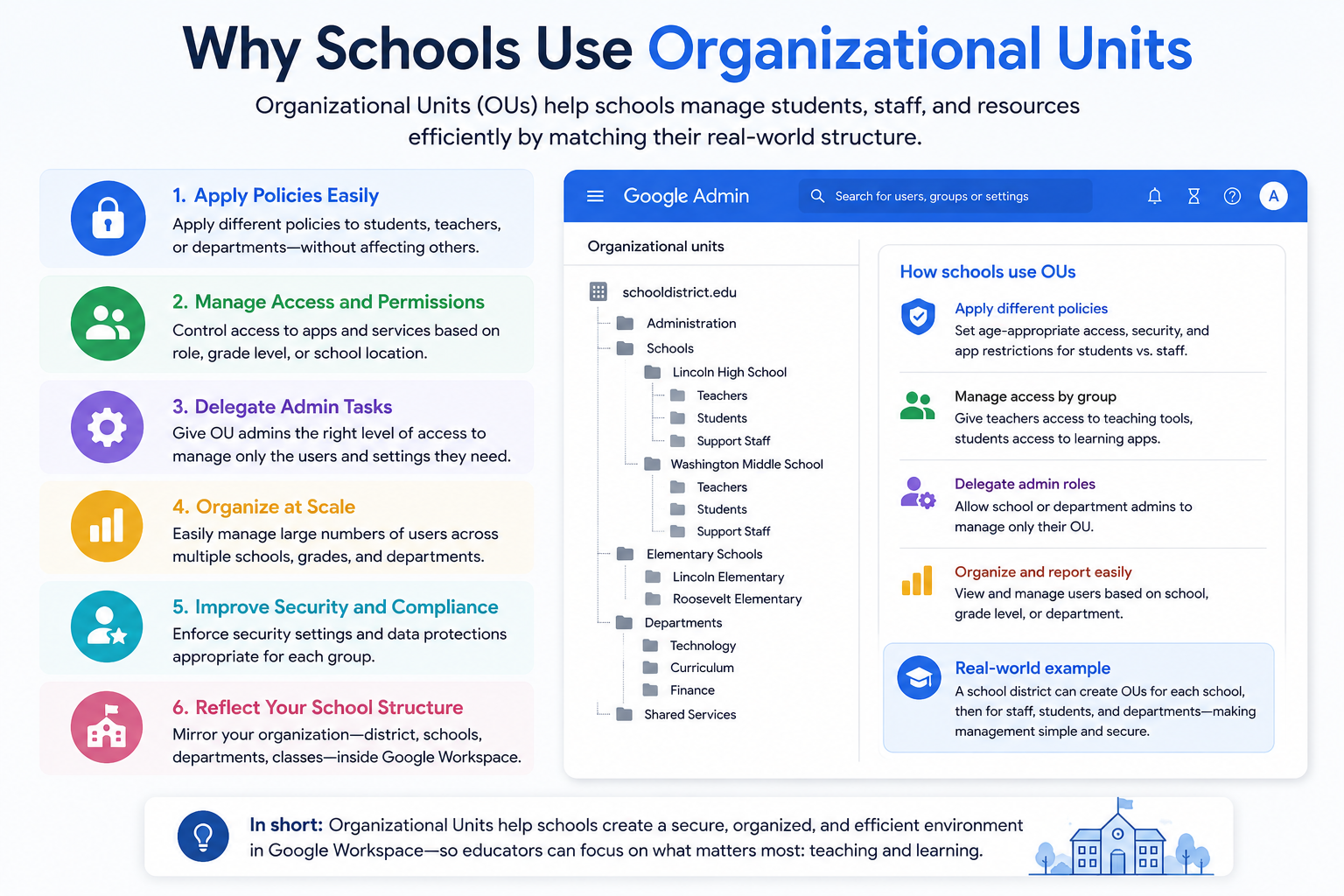
Why Schools Use Organizational Units
Schools don’t use OUs just for organization—they use them for control, safety, and consistency.
Key reasons:
- Different rules for students and teachers
- Age-based restrictions for younger students
- Controlled access to apps like Google Meet or YouTube
- Better security for sensitive admin data
- Easier management of thousands of users
For example:
A school may allow Drive sharing for teachers but restrict external sharing for students.
Ideal Organizational Unit Structures for Schools
There is no single correct structure. Schools choose based on size and complexity.
🏫 Small School Structure
- Students
- Teachers
- Admin Staff
Simple and easy to manage.
🏫 Medium School Structure
- Students
- Primary
- Secondary
- Teachers
- Admin Staff
Useful when different age groups need different policies.
🏫 Large School / Multi-Campus Structure
- Campus A
- Students
- Teachers
- Campus B
- Students
- Teachers
- Central Admin
Best for institutions managing multiple schools or branches.
Step-by-Step Setup of Organizational Units
Step 1: Open Admin Console
Sign in to Google Admin Console using an administrator account.
Go to:
- Directory
- Organizational Units
Step 2: Create the Root Structure
Start by defining top-level groups:
- Students
- Teachers
- Staff
Avoid creating too many layers at this stage.
Step 3: Create Sub-Organizational Units (If Needed)
Only add sub-units when policies are different.
Example:
- Students
- Grade 6
- Grade 7
- Grade 8
If all students share the same rules, avoid sub-units.
Step 4: Assign Users to Organizational Units
- Open Users section
- Select a user or group
- Click “Change Organizational Unit”
- Assign correct OU
- Save
You can also bulk move users during school onboarding.
Step 5: Apply Policies to Each OU
Once structure is ready, apply rules such as:
- App access (Drive, Meet, Gmail)
- Sharing permissions
- Security settings
- Device policies (if used)
Each OU can behave differently depending on school needs.
How Policy Inheritance Works (Critical for Admins)
Inheritance is the most important concept in OUs.
Simple rule:
- Parent OU settings apply to all child OUs
- Child OU only changes what is manually overridden
Example:
If “Students” OU blocks external sharing:
- Grade 6 inherits the same restriction
- Unless you manually allow it in Grade 6 settings
This is why poor OU planning creates long-term issues in schools.
Common Real Problems Schools Face
These are real issues school IT teams often experience:
1. Students seeing wrong apps
Cause: User placed in wrong OU
2. Teachers losing access to Meet or Drive features
Cause: Policy mismatch after OU move
3. Settings not applying immediately
Cause: Sync delay across Google systems
4. Over-complicated OU structure
Cause: Too many unnecessary sub-OUs
5. Mixed policy inheritance confusion
Cause: Parent OU rules not clearly defined
Best Practices for Schools
To keep systems stable:
- Design OU structure before adding users
- Keep hierarchy simple
- Use role-based grouping, not just classes
- Avoid deep nesting unless necessary
- Document every OU change
- Review structure every academic year
Key Rule for School IT Admins
A strong OU structure follows one principle:
“Organize based on policy needs, not academic labels.”
This prevents long-term management problems.
Troubleshooting Guide
Problem: Settings not working
- Check OU assignment
- Wait for sync delay
- Ask users to sign out and back in
Problem: Wrong access level
- Verify parent OU inheritance
- Check conflicting settings
Problem: User in wrong group
- Move user to correct OU
- Reapply policies if needed
Suggested Internal Learning Path
To build full school deployment understanding, connect this article with:
- Google Workspace for Education setup guide
- Google Classroom setup for schools
- Google Meet virtual classroom management
- Google Drive sharing policies for students
- Google Admin Console security settings
Summary
Organizational Units in Google Admin Console are the foundation of school-wide user management in Google Workspace for Education.
They allow schools to:
- Control access
- Apply different rules
- Organize users logically
- Maintain security at scale
When designed correctly, OUs make school IT systems stable, scalable, and easy to manage. When designed poorly, they create long-term administrative confusion.