Introduction to Google Endpoint Management
Every business that uses Google Workspace eventually faces the same question: who has access to company data, and from which devices? Laptops go home with employees, phones get lost, and personal devices end up connected to work email. Without a way to control this, sensitive company information can walk out the door on a device […]
Every business that uses Google Workspace eventually faces the same question: who has access to company data, and from which devices? Laptops go home with employees, phones get lost, and personal devices end up connected to work email. Without a way to control this, sensitive company information can walk out the door on a device no one is tracking.
This is exactly the problem Google Endpoint Management solves. It gives administrators visibility and control over every device connecting to a Google Workspace account, whether that device is company-owned or personal.
What Is Google Endpoint Management?
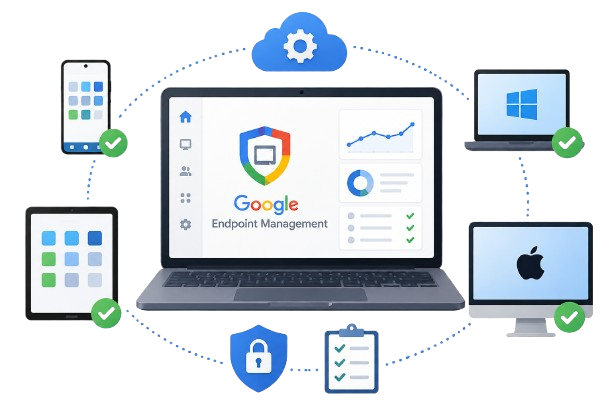
Google Endpoint Management is a built-in Google Workspace feature that lets administrators secure, monitor, and manage the devices — phones, tablets, laptops, and desktops — that access company data through Gmail, Google Drive, Calendar, and other Workspace apps.
Administrators manage everything from the Google Admin console, without necessarily needing a separate third-party MDM (mobile device management) platform for baseline device oversight.
For UAE businesses operating across Dubai, Abu Dhabi, and other Emirates, this is particularly useful when teams work remotely, use personal devices for email, or manage staff across multiple office locations.
Two Management Tracks: Mobile Devices vs. Computers
A common source of confusion is that Google Endpoint Management is actually made up of two related but separate tracks, each with its own management levels:
- Mobile device management — covers phones and tablets (Android and iOS). It has three levels: Basic, Advanced, and Unmanaged.
- Computer endpoint management — covers laptops and desktops (Windows, macOS, Linux, and ChromeOS). It has three levels: Fundamental, Advanced, and Enterprise.
Both tracks are configured from the same Admin console and can be set independently for different organizational units, so a company can, for example, apply strict controls to finance laptops while keeping lighter mobile settings for general staff.
This article covers what Google Endpoint Management is at a high level. For a full breakdown of the three computer endpoint management levels — including which Google Workspace edition each one requires — see our dedicated guide on Fundamental vs Advanced vs Enterprise Endpoint Management for Computers.
How It Works
When endpoint management is enabled, any device that signs into a company Google account is registered and becomes visible in the Admin console. From there, administrators can typically:
- View a full inventory of connected devices, including model, operating system, and last sync time
- Enforce security policies such as screen lock, password strength, and encryption
- Remotely wipe company data from a lost or stolen device
- Block a specific device from accessing company data
- Approve or block new device sign-ins before they connect
Mobile basic management and computer fundamental management are turned on automatically and require no setup. Moving to advanced (or enterprise) management unlocks deeper controls — such as app management, device inventory detail, and stricter policy enforcement — but must be turned on by an administrator, and on Windows devices, advanced computer endpoint management also requires installing the Google Credential Provider for Windows, either by the user or pushed remotely by an admin.
Why Endpoint Management Matters for Businesses
Endpoint management isn’t just an IT convenience — it directly affects data security and compliance.
Reduces data loss risk. If a device is lost or an employee leaves the company, administrators can remotely remove company data without needing physical access to the device.
Supports remote and hybrid teams. Employees can safely use personal phones for company email while administrators still enforce baseline security requirements.
Improves visibility. IT teams can see exactly how many devices are connected, which ones are outdated, and which ones may pose a risk.
Strengthens compliance. Industries handling sensitive data, such as healthcare, finance, and legal services, often need documented device controls to meet internal or regulatory requirements.
Who Should Use Google Endpoint Management
Endpoint management is relevant to almost any organization using Google Workspace, but it becomes essential for:
- Businesses with remote or hybrid employees
- Organizations issuing company-owned laptops or phones
- Companies with a bring-your-own-device (BYOD) policy
- Schools managing student and staff devices
- Any business handling client or financial data that requires access control
Smaller teams often start with the automatic, no-setup protection of basic mobile and fundamental computer management, then move to advanced or enterprise-level controls as their device fleet and compliance needs grow.
Getting Started with Endpoint Management
Enabling and configuring endpoint management involves a few administrative steps:
- Sign in to the Google Admin console with a super administrator account.
- Confirm endpoint verification is turned on (it’s on by default for most editions).
- Go to Devices > Mobile & endpoints > Settings to review or change mobile and computer management levels.
- Apply settings by organizational unit so different teams can have different policies.
- Set device security policies, such as screen lock and password requirements.
- Review the device list as employees sign in, and approve or block devices as needed.
Because settings can be applied per organizational unit, administrators can apply stricter rules to sensitive departments, such as finance or HR, while keeping lighter policies elsewhere.
Best Practices
- Start with the automatic default protection, then move to advanced or enterprise management once you understand your device landscape.
- Apply security policies at the organizational unit level rather than company-wide, so departments with different needs aren’t over- or under-restricted.
- Regularly review the device inventory to spot inactive or outdated devices.
- Combine endpoint management with strong password policies and two-step verification for layered security.
- Document your device policy so employees understand what happens if a device is lost or they leave the company.
Common Mistakes to Avoid
- Leaving endpoint management unconfigured. Many admins assume the automatic baseline protection is strong enough, when advanced or enterprise management offers meaningfully more control.
- Applying one policy to the entire organization. Different teams often need different levels of restriction.
- Forgetting to remove offboarded employees’ devices. This leaves a security gap even after the employee’s account is deactivated.
- Overlooking desktop and laptop management. Many businesses focus only on phones and miss company laptops, which often hold more sensitive data.


