

Organizational Units (OUs) help you manage groups of users within your Google Workspace account. Instead of applying the same settings to everyone, you can organize users into departments, offices, schools, or teams and assign policies that fit each group.
This guide walks you through the process of creating Organizational Units in the Google Admin console. It focuses only on creating OUs and planning their structure. If you need to understand what Organizational Units are and how they work, refer to the What Are Organizational Units in Google Workspace? guide.
Before You Create Organizational Units
Before creating Organizational Units, take a few minutes to plan how your organization should be structured. A well-planned OU hierarchy is easier to manage as your business grows.
Common ways to organize users include:
- Departments (Sales, HR, Finance, Marketing)
- Office locations (Dubai, Abu Dhabi, Sharjah)
- Business divisions
- Schools, campuses, or faculties
- Temporary project teams (only if long-term administration is required)
Avoid creating unnecessary Organizational Units for very small groups unless they require different Google Workspace policies.
Prerequisites
To create Organizational Units, you should have:
- A Google Workspace account
- Super Admin privileges or an administrator role with permission to manage Organizational Units
- Access to the Google Admin console
- A planned organizational structure
Without sufficient administrative permissions, you won’t be able to create or modify Organizational Units.
How to Create Organizational Units
Follow these steps to create a new Organizational Unit in Google Workspace.
Step 1: Sign in to the Google Admin Console
Sign in using an administrator account and open the Google Admin console.
From the dashboard, select:
Directory → Organizational Units
This page displays your existing Organizational Unit hierarchy.
Step 2: Select the Parent Organizational Unit
Before creating a new OU, decide where it should be placed.
For example:
Company
│
├── Sales
├── Marketing
├── Finance
└── Human Resources
Or a location-based structure:
Company
│
├── Dubai
├── Abu Dhabi
└── Sharjah
If you’re creating a top-level Organizational Unit, select the root organization.
If you’re creating a department within another department, select the appropriate parent OU first.
Planning the hierarchy correctly helps keep administration organized and avoids unnecessary restructuring later.
Step 3: Create the Organizational Unit
Click Create organizational unit (or the + button, depending on your Admin console interface).
You’ll be prompted to enter:
- Organizational Unit name
- Optional description
Choose a clear, descriptive name that administrators can easily recognize.
Examples include:
- Finance
- Human Resources
- Customer Support
- Dubai Office
- Remote Employees
Avoid generic names such as:
- Team 1
- Users
- New Department
- Miscellaneous
Descriptive names make ongoing administration much easier.
Step 4: Confirm the Parent Location
Verify that the new Organizational Unit will be created under the correct parent.
For example:
Company
│
└── UAE
├── Dubai
└── Abu Dhabi
Instead of placing “Dubai” directly under the company, you may want it nested under a regional OU such as “UAE.”
Choosing the correct parent ensures inherited policies are applied as intended.
Step 5: Save the Organizational Unit
After reviewing the details, click Create or Save.
The new Organizational Unit will immediately appear in your organization’s hierarchy.
At this stage, the Organizational Unit exists but does not contain any users.
To make it useful, users must be moved into the appropriate OU. This process is covered separately in a guide on moving users between Organizational Units.
Verify the Organizational Unit
Once created, confirm that:
- The Organizational Unit appears in the correct location.
- The name is accurate.
- The hierarchy matches your planned structure.
- Administrators can easily identify its purpose.
Making corrections immediately is easier than reorganizing a large structure later.
Best Practices for Creating Organizational Units
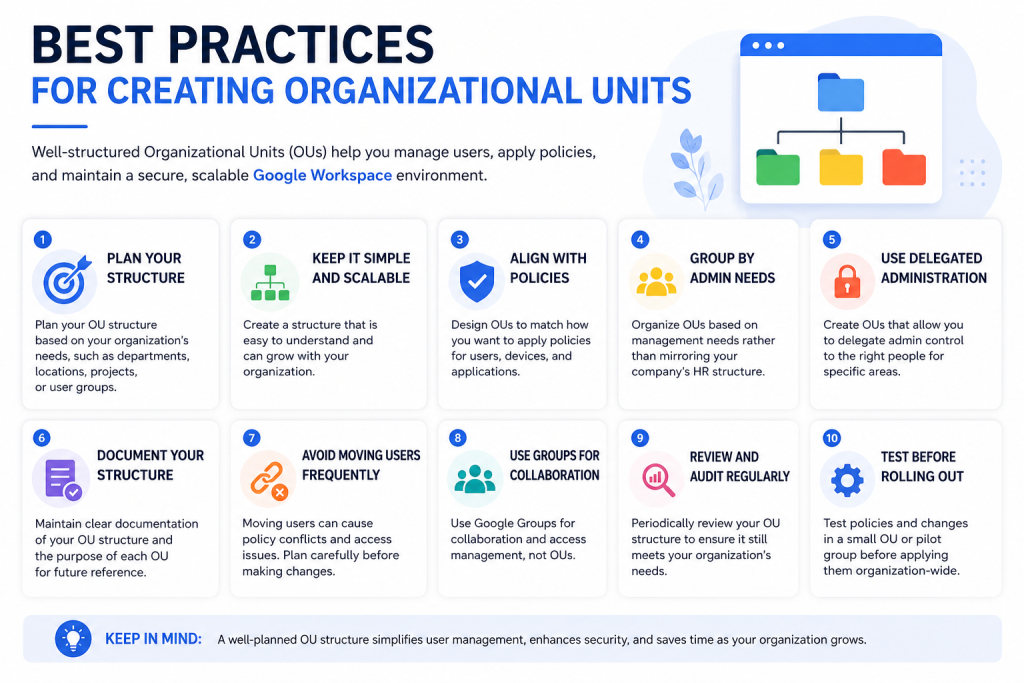
A well-designed Organizational Unit structure simplifies administration and reduces future maintenance.
Consider these best practices:
Create OUs Based on Policy Requirements
Create Organizational Units only when users require different Google Workspace settings.
For example:
- Sales users may need different Google Meet recording policies.
- Executives may have enhanced security requirements.
- Contractors may require limited access to certain Google services.
If all users share the same policies, separate Organizational Units may not be necessary.
Keep the Structure Simple
Avoid creating deeply nested Organizational Units unless they serve a clear administrative purpose.
Simple structures are:
- Easier to understand
- Faster to manage
- Less likely to introduce policy confusion
Many organizations only need two or three levels in their OU hierarchy.
Use Consistent Naming Conventions
Choose naming standards that remain clear as your organization grows.
Examples:
Departments
- Sales
- Marketing
- Finance
Locations
- Dubai
- Abu Dhabi
- Sharjah
Business Units
- Retail
- Wholesale
- Corporate
Consistent names make navigation easier for every administrator.
Plan for Future Growth
Even if your organization is small today, think about how it may expand.
For example, a UAE company operating only in Dubai today may later open offices in Abu Dhabi or other Emirates. Creating a scalable Organizational Unit structure from the beginning can reduce the need for major changes later.
Instead of reorganizing your entire hierarchy, you can simply add new Organizational Units as your business grows.
Common Mistakes to Avoid
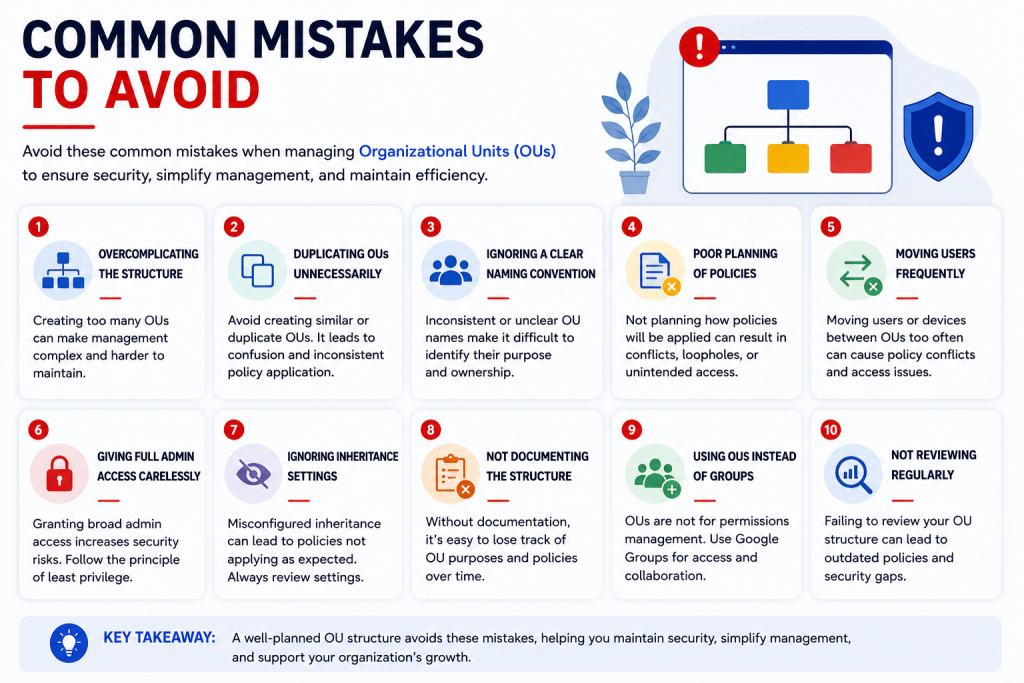
Administrators often encounter management challenges because Organizational Units were created without a clear plan.
Avoid these common mistakes:
- Creating too many Organizational Units without a policy-based reason.
- Using inconsistent or unclear naming conventions.
- Building an overly complex hierarchy with unnecessary nested levels.
- Placing new Organizational Units under the wrong parent.
- Creating Organizational Units for short-term projects when groups or shared drives may be more appropriate.
Keeping your OU structure simple and aligned with administrative needs makes it easier to manage users and apply settings consistently over time.
Administrative Considerations
Creating an Organizational Unit is only the first step. To make it effective, consider how it will fit into your overall Google Workspace administration.
Move Users to the Correct Organizational Unit
A newly created Organizational Unit does not automatically contain users. After creating it, move the appropriate user accounts into the OU so they receive the intended Google Workspace settings and policies.
If you need instructions, see the supporting guide on How to Move Users Between Organizational Units.
Understand Policy Inheritance
Organizational Units inherit many settings from their parent OU unless a different policy is configured at the child level.
For example:
Company
│
├── Employees
│ ├── Sales
│ └── Marketing
└── Contractors
If a security policy is applied to Employees, both Sales and Marketing inherit that policy unless it is overridden. Keeping this inheritance model in mind when designing your OU hierarchy can help reduce duplicate configuration and simplify administration.
Review Your Organizational Structure Regularly
As your organization changes, your OU structure may also need to evolve.
Consider reviewing your hierarchy when:
- New departments are created
- Offices open in new locations
- Teams merge or reorganize
- Company acquisitions or restructuring occur
Periodic reviews help ensure your Organizational Units continue to reflect your organization’s operational structure.
Example Organizational Unit Structures
The ideal OU structure depends on how your organization manages users and policies.
Example 1: Department-Based Structure
Company
│
├── Finance
├── Human Resources
├── Sales
├── Marketing
└── IT
This approach works well when different departments require different Google Workspace policies.
Example 2: Location-Based Structure
Company
│
├── Dubai
├── Abu Dhabi
├── Sharjah
└── Remote Employees
This structure is useful for organizations that manage users by office location.
Example 3: Hybrid Structure
Company
│
├── UAE
│ ├── Dubai
│ └── Abu Dhabi
└── International
A hybrid model can support businesses that operate across multiple regions while maintaining a logical hierarchy.
Choose the structure that best aligns with your administrative requirements rather than creating unnecessary levels.
Frequently Asked Questions
Yes. You can create as many Organizational Units as needed, provided they support a clear administrative or policy requirement.
Yes. Google Workspace allows administrators to rename Organizational Units if organizational needs change. However, use consistent naming conventions to minimize confusion.
No. A new Organizational Unit is created empty. Users must be moved into it manually or through supported administrative processes.
Yes. Google Workspace supports parent and child Organizational Units, allowing you to build a hierarchy that reflects your organization’s structure.
Not necessarily. Create Organizational Units only when users require different administrative settings or policies. If everyone uses the same policies, additional OUs may add unnecessary complexity.
What’s the difference between Organizational Units and Google Groups?
Organizational Units are primarily used to apply administrative settings and policies, while Google Groups are designed for communication, collaboration, and permission management. For a detailed comparison, see the dedicated guide on Google Workspace Groups vs Organizational Units.
Conclusion
Creating Organizational Units in Google Workspace helps you organize users and apply policies more effectively across your organization. By planning your hierarchy in advance, using clear naming conventions, and creating OUs only where different settings are needed, you can build a structure that remains easy to manage as your business grows.
After creating your Organizational Units, the next logical step is to move users into the appropriate OUs and configure the policies that apply to each group. Exploring related guides on user management, admin roles, and Organizational Unit best practices will help you build a well-organized and scalable Google Workspace environment.
At CreativeON, we create practical Google Workspace resources designed to help businesses and administrators manage their environments with confidence.
Author Bio
This guide is brought to you by Asher Feroze. I’ve worked in various roles at CreativeON, including Manager Operations, Manager Marketing, and Level 2 Client Support. Today, I focus on helping businesses understand technologies like Google Workspace, Domains, VPS Hosting, Dedicated Servers, and Cloud Hosting in simple, practical language. My goal is to make technology work for your business—not against it.