
Google Workspace includes a wide range of productivity and collaboration tools, but not every service needs to be available or configured the same way for every user. Many organizations want different departments, teams, or locations to use specific applications while restricting or customizing others.
The Google Admin console allows administrators to configure individual Google Workspace services such as Gmail, Google Drive, Google Meet, Google Chat, Google Calendar, Google Docs, Google Sites, and more. You can control who has access to each service, adjust service-specific settings, and apply different configurations to Organizational Units (OUs) or Groups.
This guide explains how to configure individual Google Workspace services and apply settings that match your organization’s requirements without affecting every user.
Who Should Configure Individual Services?
This guide is intended for:
- Google Workspace administrators
- IT managers
- Business owners
- School administrators
- Organizations managing multiple departments
- Companies operating across different offices in the UAE
If you’re looking to turn services on or off entirely, see the related guide on How to Enable or Disable Google Workspace Services. This article focuses on configuring the settings of services that are already available within your organization.
What You Can Configure
Most Google Workspace applications include their own administrative settings. Depending on the service, you can configure options such as:
- User access permissions
- Sharing and collaboration settings
- External communication controls
- Data retention policies
- Recording and storage options
- Security features
- Default user behavior
- API access
- Service-specific compliance settings
The available options vary by application and your Google Workspace edition.
Before You Begin
Before making changes, verify that:
- You have a Super Admin or delegated administrator role with the required permissions.
- Your users are organized into Organizational Units (OUs) or Groups if different teams require different settings.
- You understand whether a setting applies to the entire organization, an OU, or a Group.
- You have reviewed your organization’s security and compliance requirements before changing service configurations.
Planning your organizational structure first makes ongoing administration much easier as your business grows.
How Google Workspace Service Configuration Works
Each Google Workspace application has its own settings within the Google Admin console. Administrators can configure these settings at different levels.
Configuration can typically be applied to:
- The entire organization
- A specific Organizational Unit
- A Group (where supported)
- Individual services with their own policy controls
Google Workspace follows a hierarchical policy model, meaning child Organizational Units inherit settings from parent OUs unless you override them.
Understanding this hierarchy helps prevent unexpected configuration changes across your organization.
How to Configure Individual Google Workspace Services
Follow these steps to configure service settings.
Step 1: Sign in to the Google Admin Console
Sign in using an administrator account.
From the Admin console dashboard, you’ll manage all Google Workspace services for your organization.
Step 2: Open Apps
From the left navigation menu:
Apps → Google Workspace
You’ll see a list of available Google Workspace applications, including:
- Gmail
- Google Drive
- Google Meet
- Google Calendar
- Google Chat
- Google Docs
- Google Sheets
- Google Slides
- Google Forms
- Google Sites
- Google Keep
- Google Groups
- Google Contacts
Select the service you want to configure.
Step 3: Choose the Organizational Unit or Group
Before changing settings, select the Organizational Unit or Group that should receive the configuration.
Examples include:
- Head Office
- Sales
- Finance
- Human Resources
- Customer Support
- UAE Branch
- Dubai Office
Only users within the selected scope will receive the updated settings.
If you configure settings at the top-level organization, they may affect every user unless overridden further down the organizational hierarchy.
Step 4: Configure the Service Settings
Each application provides different configuration options.
Below are examples of common settings administrators may encounter.
Gmail
Common settings include:
- Email routing
- Spam filtering
- Attachment compliance
- POP and IMAP access
- Automatic forwarding
- End-user access options
These settings help organizations manage secure and reliable business email.
Google Drive
Drive settings often include:
- External file sharing
- Link sharing permissions
- Shared Drives
- Data sharing restrictions
- File ownership controls
- Storage-related policies
Organizations can use these settings to balance collaboration with data protection.
Google Meet
Meet configuration commonly includes:
- Recording availability
- Live streaming
- Meeting moderation
- Screen sharing permissions
- Dial-in options
- Attendance tracking (supported editions)
Meeting settings may vary depending on your Google Workspace subscription.
Google Chat
Administrators can configure:
- External messaging
- Chat history
- Spaces creation
- File sharing
- Integration permissions
These options help control how employees communicate inside and outside the organization.
Google Calendar
Typical Calendar settings include:
- External calendar sharing
- Resource booking
- Appointment schedules
- Event visibility
- Secondary calendar creation
Calendar policies can improve scheduling while protecting sensitive business information.
Google Sites
For Google Sites, administrators can configure:
- Site creation permissions
- Publishing permissions
- External visibility
- Sharing controls
These settings help organizations manage internal knowledge bases and intranet websites.
Step 5: Save Your Changes
After updating the desired settings:
- Review your configuration.
- Click Save.
- Allow time for changes to propagate across your organization.
Most changes take effect relatively quickly, although some policies may require additional time to apply across all users.
Configure Services for Different Departments
One of Google Workspace’s strengths is the ability to apply different configurations to different teams.
For example:
Department | Example Configuration |
Finance | Restrict external Drive sharing and tighten Gmail security settings |
Human Resources | Enable Google Meet recordings while limiting external Chat communication |
Sales | Allow external Calendar sharing and broader Google Meet collaboration |
Marketing | Permit external Drive sharing with approved domains |
IT | Enable advanced administrative features and testing configurations |
This approach helps organizations maintain both flexibility and security without creating separate Google Workspace environments.
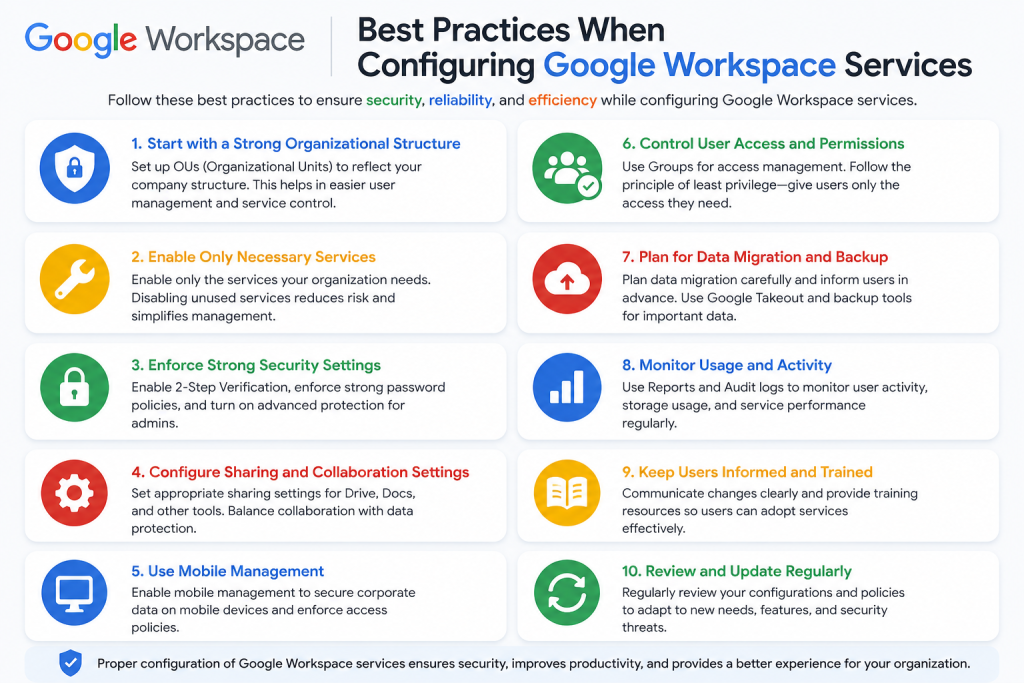
Best Practices When Configuring Google Workspace Services
Common Mistakes to Avoid When Configuring Google Workspace Services
Even experienced administrators can make configuration changes that affect users unexpectedly. Reviewing these common mistakes before making changes can help prevent unnecessary support requests and security issues.
Applying Changes to the Wrong Organizational Unit
One of the most common mistakes is configuring settings at the top-level organization instead of the intended Organizational Unit (OU). This can unintentionally affect every user in the organization.
Always verify the selected OU or Group before saving your changes.
Ignoring Inherited Settings
Google Workspace uses a hierarchical policy model. Child Organizational Units inherit settings from their parent unless an administrator explicitly overrides them.
If a setting doesn’t behave as expected, check whether it’s being inherited from a parent OU.
Not Testing Before Organization-Wide Deployment
Rolling out new service configurations across the entire organization without testing can disrupt business operations.
A better approach is to:
- Create a pilot Organizational Unit.
- Apply the new configuration.
- Verify that users can access the service as expected.
- Roll out the changes to additional departments after successful testing.
Overly Restrictive Collaboration Settings
Restricting external sharing, messaging, or meeting features may improve security, but it can also hinder collaboration with customers, suppliers, and business partners.
Strike a balance between security and productivity by applying different policies to departments that have different collaboration needs.
Forgetting to Review Service Changes
Google periodically introduces new features and administrative controls for Google Workspace services. Existing configurations may need to be reviewed to ensure they still align with your organization’s security and operational requirements.
Consider performing a regular administrative review to keep policies up to date.
Troubleshooting Configuration Issues
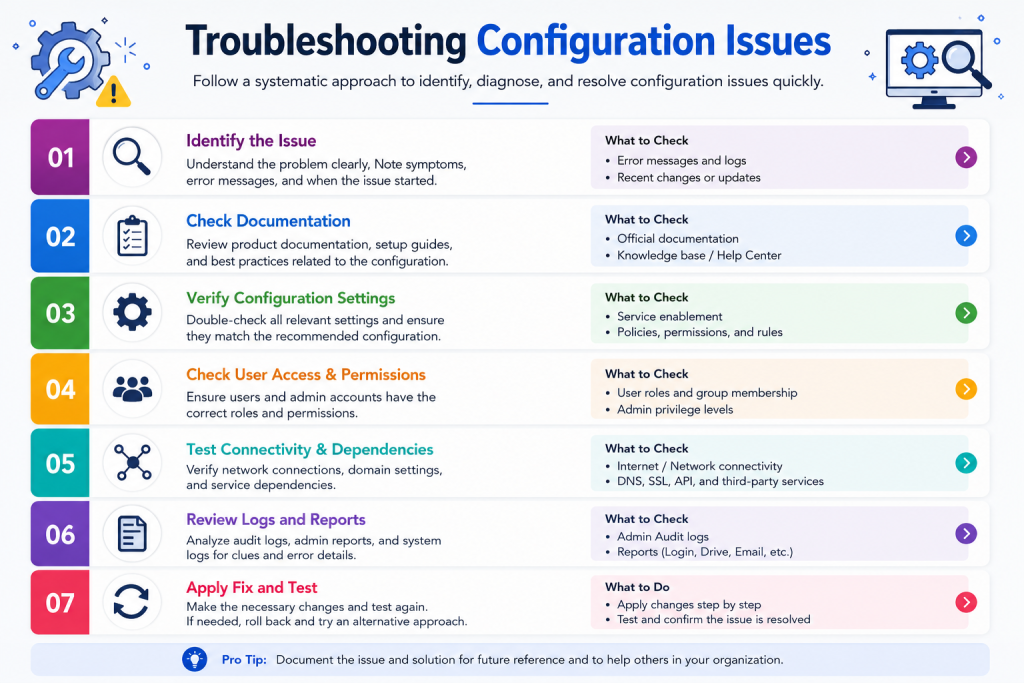
If users report that a service isn’t behaving as expected after a configuration change, review the following:
Users Can’t Access a Service
Check that:
- The service is enabled for the user’s Organizational Unit or Group.
- The user belongs to the correct OU.
- The configuration has had enough time to propagate.
- No conflicting Group-based settings are in effect.
Service Settings Don’t Appear
Some configuration options are only available with specific Google Workspace editions or administrator roles.
Verify that:
- Your subscription supports the feature.
- Your administrator account has the required permissions.
Changes Haven’t Taken Effect
Configuration updates may not apply instantly across all users.
If changes don’t appear immediately:
- Wait for Google’s policy propagation.
- Ask the user to sign out and back in.
- Refresh the Admin console before making additional changes.
Security Recommendations
When configuring Google Workspace services, security should always be considered alongside usability.
Recommended practices include:
- Limit administrative privileges to trusted personnel.
- Review service access regularly.
- Restrict sensitive features to departments that require them.
- Monitor administrator activity using audit logs.
- Apply security settings consistently across similar Organizational Units.
- Document significant configuration changes for future reference.
These practices help maintain a secure and well-managed Google Workspace environment while supporting business productivity.
Related Articles (Internal Linking Opportunities)
After configuring individual Google Workspace services, readers may also find these guides helpful:
Pillar Page
- Google Workspace Complete Guide
Feature Pages
- Gmail
- Google Drive
- Google Meet
- Google Calendar
- Google Chat
Supporting Articles
- How to Enable or Disable Google Workspace Services
- How to Restrict Google Services for Different Teams
- How to Assign Google Workspace Admin Roles
- How to Manage Organizational Units in Google Workspace
- Google Workspace Security Best Practices
- How to Configure Google Drive Sharing Permissions
These related resources help administrators build a secure, well-organized Google Workspace environment without duplicating information across articles.
Visual Content Recommendations
Including visuals can make configuration tasks easier to follow.
Recommended images:
- Google Admin console → Apps → Google Workspace dashboard.
- Selecting an Organizational Unit before configuring a service.
- Example Gmail service settings page.
- Example Google Drive sharing configuration.
- Google Meet administrative settings.
- Flowchart showing Organization → Organizational Unit → Service Settings inheritance.
Suggested Image ALT Text
- Configure individual Google Workspace services in Admin console
- Google Workspace service configuration settings
- Managing Google Workspace Organizational Unit settings
- Google Workspace Gmail configuration options
- Configure Google Drive service settings
- Google Workspace service inheritance example
Frequently Asked Questions
Yes. Google Workspace allows administrators to apply service settings to different Organizational Units or, for supported features, Groups. This enables departments such as Finance, Sales, or Human Resources to have configurations that match their operational and security requirements.
Not always. While many changes are applied quickly, some settings may take additional time to propagate across Google’s systems before users see the changes.
Yes. Each Google Workspace service has its own administrative settings. You can modify Gmail, Google Drive, Google Meet, or another application independently without changing the configuration of other services.
Some administrative controls are only available with specific Google Workspace editions or require particular administrator roles. Verify your subscription level and permissions if expected settings are unavailable.
Enabling or disabling a service controls whether users can access the application. Configuring a service adjusts how that application behaves, such as its sharing, security, or collaboration settings. These are separate administrative tasks.
Conclusion
Configuring individual Google Workspace services allows organizations to tailor the platform to their operational, security, and compliance requirements. Rather than applying the same settings to every user, administrators can customize services for specific Organizational Units or Groups, ensuring each department has access to the tools and features it needs.
Before making changes, verify the target Organizational Unit, review inherited policies, and test new configurations with a small group of users whenever possible. A structured approach helps minimize disruption while maintaining a secure and efficient Google Workspace environment.
As your organization grows, regularly reviewing service configurations ensures your Google Workspace deployment continues to meet evolving business and security needs.
To continue building your Google Workspace administration knowledge, explore related guides on managing Organizational Units, assigning administrator roles, and configuring individual applications such as Gmail, Google Drive, and Google Meet. CreativeON’s knowledge base is designed to help UAE businesses and IT teams manage Google Workspace with confidence.
Author Bio
This guide is brought to you by Asher Feroze. I’ve worked in various roles at CreativeON, including Manager Operations, Manager Marketing, and Level 2 Client Support. Today, I focus on helping businesses understand technologies like Google Workspace, Domains, VPS Hosting, Dedicated Servers, and Cloud Hosting in simple, practical language. My goal is to make technology work for your business—not against it.