
Introduction
Weak or reused passwords are still one of the most common ways company accounts get compromised. If you’re an admin managing Google Workspace, setting a strong Google Workspace password policy is one of the fastest ways to reduce that risk without disrupting how your team works.
This guide walks through where password settings live in the Admin console, what each option controls, and how to configure a policy that balances security with usability for your organization.
What a Google Workspace Password Policy Controls
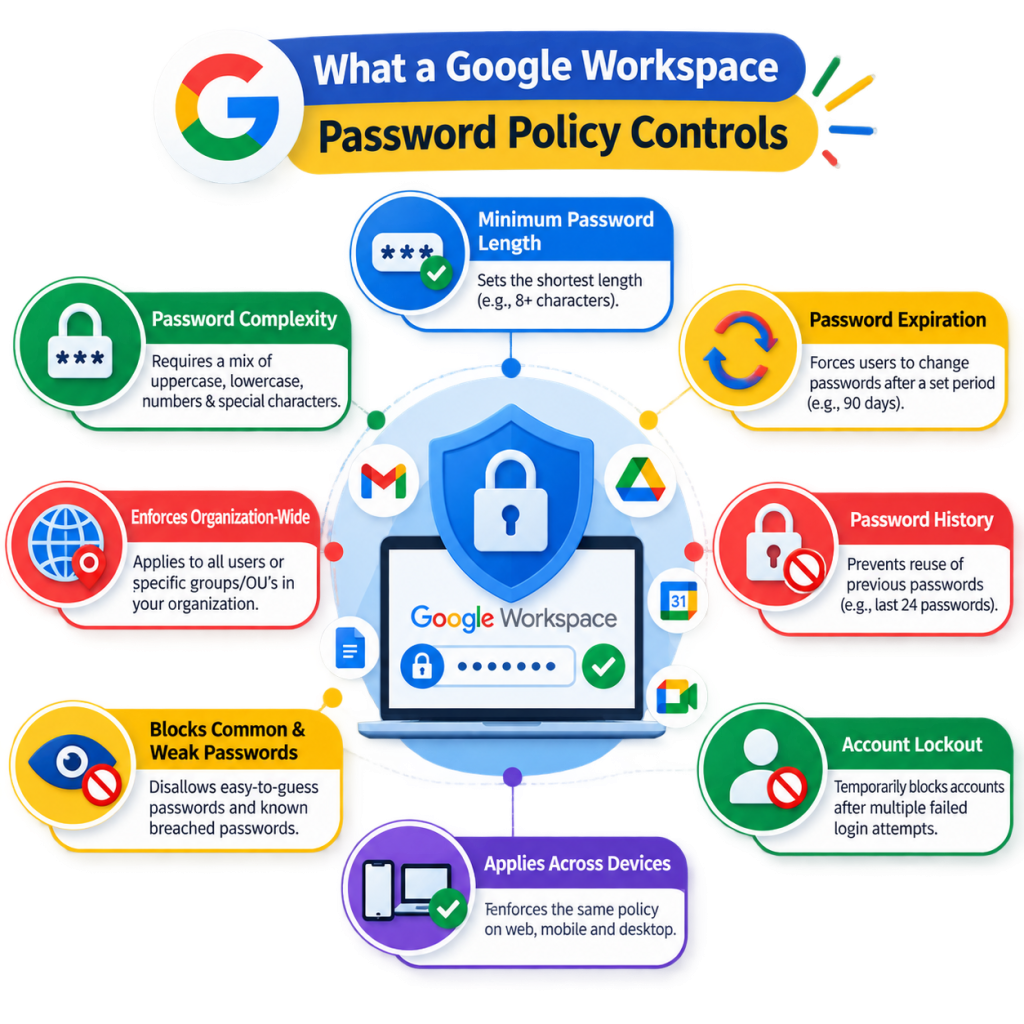
Password policies in Google Workspace are managed centrally by super admins through the Admin console. Rather than relying on individual users to choose secure passwords, admins can enforce rules organization-wide — or apply different rules to specific teams using organizational units (OUs).
A typical password policy covers:
- Minimum and maximum password length
- Password strength requirements (rejecting weak or commonly used passwords)
- Password expiration (whether passwords must be changed periodically)
- Password reuse (preventing users from reusing recent passwords)
- Enforcement date for existing users who don’t yet meet the new policy
These settings work alongside — but separately from — 2-Step Verification, which adds a second layer of protection beyond the password itself.
Where to Manage Password Settings
Password policy settings are found in:
Admin console → Security → Authentication → Password management
From here, super admins can apply settings to the entire organization or scope them to specific organizational units, which is useful if certain departments (such as finance or IT) need stricter requirements than others.
Step-by-Step: Setting a Password Policy
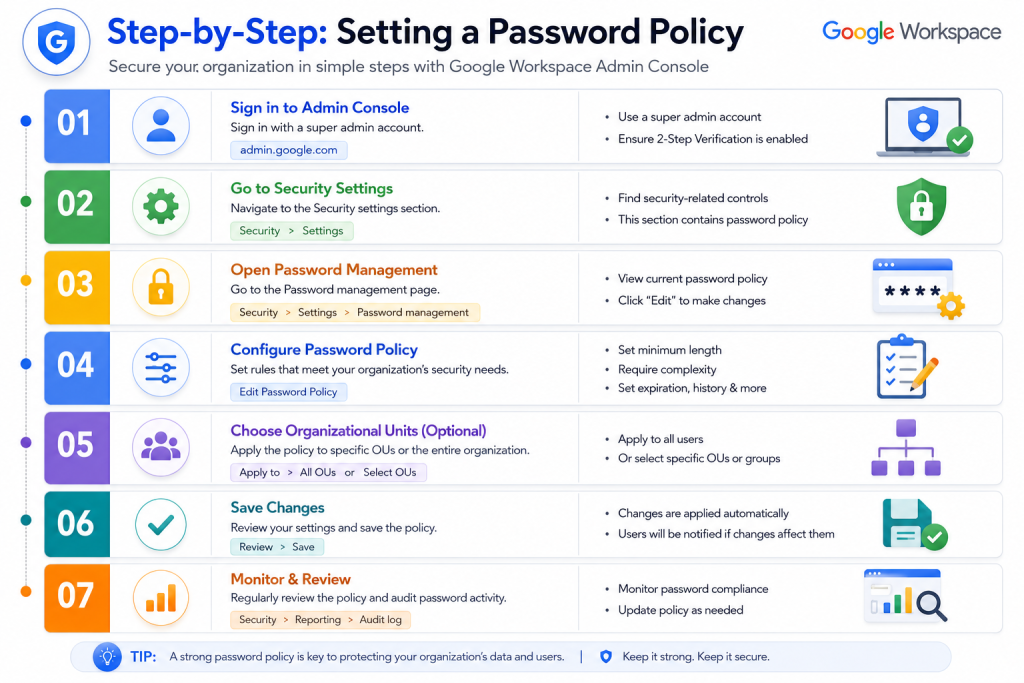
- Sign in to the Google Admin console using a super admin account.
- Navigate to Security > Authentication > Password management.
- Select the organizational unit you want the policy to apply to. Choose the top-level domain to apply it company-wide, or a specific OU for a targeted policy.
- Set minimum password length. Google recommends at least 8 characters, though many organizations set this higher (10–12 characters) for stronger protection.
- Enable “Enforce strong password” to block passwords that are easily guessed or previously exposed in known data breaches.
- Decide on password expiration. You can require users to change passwords on a set schedule (for example, every 90 days) or choose “Never expire.” Note that Google’s own guidance now favors longer, unique passwords combined with 2-Step Verification over frequent forced resets, since frequent changes often push users toward weaker, more predictable passwords.
- Set an enforcement date if you’re rolling out a new policy to existing users, giving them time to update their passwords before the policy is strictly applied.
- Save changes. Updates typically take effect within a few hours across the organization.
Best Practices for UAE Businesses
For companies in Dubai, Abu Dhabi, and other Emirates managing hybrid or distributed teams, a few practical considerations help make password policies effective rather than just a compliance checkbox:
- Pair password policies with 2-Step Verification. A strong password policy is most effective when combined with 2-Step Verification, which significantly reduces the risk of account takeover even if a password is compromised.
- Apply stricter rules to sensitive OUs. Teams handling finance, HR, or client data can be placed in a dedicated organizational unit with a longer minimum password length and no password reuse.
- Avoid overly frequent expiration. Forcing password changes too often tends to encourage predictable patterns (like adding “1”, “2”, “3” to the same base password). A longer, unique password with expiration set to a reasonable interval — or disabled in favor of continuous monitoring — is generally more secure.
- Communicate changes before enforcement. Give staff advance notice when rolling out new rules so they aren’t locked out mid-task.
Common Mistakes to Avoid
- Setting minimum length too low. An 8-character minimum without additional strength requirements is easier to crack than a longer passphrase.
- Relying on password policy alone. Password rules reduce risk but don’t replace 2-Step Verification or admin role restrictions for high-privilege accounts.
- Applying one policy to every OU. Not all departments carry the same risk; segmenting policies by organizational unit allows for more precise control.
- Forgetting the enforcement date. Without one, existing users may not be prompted to update their passwords to match the new policy.
- Ignoring exposed password alerts. Google Workspace can flag passwords found in known breaches — this should be part of your ongoing password strategy, not a one-time setup step.
Visual Content Recommendations
To support this article, consider adding:
- A screenshot of the Password management screen in the Admin console (ALT text: “Google Workspace password policy settings in Admin console”)
- A simple table comparing recommended settings for standard users vs. high-privilege accounts
- A checklist graphic summarizing the step-by-step rollout process