How to Migrate a WordPress Website Safely
Moving a WordPress website to new hosting doesn’t have to mean downtime, broken pages, or lost data. The safest approach is to prepare the new environment, take a complete backup, transfer the files and database, test the copied site thoroughly, and only then switch DNS. This guide focuses on migrating an existing WordPress website to […]
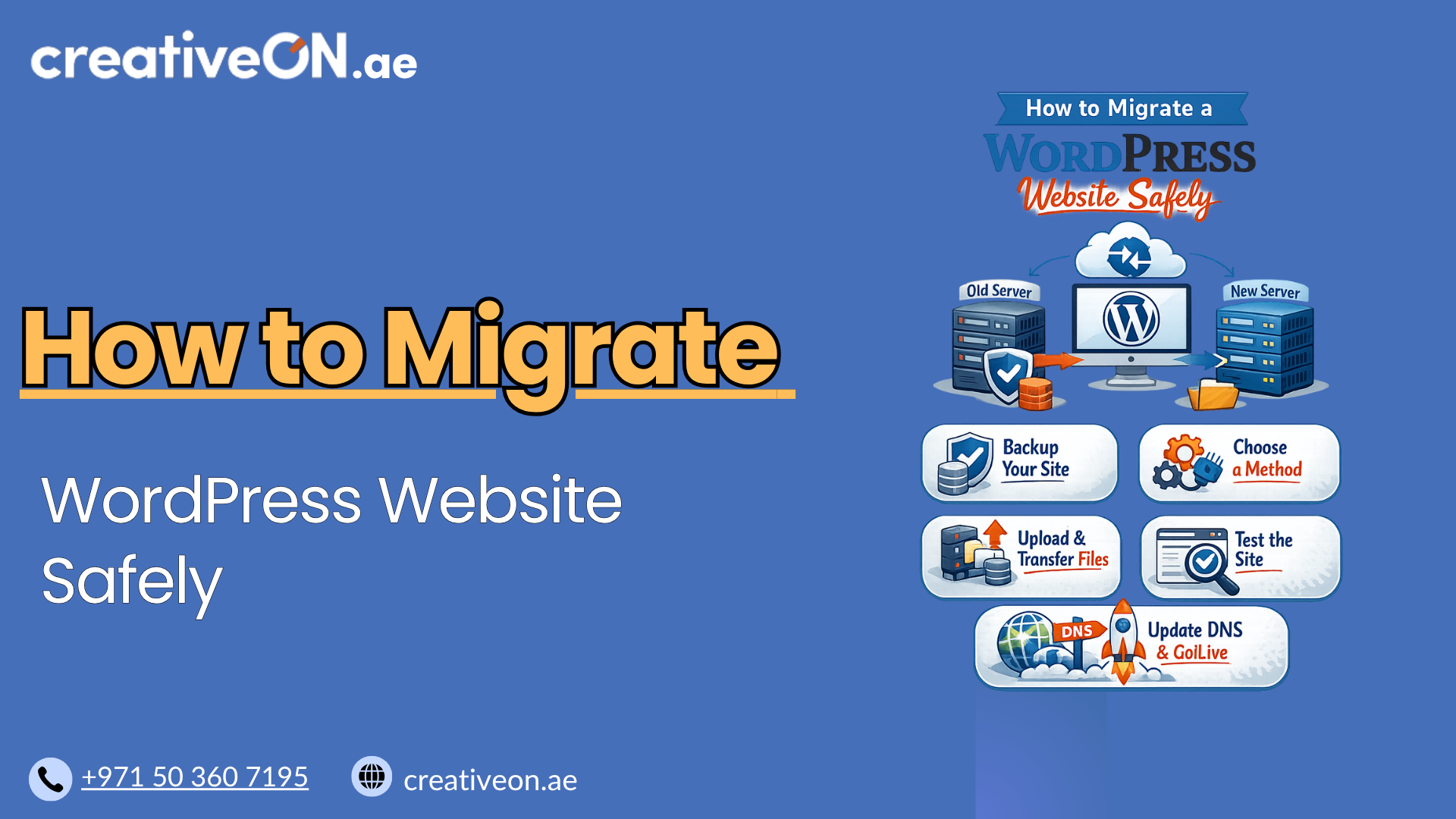
Moving a WordPress website to new hosting doesn’t have to mean downtime, broken pages, or lost data. The safest approach is to prepare the new environment, take a complete backup, transfer the files and database, test the copied site thoroughly, and only then switch DNS.
This guide focuses on migrating an existing WordPress website to new hosting while keeping the same domain and URL structure — the most common type of migration. If you’re also changing your domain or URL structure, that involves redirects and SEO considerations outside the scope of a hosting move; see CreativeON’s WordPress Migration Guide for that scenario.
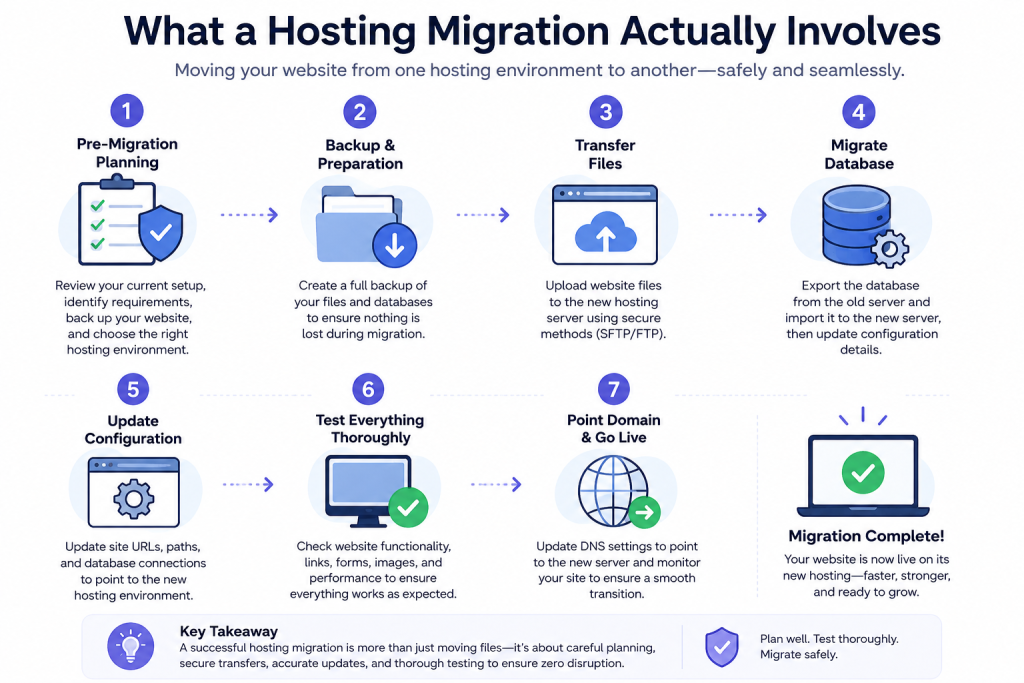
What a Hosting Migration Actually Involves
When you move WordPress to new hosting with the same domain, you’re transferring:
- WordPress core files
- Themes and plugins
- Media uploads
- The WordPress database
- Configuration files, including wp-config.php
- .htaccess, when applicable
WordPress itself doesn’t need to be reinstalled — you’re relocating an existing installation, not building a new one. The two pieces people most often forget are the database and the wp-config.php credentials, both of which are covered below.
Before You Migrate
Good preparation prevents most migration problems.
Back up everything first. A complete backup includes both the files and the database — copying the files alone leaves your content, settings, and user accounts behind. Store the backup somewhere independent of your current hosting account, so it’s accessible even if the old server goes down. For a deeper walkthrough, see the WordPress Backup Best Practices guide.
Test the current site as a baseline. Before changing anything, confirm the existing site works: homepage, key pages, login, contact forms, images, and checkout if you run WooCommerce. This gives you something to compare against afterward.
Check the new hosting environment. Confirm the destination host supports your current PHP version, has adequate storage and memory limits, and includes SSL support. Mismatched PHP versions are one of the most common causes of a broken migration.
Pick a low-traffic window for the final cutover, especially for WooCommerce stores, booking systems, or membership sites where transactions happen continuously.
Plan your rollback before you start. Know how you’ll restore the old site, keep access to the old hosting account, and be ready to revert DNS if something goes wrong. A rollback plan isn’t a sign the migration failed — it’s part of doing it safely.
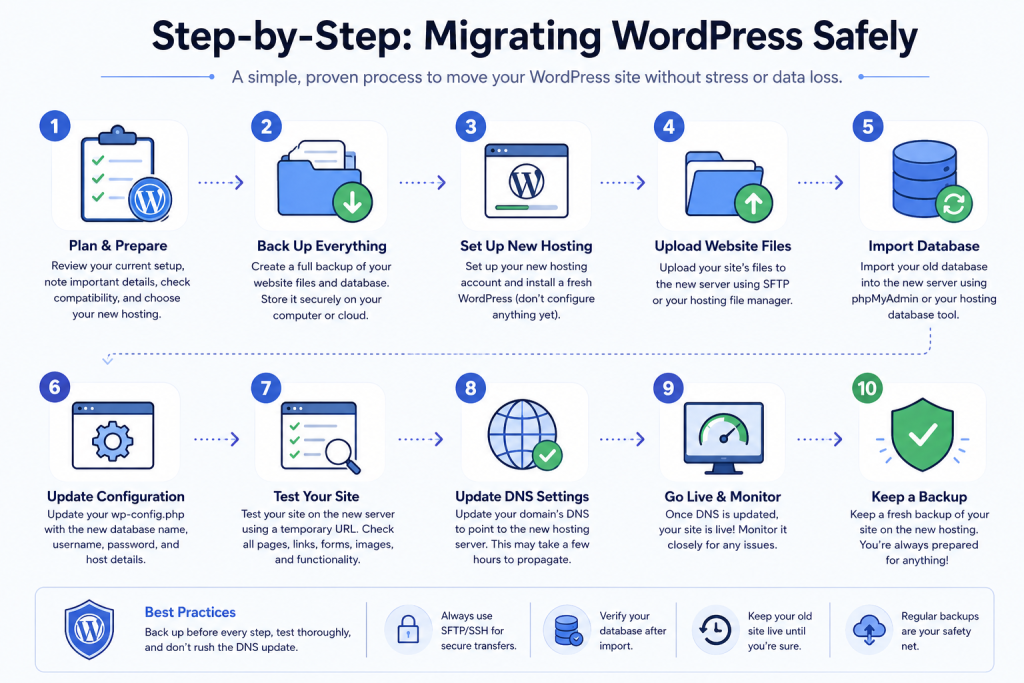
Step-by-Step: Migrating WordPress Safely
1. Set Up the New Environment First
Create the destination site using a temporary URL, staging environment, or your host’s migration tool — somewhere it’s accessible for testing before the live domain points to it.
2. Transfer the Files
Move the full WordPress installation using SFTP, your host’s file manager, or a migration tool. Make sure the entire wp-content folder transfers, since it holds your themes, plugins, and uploaded media.
3. Export and Import the Database
Export the database from the old server and import it on the new one. If you’re migrating manually, update wp-config.php with the new database name, username, password, and host — the site will show a database connection error if this step is skipped.
4. Test Before Touching DNS
This is the step most migrations skip, and it’s the one that prevents the worst surprises. Before changing DNS, verify:
- Homepage, key pages, and images load correctly
- Login and the WordPress dashboard work
- Forms submit and send notifications
- Checkout, order creation, and payment processing work (if applicable)
- HTTPS is active and error logs are clean
A site can look fine on the homepage while checkout or email notifications are silently broken — test the business-critical paths, not just the visuals.
5. Remove Temporary Testing Restrictions
If you used a staging URL, check for noindex tags, password protection, or robots.txt blocks that were useful during testing but shouldn’t remain once the site goes live.
6. Sync Any New Data
If time has passed between your database export and go-live, capture anything created in between — new orders, comments, or form submissions — so you’re not launching with stale data.
7. Switch DNS
Once testing passes, update your DNS records (typically an A record or nameservers) to point to the new server. If your domain also handles business email, double-check those DNS records won’t be disrupted by the change.
8. Verify the Live Site
After DNS updates, re-test the live site: accessibility, HTTPS, forms, login, checkout, and error logs. Keep an eye on both servers — traffic should gradually shift from old to new as DNS propagates.
If Something Goes Wrong
If the migrated site has a serious problem, avoid making several unrelated changes at once — it makes the cause harder to isolate. Check, in order: database connection settings, file permissions, PHP compatibility, and plugin or theme conflicts. If the old site is still live, you can point traffic back to it while you fix the new environment. This is exactly why the old hosting account should stay active until the new server is confirmed stable — don’t cancel it the same day you switch DNS.
Common Migration Mistakes
- Skipping the backup — always have a recoverable copy of files and database before starting
- Testing only the homepage — forms, login, and checkout can break independently of the visible site
- Changing DNS before testing — the new site should be verified before it receives live traffic
- Forgetting the database — files alone aren’t a complete copy of a WordPress site
- Canceling old hosting too soon — keep it until the new server is proven stable
- Overlooking email DNS records — a hosting move shouldn’t disrupt business email
Should You Use a Migration Plugin?
A migration plugin can simplify moving files and the database, particularly for smaller sites. For very large databases, complex WooCommerce stores, or sites with frequent transactions, manual migration or a hosting-assisted transfer often gives you more control. Either way, the same safety rules apply: back up, test before go-live, and keep a rollback option ready.
WordPress Migration Safety Checklist
- [ ] Complete backup of files and database, stored independently
- [ ] New hosting environment meets PHP, storage, and SSL requirements
- [ ] Files transferred, including the full wp-content folder
- [ ] Database imported and wp-config.php updated
- [ ] New site tested before DNS changes — including forms, login, checkout
- [ ] Temporary staging restrictions removed
- [ ] Email-related DNS records checked
- [ ] DNS updated and live site re-verified
- [ ] Old hosting kept active as a rollback option