
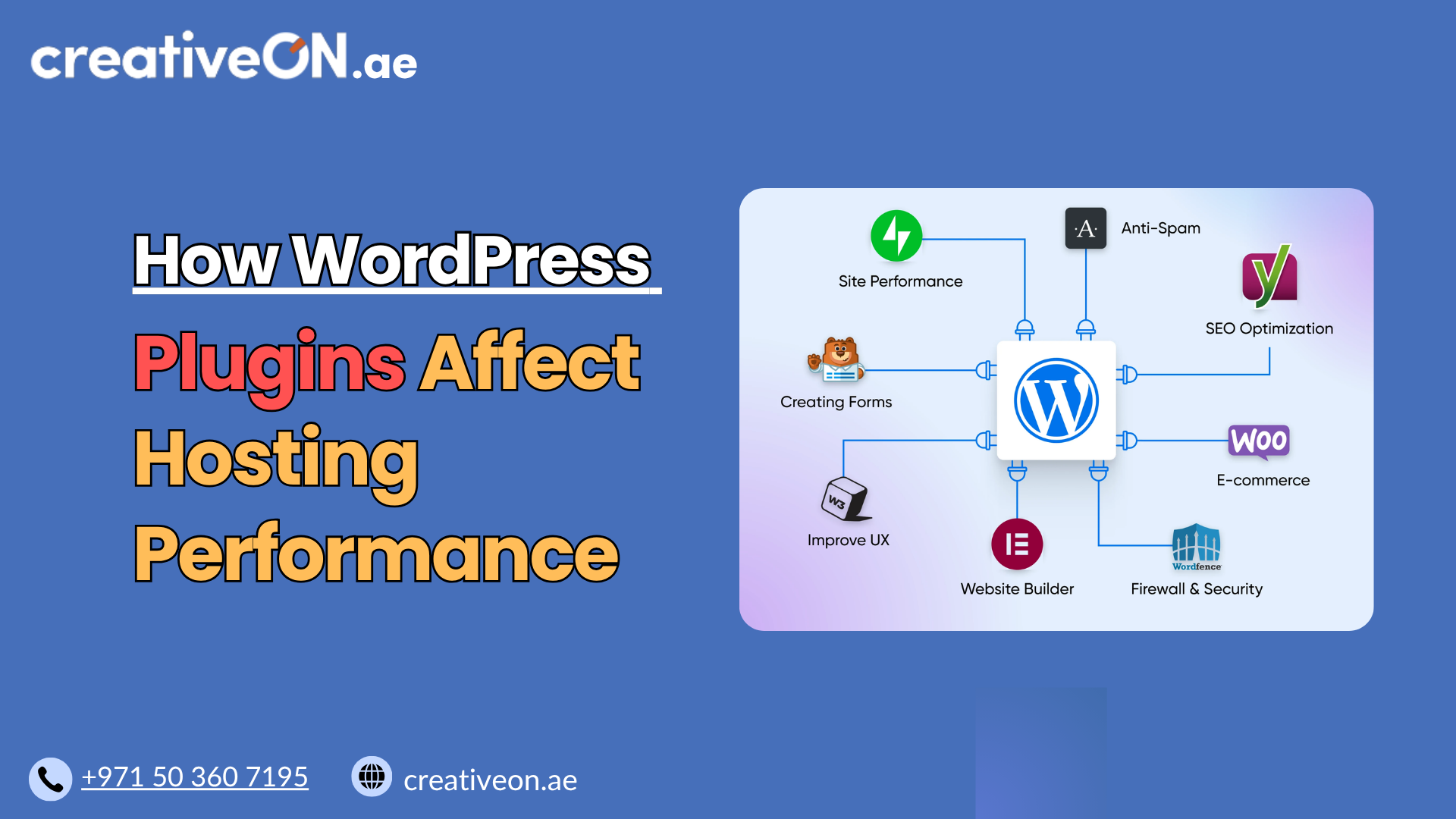
If your WordPress site feels sluggish, the plugins you’ve installed are one of the first places to look. WordPress plugins hosting performance is closely linked — every plugin adds code that your server has to process, and the more plugins you run, the harder your hosting environment has to work to keep pages loading quickly.
This guide explains exactly how plugins impact your site’s speed and server resources, and what you can do to keep performance strong without giving up the functionality you need.
Why Plugin Performance Matters
Plugins are what make WordPress so flexible. They let you add contact forms, SEO tools, galleries, booking systems, and more without writing custom code. But that flexibility comes at a cost.
Each plugin runs its own PHP scripts, may query the database, and sometimes loads extra CSS or JavaScript files. On shared or under-resourced hosting, this can quickly add up. A site that loads in under two seconds with five well-coded plugins might take five or six seconds once fifteen plugins are active — especially if several of them are poorly optimized.
For businesses in the UAE running eCommerce stores or lead-generation sites, this matters directly to revenue. Slower load times increase bounce rates and can hurt search rankings, since page speed is a known ranking factor.
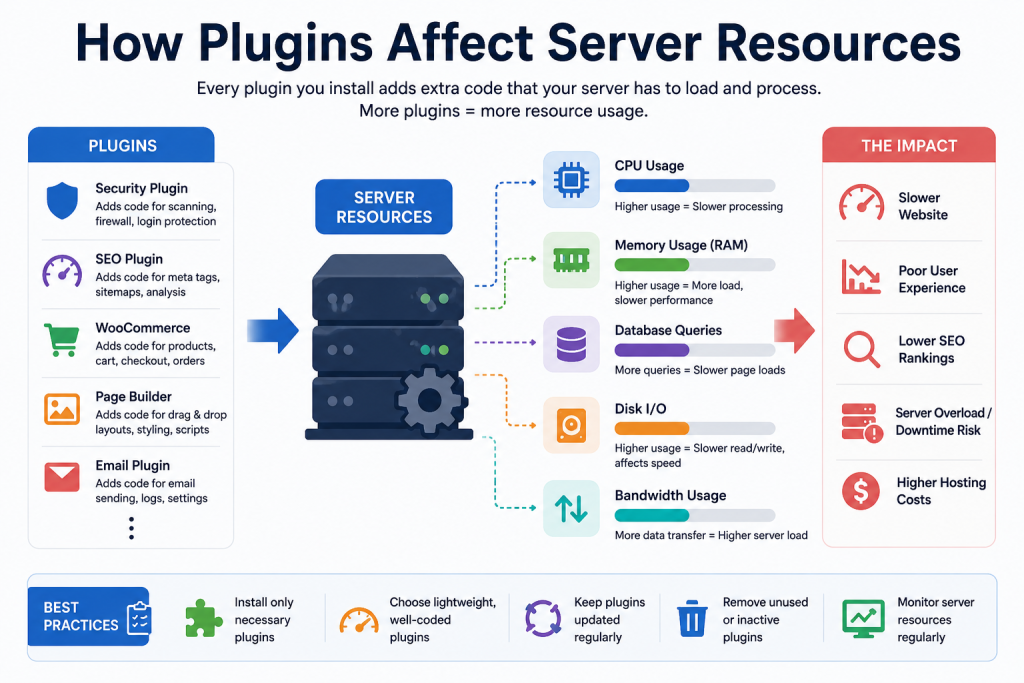
How Plugins Affect Server Resources
1. PHP Processing Load
Every plugin executes PHP code on each page load (unless it’s specifically cached). Plugins with heavy backend logic — like page builders, security scanners, or SEO analyzers — consume more CPU cycles than simple utility plugins.
2. Database Queries
Many plugins interact with your WordPress database to store settings, logs, or dynamic content. Poorly coded plugins can run unnecessary or repetitive queries, slowing down both the database and overall response time. This is particularly noticeable on hosting plans with limited database resources.
3. Additional HTTP Requests
Plugins often load their own stylesheets and scripts on the front end. If a plugin isn’t optimized to combine or defer these files, your site ends up making more HTTP requests than necessary, increasing page load time for visitors.
4. Memory Usage
Some plugins are memory-intensive, especially those handling image processing, form submissions, or complex logic. If your hosting plan has a low memory limit, this can lead to timeouts or the dreaded “white screen of death.”
5. Scheduled Background Tasks
Some plugins also schedule background tasks using WordPress Cron, such as backups, security scans, or email automation. If many scheduled tasks run at the same time, they can temporarily increase CPU and memory usage, particularly on lower-resource hosting plans.
Common Plugin-Related Performance Issues
- Too many active plugins – Even inactive but installed plugins can occasionally affect admin dashboard speed, but active plugins are the real concern for front-end performance.
- Outdated plugins – Older plugins may not be optimized for current PHP versions, leading to inefficient code execution.
- Conflicting plugins – Two plugins performing similar functions (e.g., two caching plugins) can conflict and create redundant processing.
- Heavy page builders – Visual page builders are convenient but often generate bloated code that increases page weight.
- Poorly coded third-party plugins – Plugins from unverified sources may lack optimization, security patches, or proper coding standards.
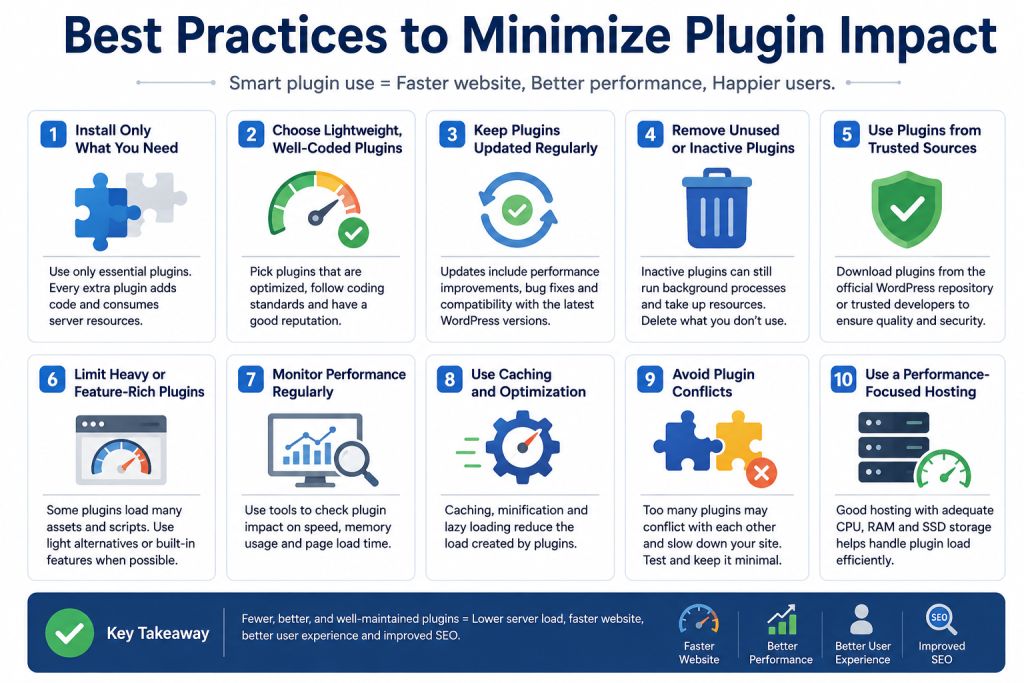
Best Practices to Minimize Plugin Impact
Audit Your Plugins Regularly
Go through your plugin list every few months. Deactivate and delete anything you’re no longer using. Fewer plugins mean fewer processes competing for server resources.
In most cases, the quality of a plugin has a greater impact on performance than the total number of plugins installed.
Choose Well-Coded, Reputable Plugins
Before installing a plugin, check its update history, support responsiveness, and reviews. A plugin that hasn’t been updated in over a year is a red flag, both for performance and security.
A paid plugin isn’t automatically better than a free one. What matters is active development, efficient code, regular updates, and reliable support.
Avoid Functionality Overlap
If your theme already includes SEO tools, form builders, or sliders, you may not need separate plugins for the same job. Consolidating functionality reduces overhead.
Use Caching
A good caching plugin — or server-level caching provided by your host — can significantly reduce the performance impact of plugins by serving static versions of pages instead of processing PHP on every request.
If your WordPress hosting includes built-in server-side caching, you may not need an additional caching plugin. Running both can sometimes create conflicts.
Monitor Performance After Installing New Plugins
Run a quick speed test before and after adding a new plugin. This helps you catch performance regressions early, rather than discovering them weeks later when your site has slowed down for other reasons too.
Match Your Hosting to Your Plugin Load
If your site relies on several resource-heavy plugins — such as WooCommerce extensions, security suites, or backup tools — make sure your hosting plan has enough CPU, memory, and database capacity to support them. Managed WordPress Hosting environments are often better equipped to handle plugin-heavy sites, since they’re tuned specifically for WordPress workloads.
Limitations of Optimization
It’s worth noting that plugin optimization alone can’t fix every performance issue. If your hosting resources are already stretched thin, even well-coded plugins can cause slowdowns during traffic spikes. Similarly, if your site’s core issue is unoptimized images or a heavy theme, reducing plugins will help but won’t fully resolve the problem. Performance is usually a combination of hosting quality, plugin choices, and overall site configuration.
Common Mistakes to Avoid
- Installing multiple plugins for the same function “just in case.”
- Ignoring plugin update notifications for months.
- Choosing free, unsupported plugins over well-maintained alternatives for critical functionality like security or backups.
- Adding heavy plugins without testing their impact on load time first.
- Assuming more plugins automatically means a more capable website