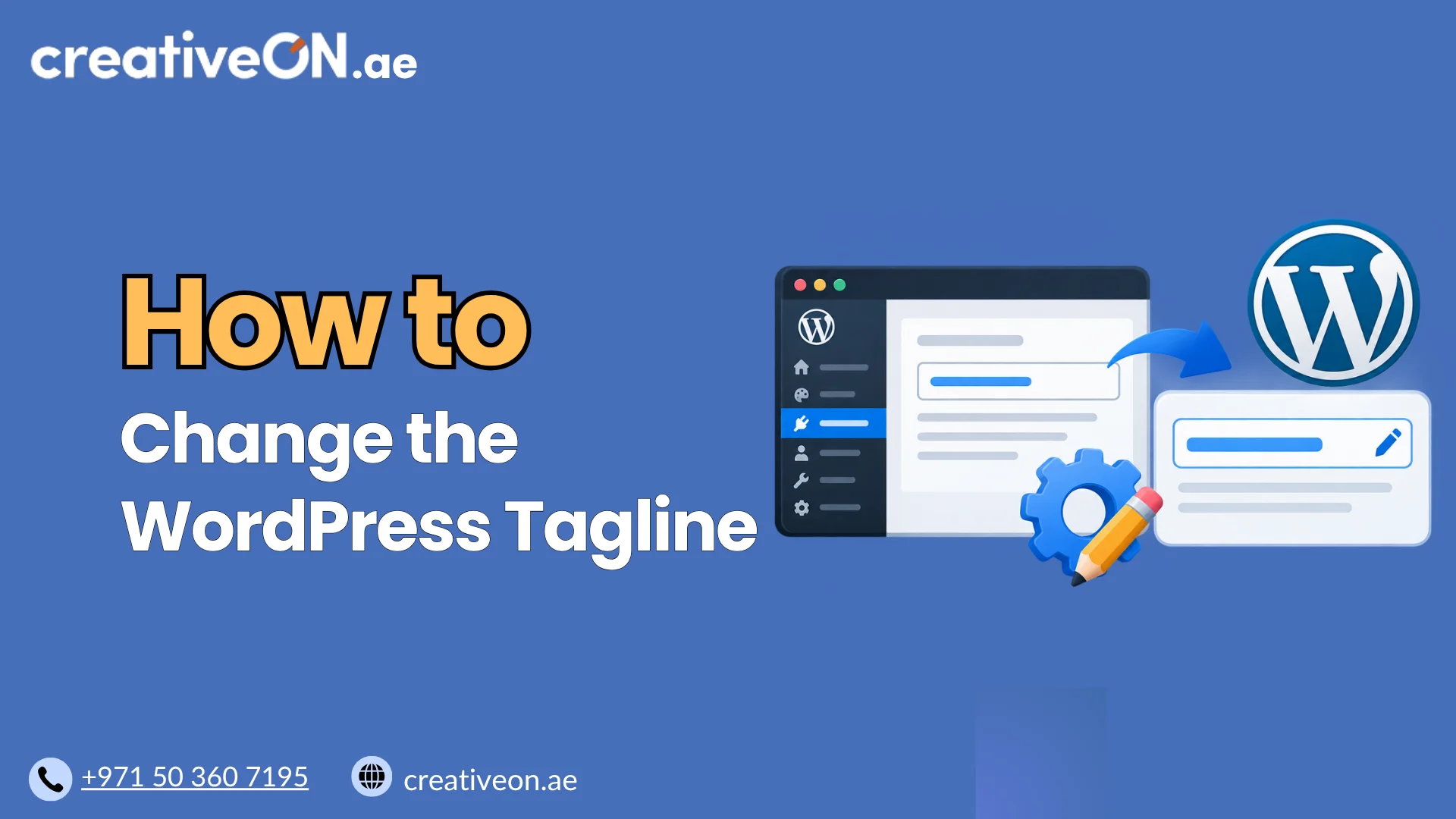
How to Change the WordPress Tagline
Your WordPress tagline is a short description of what your website offers or what it is about. It can appear alongside your site title, depending on your active WordPress theme. Some websites may still display the familiar default tagline, “Just another WordPress site.” Replacing generic text with a relevant description helps communicate your website’s purpose […]
Your WordPress tagline is a short description of what your website offers or what it is about. It can appear alongside your site title, depending on your active WordPress theme.
Some websites may still display the familiar default tagline, “Just another WordPress site.” Replacing generic text with a relevant description helps communicate your website’s purpose to visitors.
You can change your WordPress tagline through the dashboard without editing any code.
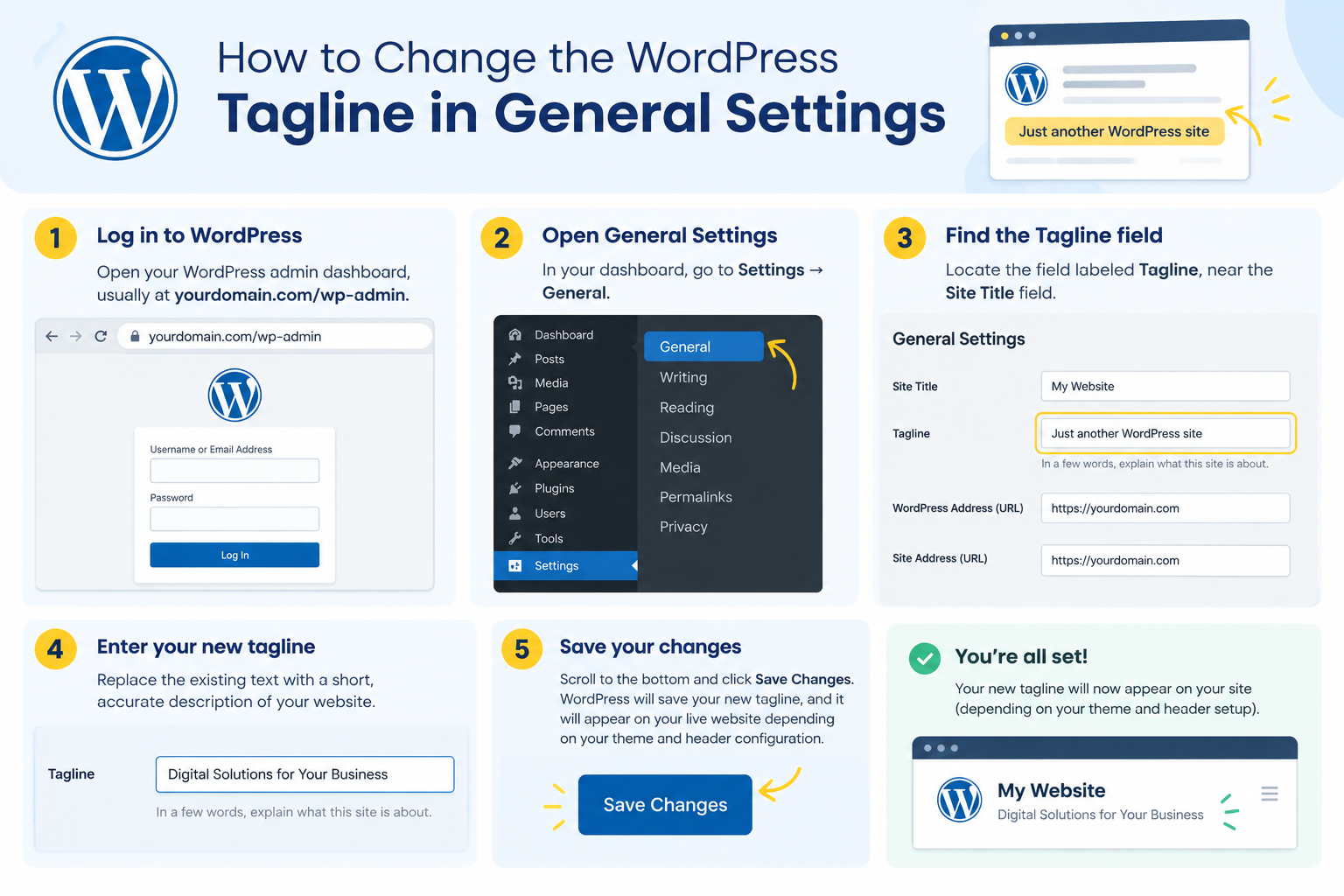
How to Change the WordPress Tagline in General Settings
The easiest way to update your WordPress site tagline is through the General Settings page.
Follow these steps:
- Log in to WordPress: Open your WordPress admin dashboard, usually at yourdomain.com/wp-admin.
- Open General Settings: Navigate to Settings → General.
- Find the Tagline field: Locate the field labeled Tagline, near the Site Title field.
- Enter your new tagline: Replace the existing text with a short, accurate description of your website.
- Save your changes: Scroll to the bottom and click Save Changes.
WordPress will save your new tagline. However, whether it appears on your live website depends on your theme and header configuration.
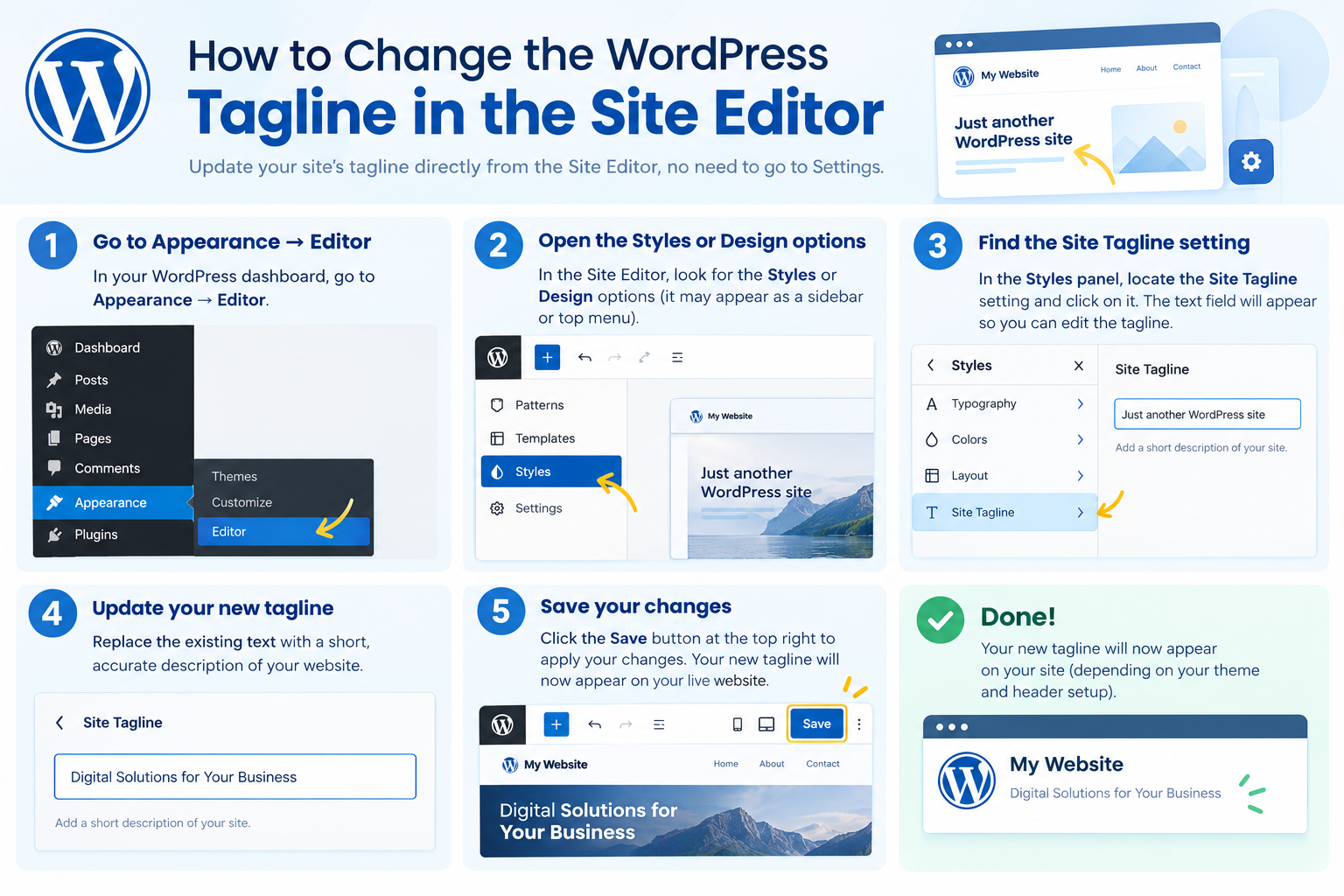
How to Change the WordPress Tagline in the Site Editor
If your website uses a block theme, you may also be able to manage the tagline through the WordPress Site Editor.
Follow these steps:
- Go to Appearance → Editor in your WordPress dashboard.
- Open the Styles or Design options and look for the Identity section, where available.
- Locate the Site Tagline setting and update the text.
- Save your changes if prompted.
The exact interface may vary between WordPress versions and themes. If you cannot find the tagline setting, return to Settings → General to update the underlying site tagline.
If your theme uses a custom header, you may need to edit the header template and add or configure a Site Tagline block to display it.
How to Choose a Good WordPress Tagline
A good tagline explains your website’s purpose in a few words. Choose wording that is clear, relevant to your audience, and consistent with your brand.
Follow these best practices:
- Keep it concise: Use a short phrase that communicates your website’s main purpose.
- Describe your offering: Explain what visitors can expect from your website.
- Use natural language: Avoid stuffing multiple keywords into a single sentence.
- Reflect your brand: Choose wording that suits your business, blog, or organization.
- Avoid generic descriptions: Replace default text with a meaningful description where appropriate.
For example, a web hosting company might use “Reliable Hosting Solutions for Growing Businesses,” while a technology blog could use “Practical Guides to Web Technology.”
Should Your WordPress Tagline Include Keywords?
You can include a relevant keyword if it fits naturally. However, changing your tagline alone does not guarantee better Google rankings.
Focus on clear website information, helpful content, descriptive page titles, and a well-organized site structure rather than treating the tagline as an SEO shortcut.
Why Is Your WordPress Tagline Not Showing?
If your updated tagline does not appear on your website, check these common causes.
- Your theme does not display the tagline: Some themes show only the site title. Check your theme settings or header template.
- Your website is displaying cached content: Clear your WordPress caching plugin’s cache and, if applicable, your hosting cache or CDN cache. Reload the page afterward.
- Your header uses a custom template: A custom-developed theme may need a Site Tagline block or another appropriate theme configuration to display the text.
- Your changes were not saved: Return to Settings → General and confirm that the new tagline appears in the field.
If the tagline is saved correctly but remains invisible, check your theme’s header configuration before making code changes.