How to Change the WordPress Time Zone
WordPress uses your website’s time zone to schedule posts, display publication dates, and manage time-dependent tasks. If your website displays incorrect times or scheduled posts do not publish when expected, your time zone settings may need adjustment. You can change the WordPress time zone directly from your dashboard without editing code. In this guide, you’ll […]

WordPress uses your website’s time zone to schedule posts, display publication dates, and manage time-dependent tasks. If your website displays incorrect times or scheduled posts do not publish when expected, your time zone settings may need adjustment.
You can change the WordPress time zone directly from your dashboard without editing code. In this guide, you’ll learn how to update the setting, choose the correct time zone, verify your changes, and troubleshoot common scheduling problems.
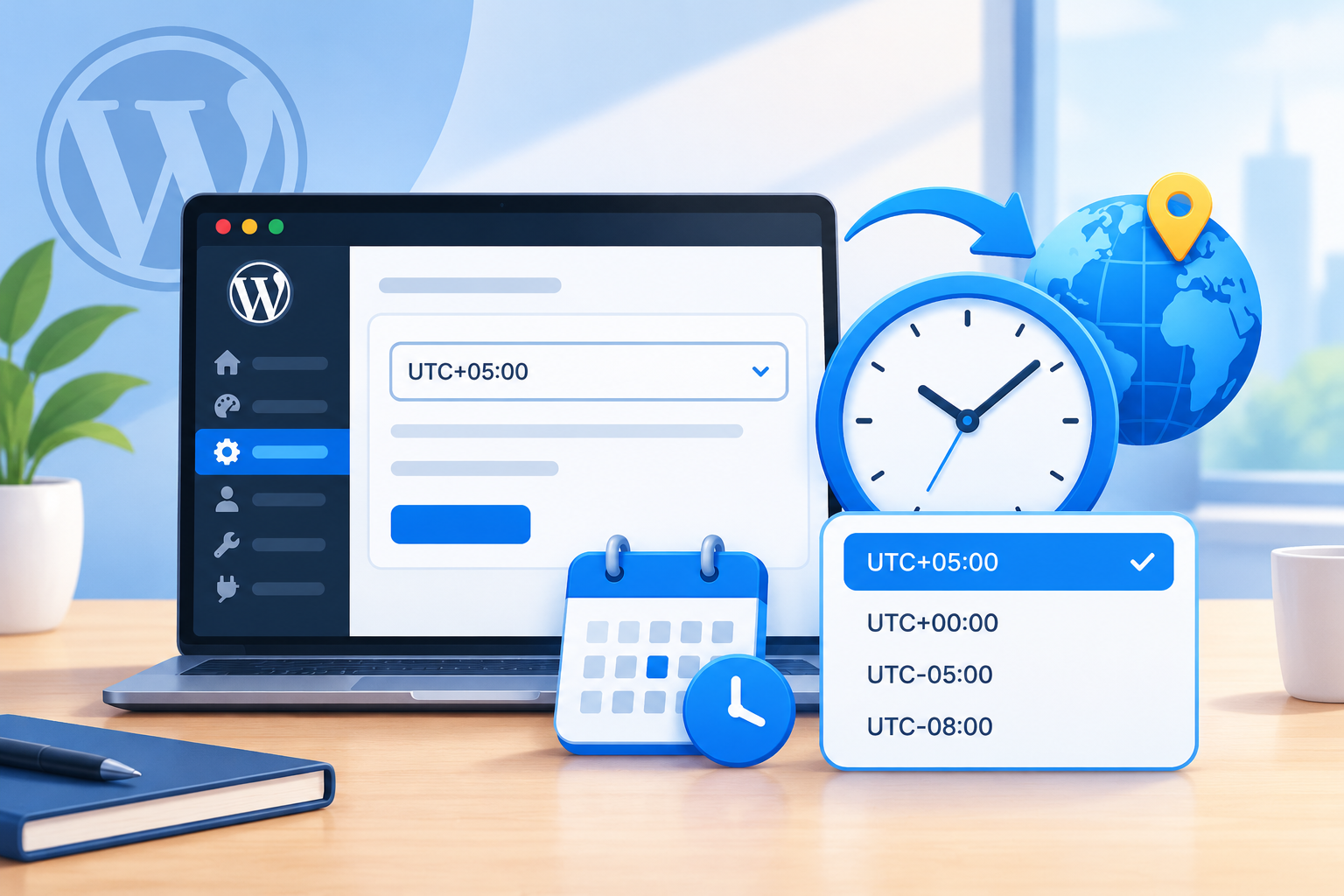
How to Change the WordPress Time Zone
The easiest way to change your website’s time zone is through the WordPress General Settings page.
Follow these steps:
- Log in to your WordPress admin dashboard.
- Navigate to Settings → General.
- Scroll down to the Timezone option.
- Select your city or an appropriate UTC offset.
- Scroll to the bottom of the page and click Save Changes.
WordPress will use the new setting for supported date and time functions across your website.
Tip: Choose a city-based time zone that matches your intended local time whenever possible. This allows WordPress to apply the relevant time-zone rules, including daylight saving changes where applicable.
How to Choose the Correct WordPress Time Zone
WordPress lets you select a time zone by city or UTC offset. Your choice should reflect the location or publishing schedule your website follows.
Choose a City-Based Time Zone
If your city or a suitable representative city appears in the Timezone dropdown, selecting it is generally the best option.
For example:
- Lahore, Pakistan: Select Karachi or the corresponding Asia/Karachi time zone.
- Dubai, UAE: Select Dubai or the corresponding Asia/Dubai time zone.
- London, UK: Select London to account for its seasonal clock changes.
City-based settings are particularly useful for businesses that schedule content around local business hours.
Choose a UTC Offset
If you cannot find a suitable city, you can select a UTC offset instead.
For example:
- Pakistan Standard Time is UTC+5.
- Gulf Standard Time in the UAE is UTC+4.
A fixed UTC offset does not automatically account for daylight saving time changes. If your location observes daylight saving time, a city-based time zone is usually preferable.
Important: Your website’s time zone does not have to match your hosting server’s system time. WordPress can apply its own configured time zone independently of the server clock.
Why the WordPress Time Zone Matters
The time zone setting affects several routine website operations.
- Scheduled posts: WordPress uses its configured time zone when determining when scheduled content should be published.
- Publication dates: Post dates and times may appear incorrectly if the website uses an unintended time zone.
- Editorial planning: Content teams can schedule articles according to their intended local publishing hours.
- Time-dependent plugins: Some plugins use WordPress date and time functions, while others may have their own time zone settings.
For example, if your business operates in Dubai but your WordPress website uses a different time zone, a post scheduled for 9:00 AM Dubai time may not publish at the intended local time.
Setting the correct time zone helps align your publishing schedule with your business hours.
How to Verify Your WordPress Time Zone
After changing the setting, confirm that WordPress is using the intended local time.
- Return to Settings → General.
- Check that the selected time zone is correct.
- Compare the displayed local time, if available in your WordPress version, with the current time in your chosen location.
- Open Posts → All Posts and review the dates and times of scheduled posts.
- Confirm that upcoming publications are scheduled for the intended local time.
If you manage a website with an active publishing schedule, review important upcoming posts before relying on the new configuration.
A test post can also help verify the publishing workflow. However, if a test post is not published on time, do not assume the time zone is incorrect. WordPress scheduled tasks may not run at the exact scheduled second.
Common WordPress Time Zone Problems and How to Fix Them
Scheduled Posts Publish at the Wrong Time
First, check Settings → General and confirm that the correct time zone is selected.
Then:
- Open the scheduled post in the WordPress editor.
- Review its scheduled date and time.
- Confirm that the time matches your intended publishing schedule.
- If the problem persists, investigate WordPress scheduled tasks and possible plugin conflicts.
After changing the website’s time zone, review existing scheduled posts rather than assuming their intended publishing times will remain suitable.
WordPress Displays the Wrong Date or Time
Check the selected time zone and compare the displayed local time with the time in your chosen location.
If the setting is correct, inspect the theme or plugin responsible for displaying the date. Some plugins use separate time zone preferences or custom date-handling logic.
The Website Uses the Hosting Server’s Time
A hosting server may use UTC or another system time zone. This is not necessarily a problem.
WordPress can use a different site time zone, so changing the server configuration is generally unnecessary when the only issue is an incorrect WordPress setting.
If you suspect the server clock itself is inaccurate, contact your hosting provider rather than making server-level changes without understanding their impact.
The Time Changes Unexpectedly
Check whether you selected a fixed UTC offset or a city-based time zone.
A fixed offset does not automatically adjust for daylight saving time. A city-based setting can follow the applicable time-zone rules, provided the relevant time-zone information is available and up to date.
If the issue continues, check your WordPress version and any plugin-specific time zone settings.
Scheduled Posts Remain Delayed After Changing the Time Zone
If the selected time zone and scheduled post time are correct, the problem may involve WordPress scheduled tasks.
WordPress commonly relies on its scheduled-task mechanism, known as WP-Cron, to process scheduled events. Its execution can be delayed, particularly on websites with little traffic, and hosting-level cron configuration can also affect scheduling.
Check the following:
- Confirm that the post is still scheduled and its publication time is correct.
- Investigate whether WordPress scheduled tasks are running properly.
- Check for plugin conflicts that might affect publishing.
- Contact your hosting provider if the problem appears to involve cron configuration or server-level restrictions.
Detailed cron configuration and server troubleshooting are separate topics and do not need to be changed simply to update the WordPress time zone.
Best Practices for WordPress Time Zone Settings
Follow these recommendations to keep your website’s date and time settings consistent:
- Select a suitable city-based time zone whenever practical.
- Choose a setting that matches your intended publishing schedule.
- Verify the displayed local time after saving changes.
- Review important scheduled posts after changing the time zone.
- Check plugin-specific settings if dates continue to appear incorrectly.
- Keep WordPress and its plugins updated.
- Investigate scheduled tasks separately if posts remain delayed.
For websites serving international audiences, remember that the WordPress time zone is generally a site-wide setting. It does not automatically change to each visitor’s local time.