How to Install WordPress on Hosting (Step-by-Step Guide)
Installing WordPress on your hosting account is the first practical step toward creating a website, blog, business portal, or online store. Most modern WordPress hosting providers offer simple installation methods that allow beginners to set up WordPress without advanced technical knowledge. Whether you are creating a business website in the UAE, launching an eCommerce store, […]
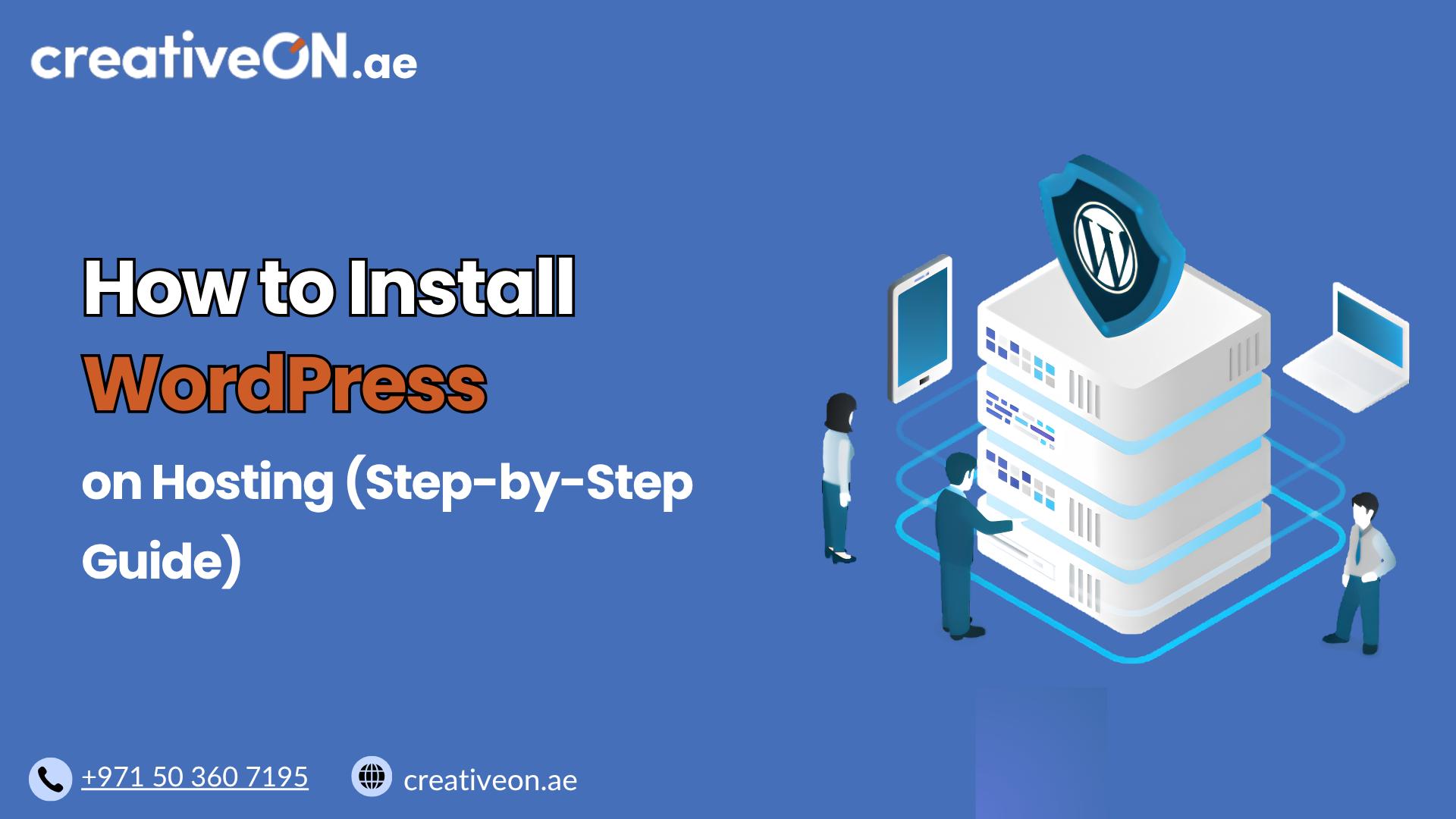
Installing WordPress on your hosting account is the first practical step toward creating a website, blog, business portal, or online store. Most modern WordPress hosting providers offer simple installation methods that allow beginners to set up WordPress without advanced technical knowledge.
Whether you are creating a business website in the UAE, launching an eCommerce store, or starting a personal blog, understanding how to install WordPress on hosting helps you take control of your website setup process.
In this guide, we will explain the complete WordPress installation process, including preparation steps, automatic installation methods, manual installation, and important settings to check after installation.
Before Installing WordPress on Hosting
Before starting the installation process, make sure your hosting account is ready. A successful WordPress installation requires a few basic components.
1. Choose a WordPress-Compatible Hosting Account
Your hosting environment should support WordPress requirements, including:
- PHP support
- MySQL or MariaDB database support
- SSL certificate availability
- Sufficient storage and resources
- WordPress-friendly server configuration
Many WordPress hosting plans include these features by default, making installation easier for beginners.
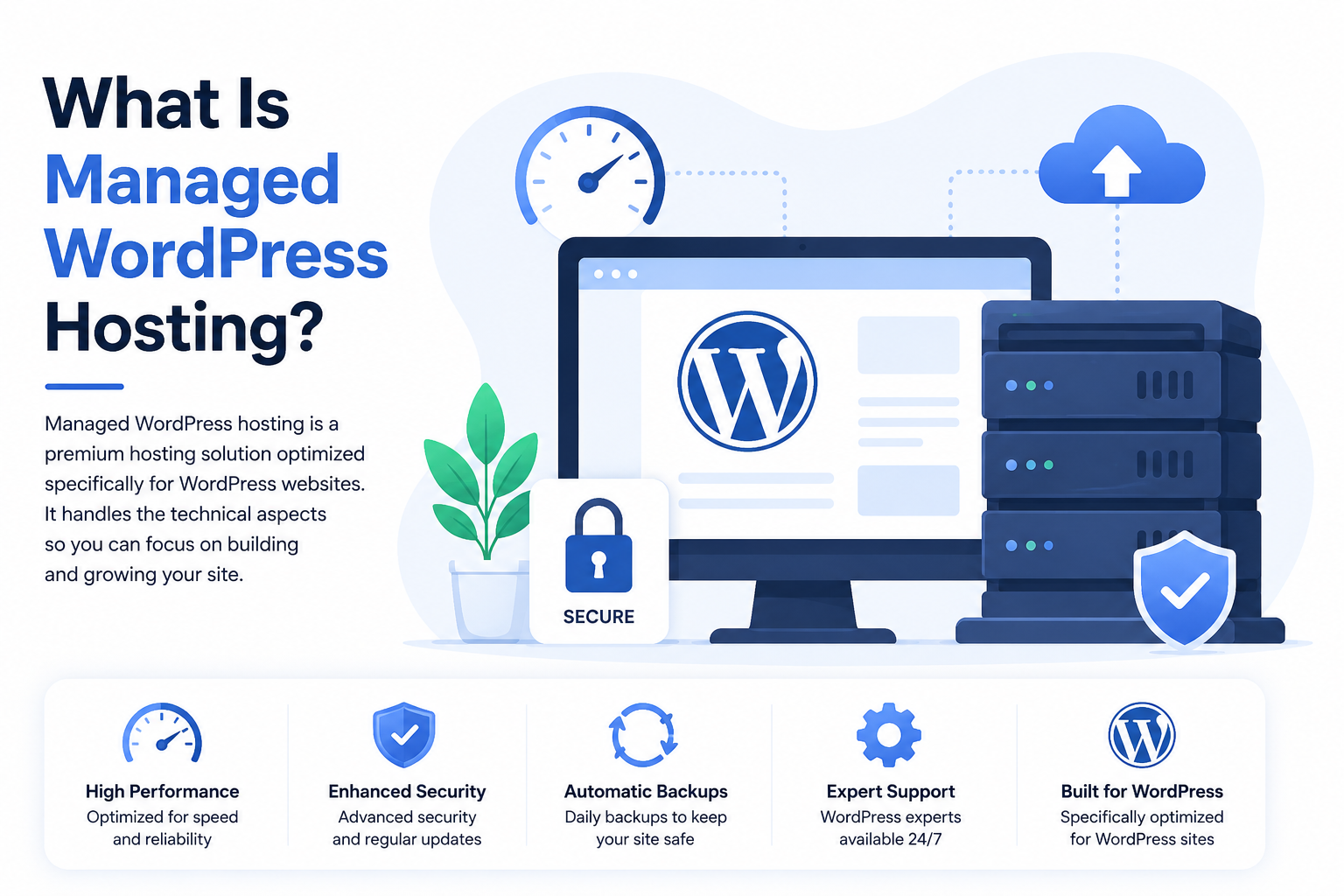
If you are unsure which hosting environment is suitable, you can explore our guide on Managed WordPress Hosting to understand how specialized WordPress hosting simplifies website management.
2. Connect Your Domain With Hosting
Before installing WordPress, your domain should point to your hosting account.
This usually involves:
- Updating domain nameservers
- Waiting for DNS changes to complete
- Confirming that your domain loads correctly
If you have purchased your domain and hosting from the same provider, this process is often completed automatically.
For detailed information about moving an existing website, see our WordPress Migration Guide.
3. Prepare Your Hosting Login Details
Keep these details available:
- Hosting control panel login
- FTP credentials (for manual installation)
- Database information (if installing manually)
Most hosting providers use control panels such as cPanel, which simplify WordPress installation and management.
How to Install WordPress on Hosting Using One-Click Installer
The easiest way to install WordPress on hosting is by using an automatic installer. Many hosting providers provide tools such as Softaculous, WordPress Toolkit, or similar applications.
These tools automatically create the database, upload WordPress files, and complete the basic configuration.
Step 1: Log in to Your Hosting Control Panel
Access your hosting control panel using your account credentials.
For cPanel hosting:
- Open your cPanel login page.
- Enter your username and password.
- Locate the WordPress installer section.
The exact location may vary depending on your hosting provider.
Step 2: Open the WordPress Installer
Find the WordPress installation tool.
Common options include:
- Softaculous Apps Installer
- WordPress Manager
- WordPress Toolkit
Select WordPress and click the installation option.
Step 3: Choose Your Domain
Select the domain where you want to install WordPress.
If you have multiple domains or subdomains, make sure you choose the correct location.
For example:
- example.com → Main website
- blog.example.com → Blog installation
- example.com/store → Website section
Avoid installing WordPress in the wrong directory because it can create website access problems later.
Step 4: Configure WordPress Installation Settings
During installation, you will need to provide basic information.
Website Settings
Enter:
- Website name
- Website description
- Admin username
- Admin password
- Administrator email address
Use a strong admin username and password to improve WordPress security.
Avoid using common usernames like:
- admin
- administrator
- your domain name
Step 5: Select Installation Options
Depending on your hosting provider, you may see additional options such as:
- WordPress version selection
- Automatic updates
- Plugin installation
- Theme selection
For beginners, it is usually better to install a clean WordPress setup and add themes and plugins later.
Installing unnecessary plugins during setup can increase security risks and website complexity.
Step 6: Complete WordPress Installation
After reviewing your settings:
- Click Install.
- Wait for the installation process to complete.
- Save your WordPress admin login details.
Once completed, you can access your website dashboard:
yourdomain.com/wp-admin
Log in using the administrator username and password created during installation.

How to Install WordPress Manually on Hosting
Although automatic installers are recommended for beginners, WordPress can also be installed manually.
Manual installation is useful when:
- You need complete control over the setup
- Your hosting provider does not provide an installer
- You want a customized installation process
The manual process includes:
- Downloading WordPress files
- Uploading files to hosting
- Creating a database
- Configuring WordPress settings
- Completing installation through your browser
Step 1: Download WordPress Files
Download the latest WordPress package from the official WordPress website.
After downloading:
- Extract the ZIP file
- Prepare the WordPress files for upload
Step 2: Upload WordPress Files to Hosting
Upload the WordPress files using:
- File Manager in cPanel
- FTP client
The files should usually be uploaded into the website’s root directory:
public_html
This allows WordPress to load when visitors open your domain.
Step 3: Create a WordPress Database
WordPress stores website content, settings, and user information inside a database.
Create:
- Database name
- Database username
- Database password
Keep these details secure because they connect WordPress with your hosting environment.
Step 4: Configure wp-config.php
WordPress requires database information to connect with your hosting account.
Update the configuration file with:
- Database name
- Database username
- Database password
- Database host
After saving the configuration, WordPress can communicate with the database.
Step 5: Complete WordPress Setup
Open your domain in a browser.
WordPress will guide you through the final installation process.
You will configure:
- Website title
- Admin account
- Password
- Email address
After completion, your WordPress dashboard will be ready.
What to Do After Installing WordPress
Installing WordPress is only the beginning. A few important steps should be completed before building your website.
Enable SSL Certificate
Make sure your website uses HTTPS.
An SSL certificate:
- Encrypts visitor data
- Improves trust
- Helps protect website communication
Your website should load as:
https://yourdomain.com
Update WordPress Components
Immediately update:
- WordPress core
- Themes
- Plugins
Keeping everything updated improves security and compatibility.
Configure Basic WordPress Settings
Review important settings such as:
- Website title
- Time zone
- Permalink structure
- User accounts
- Comment settings
A clean configuration helps avoid problems later.
WordPress Installation Best Practices
After completing the WordPress installation process, following a few best practices helps create a secure, stable, and manageable website.
A properly configured WordPress installation reduces future maintenance issues and provides a better foundation for website growth.
Secure Your WordPress Installation
Security should be considered immediately after installing WordPress.
Follow these basic security practices:
Use a Strong Administrator Account
Your administrator account has full control over your website.
Recommended practices:
- Use a unique username
- Create a strong password
- Avoid sharing administrator access unnecessarily
- Create separate user accounts for different roles
For additional protection, explore our WordPress Security Guide for detailed security recommendations.
Remove Unnecessary Default Content
A fresh WordPress installation may include sample content such as:
- Sample posts
- Default pages
- Unused themes
- Unnecessary plugins
Remove anything you do not need to keep your website cleaner and easier to manage.
Set Up Regular Backups
Before making major changes, ensure your website data is protected.
A WordPress backup should include:
- Website files
- Database
- Media uploads
- Configuration files
Regular backups help you recover quickly if something goes wrong during updates, plugin changes, or website modifications.
Learn more in our WordPress Backup Best Practices Guide.
Optimize Your WordPress Hosting Setup
After installation, your hosting environment plays an important role in website performance.
Enable Caching
Caching helps WordPress deliver pages faster by reducing repeated server processing.
Depending on your hosting environment, caching may include:
- Server-level caching
- WordPress caching plugins
- Browser caching
A properly configured caching setup can improve loading speed and visitor experience.
You can learn more in our WordPress Caching Guide.
Install Only Required Plugins
Plugins extend WordPress functionality, but installing too many can create problems.
Avoid:
- Installing multiple plugins with similar features
- Using outdated plugins
- Installing plugins from unreliable sources
Choose reliable plugins that are actively maintained and compatible with your WordPress version.
Common WordPress Installation Mistakes
Many beginners face problems because of small setup mistakes. Avoiding these issues can save time and prevent website errors.
1. Using Weak Admin Credentials
One of the most common mistakes is using simple usernames and passwords.
Avoid credentials such as:
- admin123
- password
- website name as password
Use strong login details and enable additional security measures where possible.
2. Installing WordPress in the Wrong Directory
During installation, users sometimes select an incorrect folder.
Examples:
Incorrect:
example.com/wordpress
when they wanted:
example.com
Always check the installation directory before confirming the setup.
3. Installing Too Many Plugins Immediately
Beginners often install many plugins before understanding what their website needs.
This can lead to:
- Slower website performance
- Plugin conflicts
- Increased security risks
Start with essential plugins only and add more when required.
4. Ignoring Updates After Installation
A WordPress website requires ongoing maintenance.
Regularly update:
- WordPress core
- Plugins
- Themes
Updates often include security fixes, performance improvements, and compatibility enhancements.
5. Not Testing Website Functionality
After installation, check that important features work correctly.
Test:
- Website loading speed
- Contact forms
- Mobile appearance
- Login access
- SSL connection
Testing early helps identify problems before visitors find them.
WordPress Installation Troubleshooting
Sometimes WordPress installation may not complete successfully. Common issues include:
Database Connection Error
This usually occurs when WordPress cannot connect to the database.
Check:
- Database name
- Database username
- Database password
- Database host settings
White Screen After Installation
A blank page may be caused by:
- Plugin conflicts
- Theme issues
- PHP configuration problems
Try disabling recently added plugins or checking error logs through your hosting control panel.
Installation Page Not Loading
Possible causes include:
- Incorrect domain pointing
- DNS changes not completed
- Incorrect file location
Confirm that your domain is properly connected to your hosting account.
Internal Linking Opportunities
This article supports the broader WordPress Hosting knowledge base. Relevant internal links include:
- Managed WordPress Hosting
- Recommended for users who want automated updates, security features, and simplified WordPress management.
- WordPress Security Guide
- Helps users secure their newly installed WordPress website.
- WordPress Backup Best Practices
- Explains how to protect website data through reliable backup strategies.
- WordPress Caching Guide
- Helps improve website speed after installation.
- WordPress Migration Guide
- Useful for users moving an existing WordPress website to new hosting.
These topics should remain separate because they solve different WordPress hosting problems.