Organizational Units vs Google Groups: What’s the Difference?
If you manage a Google Workspace account, you’ve probably run into both organizational units and Google Groups while trying to set permissions, apply policies, or share files with a team. They sound similar. They’re often used side by side. But they solve two completely different problems. Mixing them up is one of the most common […]
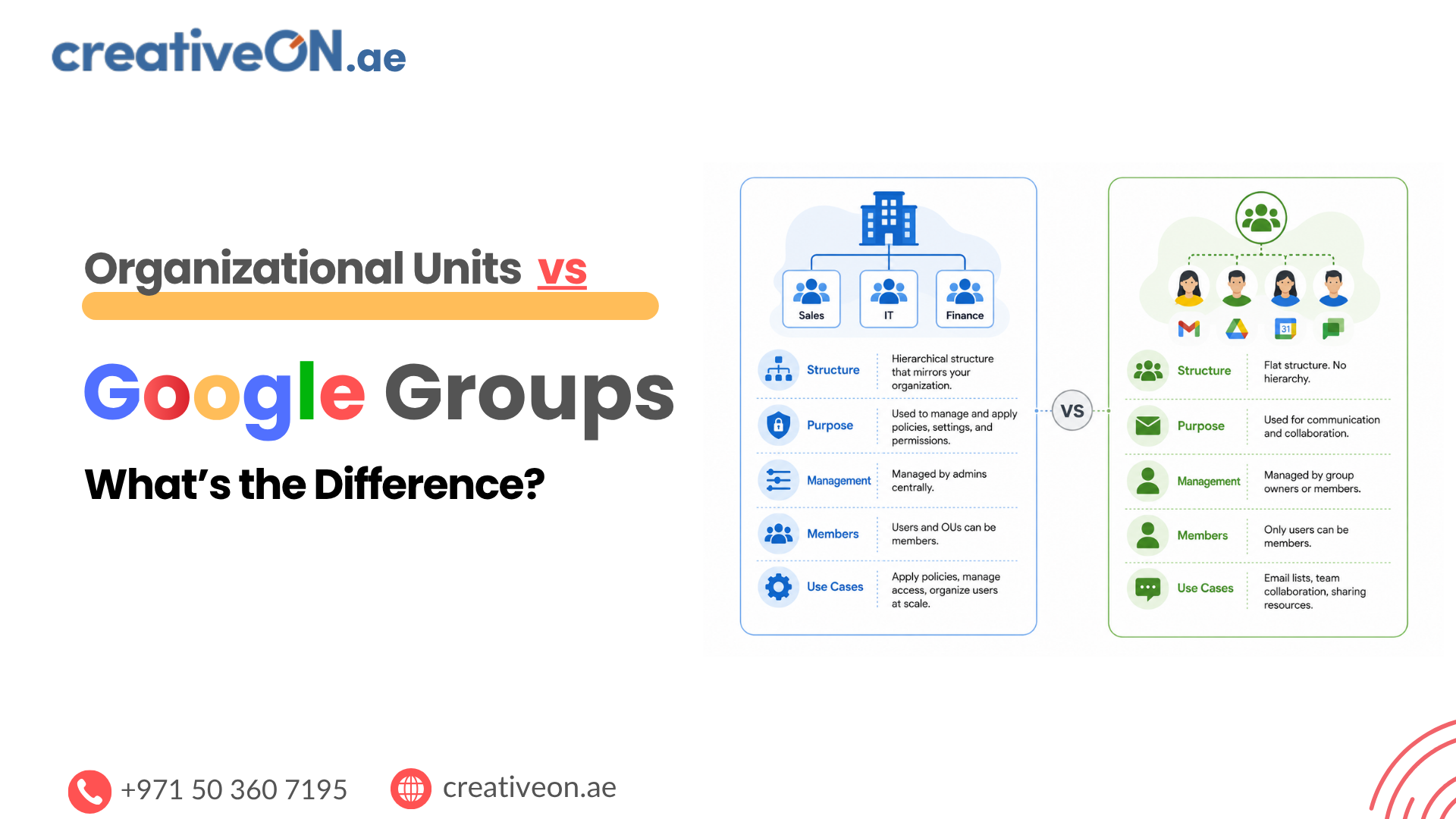
If you manage a Google Workspace account, you’ve probably run into both organizational units and Google Groups while trying to set permissions, apply policies, or share files with a team. They sound similar. They’re often used side by side. But they solve two completely different problems.
Mixing them up is one of the most common admin mistakes we see in businesses across Dubai, Abu Dhabi, and the wider UAE — and it usually leads to either overly restrictive settings for the wrong users or Drive files shared with people who shouldn’t have access.
This guide breaks down exactly what organizational units (OUs) and Google Groups are, how they differ, and when to use each one.
What Is an Organizational Unit (OU)?
An organizational unit is a way of grouping user accounts inside the Google Admin console so you can apply specific settings, policies, and app access to that group of users automatically.
Think of OUs as departments or divisions within your company structure. A typical setup might look like:
- Your Company (root OU)
- Sales
- Finance
- IT
- Contractors
Every user account lives inside exactly one OU at a time. Settings applied to an OU — such as Gmail routing rules, Drive sharing restrictions, or 2-Step Verification requirements — automatically apply to every user in that unit, and cascade down to any child OUs beneath it.
OUs are an administrative structure, managed entirely from the Google Admin Console, and only Workspace admins can create, edit, or move users between them.
Inheritance is what makes OUs powerful. Any policy applied to a parent OU automatically flows down to every child OU beneath it, unless that child OU has its own override in place. For example, if you apply a 2-Step Verification requirement at the root “Your Company” level, every department — Sales, Finance, IT, Contractors — inherits it automatically. If Contractors need a different rule, you simply override the setting at that specific OU, and the rest of the hierarchy stays untouched. This is one of the main reasons OUs exist in the first place: they let you manage security and configuration at scale without setting policies user by user.
What Is a Google Group?
A Google Group is a mailing-list-style collection of users that makes it easier to share access, send email, or grant permissions to multiple people at once — without managing each person individually.
Groups are commonly used to:
- Share a Google Drive folder with an entire team
- Grant access to a Google Calendar
- Send one email address that reaches everyone in the group (like sales@yourcompany.ae)
- Manage access to third-party apps or shared resources
Unlike OUs, a user can belong to multiple Google Groups at the same time, and group membership can include not just employees, but external collaborators, vendors, or clients if needed.
Groups can be created and managed by admins, or — depending on your settings — by regular users as well.
It’s worth noting that Google also offers Access Groups, which are used specifically with Google Cloud and Context-Aware Access policies rather than everyday file sharing. These serve a different purpose and are outside the scope of this guide. Larger organizations on Enterprise plans may also use Dynamic Groups, which automatically add or remove members based on user attributes like department or location — worth exploring separately if your team is managing group membership manually today.
Organizational Units vs Google Groups: Key Differences
| Organizational Units | Google Groups | |
| Purpose | Apply admin policies and settings | Share access and communicate with multiple users |
| Managed by | Workspace admins only | Admins or, optionally, end users |
| Membership | One OU per user | Multiple groups per user |
| Structure | Hierarchical (parent/child) | Flat (no hierarchy) |
| Typical use | Enforcing security policies, app access, Gmail settings | Sharing Drive files, Calendars, distribution email |
| External users | Not supported | Supported |
The simplest way to remember it: OUs control what a user can do inside Google Workspace. Groups control what a user has access to alongside other people.
When to Use Organizational Units
Reach for OUs when you need to apply a setting based on someone’s role or department rather than personal choice. Common scenarios include:
- Restricting Gmail attachment types for the Finance department
- Turning off Google Meet recording for Contractors
- Enforcing stricter password policies for IT Admins
- Rolling out Gemini or new Workspace features to one department before others
- Applying different mobile device management rules to field staff versus office staff
Because OU settings cascade down the hierarchy, it’s best practice to structure OUs to mirror your actual company departments, and only override settings at lower levels when necessary.
When to Use Google Groups
Groups are the right tool when the goal is collaboration and shared access rather than policy enforcement. Use a Group when you want to:
- Share a single Drive folder with an entire project team
- Set up a shared inbox like info@yourcompany.ae or support@yourcompany.ae
- Give a cross-functional team (spanning multiple OUs) access to the same Calendar
- Include external partners or vendors in a shared resource without creating full user accounts for them
- Simplify permission management so you’re not adding and removing individuals every time a file is shared
Since group membership isn’t tied to department structure, a single employee can be part of a Sales OU while also belonging to three different Groups for different projects.
Can You Use Organizational Units and Google Groups Together?
Yes — and in most well-run Workspace environments, you should. A common, effective pattern looks like this:
- Use OUs to structure your company and enforce baseline security and app policies by department.
- Use Groups to manage day-to-day collaboration, file sharing, and communication across and within those departments.
For example, a marketing employee sits in the “Marketing” OU (which governs their app access and security settings) while also being a member of the “Website-Redesign-2026” Group (which gives them access to a specific shared Drive folder alongside people from other departments).
This layered approach keeps administration clean: policies stay centralized and predictable, while collaboration stays flexible.
Here’s a simple way to visualize how the two structures operate side by side:
Organization
├── Sales OU
├── Finance OU
└── Marketing OU
│
▼
(Policies inherit down through OUs)
Marketing Group ─── Project A Group ─── Managers Group
│
▼
(Permissions flow across OUs, not down them)
OUs push policies downward through a hierarchy. Groups extend permissions sideways, connecting people regardless of which OU they belong to.
Best Practices
- Keep your OU hierarchy simple. Mirror your real company structure and avoid creating deep, overly granular nesting that becomes hard to manage.
- Remove unused OUs. Leftover OUs from restructures or past projects make policy troubleshooting harder than it needs to be.
- Review inactive Groups regularly. Groups tied to finished projects or former vendors should be archived or deleted so shared Drive folders and Calendars don’t stay exposed longer than necessary.
Common Mistakes to Avoid
- Using Groups to enforce security settings. Groups don’t support Admin console policies — that’s an OU’s job.
- Creating an OU for every project. OUs should reflect stable organizational structure, not temporary teams. Use Groups for project-based access instead.
- Forgetting that a user can only be in one OU. If someone needs different Gmail routing than their department default, you’ll need to either move them to a sub-OU or create an exception — not use a Group.
- Over-permissioning Groups with external members without reviewing who has access periodically. Regular access reviews matter, especially for shared Drive folders.
Suggested Visuals
- A side-by-side comparison table graphic (as shown above) — ALT text: “organizational units vs Google Groups comparison table”
- An organizational chart showing OU hierarchy and policy inheritance — ALT text: “Google Workspace organizational units hierarchy example”
- A simple diagram showing one user belonging to one OU but multiple Groups — ALT text: “Google Workspace user OU and group membership diagram”
- A decision tree helping readers choose between an OU and a Group for a given task — ALT text: “decision tree for choosing organizational unit or Google Group”
- A workflow diagram showing how policies flow down through OUs while permissions flow across Groups — ALT text: “Google Workspace OU policy inheritance vs group permissions workflow”
- A process flow showing a new employee being added to an OU and relevant Groups during onboarding — ALT text: “Google Workspace onboarding process organizational unit and group assignment”