How to Set Up an Email Alias in Google Workspace
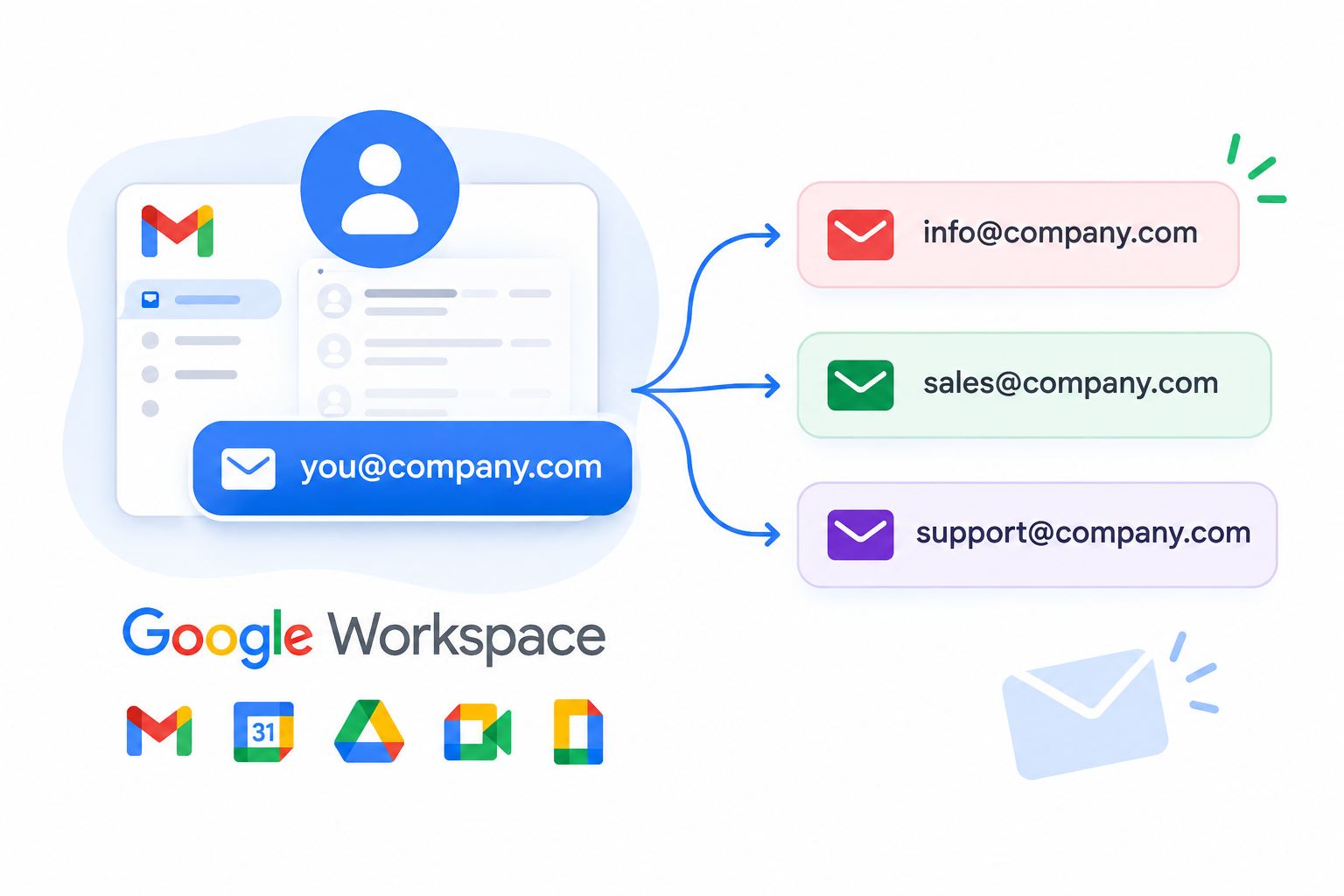
A Google Workspace email alias gives an existing user an additional business email address without creating another Google Workspace user. For example, if an employee’s primary account is ahmed@company.ae, an administrator can add sales@company.ae as an alias. Messages sent to sales@company.ae can then be delivered to Ahmed’s existing Gmail inbox. This is useful for businesses […]

A Google Workspace email alias gives an existing user an additional business email address without creating another Google Workspace user.
For example, if an employee’s primary account is ahmed@company.ae, an administrator can add sales@company.ae as an alias. Messages sent to sales@company.ae can then be delivered to Ahmed’s existing Gmail inbox.
This is useful for businesses that need role-based addresses such as sales@, info@, support@, or billing@ but do not need a separate Workspace account for each address.
Quick answer: A Google Workspace email alias is an additional email address assigned to an existing user. It does not create a separate Google Account or inbox. Google allows up to 30 aliases per user at no additional charge. If the user also needs to send messages using the alias, Gmail’s Send mail as settings may need to be configured.
What Is a Google Workspace Email Alias?
A Google Workspace email alias is an alternate email address associated with an existing user account.
For example:
- Primary address: ahmed@company.ae
- Alias: sales@company.ae
- Alias: info@company.ae
Messages sent to these addresses can arrive in the same user’s Gmail inbox.
An alias is not a separate Google Workspace account. The user continues to use their primary account to sign in to Google Workspace and access services such as Gmail, Google Drive, and Google Calendar.
This makes aliases useful when one person handles several responsibilities within a business.
Example
A sales manager might have:
ahmed@company.ae — primary account
sales@company.ae — sales inquiries
quotes@company.ae — quotation requests
All three addresses can be associated with the same user when the business does not require separate accounts.
Important: An email alias is an additional address, not another login or mailbox.
When Should You Use an Email Alias?
An alias is most useful when one person needs to receive mail at multiple addresses.
Common business examples include:
- info@company.ae — general inquiries
- sales@company.ae — sales inquiries
- billing@company.ae — billing correspondence
- support@company.ae — customer support
- hr@company.ae — HR correspondence
For example, a UAE business may have an employee responsible for both sales and quotations. Instead of creating separate Workspace users for sales@company.ae and quotes@company.ae, the business can assign those addresses as aliases to the employee’s existing account.
This keeps account management simpler when the addresses are genuinely handled by one person.
Email Alias vs User Account vs Google Group
Choosing the right Google Workspace feature depends mainly on who needs to receive and manage the email.
| Requirement | Suitable option |
| One person needs an additional email address | Email alias |
| One person needs a completely separate inbox and account | Separate Workspace user |
| Several people need to receive messages sent to one address | Google Group or another shared-access solution |
| An entire organization needs addresses on another domain | Domain alias |
| Multiple people need to work from one user’s mailbox | Gmail delegation or another appropriate shared-access configuration |
Email alias
Use an alias when the address belongs to one existing user.
Example:
ahmed@company.ae
→ sales@company.ae
Separate Google Workspace user
Create another user when the person needs an independent Google Account, mailbox, Drive, Calendar, and other Workspace resources.
For example:
ahmed@company.ae
fatima@company.ae
These are two independent Workspace users.
Google Group
If several employees need to receive messages sent to support@company.ae, assigning support@company.ae as a user alias is not designed for that scenario.
A Google Group or another shared-access configuration may be more appropriate because multiple members can participate in the email workflow.
Domain alias
A domain alias is different from a user email alias. A domain alias operates at the domain level rather than simply giving one user another address.
If your requirement involves adding another domain to your entire Google Workspace organization, use a dedicated guide about Google Workspace domain aliases rather than treating it as an individual user alias.
What to Know Before Creating an Email Alias
Before adding an alias, keep these limitations in mind.
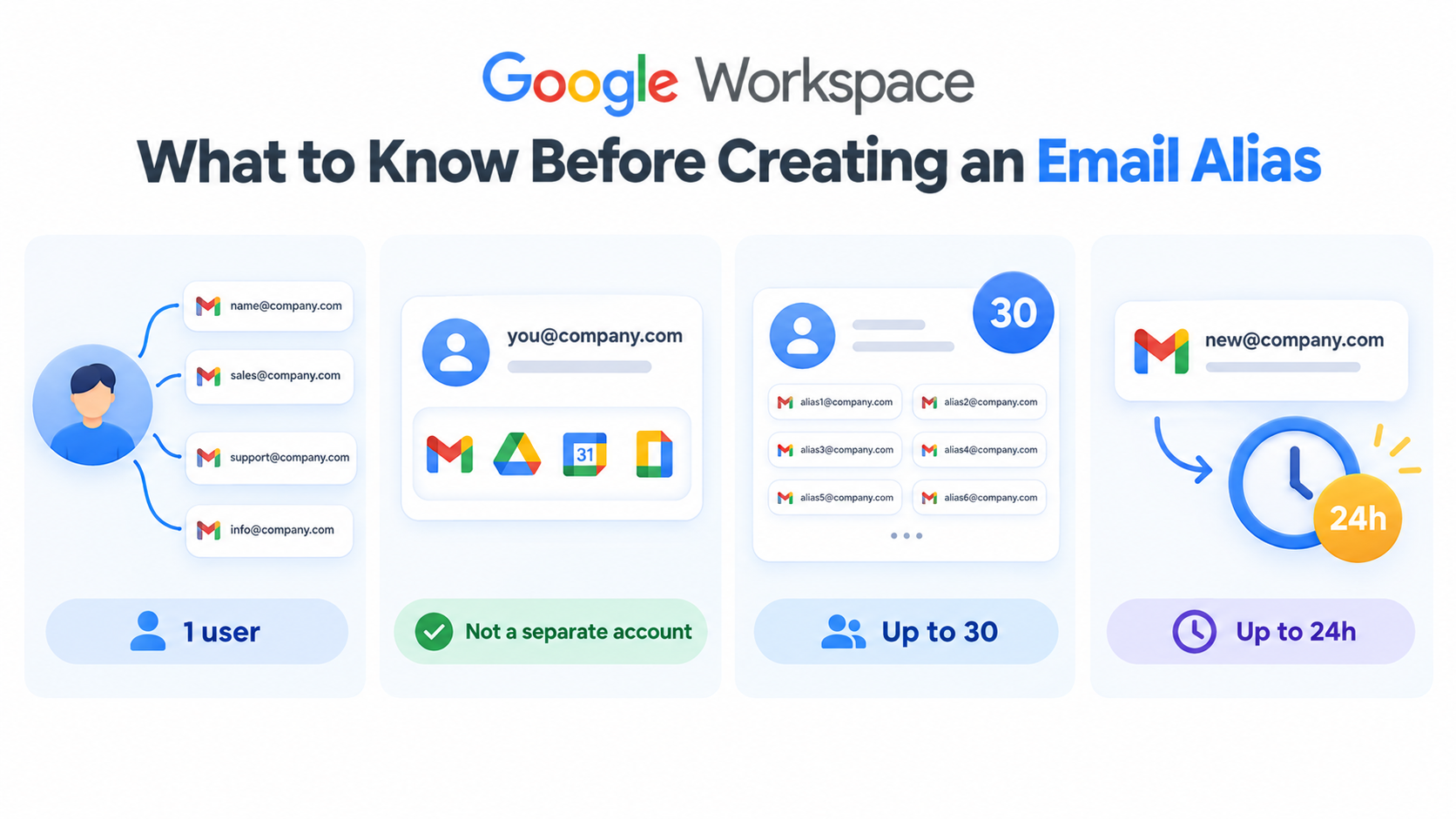
An alias belongs to one user
A Google Workspace user email alias is associated with one user. You cannot assign the same user alias to multiple users as their individual alternate address.
If several people need access to the same address, consider Google Groups or an appropriate shared-access solution.
An alias is not a separate Google Account
An alias does not create:
- A separate Gmail inbox
- A separate Google Drive
- A separate Calendar
- A separate Google Account
- A separate Workspace login
The user continues to sign in using their primary address.
Google allows up to 30 aliases per user
Google Workspace allows up to 30 email aliases per user at no additional charge.
The limit applies to aliases assigned to the individual user; it does not mean an organization can create unlimited aliases without considering other Google Workspace configuration requirements.
Alias changes may take time
Changes to user email aliases may not become available immediately. Google notes that changes can take up to 24 hours to propagate, although they may take effect sooner.
If an alias does not work immediately after creation, allow some time before troubleshooting further.
How to Set Up an Email Alias in Google Workspace
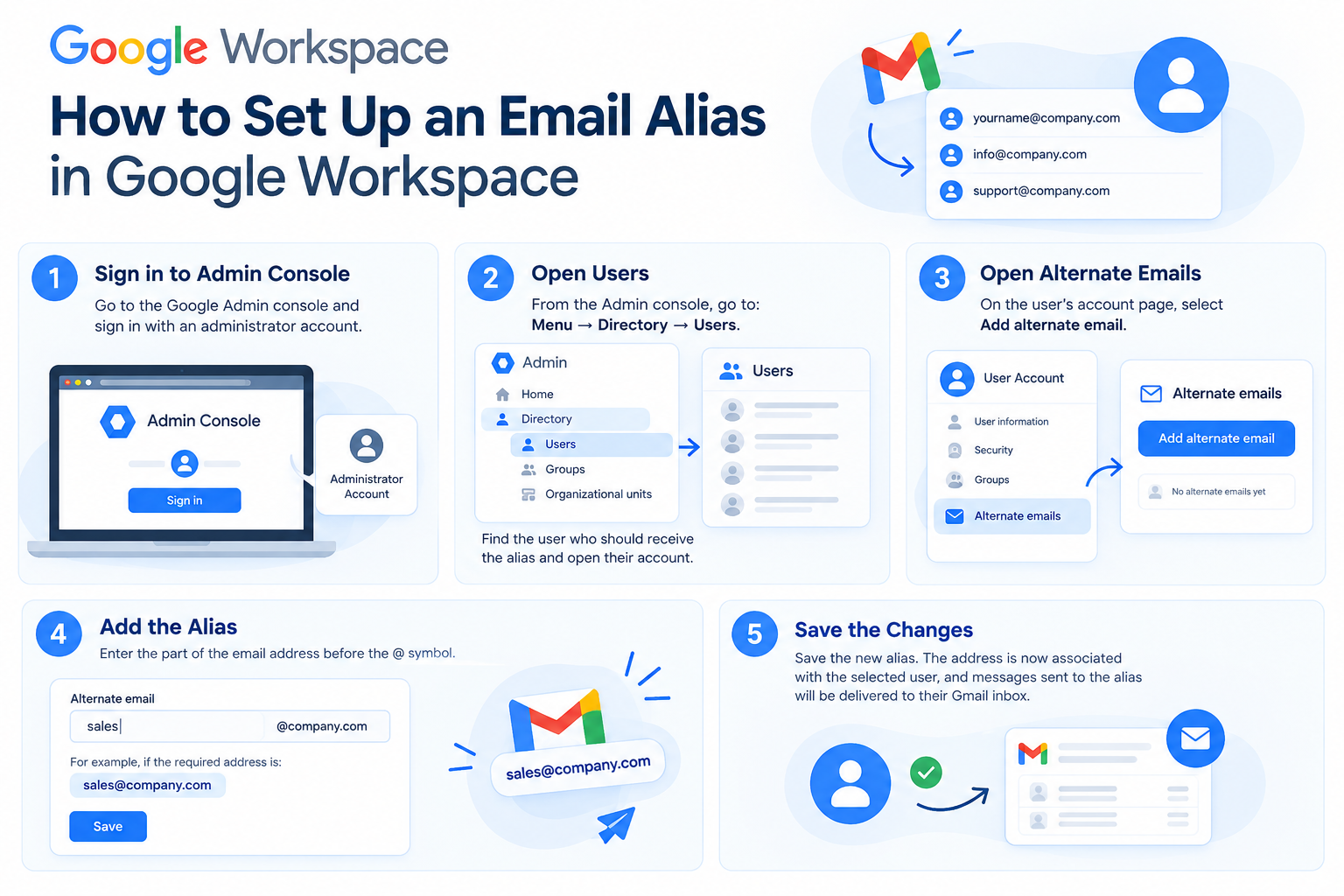
You need an administrator account with the appropriate permissions to manage users.
Step 1: Sign in to Google Admin Console
Sign in to the Google Admin console using an administrator account.
Email aliases for Workspace users are managed through the Admin console rather than the normal Gmail settings page.
Step 2: Open Users
From the Admin console, go to:
Menu → Directory → Users
Find the user who should receive the alias and open their account.
Step 3: Open Alternate Emails
On the user’s account page, select:
Add Alternate Emails
This is where administrators can add an alternate email address for the user.
Step 4: Add the Alias
Select Alternate email.
Enter the part of the email address before the @ symbol.
For example, if the required address is:
sales@company.ae
enter:
sales
Select the appropriate domain if the option is available.
Step 5: Save the Changes
Save the new alias.
The address is now associated with the selected Workspace user. Messages sent to the alias can be delivered to the user’s existing Gmail inbox.
How to Send Email From a Google Workspace Alias
Receiving messages through an alias and sending messages from an alias are related but separate parts of the setup.
After an administrator creates an alias, the user may need to configure the address in Gmail’s Send mail as settings if they want to select the alias in the From field when composing an email.
In Gmail on a computer:
- Open Gmail.
- Select Settings.
- Select See all settings.
- Open Accounts and Import or Accounts.
- Find Send mail as.
- Select Add another email address.
- Add the address you want to use.
- Complete any required verification or configuration.
- When composing an email, select the appropriate address from the From field.
Important: Receiving mail at an alias and sending mail from an alias are not exactly the same configuration. If mail is arriving correctly but the alias does not appear as an available From address, check the Gmail Send mail as configuration.
Choosing a default From address
If a user regularly sends business messages from an alias, Gmail can be configured to use that address as the default From address.
This can be useful when an employee manages a role-based address such as sales@company.ae.
How to Remove an Email Alias
If an alias is no longer required, an administrator can remove it from the user’s account.
Go to:
Admin console → Directory → Users → Select the user → Add Alternate Emails
Locate the alias and remove it.
Remember that a manually assigned user alias and a domain-level alias are different configurations. If the address comes from a domain alias, it may need to be managed at the domain level rather than removed from one individual user.
Email Alias Troubleshooting
If a newly created alias is not working, check the following.
Check the email address
Make sure the alias has been entered correctly and that the domain is correct.
For example:
support@company.ae
should not accidentally be created as:
suport@company.ae
Check whether the address already exists
An alias cannot simply duplicate an existing user or conflicting address in your Workspace organization.
Check your users and other Workspace configurations if the address cannot be added.
Allow time for changes to propagate
If the alias was created recently, wait before assuming that something is wrong. Google notes that changes can take up to 24 hours to propagate.
Check whether you created a domain alias
If you are trying to use an address from another domain, verify whether the domain has been configured as a secondary domain or domain alias.
Domain configuration affects which addresses can be assigned to users.
Check Gmail’s Send mail as settings
If the alias receives messages correctly but does not appear when the user tries to send email, review the Gmail Send mail as configuration.
This is especially important when the requirement is to both receive and send using the alternate address.
Common Google Workspace Email Alias Mistakes
Creating a separate user unnecessarily
If one employee simply needs another address, creating another Workspace user may not be necessary.
For example:
john@company.ae
marketing@company.ae
If both addresses are handled by John, an alias may be appropriate.
However, if marketing@company.ae needs its own independent mailbox and Google Account, a separate user is a different requirement.
Using an alias for a team
An individual user alias is not designed to provide a shared inbox for an entire department.
If five employees need access to support@company.ae, consider Google Groups, delegation, or another appropriate shared-access solution.
Assuming the alias is a login
An alias is not another Google Workspace login.
If the primary account is:
john@company.ae
and the alias is:
support@company.ae
the user still signs in using the primary account.
Forgetting the sending configuration
Adding an alias for receiving mail does not necessarily mean the user has completed everything required to send from that address.
If the user needs the alias in the Gmail From field, check Send mail as.
Overloading one user with role addresses
Aliases are useful, but they should reflect how your organization actually works.
If responsibilities are distributed among several employees, using a shared-access solution may be more appropriate than assigning all role addresses to one person’s account.