How Teachers Can Use Google Workspace to Organize Their Work
Introduction Teachers manage several responsibilities beyond classroom instruction. Preparing lesson plans, organizing teaching materials, tracking student progress, managing assignments, and communicating with parents all require time and organization. When these activities are managed through separate files, applications, and email conversations, important information can become difficult to find. Teachers may also spend unnecessary time updating documents, […]
Introduction
Teachers manage several responsibilities beyond classroom instruction. Preparing lesson plans, organizing teaching materials, tracking student progress, managing assignments, and communicating with parents all require time and organization.
When these activities are managed through separate files, applications, and email conversations, important information can become difficult to find. Teachers may also spend unnecessary time updating documents, checking deadlines, and coordinating activities with colleagues.
Google Workspace provides connected productivity tools that help teachers bring these responsibilities into a more organized digital environment.
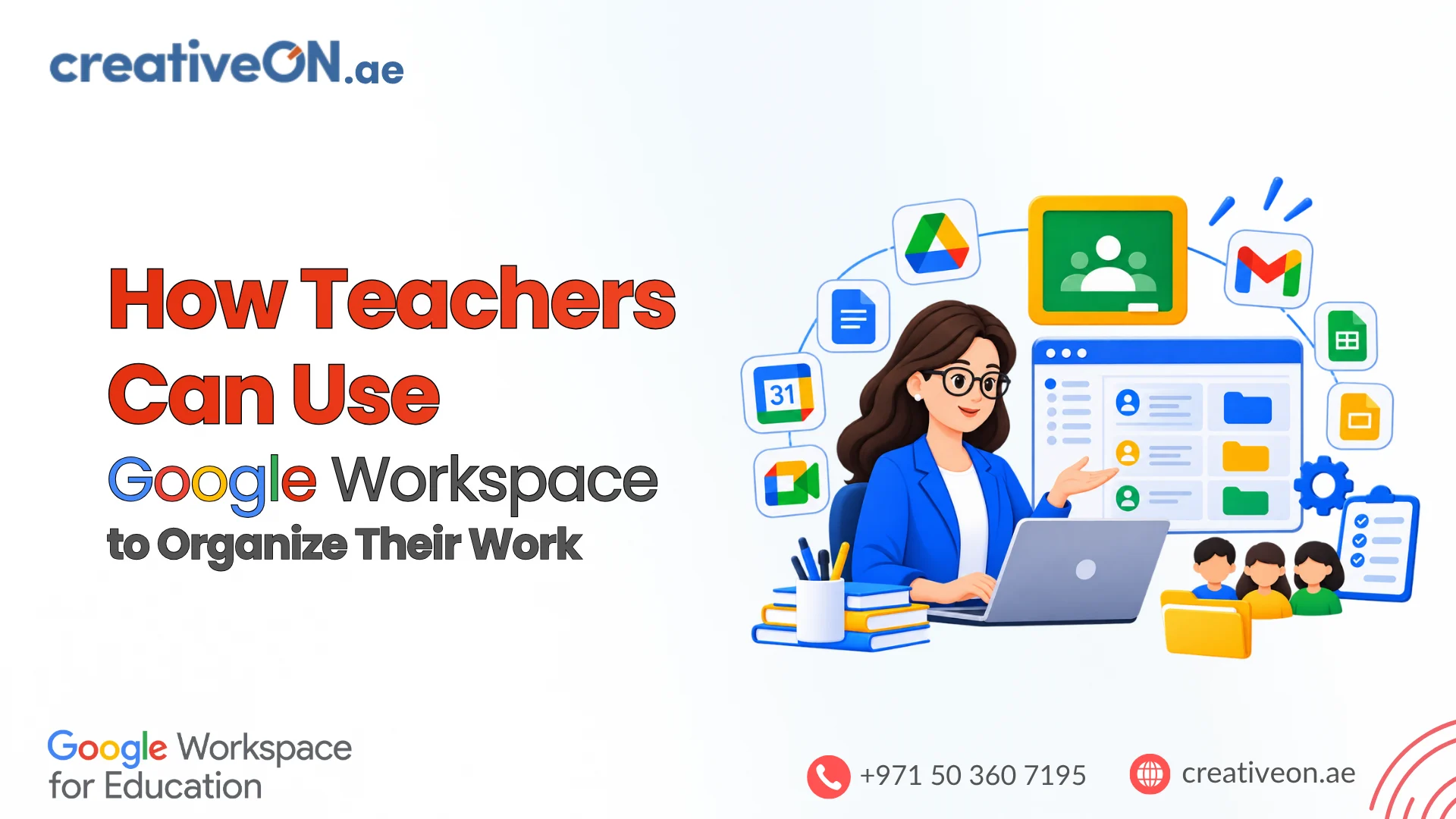
Applications such as Google Drive, Docs, Sheets, Calendar, Gmail, Google Meet, and Google Classroom serve different purposes. Teachers can use them together to manage teaching resources, prepare lessons, organize schedules, maintain academic records, and coordinate classroom activities.
For educational institutions across the UAE, this approach can also support collaboration between teachers, departments, and administrative teams.
This guide explains how teachers can use Google Workspace to organize their daily and weekly responsibilities through a practical digital workflow.
1. Organize Teaching Materials With Google Drive
Teachers regularly work with lesson plans, worksheets, presentations, examination papers, and reference documents. Keeping these resources organized makes it easier to find materials when preparing lessons or conducting classroom activities.
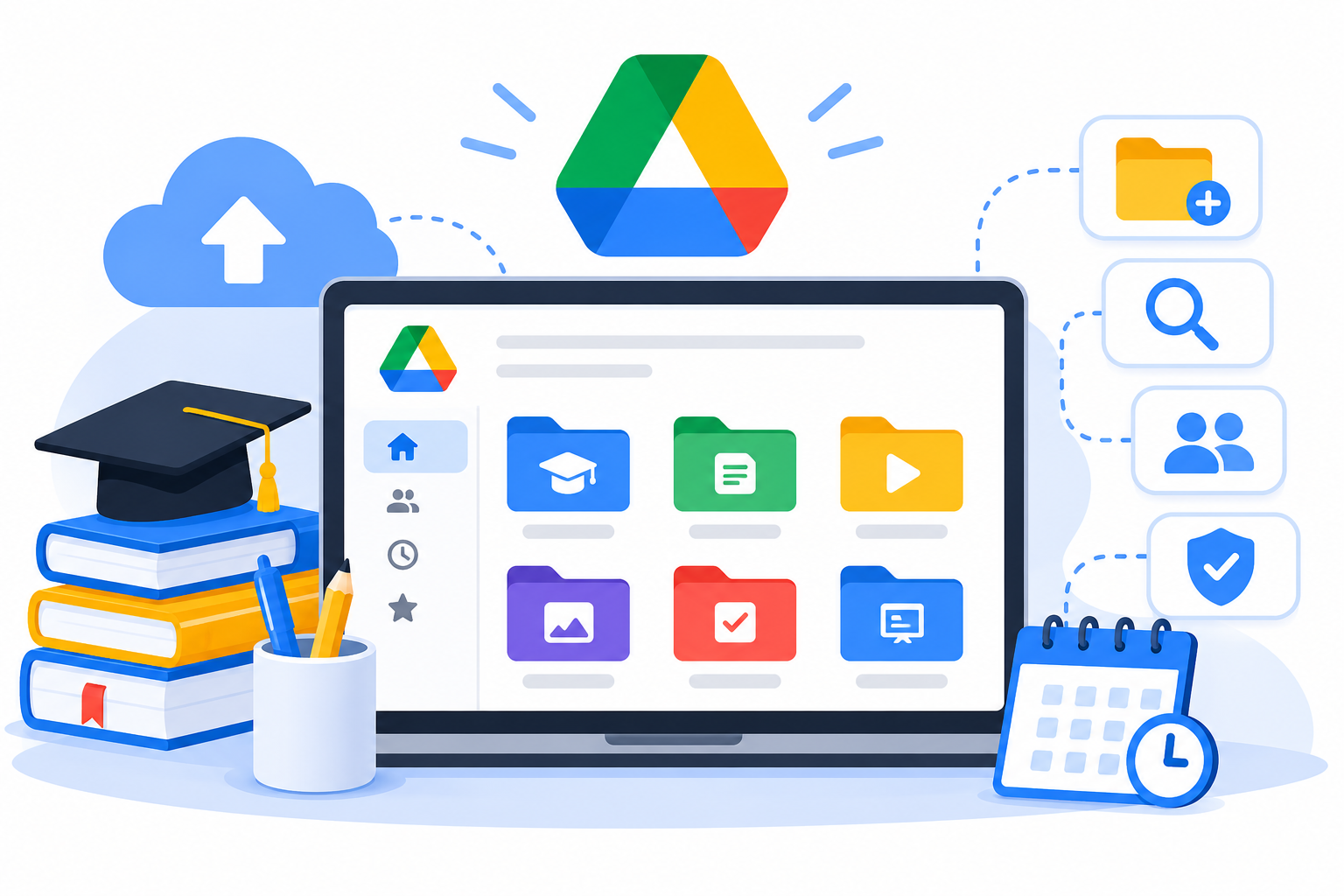
Google Drive provides cloud-based file storage that allows teachers to organize documents into folders and access supported files from different devices.
Create a Consistent Folder Structure
Instead of saving all teaching materials in one location, create separate folders for academic years, grades, subjects, and resource types.
For example:
Academic Year 2026–2027
- Grade 6
- Mathematics
- Science
- English
- Grade 7
- Mathematics
- Science
- English
- Lesson Plans
- Shared Teaching Resources
- Assessment Records
Inside each subject folder, teachers can create additional folders for lesson plans, worksheets, presentations, reading materials, and assessments.
This structure makes it easier to locate specific resources without searching through unrelated documents.
Use Consistent File Names
Clear file names are just as important as folder organization.
For example, instead of saving a document as Lesson Plan Final, use a descriptive name such as:
Grade-6_Science_Chapter-03_Lesson-Plan_2026
Including the grade, subject, topic, and academic year makes files easier to identify and retrieve.
Share Teaching Resources With Colleagues
Teachers working in the same department can share relevant Drive folders with authorized colleagues.
For example, a mathematics department can maintain a shared collection of worksheets, lesson plans, examination materials, and curriculum resources.
This reduces the need to send multiple document attachments through email and helps teachers work with consistent learning materials.
Practical tip: Maintain one shared folder for departmental resources and separate folders for individual classroom materials. Review sharing permissions regularly, especially when teachers change roles or leave the institution.
2. Prepare Lesson Plans With Google Docs
Lesson planning is a regular responsibility for teachers. Google Docs provides a practical environment for creating, editing, and organizing lesson plans without maintaining multiple versions of the same document.
Teachers can prepare reusable templates and customize them for different subjects, classes, and academic periods.
Create Reusable Lesson Plan Templates
A standard lesson plan template can include:
- Lesson title and subject.
- Grade or class level.
- Learning objectives.
- Required teaching materials.
- Classroom activities.
- Assessment methods.
- Homework or follow-up activities.
For example, a science teacher can create one lesson plan template and make a separate copy for each new topic.
This provides consistency across lessons and reduces repetitive document preparation.
Collaborate on Lesson Plans
Google Docs supports real-time collaboration, allowing multiple authorized teachers to work on the same document.
Teachers can use comments and suggestions to review teaching materials, recommend changes, and coordinate lesson preparation.
Version history also helps users review previous changes and restore earlier versions when needed.
Practical tip: Keep one original lesson plan template and create individual copies for different classes. This prevents accidental changes to the master document.
For more detailed document creation and collaboration guidance, link this section to CreativeON’s dedicated Google Docs feature page.
3. Manage Teaching Schedules With Google Calendar
Teachers have to manage classroom sessions, examination dates, assignment deadlines, departmental meetings, parent conferences, and professional development activities.
Google Calendar helps organize these commitments through digital calendars and scheduled events.
Create Separate Calendars for Different Responsibilities
Teachers can use separate calendars to distinguish between different types of activities.
For example:
| Calendar | Activities |
| Teaching Schedule | Daily classes and classroom sessions |
| Examinations | Tests and examination dates |
| Meetings | Staff and parent meetings |
| Academic Planning | Lesson preparation and curriculum deadlines |
| Professional Development | Training and workshops |
This makes it easier to review upcoming responsibilities without mixing unrelated activities.
Set Reminders for Important Deadlines
Calendar reminders can help teachers prepare for upcoming tasks.
Useful reminders include:
- Prepare examination papers before the deadline.
- Submit student assessment results.
- Review lesson plans for the following week.
- Attend departmental meetings.
- Prepare materials for upcoming classroom activities.
Teachers can also share relevant calendars with colleagues to coordinate meetings and academic activities.
Practical tip: Schedule preparation time as well as actual teaching sessions. Reserving time for grading, lesson planning, and administrative tasks helps prevent these responsibilities from being overlooked.
4. Track Student Progress With Google Sheets
Teachers often maintain records of attendance, examination results, assignment submissions, and student performance.
Google Sheets provides a structured way to organize this information in spreadsheets.
Instead of maintaining separate files for every classroom activity, teachers can create dedicated spreadsheets for their academic responsibilities.
Create Useful Academic Tracking Sheets
Some examples include:
| Spreadsheet | Information to Track |
| Student Progress | Assessment results and performance |
| Assignment Tracker | Assigned work and submission status |
| Attendance Records | Daily attendance information |
| Examination Results | Test scores and grades |
| Lesson Planning | Topics and teaching progress |
Use Spreadsheet Features to Organize Records
Google Sheets includes features that make academic information easier to review.
Teachers can use:
- Filters to find specific students or records.
- Conditional formatting to highlight important information.
- Formulas to calculate totals and averages.
- Separate tabs to organize different classes or subjects.
- Shared access to collaborate with authorized colleagues.
For example, a teacher can create an assignment tracker with columns for student names, assignment titles, due dates, and submission status.
Filters can then help identify outstanding assignments.
Practical tip: Keep student records organized and restrict spreadsheet access to authorized individuals. Avoid sharing academic information through publicly accessible links.
5. Organize Assignments With Google Classroom
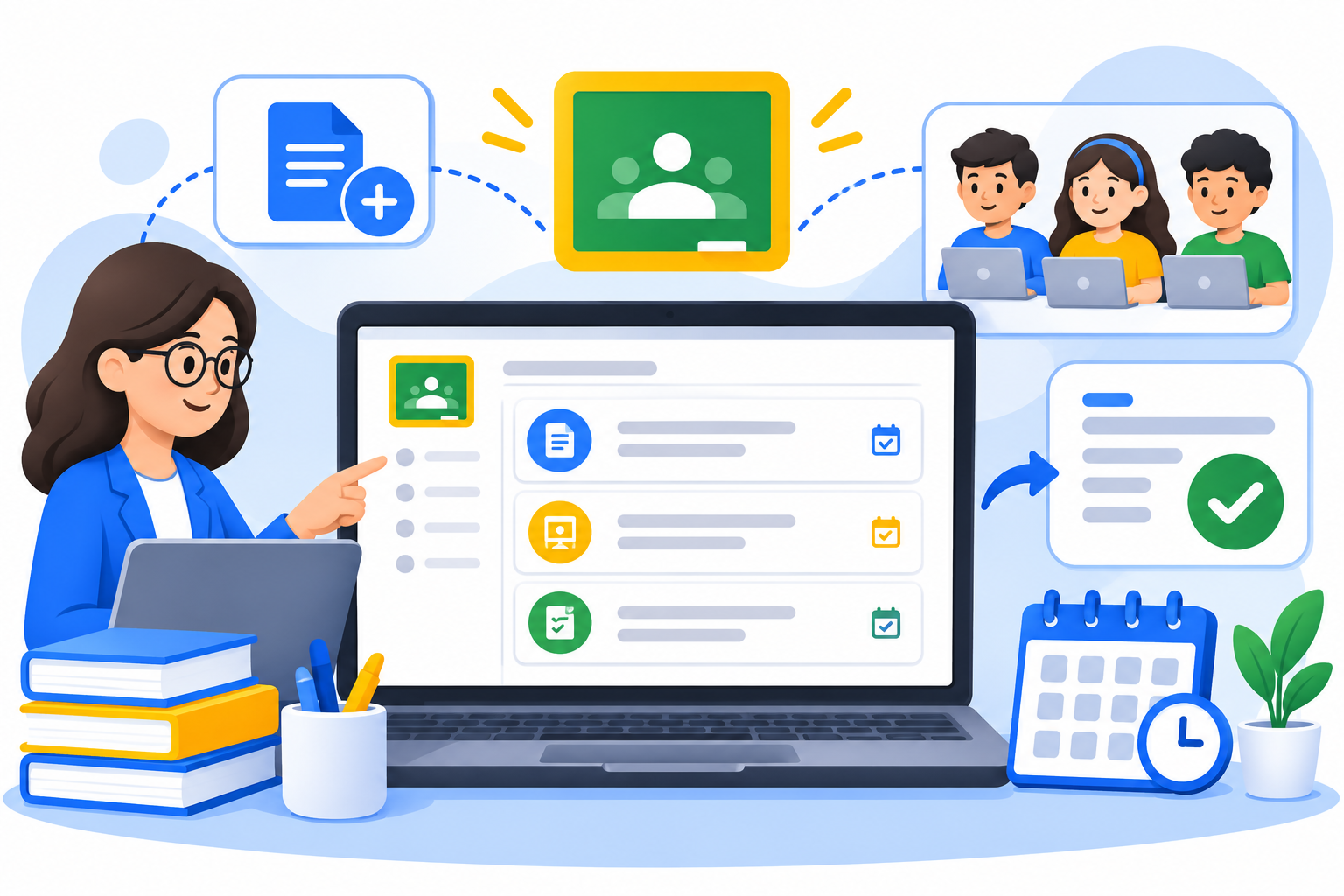
Google Classroom helps teachers manage digital classroom activities from a centralized environment.
It supports assignment distribution, learning materials, student submissions, and classroom communication.
Organize Classwork With Topics
Teachers can create topics within the Classwork section to arrange assignments and learning materials.
For example, an English teacher might organize a class using topics such as:
- Grammar and Writing.
- Reading Comprehension.
- Vocabulary.
- Weekly Assignments.
- Examination Preparation.
This structure helps students locate relevant materials without searching through an unorganized list of classroom activities.
Manage Assignment Deadlines
Teachers can create assignments, attach learning resources, and specify due dates.
Google Classroom provides information about assignment submissions and missing work, helping teachers identify activities that require attention.
Keep Classroom Resources Together
Google Classroom integrates with Google Drive and other Workspace applications.
Teachers can attach relevant documents, presentations, and learning resources to classroom activities. Associated class files are organized through the class’s Drive structure.
This makes it easier to maintain a consistent collection of classroom materials.
Practical tip: Use the same topic structure across different classes where appropriate. Students become familiar with where to find assignments, reading materials, and examination preparation resources.
For more detailed instructions, link to CreativeON’s dedicated Google Classroom feature page.
6. Manage School Communication With Gmail
Teachers communicate regularly with students, parents, school administrators, and colleagues.
When all these conversations arrive in one inbox, finding important messages can become difficult.
Gmail provides organizational features that help teachers manage school-related communication more effectively.
Use Labels to Categorize Emails
Teachers can create labels for different types of correspondence.
Examples include:
- Parents.
- School Administration.
- Student Queries.
- Examination Updates.
- Department Meetings.
- Important Announcements.
Labels make it easier to identify and retrieve relevant conversations.
Use Filters to Organize Incoming Messages
Gmail filters can automatically apply labels and perform other supported actions when messages meet specified conditions.
For example, teachers can create filters for emails from school administrators or messages containing particular subject terms.
Schedule Important Emails
Teachers can prepare messages in advance and schedule them to be sent at a suitable time.
This can be useful for assignment reminders, meeting updates, and academic announcements.
Practical tip: Use your school’s official Google Workspace account for professional communication. Keeping school-related messages separate from personal correspondence makes email management easier and supports institutional communication policies.
7. Coordinate Meetings With Google Meet
Teachers sometimes need to communicate with colleagues, parents, and school administrators outside regular classroom sessions.
Google Meet provides video conferencing capabilities that support these activities.
Teachers can use it for:
- Parent-teacher conferences.
- Department meetings.
- Academic planning discussions.
- Online classroom sessions.
- Professional development meetings.
Meet also integrates with Google Calendar, making it easier to schedule meetings and share invitations with participants.
Some advanced capabilities, including meeting recordings, attendance reports, and breakout rooms, depend on the institution’s Google Workspace for Education edition and available licences.
Practical tip: Use scheduled meetings for discussions that require collaboration and maintain relevant meeting notes in an authorized shared Google Doc.
8. Create a Weekly Google Workspace Workflow
Using individual applications is helpful, but teachers can gain more value by connecting them into a consistent working routine.
A weekly workflow helps teachers manage responsibilities before they become urgent.
Example of a Teacher’s Weekly Organization System
| Activity | Google Workspace Tool | Purpose |
| Plan upcoming lessons | Google Docs | Prepare lesson materials |
| Organize teaching resources | Google Drive | Store worksheets and presentations |
| Review the teaching timetable | Google Calendar | Check scheduled classes and meetings |
| Manage classroom activities | Google Classroom | Organize assignments and learning resources |
| Record student progress | Google Sheets | Update academic information |
| Communicate with parents | Gmail | Manage school correspondence |
| Coordinate with colleagues | Google Meet | Conduct meetings and discussions |
Establish a Simple Weekly Routine
Start of the week
Review Google Calendar, prepare lesson plans, and organize the teaching materials needed for upcoming classes.
During the week
Use Google Classroom to manage assignments, Google Drive to access learning resources, and Gmail to handle school-related communication.
During assessment periods
Update relevant academic records in Google Sheets and review outstanding assignments.
End of the week
Organize newly created files, review completed responsibilities, check upcoming deadlines, and prepare priorities for the following week.
The objective is not to use every application for every task. It is to give each tool a clear responsibility and establish a consistent system for managing teaching work.
9. Best Practices for Organizing Teaching Work With Google Workspace
Using digital tools effectively requires more than creating documents and storing files. Teachers should establish consistent organizational practices that make their work easier to manage.
Maintain a Consistent Folder Structure
Use the same folder naming system for subjects, classes, semesters, and academic years. This makes it easier to locate teaching materials and maintain records over time.
Keep Teaching and Personal Files Separate
Use your school-provided Google Workspace account for professional activities. Keep personal documents separate from school materials.
Review Sharing Permissions Regularly
Not every document should be accessible to every student or colleague.
Before sharing files, check whether recipients have Viewer, Commenter, or Editor access.
Pay particular attention to examination papers, student records, and confidential school documents.
Follow School Data Protection Policies
Teachers should follow their institution’s policies for handling student information, sharing documents, and using third-party applications.
Schools should also configure appropriate account permissions and security controls through their Google Workspace administration.
Use Templates to Reduce Repetitive Work
Create reusable templates for lesson plans, assessment records, meeting notes, and classroom activities.
This helps maintain consistency and reduces the time spent creating documents from scratch.
Review and Organize Files Weekly
Set aside a short period to:
- Move newly created files into the correct folders.
- Review upcoming assignments and deadlines.
- Update academic records.
- Organize completed lesson plans.
- Check important emails and pending tasks.
A regular review helps prevent digital clutter and keeps teaching resources organized.