What Is the WordPress Block Editor? How Gutenberg Works
The WordPress Block Editor is the default content editor in WordPress. It allows users to create and manage website content using individual blocks instead of working with a single text-editing area. You can add paragraphs, headings, images, videos, buttons, lists, and other content elements, then arrange and customize them independently. Also known as the Gutenberg […]
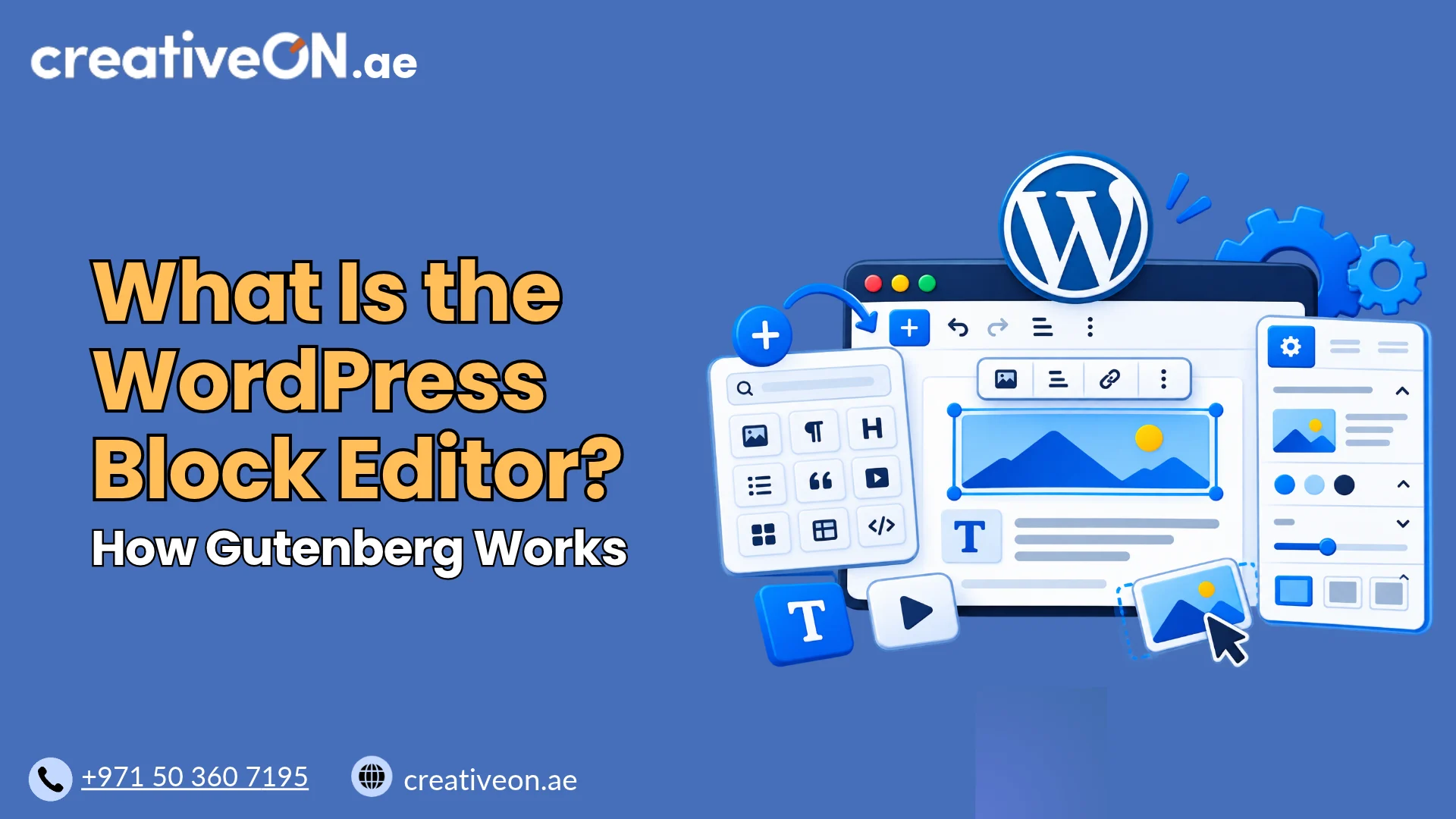
The WordPress Block Editor is the default content editor in WordPress. It allows users to create and manage website content using individual blocks instead of working with a single text-editing area. You can add paragraphs, headings, images, videos, buttons, lists, and other content elements, then arrange and customize them independently.
Also known as the Gutenberg Editor, the WordPress Block Editor makes content creation more flexible without requiring coding knowledge. Whether you are publishing blog articles, creating business pages, or adding multimedia content, Gutenberg provides a visual editing experience directly within the WordPress dashboard.
Understanding how the Block Editor works can help you organize website content, maintain consistent layouts, and manage your WordPress website more efficiently.

What Is the WordPress Block Editor (Gutenberg)?
The WordPress Block Editor is a content editing interface introduced in WordPress 5.0 in December 2018. It replaced the older Classic Editor as the default editing experience.
Its main concept is simple: every content element is treated as an individual block.
For example, a typical blog article may contain:
- Heading blocks for article sections.
- Paragraph blocks for written content.
- Image blocks for photographs and illustrations.
- List blocks for instructions and important points.
- Video blocks for multimedia content.
- Button blocks for calls to action.
Each block can be inserted, edited, moved, or customized independently. This makes it easier to organize content and change individual elements without affecting the entire article.
The Gutenberg Editor is included in modern WordPress installations, so users do not need to install a separate plugin to access its standard features.
How Does the WordPress Block Editor Work?
The Block Editor works by allowing users to insert and arrange different content blocks within the editing interface.
When you create a new post or page, WordPress opens the editor with an empty content area. You can begin typing directly or use the plus (+) button to find and insert a specific block.
The basic process involves:
- Insert a block: Click the plus (+) button or type / in the content area to search for a block.
- Choose a block type: Select Paragraph, Heading, Image, List, or another available block.
- Add content: Enter text, upload an image, or configure the selected element.
- Customize the block: Use the toolbar and settings sidebar to adjust its appearance and properties.
- Arrange the content: Move blocks to change the order and structure of your page or post.
- Preview and publish: Review the content before making it available to website visitors.
For example, if you want to move an image above a paragraph, you can reposition its Image block without rewriting the surrounding content.
This block-based approach provides greater flexibility when creating and updating website content.
Understanding the WordPress Block Editor Interface
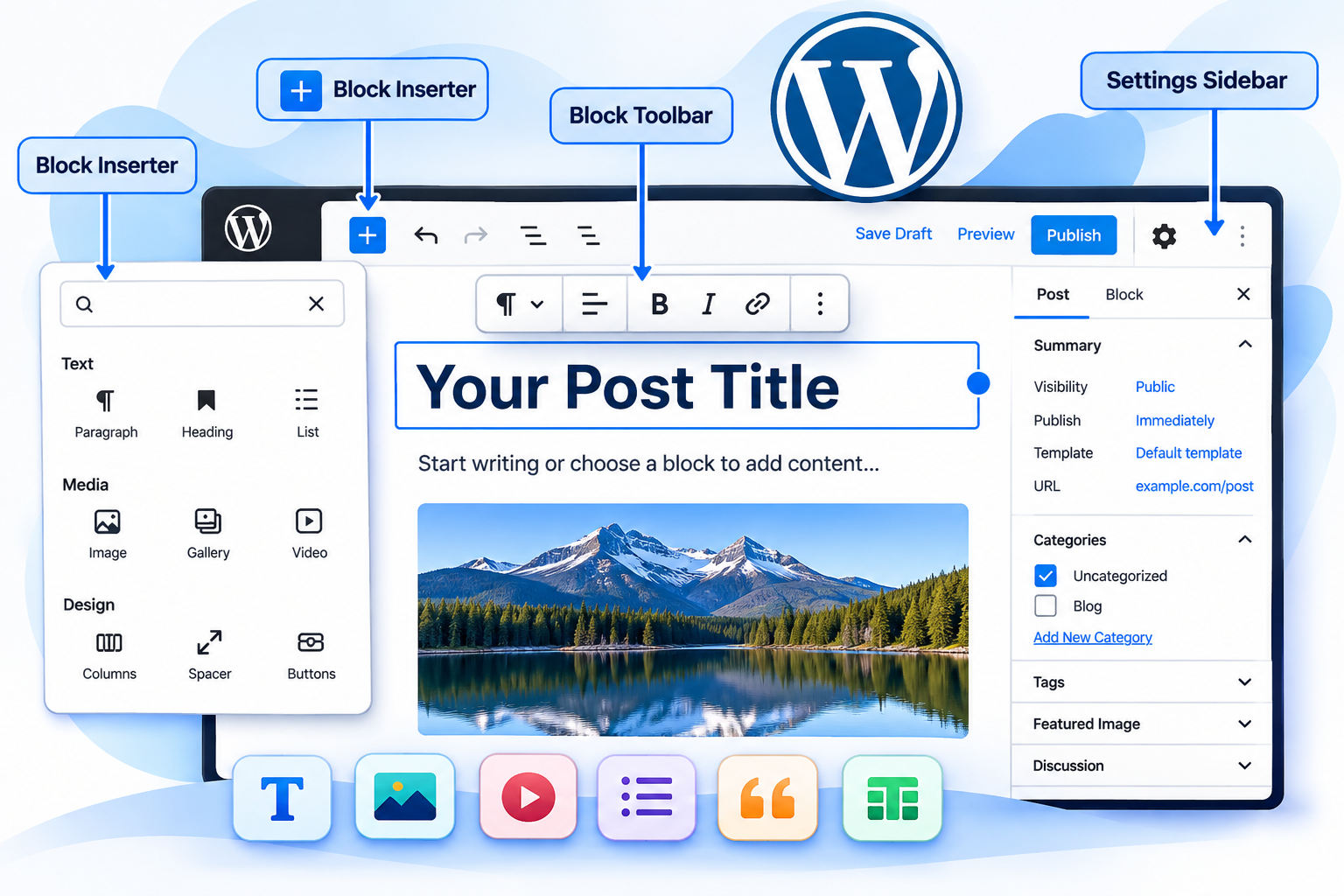
When you open Gutenberg, you will see several interface elements that help you create and manage content.
Understanding these components makes the editing process easier, particularly when working with longer articles or pages containing multiple elements.
1. Block Inserter
The Block Inserter allows you to search for and add different blocks to your content.
Click the plus (+) icon to browse available blocks, patterns, and other supported content elements. You can also type / directly into the editor to search for a block.
2. Content Canvas
The Content Canvas is the main editing area where you create your posts and pages.
You can enter text, insert images, add headings, and arrange different blocks within this area.
3. Block Toolbar
When you select a block, its toolbar provides controls for editing and formatting that specific element.
Depending on the block, these controls may include:
- Alignment options.
- Text formatting.
- Block movement.
- Link settings.
- Additional block actions.
4. Settings Sidebar
The settings sidebar provides additional customization options for the selected block.
Depending on the block and theme, you may be able to adjust typography, colors, dimensions, spacing, borders, and other design properties.
The sidebar also provides document-level settings for posts and pages.
5. List View
List View displays the structure of your content as an organized list of blocks.
It is particularly useful when working with complex layouts containing multiple groups, columns, nested blocks, or repeated sections.
Instead of searching through the entire editing area, you can select a block directly from the list.
Common Types of WordPress Blocks
WordPress includes several built-in blocks for creating different types of content.
Some commonly used blocks include:
| Block | Purpose |
| Paragraph | Add regular written content |
| Heading | Create headings and subheadings |
| Image | Insert images into posts and pages |
| Gallery | Display multiple images together |
| List | Create numbered or bulleted lists |
| Quote | Highlight quotations |
| Video | Embed or upload videos |
| Buttons | Add clickable call-to-action buttons |
| Columns | Arrange content into multiple columns |
| Group | Combine multiple blocks into one container |
| Separator | Visually divide content sections |
| Table | Display information in rows and columns |
The available blocks may vary depending on your WordPress version, theme, and installed plugins.
You can also extend the default editor with third-party block plugins that provide additional elements, such as testimonials, pricing tables, advanced layouts, and interactive content.
Key Features of the WordPress Block Editor
Beyond basic content creation, Gutenberg provides several features that make editing and organizing website content more convenient.
Individual Block Customization
Each block has its own settings and formatting options.
For example, you can change the background color of a paragraph, adjust the dimensions of an image, or modify the alignment of a heading without affecting other content elements.
Drag-and-Drop Block Arrangement
You can rearrange blocks to change the structure of a post or page.
This is useful when moving images, changing section order, or reorganizing content after the initial draft has been created.
Block Patterns
Block Patterns are predefined combinations of blocks arranged in a particular layout.
For example, a pattern might contain a heading, paragraph, image, and button arranged as a promotional section.
Instead of building the same layout manually, you can insert an existing pattern and customize its content.
WordPress supports two important pattern types:
- Synced Patterns: Shared content that updates wherever the pattern is used when you edit its synchronized content.
- Unsynced Patterns: Layouts that can be customized independently after insertion without changing the original pattern.
These patterns help maintain consistent designs across multiple pages.
Keyboard Shortcuts
The Block Editor includes keyboard shortcuts that make content editing faster.
Some useful examples include:
- Type / to search for and insert a block.
- Use Ctrl + B on Windows to make selected text bold.
- Use Ctrl + I on Windows to italicize selected text.
- Use standard copy, paste, and undo shortcuts when editing content.
Learning these shortcuts can reduce the time spent navigating the editor.
WordPress Block Editor vs Classic Editor
The Block Editor and Classic Editor provide two different approaches to creating WordPress content.
The Classic Editor uses a traditional text-editing interface similar to a word processor. The Block Editor organizes content into separate elements that can be independently arranged and customized.
| Feature | Block Editor | Classic Editor |
| Editing approach | Individual content blocks | Traditional text editor |
| Images | Separate image blocks | Inserted within the content area |
| Layout flexibility | Built-in block layouts | More limited by default |
| Customization | Individual block settings | Toolbar and HTML options |
| Reusable layouts | Block patterns | Requires additional methods or plugins |
| Default WordPress editor | Yes | No |
For most modern WordPress websites, the Block Editor offers a more flexible content management experience.
However, users who prefer the older editing interface can install the official Classic Editor plugin.
WordPress Block Editor vs Full Site Editing
The WordPress Block Editor and Full Site Editing (FSE) are related features, but they serve different purposes.
The Block Editor is primarily used to create and edit individual posts and pages.
Full Site Editing extends block-based editing to broader website elements through the Site Editor. With a compatible block theme, users can customize:
- Website headers and footers.
- Navigation areas.
- Page templates.
- Template parts.
- Overall website layouts.
In simple terms:
- Block Editor: Helps you create and manage individual posts and pages.
- Site Editor: Helps you customize the broader structure and design of a website.
Full Site Editing requires an active block theme. Websites using traditional classic themes may not have access to the same Site Editor functionality.
Benefits and Limitations of the WordPress Block Editor
The Block Editor offers several advantages, but it also has some limitations that website owners should understand.
Benefits
Easier content management: Individual blocks make it easier to edit specific sections without changing the entire article.
Flexible layouts: Blocks such as Columns, Groups, Buttons, and Images allow you to create different content arrangements.
Reduced dependence on page builders: Many standard content layouts can be created using built-in blocks without installing an additional page-building plugin.
Better content organization: Separate blocks make it easier to structure articles using headings, paragraphs, images, and lists.
Consistent designs: Block Patterns help maintain a consistent appearance across different pages.
Limitations
Learning curve: Users familiar with the Classic Editor may need time to understand the block-based interface.
Limited advanced design controls: Some complex website designs require additional plugins, custom CSS, or dedicated page builders.
Theme compatibility: Certain block customization and Site Editor features depend on the active theme.
Plugin compatibility: Older plugins may not integrate properly with the Block Editor.
Editing performance: Pages containing many complex blocks or resource-intensive plugins may make the editing interface slower.
These limitations do not make Gutenberg unsuitable. They simply mean that users should select compatible themes and plugins based on their website requirements.
How to Start Using the WordPress Block Editor
The WordPress Block Editor is included in modern WordPress installations. You do not need to purchase a separate license or install another editor to use its standard features.
Follow these steps to get started:
- Log in to your WordPress dashboard.
- Navigate to Posts → Add New or Pages → Add New.
- Enter your content title.
- Click the content area to start writing.
- Use the plus (+) button to insert additional blocks.
- Select the required block, such as Paragraph, Heading, Image, or List.
- Customize individual blocks using the toolbar and settings sidebar.
- Preview the content to check its appearance.
- Click Publish when the content is ready.
For example, you can create a simple article by adding a Heading block, writing content in Paragraph blocks, inserting an Image block, and organizing important points using a List block.
You can also edit existing posts and pages using the same interface.
If your website uses a compatible block theme, you can access additional design controls through Appearance → Editor to customize supported templates and website elements.
Best Practices for Using the WordPress Block Editor
Following a few practical guidelines can help you maintain organized content and a consistent website experience.
- Use a proper heading hierarchy: Organize articles using H2 and H3 headings instead of choosing heading levels based only on appearance.
- Keep layouts simple: Avoid unnecessarily complicated block arrangements that make content difficult to manage.
- Optimize images: Use appropriately sized images and descriptive alternative text.
- Check mobile layouts: Preview how columns, images, and buttons appear on smaller screens.
- Use block patterns: Reuse consistent layouts for frequently repeated sections.
- Limit unnecessary plugins: Install additional block plugins only when their features provide genuine value.
- Keep WordPress updated: Use supported WordPress, theme, and plugin versions to benefit from improvements and compatibility updates.
For business websites and content-heavy WordPress sites, a simple and consistent block structure can make ongoing content management easier.