Auditing File Activity in Google Workspace
Google Drive stores business documents, spreadsheets, presentations, and shared files that employees access every day. When a confidential document is shared unexpectedly, a file disappears, or a download raises concerns, administrators need a reliable way to investigate what happened. Auditing file activity in Google Workspace helps administrators review recorded Google Drive events, identify accounts associated […]
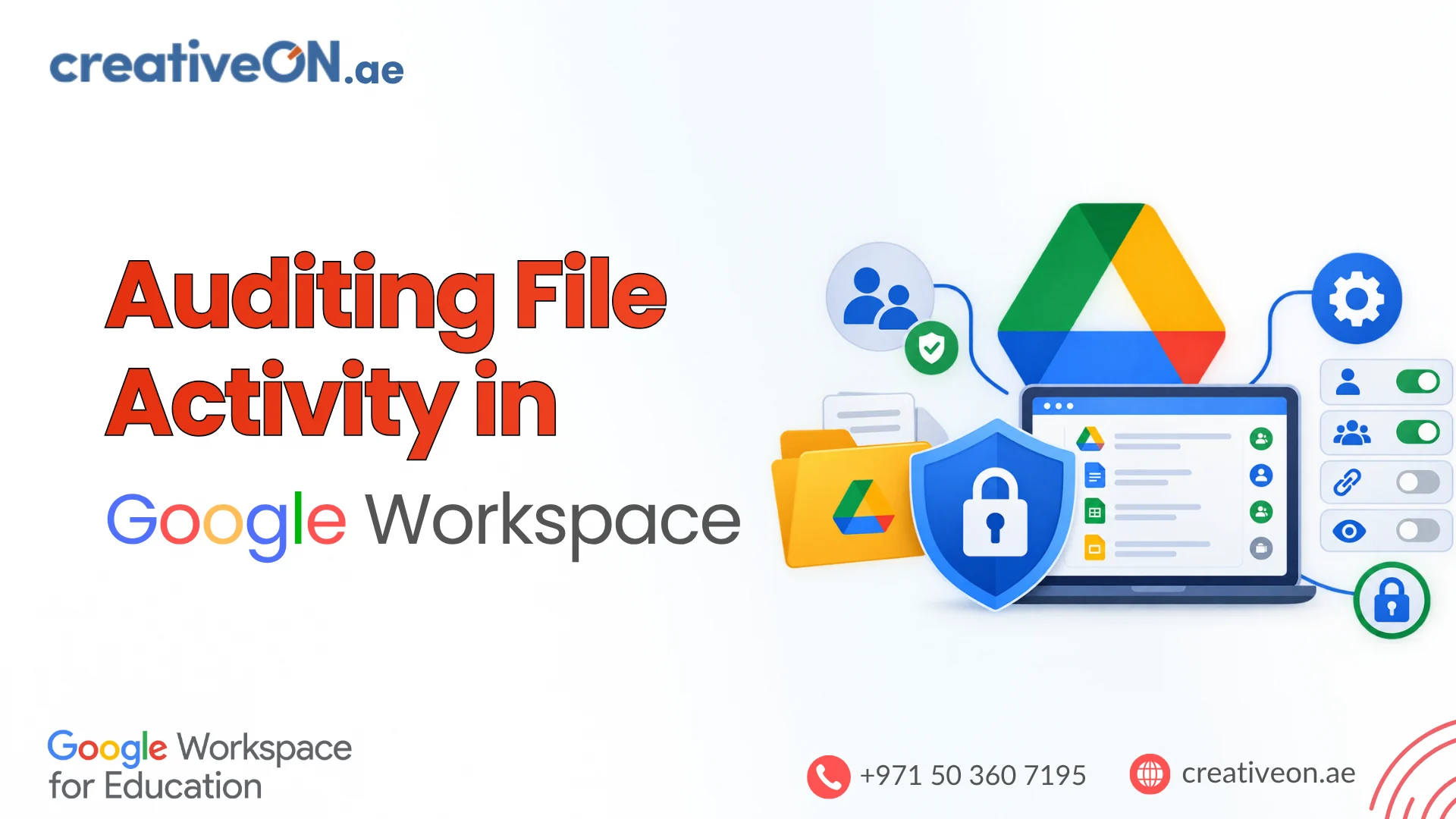
Google Drive stores business documents, spreadsheets, presentations, and shared files that employees access every day. When a confidential document is shared unexpectedly, a file disappears, or a download raises concerns, administrators need a reliable way to investigate what happened.
Auditing file activity in Google Workspace helps administrators review recorded Google Drive events, identify accounts associated with particular actions, and investigate potential data exposure. Google provides administrative audit logs for supported activities, while individual users can review basic file activity and version history.
This guide explains how to audit Google Drive file activity, investigate common incidents, and understand the limitations of audit records.
What Is Google Workspace File Activity Auditing?
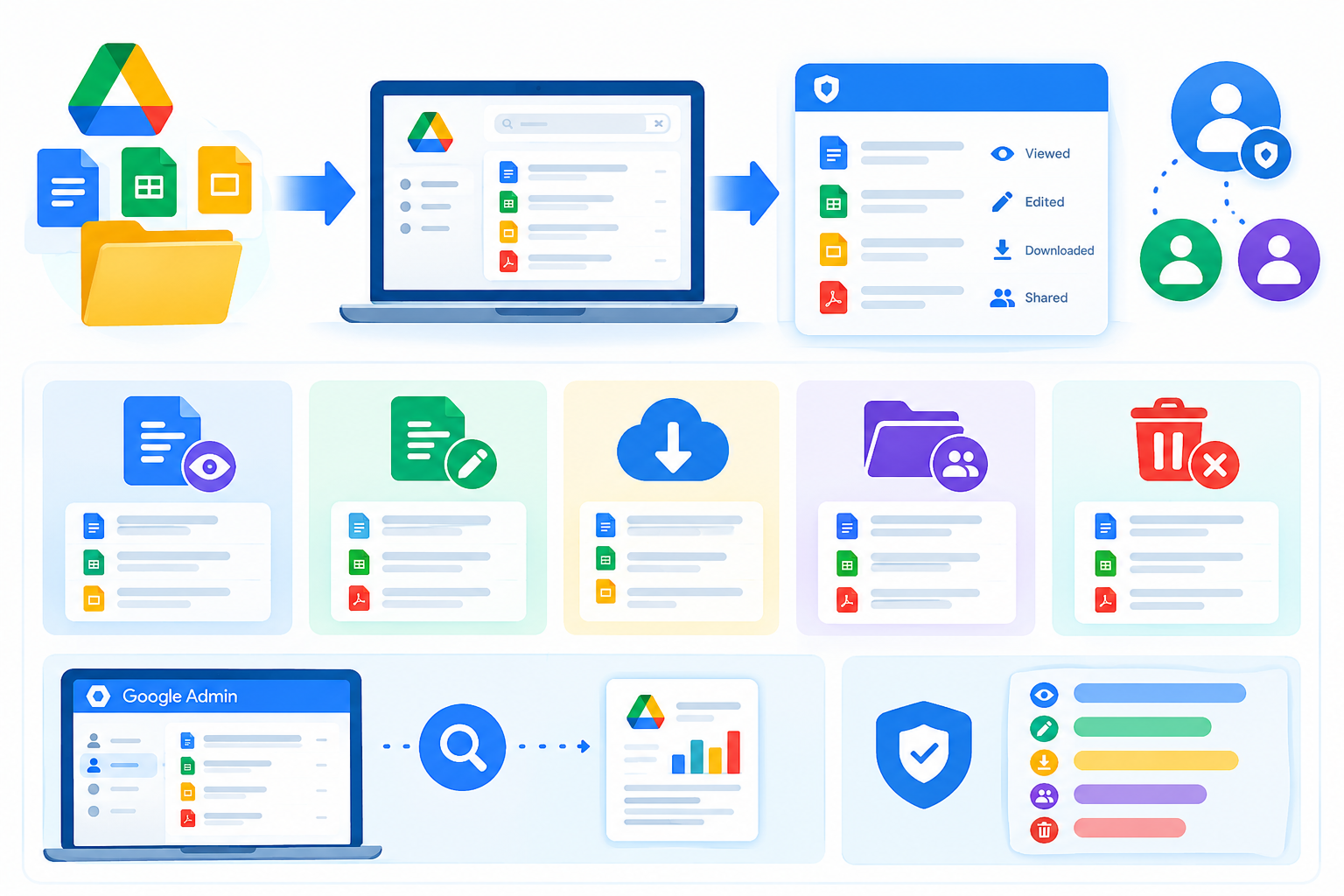
Google Workspace file activity auditing involves reviewing recorded events associated with files in Google Drive and supported Workspace applications.
Depending on the event and available features, administrators may investigate:
- File changes: Creating, editing, renaming, uploading, or deleting files.
- Sharing changes: Reviewing recorded changes to file permissions and visibility.
- Downloads and copies: Investigating supported download and copy events.
- External sharing: Identifying files recorded as shared outside the organisation.
- User activity: Reviewing the account associated with a recorded action and its timestamp.
Not every action is recorded, and the available event details depend on the event type, file ownership, Workspace edition, and administrative permissions.
For organisational investigations, use Drive log events in the Google Admin console. For routine collaboration, the Google Drive Activity panel and document version history may be sufficient.
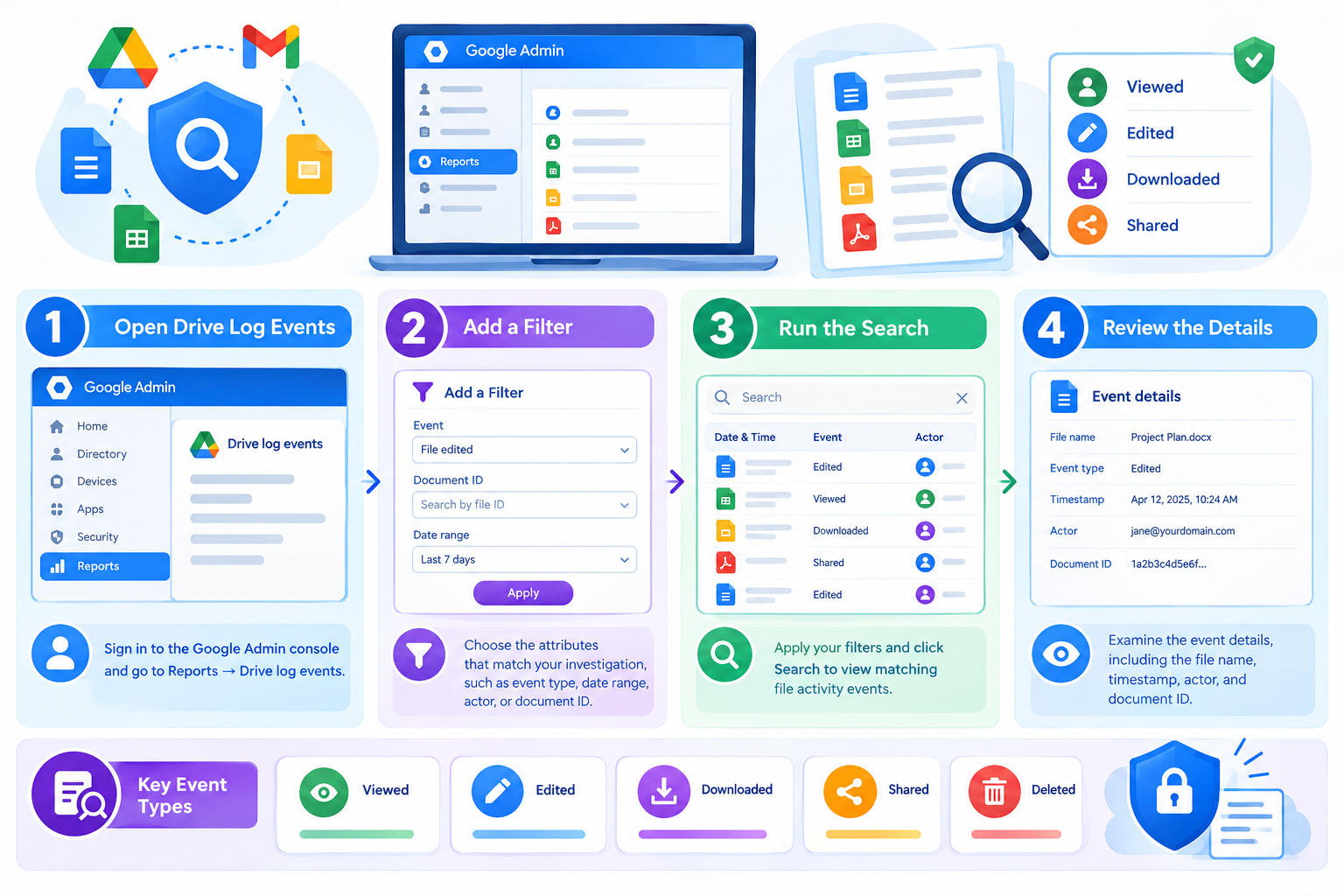
How to Audit File Activity in Google Workspace
Administrators can search Drive log events to investigate changes, sharing activity, and other recorded events.
Step 1: Open Drive Log Events
Sign in to the Google Admin console with an administrator account that has the required reporting or audit privileges.
Navigate to:
Menu → Reporting → Audit and investigation → Drive log events
Google documents the required administrative privileges for this workflow. Your access to particular investigation features depends on your Workspace edition and permissions.
Step 2: Filter the Activity Records
By default, the Drive log events page displays recent activity, generally covering the last seven days.
Select Add a filter and choose the attributes relevant to your investigation. Common filters include:
- Date: Narrow the search to the period when the incident occurred.
- Event: Select an event such as Edit, Rename, Delete, Download, or a sharing-related action.
- Actor: Find activity associated with a particular account.
- Document ID: Search for a specific file when the relevant event supports this attribute.
- Visibility: Investigate files recorded as shared externally.
The exact filters and available values vary by event type. Google uses the term Actor for the account associated with the recorded action.
Step 3: Run the Search
Apply your filters and click Search.
Review the returned events and refine the date range, actor, or event type if necessary. For an investigation involving one confidential document, using its document ID can help narrow the results when that field is available.
Step 4: Review the Event Details
Examine the information Google provides for each relevant record, which may include:
- The event name and timestamp.
- The account associated with the action.
- The affected file or document ID.
- File visibility or sharing information.
- Additional details available for that event.
Build a timeline from related records rather than relying on a single entry. A timestamp shows when the recorded event occurred; it does not necessarily establish every action that preceded or followed it.
For detailed instructions, consult Google’s official Drive log events documentation.
How to Investigate Common Google Drive Activities
Investigating Unauthorised File Sharing
If a confidential document may have been shared externally:
- Open Drive log events in the Admin console.
- Filter by the relevant date range and sharing-related events.
- Review the affected file, actor, and available visibility details.
- Check the file’s current sharing permissions separately.
- If the sharing was unauthorised, follow your organisation’s incident-response process to restrict access and document the findings.
Google supports searches for files marked Shared externally. However, external visibility does not always mean that an outside user could access the file. For example, a group may allow external members even when organisational sharing restrictions prevent those members from accessing the resource.
Investigating Deleted or Missing Files
If a file disappears, search for deletion-related events and review the timestamp, affected file, and available actor information.
Then check Google Drive’s Trash and the applicable recovery options. A deletion event can help explain what happened, but the audit log itself is not a file-restoration tool.
If you cannot find a relevant event, do not immediately conclude that the file was never deleted. Logging limitations, file ownership, and the available records may affect the investigation.
Investigating Downloads and Copies
Search for relevant Download, Copy, or Source Copy events, depending on the incident.
Most downloads are logged, including many transfers between Drive and a local device using Google Drive for desktop. However, some activities are recorded differently or are not logged as Drive Download events.
One particularly useful event is Source Copy. When a user outside your organisation copies a file to an external location, your organisation may receive a Source Copy event on the original file with a copy type of External. The Create and Copy events for the new external file are not recorded in your organisation’s logs because that file is outside the organisation.
This distinction can help administrators investigate potential data transfers without assuming that every copy generates the same events.
Google also documents exceptions for certain printing and download methods. For example, printing files in Google Docs, Sheets, Slides, Drawings, and Forms does not necessarily generate a Print event. Google Takeout downloads require a different log search.
Important: An absent event is not proof that no download, copy, or transfer occurred. Review Google’s documented logged and unlogged Drive events when interpreting the results.
How to Check File Activity Without Admin Access
Users can inspect basic activity for files they can access in Google Drive.
- Open Google Drive.
- Select the relevant file or folder.
- Click the Information icon near the upper-right corner.
- Open the Activity tab.
- Review the available entries.
The activity panel may show changes such as editing, renaming, moving, uploading, or sharing, depending on the file and action.
For supported Google Docs, Sheets, and Slides files, use File → Version history → See version history to review earlier versions and identify document changes.
These tools serve different purposes:
- Activity panel: Shows available file and folder activity for users.
- Version history: Helps inspect and restore earlier versions of supported documents.
- Admin audit logs: Provide administrative records of supported events for organisational investigations.
Neither the Activity panel nor version history replaces administrative audit logging.
Google Workspace Audit Log Retention and Limitations
Google’s current documentation lists six months of retention for Drive log event data. Administrators should investigate incidents promptly because older records may no longer be available in the standard logs.
Google also warns that reporting and audit data can be delayed. Most events are logged promptly, but some events may take longer to appear, and rare delays can exceed the stated reporting times.
Keep these limitations in mind:
- Not every file access or transfer generates a Drive audit event.
- Some event details are available only for particular actions.
- Most Drive audit events are subject to supported-edition and file-ownership requirements.
- External sharing does not automatically prove that an external person accessed a file.
- A missing record does not prove that the activity did not occur.
If your organisation needs records beyond the standard retention period, establish an appropriate evidence-retention process in advance. Where supported, export relevant search results to Google Sheets or CSV and store them according to your organisation’s access controls and retention requirements.
For current retention details, consult Google’s Data retention and lag times documentation.
Best Practices for Google Drive File Auditing
A consistent process helps administrators investigate incidents more effectively.
- Review external sharing: Periodically check files and folders with external visibility.
- Use focused searches: Filter by date, actor, event, and document ID where available.
- Restrict audit access: Give audit and investigation privileges only to authorised personnel.
- Preserve relevant evidence: Record timestamps, document identifiers, event details, and findings.
- Check current permissions: Confirm whether a file remains accessible to unintended recipients.
- Account for logging gaps: Review documented exceptions before drawing conclusions.
- Follow incident procedures: Escalate suspected data exposure through your organisation’s security process.
For businesses operating across Dubai, Abu Dhabi, and other UAE locations, these practices can support internal reviews of confidential business documents. They should complement an established information-security programme rather than be treated as a guarantee of regulatory compliance.