Google Meet Admin Settings Explained: A Guide for Google Workspace Administrators
Introduction When employees cannot record meetings, external guests cannot join, or meeting features are unavailable, the cause may be a Google Meet administrator setting. Google Workspace administrators can manage Google Meet availability, video features, meeting access policies, recording, transcription, and supported AI features through the Google Admin console. These settings help organisations establish consistent meeting […]
Introduction
When employees cannot record meetings, external guests cannot join, or meeting features are unavailable, the cause may be a Google Meet administrator setting.
Google Workspace administrators can manage Google Meet availability, video features, meeting access policies, recording, transcription, and supported AI features through the Google Admin console. These settings help organisations establish consistent meeting policies without unnecessarily restricting employees.
This guide explains the main Google Meet admin settings, where to find them, and what administrators should consider when configuring them. It focuses on administrative controls rather than detailed instructions for individual features.
1. Where to Find Google Meet Admin Settings
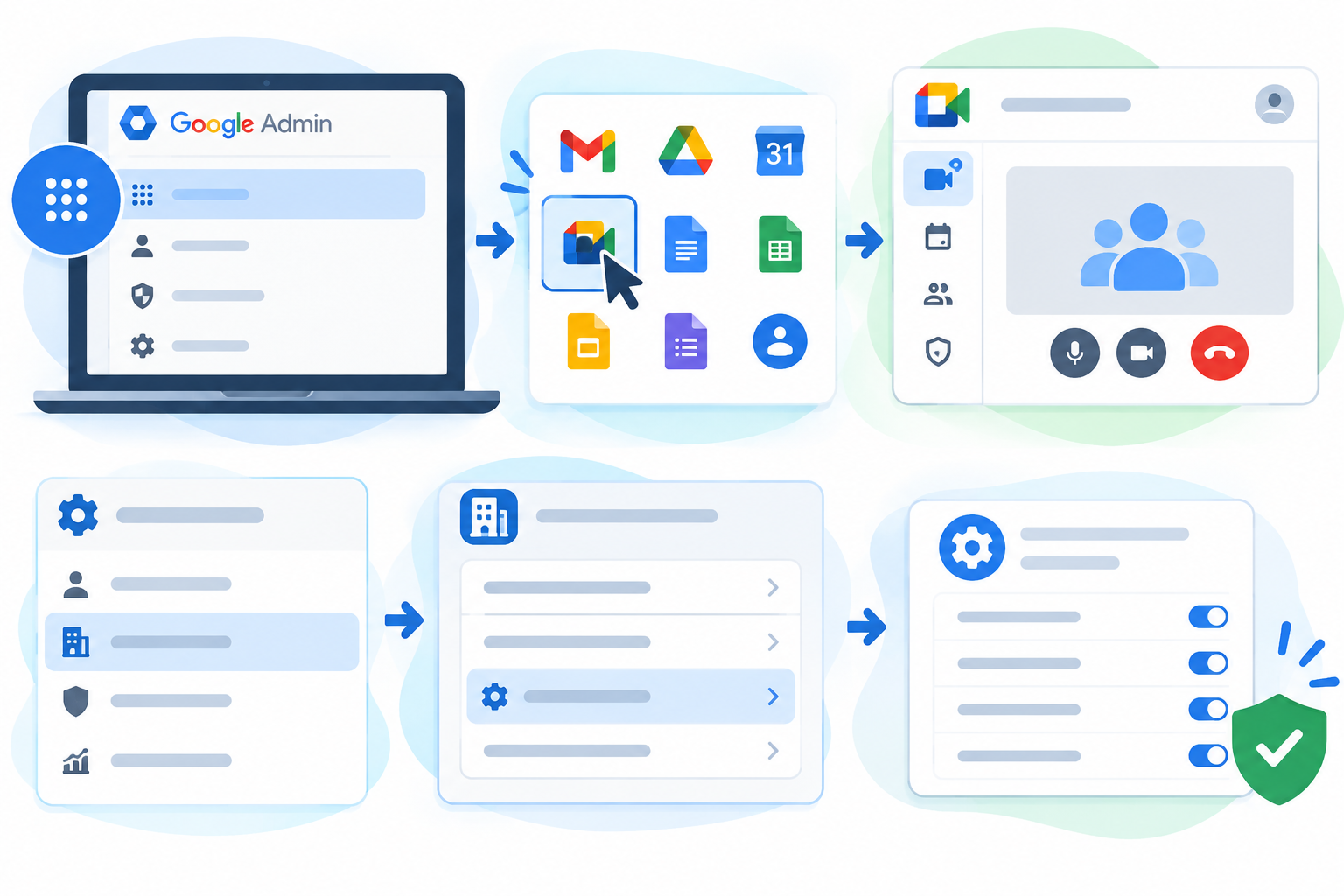
Google Meet administrator settings are managed through the Google Admin console.
To access them:
- Sign in to Google Admin console.
- Navigate to Menu → Apps → Google Workspace → Google Meet.
- Open the relevant settings category, such as Meet video settings, Meet safety settings, or Meet Gemini settings.
- Select the appropriate organisational unit or configuration group if you need to apply settings to specific users.
- Update the required options and click Save.
You need the appropriate Google Meet administrator privilege to manage these controls.
Some settings can take up to 24 hours to apply, although changes often take effect sooner. If a setting does not appear to work immediately, verify the configuration before making additional changes.
2. Main Google Meet Admin Settings at a Glance
Google provides different settings categories for managing Meet availability, meeting features, access policies, and supported AI capabilities.
| Settings category | What administrators can manage |
| Service status | Whether Google Meet is available to selected users |
| Meet video settings | Recording, live streaming, transcription, attendance reporting, reactions, telephony, and other supported features |
| Meet safety settings | Meeting access policies and participant consent requirements |
| Meet Gemini settings | Supported AI features, including AI note-taking and speech translation |
| Meet managed configurations | Supported settings for the Google Meet mobile app |
The options available depend on your Google Workspace edition, account configuration, and applicable feature restrictions.
For the complete list of current controls, refer to Google’s official guide to managing Meet settings.
3. Meet Video Settings Explained
Meet video settings control which meeting features are available to users. Administrators can enable or disable supported features and configure certain defaults.
Important settings include:
Recording
Administrators can allow eligible users to record meetings. They can also manage whether users can download and copy Meet recordings by default and configure supported recording-quality limits.
Recording availability depends on the subscription, host permissions, and available Google Drive storage. Enabling recording for an account does not mean every participant can record every meeting.
Live streaming
Administrators can enable supported live-streaming options for eligible users. Depending on the available configuration, streams may be restricted to the organisation, shared with trusted Google Workspace domains, or streamed through YouTube.
Live streaming is subject to edition-specific availability and additional configuration requirements.
Meeting transcription
Transcription allows users to generate a text record of a meeting when the feature is available and permitted.
Administrators can manage the relevant transcription setting through Meet video settings. Access to transcription depends on the applicable Workspace edition and meeting configuration.
Attendance reporting
Attendance reporting allows eligible meeting organisers to track participation. This can be useful for internal training, staff meetings, and educational sessions.
Administrators can manage whether this feature is available to users, subject to the supported configuration.
Other video settings
Additional controls may include:
- Reactions: Allow users to express themselves with supported emoji reactions.
- Telephony: Configure supported dial-in and dial-out options.
- Default video quality: Set the available default video quality.
- Tile pairing: Control support for pairing video tiles on the web.
- Gateway interoperability: Allow supported third-party video-conferencing systems to join Meet meetings.
- Automatic meeting artifacts: Configure supported defaults for recording, transcription, and AI-generated meeting notes.
Administrators should enable features according to actual business requirements rather than enabling every option by default.
For detailed instructions, see Google’s Meet video settings documentation.
4. Meet Safety Settings and Meeting Access
Meet safety settings help administrators control which meetings users can join and who can participate in meetings created by their organisation.
Google distinguishes between two important areas:
- Domain settings: Define who can join meetings created by your organisation.
- Access settings: Define which meetings users in your organisation can join.
These controls are not interchangeable. A policy governing meetings created by your employees may differ from the policy governing meetings hosted by external organisations.
For example, a consultancy in Dubai may need employees to join client meetings hosted by other companies while maintaining stricter access policies for internal meetings.
Administrators should review these settings against their business requirements and avoid imposing restrictions that unnecessarily disrupt legitimate collaboration.
Participant consent and privacy
Meet safety settings also support consent requirements for certain meeting features, including recording, transcription, and AI note-taking.
Where configured, participants may need to provide explicit consent before these features are used. Administrators can also configure what happens if a participant declines consent.
These controls are useful for organisations that conduct confidential meetings or handle sensitive business information.
For more details, consult Google’s participant consent guide.
5. Google Meet Gemini Settings Explained
Google Meet includes supported AI features that can assist with meeting notes and communication. Administrators can manage relevant options through Meet Gemini settings.
Depending on the available features and subscription, these controls may include:
- Google AI note-taking: Allows eligible users to use supported AI-generated meeting notes.
- Speech translation: Provides real-time speech translation for supported languages and configurations.
Some AI capabilities require an eligible subscription or add-on. Availability may also depend on language, account permissions, and rollout status.
Before enabling AI features, administrators should review their organisation’s privacy policies, internal meeting practices, and participant-consent requirements.
For example, a UAE organisation with teams working across different languages may find supported speech translation useful, while a company discussing confidential client matters may need stricter rules for meeting notes.
Do not assume that all Gemini features are controlled by the same setting. Check the specific feature’s documentation before changing its availability.
6. Applying Different Settings to Different Teams
Not every employee needs the same Google Meet configuration. A training department may require recording, while another team may need tighter restrictions on meeting artifacts.
Google Workspace supports organisational units and configuration groups for applying settings to selected users, where the relevant setting supports these options.
To configure a setting for a particular team:
- Open the Google Admin console.
- Navigate to Apps → Google Workspace → Google Meet.
- Open the relevant settings category.
- Select the appropriate organisational unit or configuration group, where available.
- Update the setting and save your changes.
- Test the result with an appropriate user account.
For example, a company could allow recording for its training team while applying a different policy to employees who handle confidential client information.
Important: Configuration groups can override organisational-unit settings. Before troubleshooting a user-specific problem, verify which configuration applies to that user.
7. Google Meet Admin Settings Best Practices
A consistent administrative approach helps reduce support requests and improves meeting security.
Follow these practices:
- Apply least-privilege access: Give administrator permissions only to people who need them.
- Review feature availability: Confirm that the subscription supports the required feature.
- Set suitable meeting access policies: Balance security with the need to collaborate with external participants.
- Control recording and transcription: Enable these features according to business needs and internal policies.
- Review AI settings: Establish appropriate rules for AI-generated meeting notes and supported translation features.
- Apply settings carefully: Use organisational units and configuration groups where appropriate.
- Test changes: Verify important settings with representative user accounts.
- Review policies periodically: Reassess configurations when teams, subscriptions, or business requirements change.
Organisations in the UAE should also review applicable legal obligations and internal requirements concerning consent, confidentiality, data access, and retention. Administrative settings alone do not guarantee regulatory compliance.
8. Common Google Meet Admin Settings Problems
Recording is unavailable
Check whether recording is enabled, the subscription supports it, the host has the required permissions, and sufficient Google Drive storage is available.
External participants cannot join
Review the applicable domain and access settings, along with the individual meeting’s configuration. Also check whether the external meeting host has imposed restrictions.
A setting has not taken effect
Confirm that you changed the correct organisational unit or configuration group. Some changes can take up to 24 hours to apply.
An AI feature is unavailable
Check the specific feature’s subscription requirements, administrator controls, language support, and account eligibility.
A setting is missing from the Admin console
Verify your administrator privileges and consult Google’s current documentation. Some controls are edition-dependent or available only for particular account configurations.
When troubleshooting, check the relevant setting first and make one change at a time where practical. This makes it easier to identify the source of the problem.