Google Drive Security Settings for Businesses: A Practical Guide
Google Drive helps businesses store documents, collaborate with employees, and share files with customers and suppliers. However, incorrect sharing permissions can expose confidential information to people who should not have access. For businesses using Google Workspace, securing Google Drive means controlling external sharing, assigning appropriate permissions, restricting access to sensitive files, and reviewing permissions regularly. […]
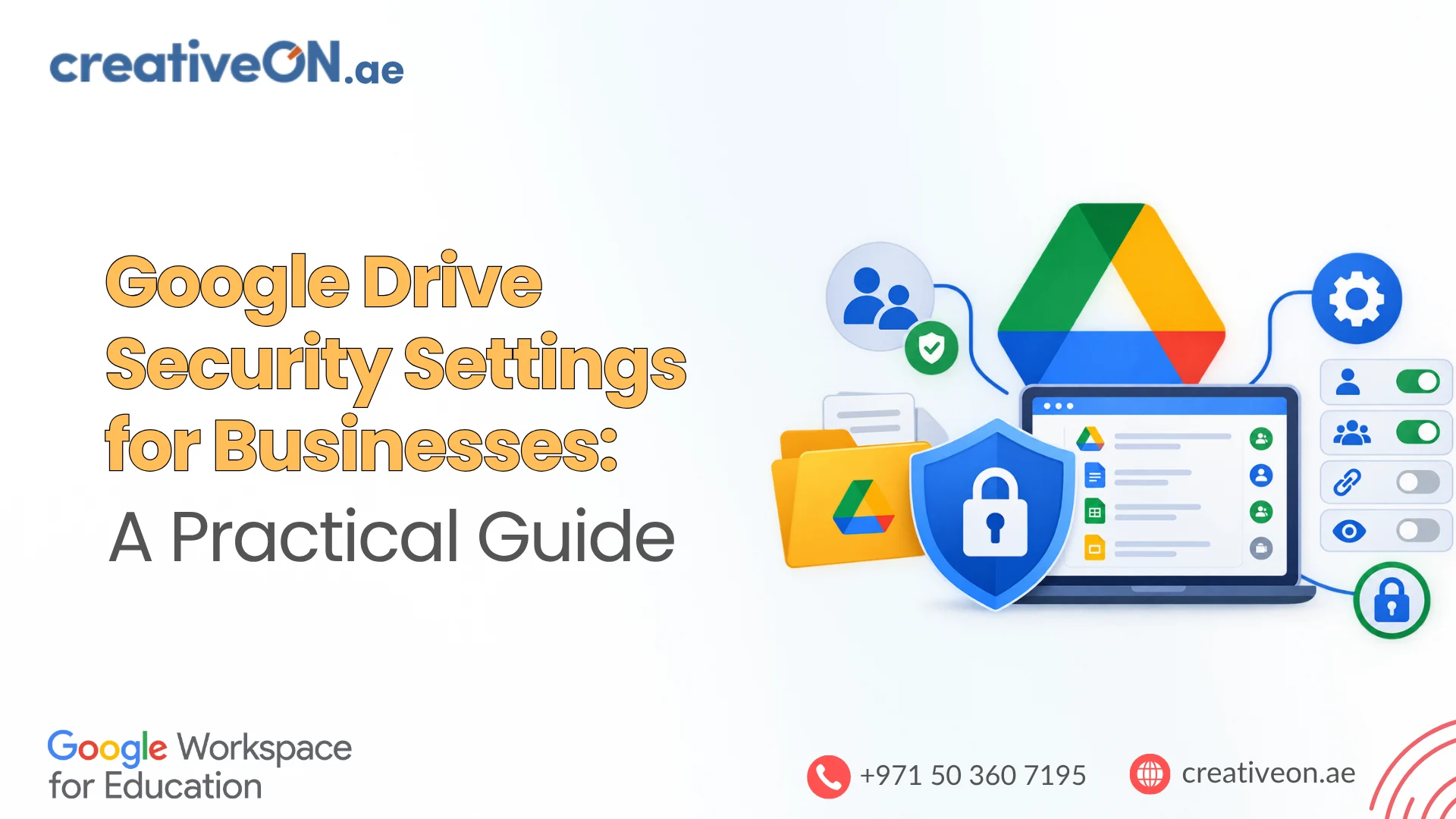
Google Drive helps businesses store documents, collaborate with employees, and share files with customers and suppliers. However, incorrect sharing permissions can expose confidential information to people who should not have access.
For businesses using Google Workspace, securing Google Drive means controlling external sharing, assigning appropriate permissions, restricting access to sensitive files, and reviewing permissions regularly.
This guide explains the Google Drive security settings businesses should review to protect business information while keeping collaboration simple.

1. Configure External Sharing in Google Workspace
External sharing allows employees to collaborate with people outside their organisation. It is useful for working with customers, suppliers, consultants, and business partners, but unrestricted sharing can increase the risk of accidental data exposure.
Google Workspace administrators can manage external sharing through the Google Admin console.
How to review external-sharing settings
- Sign in to the Google Admin console using an administrator account.
- Navigate to Apps → Google Workspace → Drive and Docs.
- Open the sharing settings for your organisation.
- Review the options for sharing outside your organisation.
- Apply the appropriate restrictions to the relevant organisational units or configuration groups, where supported.
- Save your changes and verify the resulting behaviour.
The exact options available depend on your Google Workspace configuration and edition. Businesses may be able to restrict external sharing, allow access only to trusted domains, or apply different policies to different teams.
Recommended settings
- Limit external sharing to employees who need it.
- Use trusted-domain restrictions where appropriate and supported.
- Apply stricter controls to finance, HR, and other sensitive departments.
- Review sharing requirements when employees change roles.
- Test the policy before applying organisation-wide restrictions.
Example: A sales team may need to share proposals with customers, while the finance team may need to prevent financial reports from being shared outside the organisation.
The objective is to control unnecessary exposure without blocking legitimate business activities.
2. Assign the Correct File and Folder Permissions
Google Drive permissions determine what people can do with shared files. In My Drive, the common file-sharing roles are Viewer, Commenter, and Editor.
| Permission | Access granted | Suitable use |
| Viewer | View the file | Policies, reports, and reference documents |
| Commenter | View and add comments | Document reviews and feedback |
| Editor | Edit content and, subject to applicable restrictions, share files | Documents maintained collaboratively |
How to review file permissions
- Open Google Drive and select the relevant file.
- Click Share.
- Review the people and groups listed under access.
- Change unnecessary editing permissions to Viewer or Commenter.
- Remove direct access that is no longer required.
- Confirm that the remaining permissions match the document’s purpose.
For confidential files, grant access only to the people who need it. Avoid giving every employee Editor access simply because several people need to view a document.
Understand inherited permissions
Removing a person’s direct access does not necessarily remove every way they can access a file.
Access may also come from:
- A parent folder shared with that person.
- Membership in a Google Group that has access.
- Membership or a role in a shared drive.
- Other applicable sharing permissions.
If someone still has access after you remove their direct permission, investigate these other access paths.
Files in My Drive generally inherit permissions from their parent folders. If a sensitive document needs more restrictive access, consider moving it to an appropriately restricted folder or using a supported limited-access folder configuration.
3. Restrict “Anyone with the Link” Access
Google Drive’s General access setting controls whether a file is restricted to specific people or accessible through a link.
When a file is set to “Anyone with the link,” people who obtain the link may be able to access it without signing in to a Google Account, subject to the assigned role and applicable restrictions.
This can be convenient for public brochures, approved marketing materials, and documents intended for broad distribution. It is usually unsuitable for confidential business information.
How to secure link sharing
- Select the file in Google Drive.
- Click Share.
- Locate the General access section.
- Select Restricted for confidential files.
- Review the people and groups that already have access.
- Click Done.
Use restricted access for contracts, financial statements, employee records, internal reports, and confidential customer information.
Remember that link sharing and public discoverability are not identical. “Anyone with the link” does not automatically mean a document is indexed by search engines. Nevertheless, a link can be forwarded, so anyone who obtains it may gain access under the applicable settings.
Best practice: Use restricted access as the default for confidential business documents, and enable broader access only when there is a clear business reason.
4. Secure Google Shared Drives
Shared drives are designed for team-owned business content. Unlike files in an employee’s My Drive, shared drive content belongs to the organisation rather than depending on one individual’s account.
Shared drives use their own membership roles, including Manager, Content manager, Contributor, Commenter, and Viewer. These roles should not be confused with the Editor permission commonly used for files in My Drive.
Recommended shared drive controls
- Assign shared drive membership according to job responsibilities.
- Limit Manager roles to trusted employees who need administrative control.
- Restrict external sharing where the business does not require it.
- Review membership when employees leave or change departments.
- Use separate shared drives for teams with different confidentiality requirements.
- Apply additional restrictions to sensitive content where supported.
For example, a UAE business could maintain separate shared drives for Sales, Finance, Human Resources, and Management. Sales staff would not automatically need access to employee records or confidential financial documents.
Shared drive managers and administrators can apply restrictions to external sharing and certain file actions. The available controls depend on the organisation’s configuration, the relevant permissions, and the Workspace features available.
Because shared drive restrictions can override individual sharing settings, investigate the applicable drive and organisational policies when access does not behave as expected.
5. Limit Downloading, Copying, and Printing
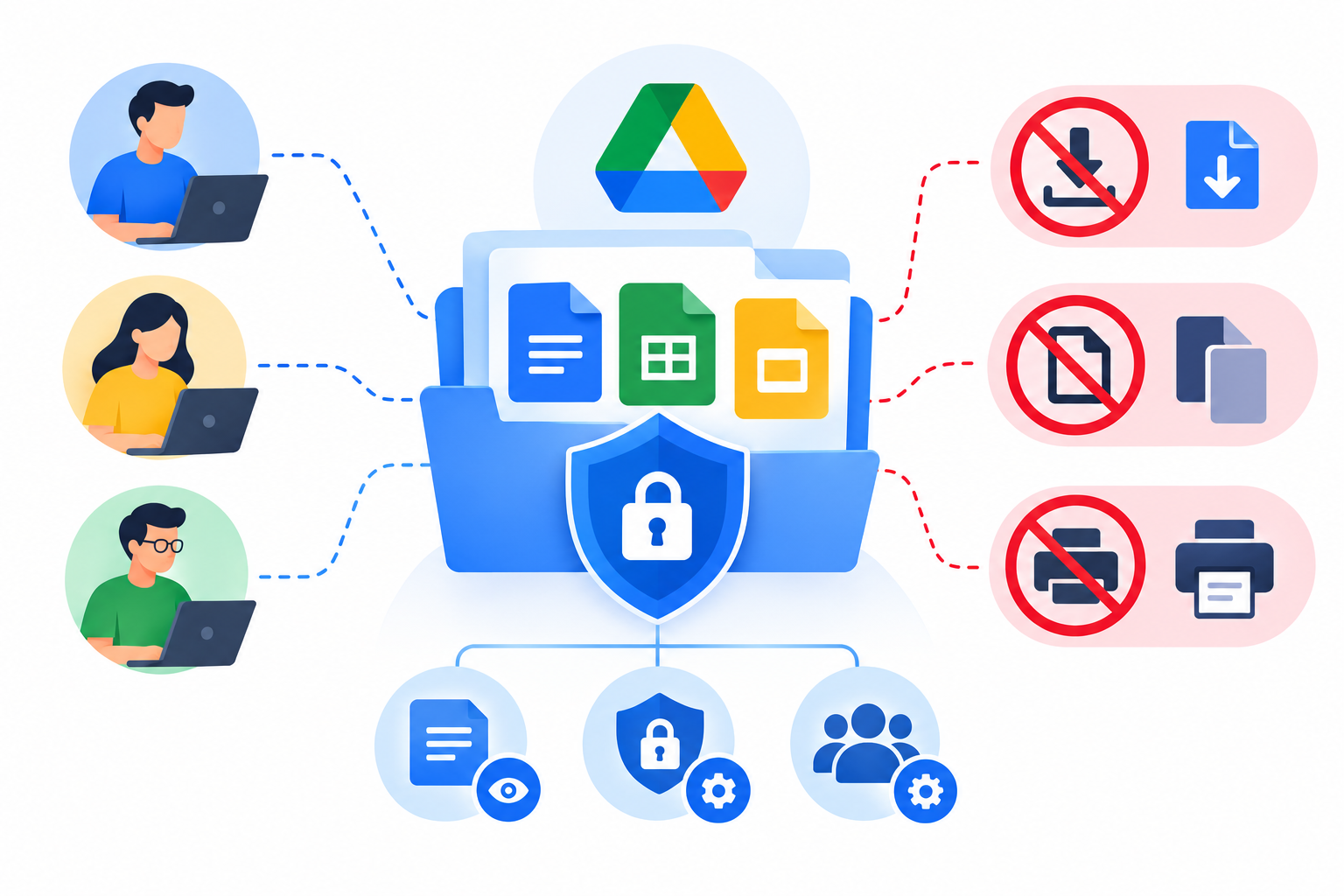
For supported Google Docs, Sheets, and Slides files, owners can restrict downloading, copying, and printing for viewers and commenters. Additional controls may be available through shared drive and organisational settings.
These restrictions are useful when recipients need to read information but should not routinely redistribute it.
Consider applying them to:
- Confidential reports.
- Internal policies.
- Sensitive presentations.
- Documents shared with external reviewers.
- Business information that should remain within approved workflows.
To review the file-level controls, open the file’s sharing settings, select Settings, and check the available options for viewers and commenters. The interface and available controls may vary.
These restrictions reduce certain forms of redistribution, but they do not guarantee complete protection. Recipients may still capture information through screenshots, photographs, or other means.
For highly sensitive information, combine these controls with appropriate access permissions, employee policies, and broader data-protection measures.
6. Review Access and Remove Outdated Permissions
Permissions can remain in place long after a project ends or a contractor stops working with a business. Regular access reviews help identify unnecessary access before it becomes a security problem.
A practical review process
- Identify folders and shared drives containing confidential information.
- Review external recipients, groups, and internal users with access.
- Remove access that is no longer required.
- Check inherited permissions and shared drive membership.
- Confirm that users with editing or management privileges still need them.
- Review available Drive audit records when investigating suspicious sharing activity.
Where supported, use access expiration for temporary collaborators so their access ends when it is no longer needed.
Google Workspace administrators with the appropriate permissions and available features can use Drive audit and investigation tools to review relevant activity. Availability and retention depend on the organisation’s edition and configuration.
Choose a review schedule based on the sensitivity of the information and the level of external collaboration. Review access immediately when employees leave, projects end, or business relationships change.
7. Google Drive Security Checklist for Businesses
Use this checklist to review the most important security controls.
- Review external-sharing policies in the Google Admin console.
- Restrict confidential files to specific people or groups.
- Check Editor permissions on sensitive documents.
- Investigate inherited access through folders and groups.
- Review shared drive membership and Manager roles.
- Restrict downloading, copying, or printing where supported and appropriate.
- Remove access for former employees and unnecessary external collaborators.
- Use temporary access expiration where available.
- Review audit records when investigating suspicious activity.
- Educate employees about safe file sharing and confidential information.
Start with files and folders that contain the most sensitive information. This makes the review more manageable and helps prioritise the controls that matter most.
Common Google Drive Security Mistakes
Allowing unrestricted external sharing: Employees may share confidential files with unintended recipients. Apply restrictions that reflect genuine business needs.
Giving everyone editing access: Excessive permissions increase the risk of unwanted changes and further sharing. Assign the lowest permission level that supports the task.
Sharing entire folders unnecessarily: A folder may contain documents that do not need the same audience. Use a narrower folder structure or appropriate access restrictions.
Removing direct access without checking inherited access: A user may still have access through a group, parent folder, or shared drive membership. Investigate all relevant access paths.
Treating download restrictions as complete protection: These controls cannot prevent every method of capturing or disclosing information.
Ignoring former collaborators: Remove unnecessary access when employees leave, contracts end, or projects are completed.