How to Restrict External Sharing in Google Workspace
External sharing in Google Drive makes it easy for employees to collaborate with customers, suppliers, consultants, agencies, and other business partners. However, unrestricted external sharing can also make it harder for an organization to control where company information is accessible. Google Workspace administrators can restrict external sharing across the organization, apply different sharing policies to […]
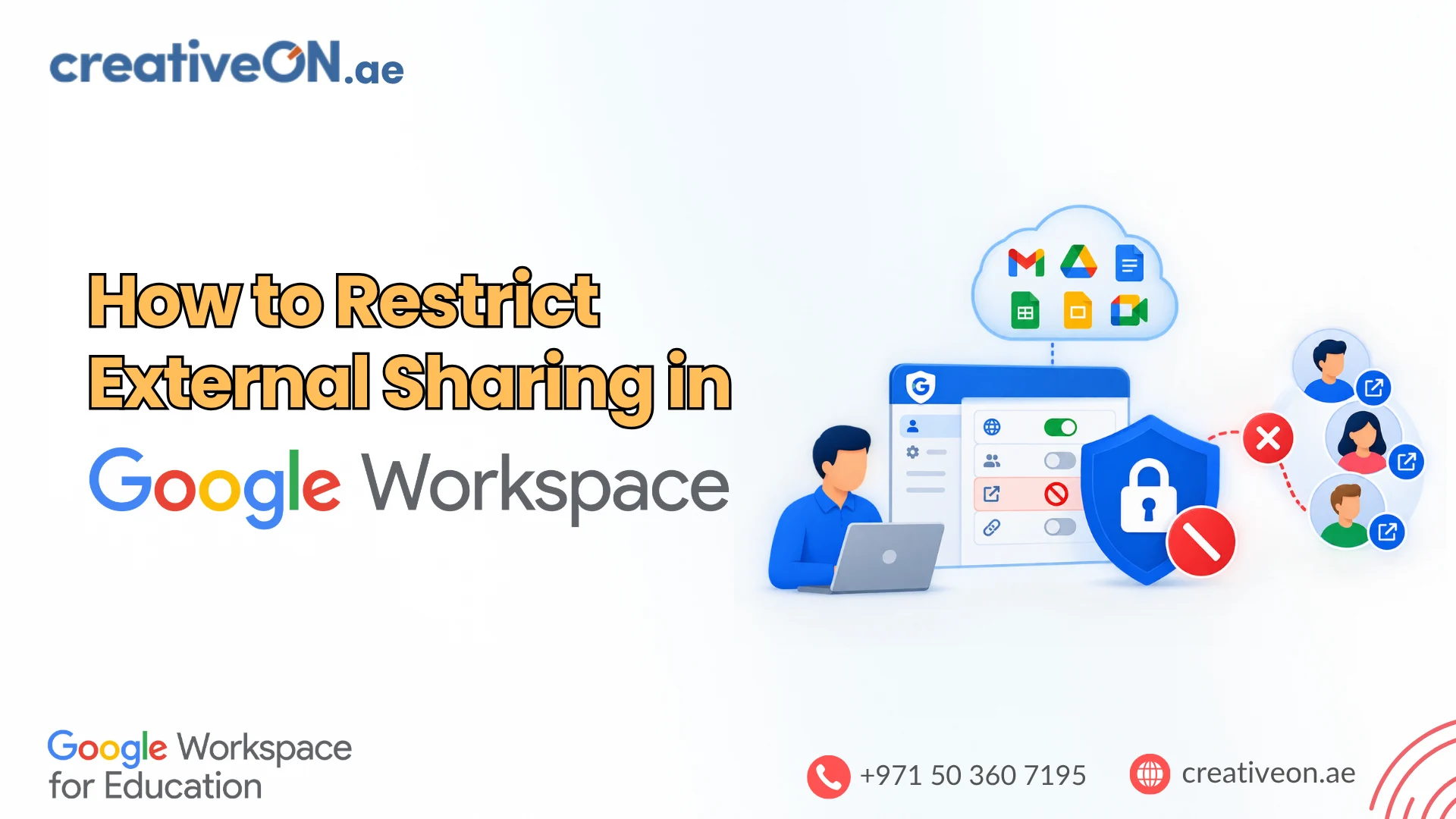
External sharing in Google Drive makes it easy for employees to collaborate with customers, suppliers, consultants, agencies, and other business partners. However, unrestricted external sharing can also make it harder for an organization to control where company information is accessible.
Google Workspace administrators can restrict external sharing across the organization, apply different sharing policies to specific organizational units or configuration groups, or allow external collaboration only with approved domains.
This guide explains how to restrict external sharing in Google Workspace and which approach to use for different business requirements.
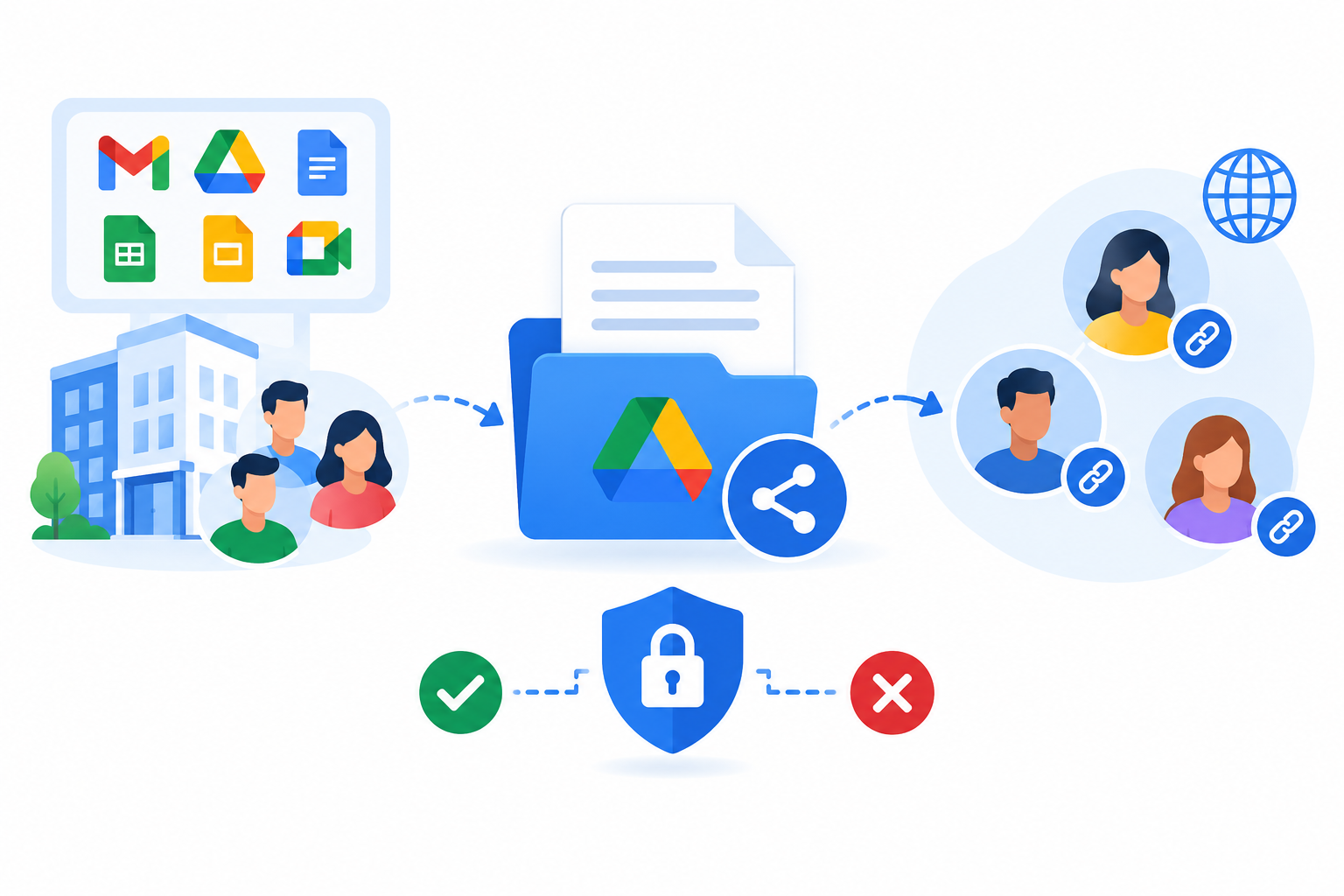
What Is External Sharing in Google Workspace?
External sharing allows users to give people outside their Google Workspace organization access to files and folders stored in Google Drive.
For example, an employee might share a document with:
- A customer
- An external consultant
- A marketing agency
- A supplier
- An auditor
- A business partner
External sharing is useful for collaboration, but organizations may need to limit it when handling confidential business information.
Restricting external sharing means controlling which people or organizations outside your Workspace environment can receive access to company files.
Which External Sharing Restriction Should You Use?
The right setting depends on how your organization works.
| Requirement | Recommended approach |
| Nobody should share company files externally | Disable external sharing |
| Employees need to work with approved companies | Allow trusted or allowlisted domains |
| Different departments have different requirements | Use organizational units or configuration groups |
| A particular shared drive must remain internal | Restrict external sharing on the shared drive |
| Only specific files need restricted access | Use file and folder sharing permissions |
For many businesses, allowing collaboration with approved external organizations is more practical than blocking all external sharing.
How to Turn Off External Sharing
If your organization does not need users to share Drive files outside the organization, you can configure the Google Workspace sharing policy accordingly.
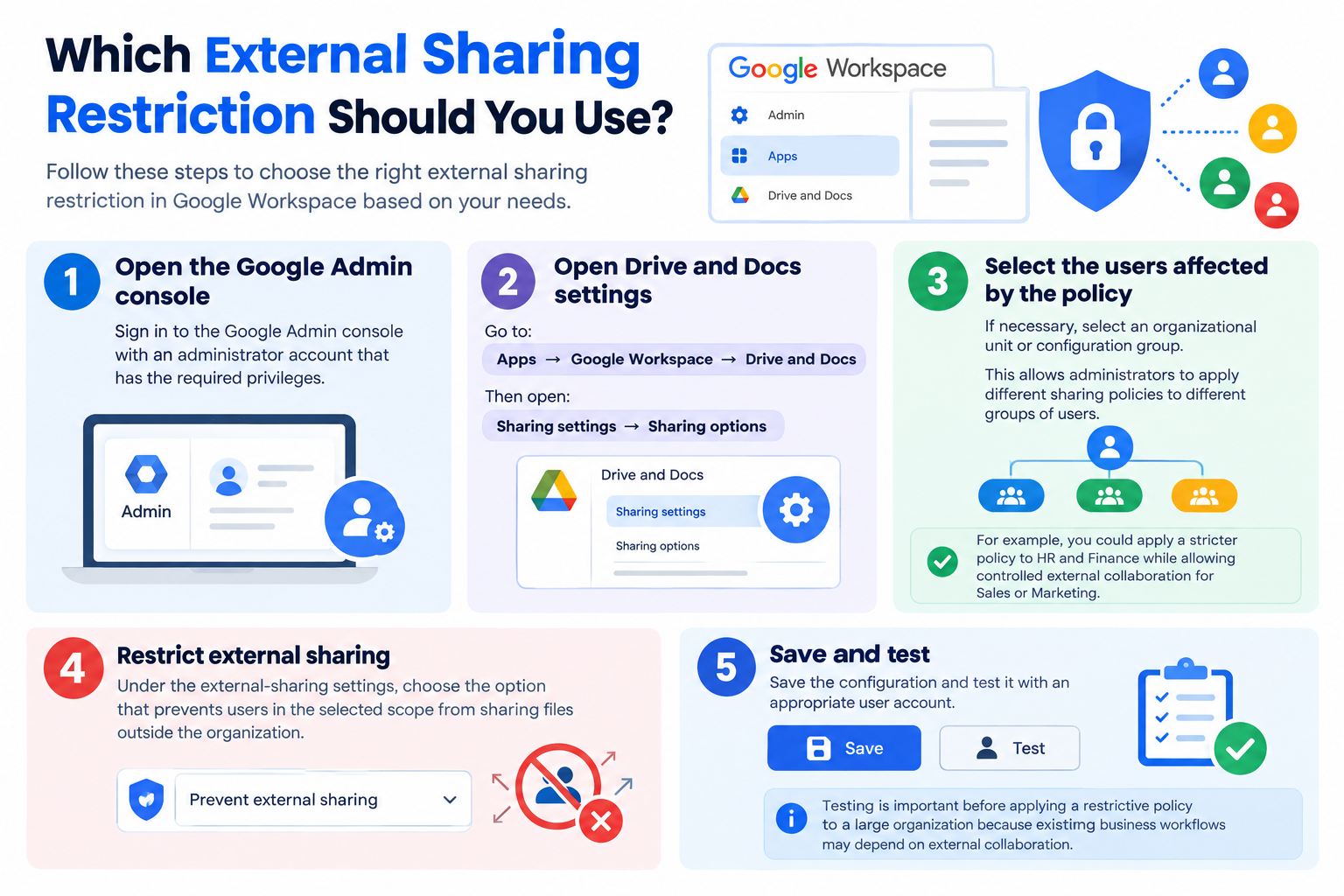
Step 1: Open the Google Admin console
Sign in to the Google Admin console with an administrator account that has the required privileges.
Step 2: Open Drive and Docs settings
Go to:
Apps → Google Workspace → Drive and Docs
Then open:
Sharing settings → Sharing options
Step 3: Select the users affected by the policy
If necessary, select an organizational unit or configuration group.
This allows administrators to apply different sharing policies to different groups of users.
For example, you could apply a stricter policy to HR and Finance while allowing controlled external collaboration for Sales or Marketing.
Step 4: Restrict external sharing
Under the external-sharing settings, choose the option that prevents users in the selected scope from sharing files outside the organization.
Step 5: Save and test
Save the configuration and test it with an appropriate user account.
Testing is important before applying a restrictive policy to a large organization because existing business workflows may depend on external collaboration.
How to Allow Sharing Only With Trusted Domains
Completely disabling external sharing is not always practical.
A company may need employees to collaborate with a known group of external organizations while preventing sharing with unknown domains.
In this situation, a trusted or allowlisted-domain approach can provide a better balance between security and collaboration.
For example, a UAE company might allow external sharing with approved partners such as:
- agency-example.com
- supplier-example.com
- partner-example.ae
while restricting sharing with other external domains.
Configure trusted domains
Administrators can add approved domains to the organization’s allowlist and then configure Drive sharing so that external sharing is limited to those domains.
The relevant Google Workspace settings are found under:
Admin console → Apps → Google Workspace → Drive and Docs → Sharing settings → Sharing options
The external-sharing policy can then be configured to use allowlisted domains.
Important: the allowlist is organization-wide
There is an important distinction between sharing settings and the domain allowlist.
Google Workspace can apply Drive sharing settings to organizational units or configuration groups, but the allowlisted domains themselves apply to the organization rather than having a completely separate list for each organizational unit.
This means you should plan your trusted-domain list carefully before relying on it for department-specific policies.
Restrict External Sharing for Different Departments
Not every department needs the same sharing policy.
For example:
| Department | Possible approach |
| HR | No external sharing |
| Finance | No external sharing |
| Legal | Highly restricted external sharing |
| Marketing | Approved external domains |
| Sales | Controlled external collaboration |
| Management | Approved external domains |
Google Workspace allows administrators to use organizational units or configuration groups when different groups require different Drive sharing settings.
This can be more practical than applying one organization-wide policy to every employee.
Example
A marketing team may regularly exchange campaign files with an external agency.
At the same time, the HR department may store employee records that should remain internal.
Instead of blocking external sharing for everyone, an administrator can use different configuration policies for the two groups.
Restricting External Sharing in Shared Drives
Shared drives provide another level of access control.
Google Workspace administrators and users with Manager access to a shared drive can restrict sharing with people outside the organization.
This is useful when a shared drive contains information that should remain internal.
For example:
Internal Finance Shared Drive
External sharing: Restricted
Marketing Agency Shared Drive
External sharing: Allowed
Using separate shared drives can make access boundaries easier to manage when internal employees and external collaborators have different requirements.
Shared-drive restrictions can override file permissions
This is an important point for administrators.
If a shared drive prevents external sharing, changing the sharing permission on an individual file does not bypass the shared-drive restriction.
For example, suppose a document was previously shared with an external consultant. If the shared drive is later configured to prevent external sharing, that consultant can lose access to the document even though the file’s permission still exists.
If external sharing is enabled again later, the previous external access can potentially become effective again.
For this reason, administrators should understand shared-drive restrictions before changing them.
What Happens to Existing External Access?
Changing an external-sharing policy can affect users who already have access to company files.
Before changing a major policy, review important external collaborations and determine whether they are still required.
Pay particular attention to:
- Shared drives containing external members
- Customer collaboration folders
- Supplier documents
- Agency project files
- External consultants
- Shared files containing sensitive information
Do not assume that changing a policy automatically removes every underlying permission permanently.
For shared drives, an external user’s permission can remain even when the shared-drive restriction temporarily prevents that person from accessing the file.
This makes policy testing and access reviews important when changing external-sharing controls.
External Sharing and File-Level Permissions Are Different
Organization-level external-sharing policies are different from the sharing settings of an individual Drive file.
For example, a user may see:
General access → Restricted
for an individual file.
This means only people who have been granted access can open it.
However, file-level permissions do not replace organization-level restrictions.
Think of the controls as different layers:
Organization policy
↓
Organizational unit or configuration group
↓
Shared-drive restrictions
↓
Folder permissions
↓
Individual file permissions
The more restrictive policy can determine whether a user is actually able to share or access the content.
Why Can’t a User Share a File Externally?
If a user reports that Google Drive will not allow external sharing, check the following areas.
1. Organization sharing policy
The user’s organizational unit or configuration group may prevent external sharing.
2. Trusted-domain policy
If the organization uses allowlisted domains, the recipient’s domain may not be approved.
3. Shared-drive settings
If the file is inside a shared drive, the shared drive may prevent external sharing.
4. User permissions
The user may not have sufficient permission to share the file, folder, or shared-drive content.
5. Other organizational restrictions
Additional Google Workspace controls can also restrict who files may be shared with.
If the restriction is not obvious, administrators should check the applicable Drive sharing policies and the shared-drive settings before changing permissions.
Best Practices for Restricting External Sharing
Start with sensitive information
If completely disabling external sharing across the company is not practical, consider applying stricter policies to departments that handle sensitive information.
HR, finance, legal, and certain management functions may require tighter controls than departments such as Marketing or Sales.
Use trusted domains when collaboration is necessary
If your employees regularly work with known companies, allowing approved domains can provide a practical middle ground between unrestricted sharing and completely blocking external collaboration.
Separate internal and external collaboration
When a project involves both employees and external partners, consider using separate shared drives when appropriate.
For example:
- Internal Project Drive
- External Partner Drive
This makes the intended access boundary clearer.
Review existing external access
Changing the sharing policy should not be the only step.
Periodically review important external collaborations and remove access that is no longer required.
Test policies before broad deployment
Apply a new restriction to a test group or appropriate organizational unit first when possible.
Confirm that legitimate workflows continue to work before extending the policy to the entire organization.
Document the policy
Employees should know:
- When external sharing is permitted
- Which external organizations are approved
- Which information must remain internal
- Who to contact when sharing is blocked
A clear policy reduces unnecessary support requests and helps employees make better sharing decisions.
External Sharing Is Only One Security Control
Restricting external sharing is an important access-control measure, but it should not be treated as a complete data-protection strategy.
Google Workspace also provides controls related to:
- File permissions
- Shared-drive access
- Downloading
- Copying
- Printing
- Data loss prevention
- Trust Rules
- Trusted domains
These controls address different aspects of information security.
For example, preventing external sharing does not stop someone who already has legitimate access from manually communicating information through another channel.
Use the appropriate control for the specific risk rather than trying to solve every security problem through external-sharing settings.
Common Mistakes to Avoid
Blocking external sharing without checking business requirements
A blanket restriction can interrupt legitimate customer, supplier, or agency workflows.
Assuming trusted domains can be different for every department
Drive sharing settings can be applied to organizational units and configuration groups, but the trusted-domain allowlist itself is organization-wide.
Forgetting shared-drive restrictions
A user may have permission to share a file but still be unable to share it externally because the shared drive has a more restrictive policy.
Changing policies without reviewing existing access
Existing external permissions can behave differently when a shared-drive restriction is changed. Review important external access before and after major policy changes.
Treating external-sharing restrictions as complete data protection
External sharing controls reduce certain access risks, but they do not replace broader Google Workspace security and data-protection measures.