Managing Shared Drives in Google Workspace
Managing Shared Drives properly helps organizations keep team files organized, control access, and reduce unnecessary permission risks. Unlike files in My Drive, files stored in a Shared Drive belong to the organization rather than an individual user, so they remain available when a team member leaves. For most businesses, effective Shared Drive management comes down […]
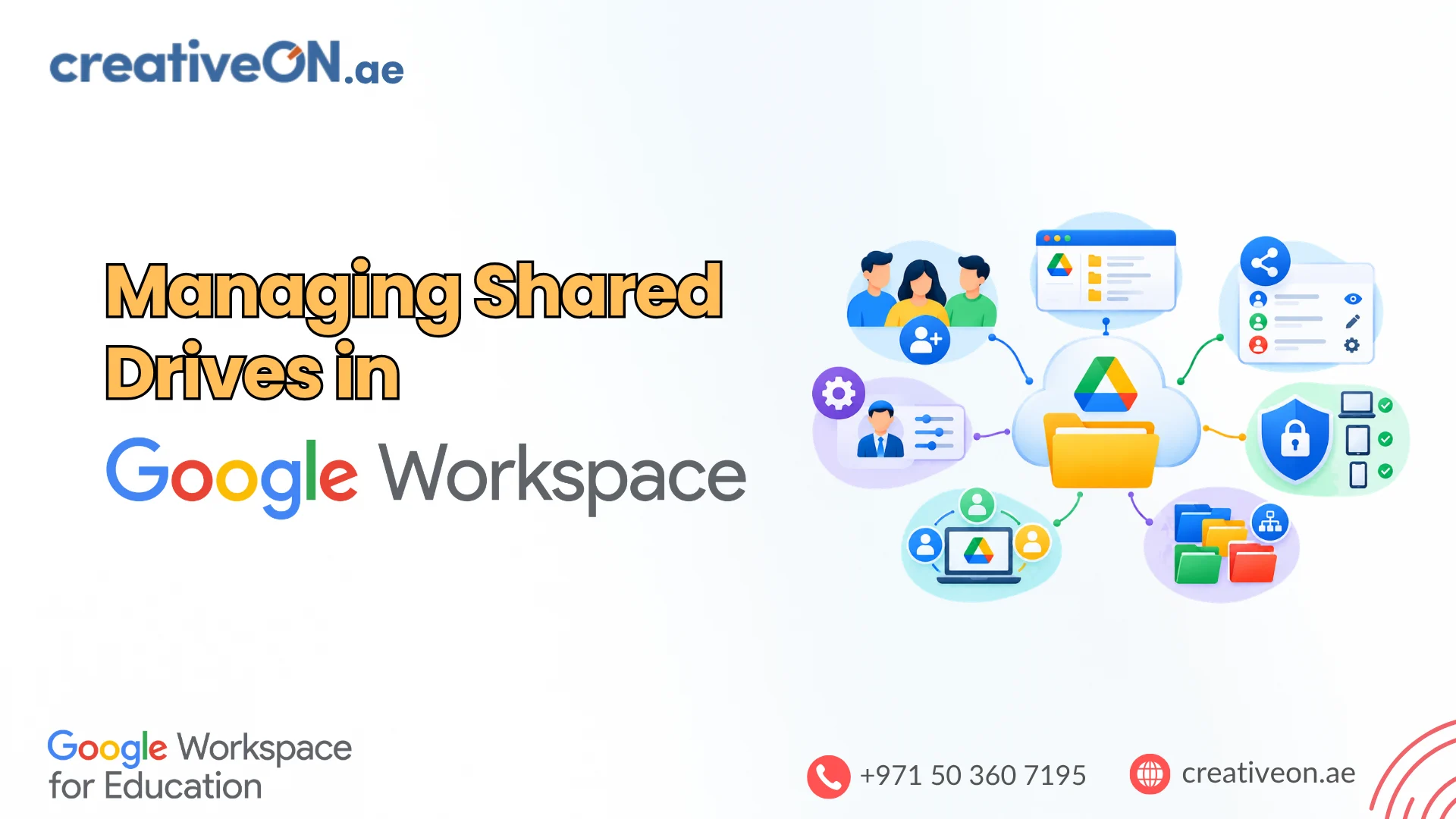
Managing Shared Drives properly helps organizations keep team files organized, control access, and reduce unnecessary permission risks. Unlike files in My Drive, files stored in a Shared Drive belong to the organization rather than an individual user, so they remain available when a team member leaves.
For most businesses, effective Shared Drive management comes down to four things: who has access, what they can do, how content is shared, and how the drive is organized.
This guide explains the practical steps administrators and team managers can use to manage Shared Drives effectively.
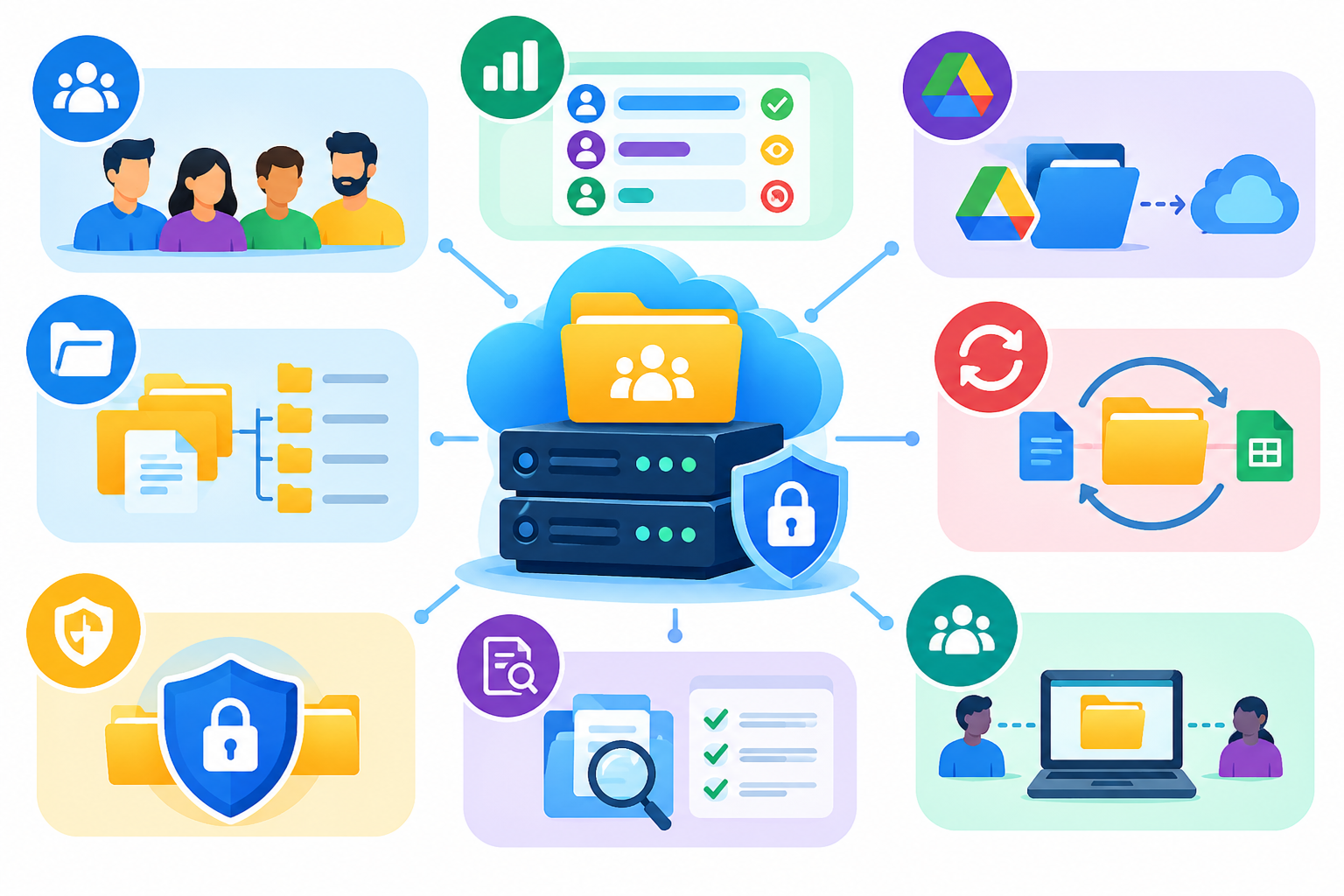
What Does Shared Drive Management Include?
Managing a Shared Drive is more than adding people to a folder.
It includes:
- Managing Shared Drive members
- Choosing appropriate access levels
- Using Google Groups where practical
- Controlling external sharing
- Restricting access to sensitive folders
- Organizing files around a clear business purpose
- Reviewing old members and content
- Preventing unnecessary permission complexity
The goal is to make collaboration easy without giving users more access than they need.
Manage Shared Drive Members
Shared Drive membership determines who has access to the drive and what level of access they receive.
Managers can add or remove members and change their access levels. Google Workspace administrators may also manage Shared Drive access through administrative controls, depending on their permissions and organization settings.
To add a member:
- Open Google Drive.
- Select Shared drives.
- Open the relevant Shared Drive.
- Select Manage members.
- Add a person, email address, or Google Group.
- Select the appropriate access level.
- Send the invitation or save the change.
Google currently assigns Content manager as the default role when adding a new member, so review the role before confirming access.
Review Membership Regularly
Shared Drive membership should be reviewed whenever there is a change in the team.
Check access when:
- An employee joins the organization
- Someone changes departments
- A contractor finishes a project
- An external agency is no longer involved
- A project ends
- An employee leaves the company
Also check whether a user receives access through a Google Group. Removing a person’s direct membership does not necessarily remove access if they remain a member of a group that has access to the Shared Drive. Google Groups can be used to manage Shared Drive membership centrally.
Choose the Right Shared Drive Access Level
Google Workspace provides five Shared Drive access levels:
| Access level | Best suited for |
| Manager | People responsible for administering the Shared Drive |
| Content manager | Users who need broad control over files and folders |
| Contributor | Users who need to create, upload, and edit content |
| Commenter | Users who need to review and comment |
| Viewer | Users who only need to read files |
The roles are not interchangeable. Managers have Shared Drive-level administrative capabilities that the other roles do not have.
Manager
Managers have the highest level of control.
They can manage members, change member access levels, control certain sharing restrictions, manage limited-access folders, move content between Shared Drives, and perform other Shared Drive administration tasks.
Give Manager access only to people who genuinely need to administer the Shared Drive.
Typical examples include:
- IT administrators
- Department administrators
- Project owners
- Trusted operations staff
Content Manager
Content managers are intended for people who actively manage files and folders but do not need full Shared Drive administration.
They can perform many day-to-day content management tasks, including moving files and folders within the Shared Drive and moving files to Trash.
A useful rule is:
Manager = Shared Drive administration
Content manager = day-to-day content management
Contributor
Contributors can create and add files, edit files, and collaborate on content, but they have fewer management permissions than Content managers. They cannot move files and folders to Trash or move files and folders within the Shared Drive.
Contributor access can therefore be useful when users need to work with content but should not reorganize or delete Shared Drive files.
Commenter and Viewer
Use Commenter when someone needs to review and provide feedback.
Use Viewer when someone only needs to read or reference information.
A simple access principle works well:
Give users the lowest access level that still allows them to complete their work.
Important: Drive for Desktop Can Change the Picture
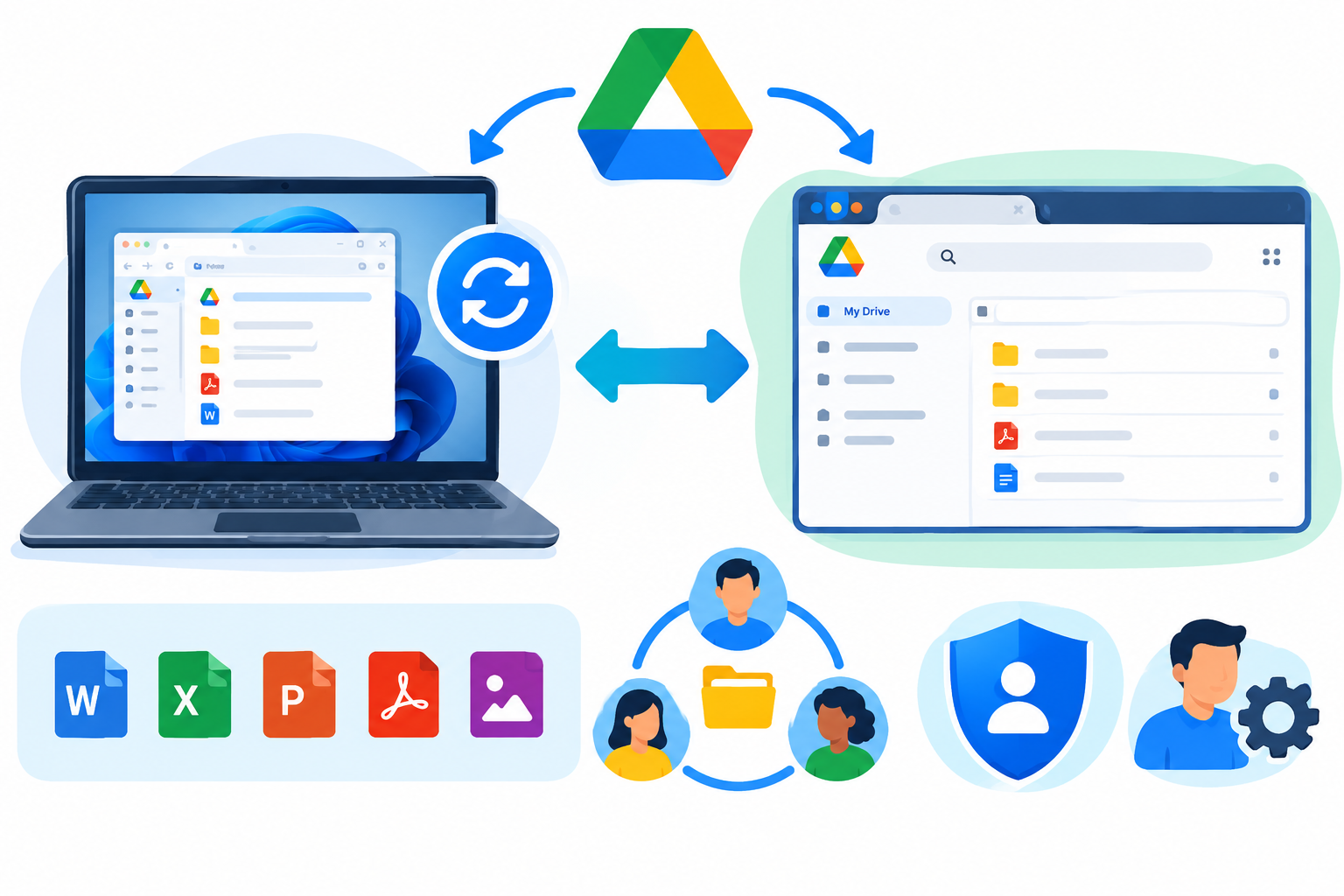
Access roles can behave differently when users work through Google Drive for desktop.
Google notes that Contributor access provides read access to files through Drive for desktop and the ChromeOS Files app. Users who need to create, upload, and edit files through these desktop environments need Content manager or Manager access.
This is an important consideration for teams working with files such as:
- Microsoft Office documents
- PDFs
- Adobe files
- Other non-Google files
Administrator tip: Before assigning Contributor access, find out how the user actually works with Shared Drive content. A role that works for web-based collaboration may not provide the same experience through Drive for desktop.
Use Google Groups to Simplify Access Management
For teams that change frequently, Google Groups can make Shared Drive administration easier.
Instead of adding employees individually, you can add a Google Group as a Shared Drive member.
For example:
Marketing Shared Drive
→ marketing@company.com
When employees are added to or removed from the group, their Shared Drive access can change accordingly.
This approach can reduce repetitive administration.
However, always check both:
- Direct Shared Drive membership
- Membership through Google Groups
This is particularly important when removing access from an employee or contractor.
Manage Shared Drive Sharing Settings
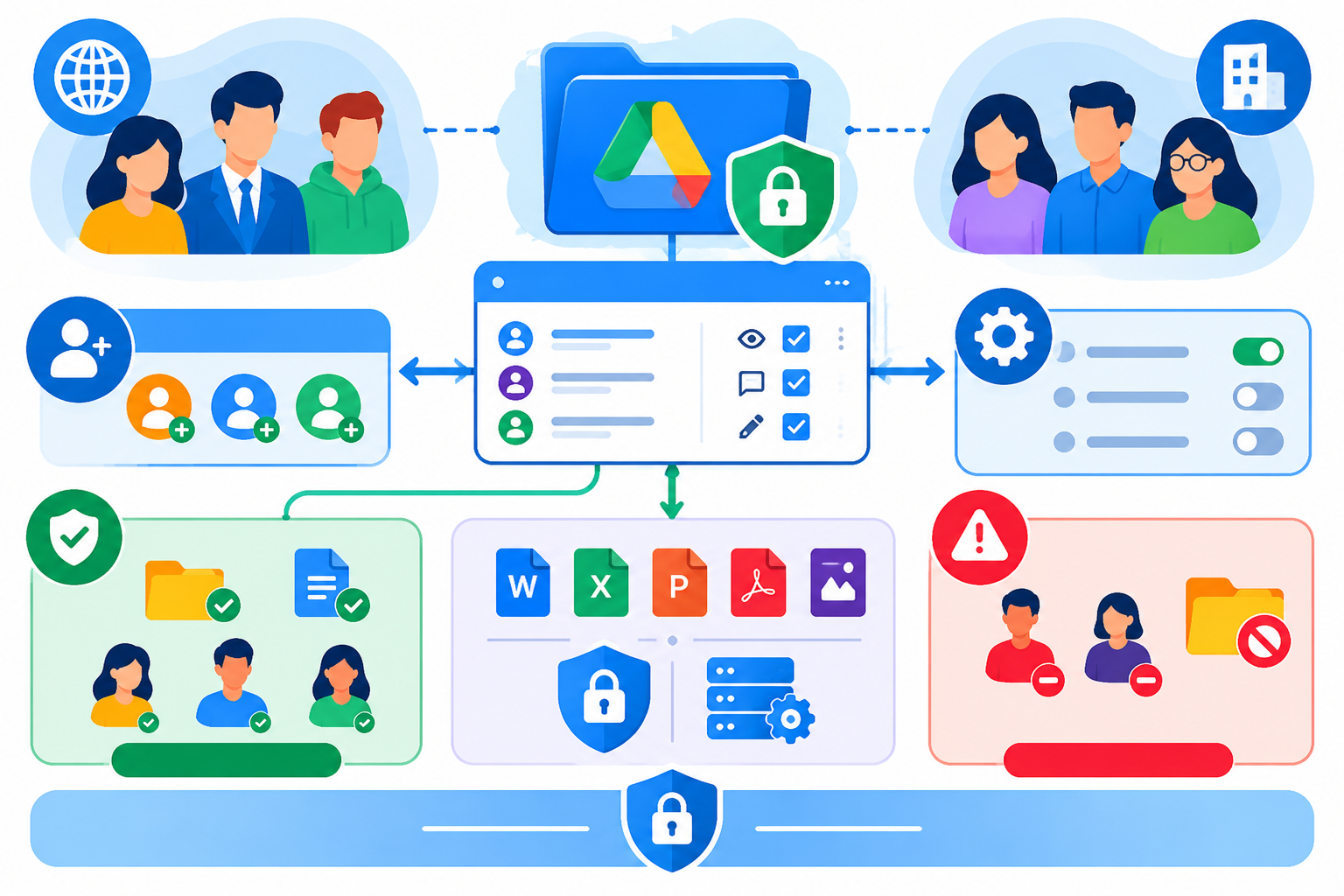
Shared Drive managers and Google Workspace administrators can control several sharing restrictions, depending on the organization’s configuration. These can include restrictions on:
- Sharing with people outside the organization
- Sharing with non-members
- Certain members accessing specific folders
- Content managers sharing folders
- Downloading, copying, or printing for users with lower access levels
These settings can provide an additional layer of control for sensitive business information.
For example, a Shared Drive containing public marketing material may need relatively open collaboration, while a Finance Shared Drive may require tighter sharing restrictions.
Use Restrictions According to Risk
Consider the type of information before deciding how restrictive a Shared Drive should be.
Lower-risk content
- Public marketing materials
- Approved brand assets
- Internal training resources
Higher-risk content
- Financial documents
- Contracts
- Employee information
- Confidential client information
- Business plans
Avoid applying complicated restrictions everywhere. Use stronger controls where the information actually requires them.
Manage External Access Carefully
Organizations can allow external users to work in Shared Drives when their Google Workspace configuration permits it. External users generally need an email address associated with a Google Account to be added as Shared Drive members.
Before giving an external person access, ask:
- Do they need access to the entire Shared Drive?
- Would access to one file or folder be enough?
- How long will they need access?
- Does the Shared Drive contain internal-only information?
- Should a separate Shared Drive be used?
For projects involving an external agency, Google recommends considering separate Shared Drives when internal and external collaborators have different access requirements.
For example:
Internal Project Shared Drive
→ Employees only
Client/Agency Shared Drive
→ Employees + external collaborators
This structure can prevent external users from gaining access to unrelated internal content.
Use Limited-Access Folders for Sensitive Content
By default, Shared Drive members can view the files and folders in the Shared Drive. When certain information needs additional protection, Managers can use limited-access folders to restrict who can open specific folder hierarchies.
For example:
Marketing Shared Drive
- General Marketing
- Campaigns
- Brand Assets
- Executive Planning — Limited Access
The last folder could be restricted to the appropriate members.
An Important Permission Rule
Do not assume that an ordinary subfolder automatically becomes private.
Shared Drive permissions are inherited, and normal folder sharing cannot simply make access less restrictive than the Shared Drive itself. Limited-access folders are the specific mechanism for restricting access to particular folder hierarchies.
If a project has fundamentally different access requirements, creating a separate Shared Drive may be simpler than building a complicated permission structure.
Organize Shared Drives by Team or Purpose
One of the easiest ways to make Shared Drives difficult to manage is to put everything into one large drive.
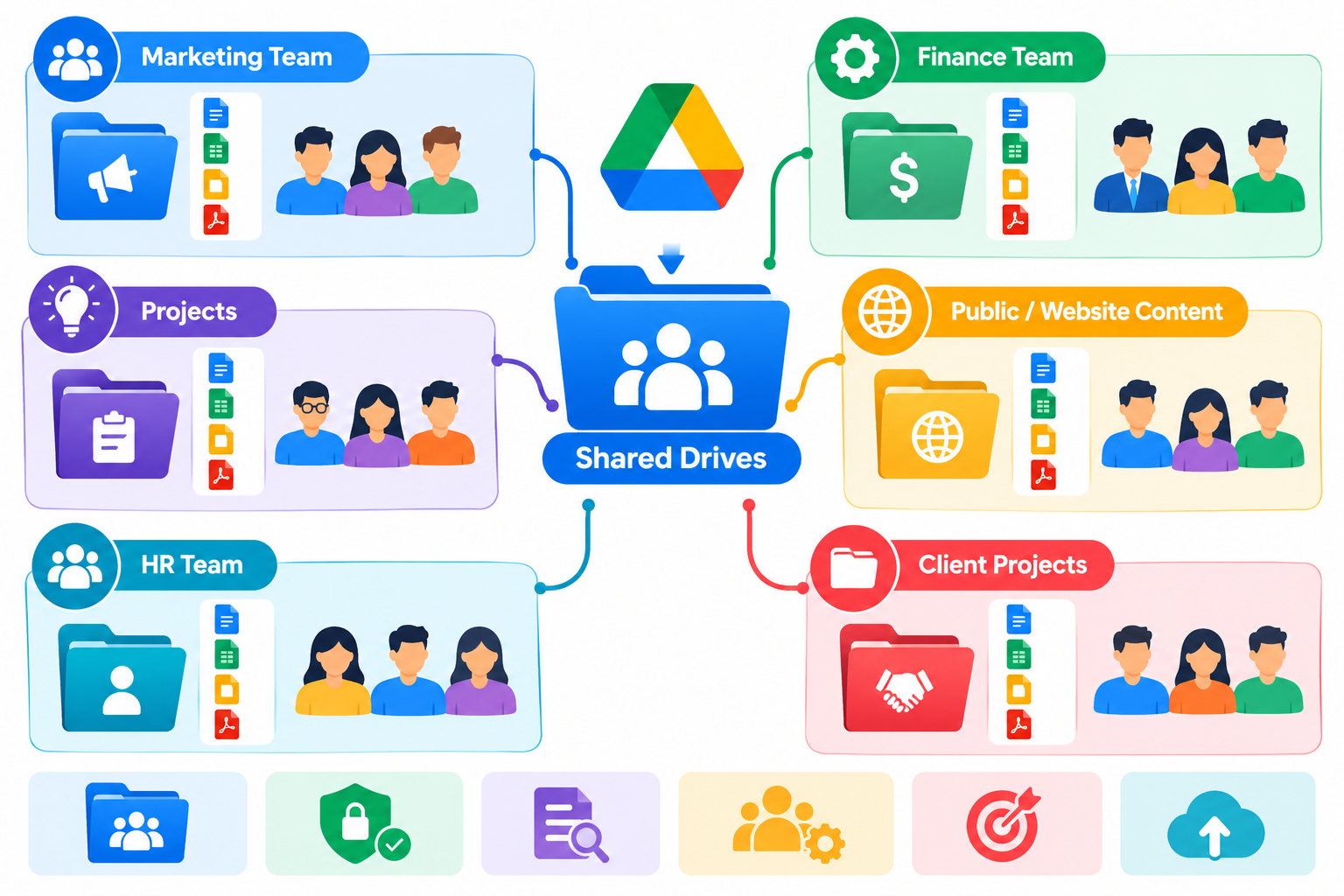
Google recommends giving each Shared Drive a clear purpose. If different teams or projects have substantially different access requirements, separate Shared Drives can make permissions easier to understand and maintain.
For example:
Marketing Shared Drive
- Brand Assets
- Campaigns
- Social Media
- Website Content
Finance Shared Drive
- Budgets
- Reports
- Invoices
- Financial Planning
Client Projects Shared Drive
- Active Projects
- Client Resources
- Project Archives
A clear structure makes it easier to decide who should have access.
Keep Naming and Folder Structures Consistent
Use predictable naming conventions for Shared Drives and folders.
For example:
- Marketing
- Finance
- HR
- Client Projects
- [Archive] Marketing 2025
Avoid creating unnecessary levels of folders.
A structure should help employees answer three questions quickly:
- Where should this file go?
- Who should have access?
- Is this content active or archived?
Google also recommends using naming conventions and keeping Shared Drives focused on specific teams or projects.
Review and Archive Old Content
Shared Drives often grow over time.
Periodically review:
- Outdated project folders
- Duplicate files
- Old templates
- Completed projects
- Former client folders
- Unused content
Completed projects can be moved into clearly named archive areas or, where appropriate, separate archive Shared Drives.
Google currently limits each Shared Drive to 500,000 items, including files, folders, shortcuts, and items in Trash. Google recommends keeping Shared Drives well below this limit because very large drives can become difficult to organize and search.
The important management lesson is not simply the numerical limit. It is to avoid allowing one Shared Drive to become an unstructured repository for everything the organization has ever created.
Common Shared Drive Management Mistakes
Giving Everyone Manager Access
Most users do not need Shared Drive administration rights.
Use Content manager, Contributor, Commenter, or Viewer where appropriate.
Using One Shared Drive for Everything
A company-wide Shared Drive can become difficult to manage when departments and projects have different access requirements.
Create separate drives when there is a genuine difference in purpose or access.
Forgetting Google Group Membership
A user may still have access through a Google Group even after their direct membership is removed.
Always check both sources of access.
Assuming a Normal Folder Is Private
A regular folder inside a Shared Drive does not automatically create a private area.
Use limited-access folders when appropriate.
Giving Contributors the Wrong Desktop Expectation
Contributor access may be suitable for web-based work but can provide read-only behavior through Drive for desktop.
Users who need desktop editing generally need Content manager or Manager access.
Leaving External Users After a Project Ends
Review external collaborators when a project finishes.
Remove unnecessary access or move ongoing collaboration to an appropriately separated Shared Drive.
Shared Drive Management Checklist
Use this checklist during regular administrative reviews:
- Review Shared Drive members
- Check Google Group-based access
- Remove former employees and contractors where appropriate
- Review Manager assignments
- Confirm each user’s access level is appropriate
- Review external collaborators
- Check external-sharing restrictions
- Review limited-access folders
- Check folder and naming conventions
- Archive completed projects
- Remove unnecessary or duplicate content
- Confirm each Shared Drive still has a clear purpose