Managing Default Gmail Settings: A Practical Guide
Gmail works well with its standard configuration, but a few settings can make everyday email easier to manage. If you use Gmail for business, changing options such as your inbox layout, Conversation View, default reply behavior, signature, notifications, and Undo Send can create a workflow that better fits the way you work. This guide explains […]

Gmail works well with its standard configuration, but a few settings can make everyday email easier to manage. If you use Gmail for business, changing options such as your inbox layout, Conversation View, default reply behavior, signature, notifications, and Undo Send can create a workflow that better fits the way you work.
This guide explains the most useful default Gmail settings you can manage as an individual user. It also explains which settings are personal preferences and which may be controlled by a Google Workspace administrator.
What Are Default Gmail Settings?
Gmail settings control how your inbox looks and how Gmail behaves when you read, write, and manage email.
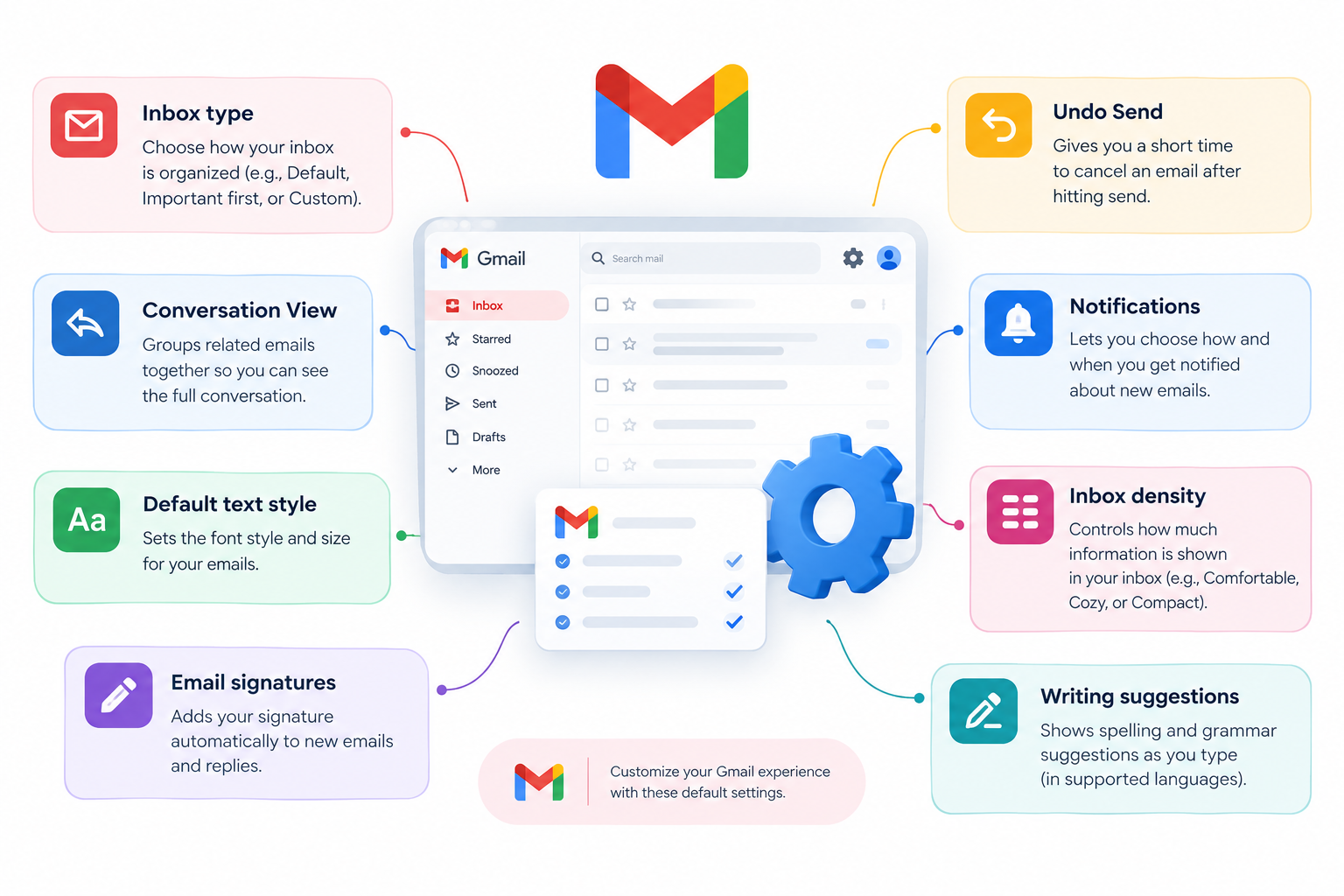
Common settings include:
- Inbox type
- Conversation View
- Default reply behavior
- Default text style
- Email signatures
- Undo Send
- Notifications
- Inbox density
- Writing suggestions
Some options are available in Gmail’s Quick settings, while others are available under See all settings.
How to Access Gmail Settings
On a computer:
- Open Gmail.
- Click the Settings icon in the upper-right corner.
- Use Quick settings for commonly changed options, or select See all settings for the complete settings area.
- Open the relevant settings section.
- Make your changes.
- Click Save Changes when required.
Google’s current Gmail documentation confirms that users can customize inbox layout and other Gmail preferences through Settings and Quick settings.
Note: Gmail’s web interface and mobile apps do not expose exactly the same settings. Some configuration options are available only on a computer.
1. Choose the Right Gmail Inbox Type
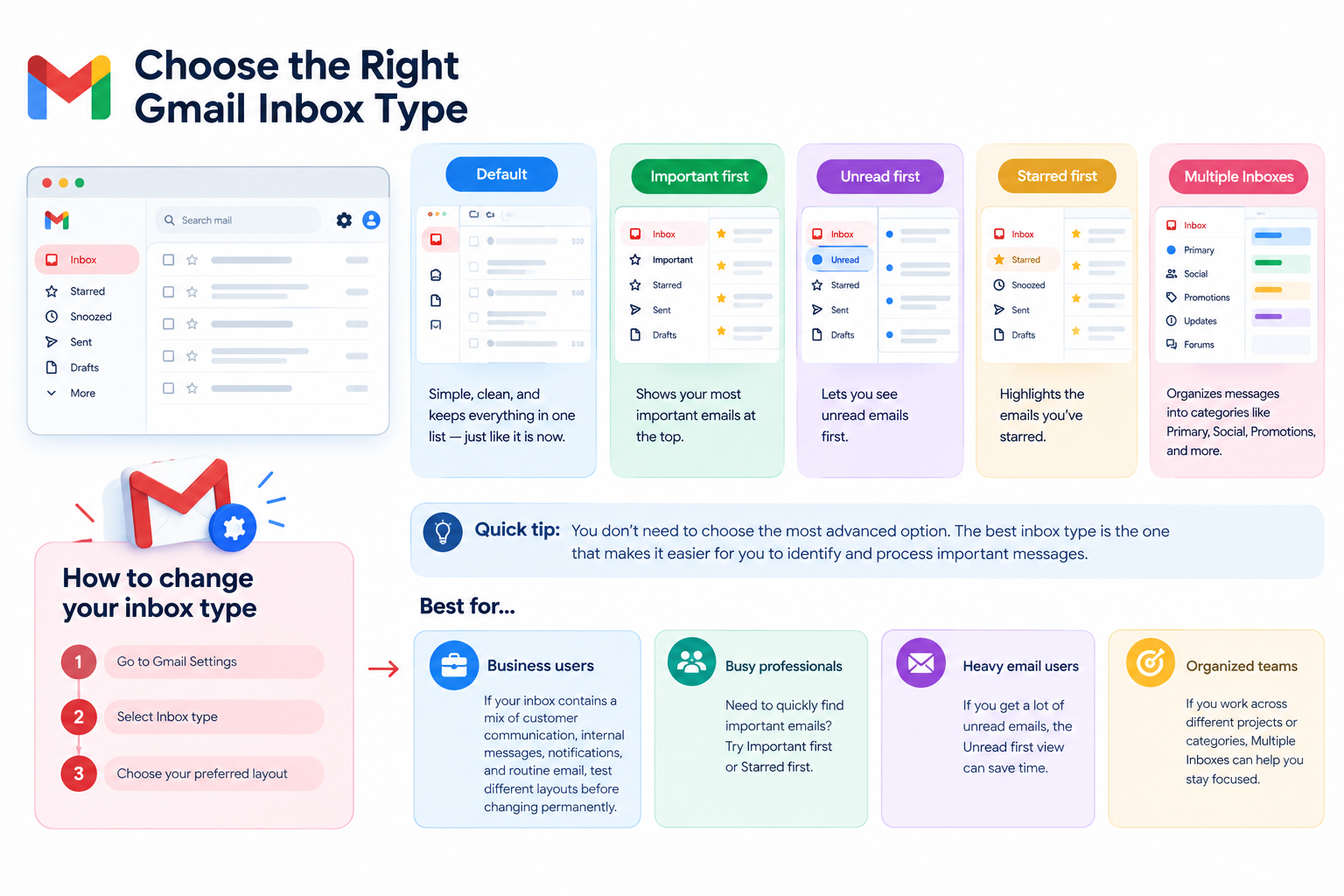
Your inbox type determines how Gmail organizes messages on your main inbox screen.
Gmail currently offers:
- Default
- Important first
- Unread first
- Starred first
- Priority Inbox
- Multiple Inboxes
For example, Default can organize messages into categories such as Primary, Social, Promotions, and Updates. Multiple Inboxes can be useful when you want separate sections for specific types of work or messages.
How to change your inbox type
Go to:
Gmail → Settings → Inbox type
Then select the layout you want.
You don’t need to choose the most advanced option. The best inbox type is the one that makes it easier for you to identify and process important messages.
For business users: If your inbox contains a mixture of customer communication, internal messages, notifications, and routine email, test different layouts before changing your workflow permanently.
Related guide: How to Choose the Right Gmail Inbox Type
2. Manage Conversation View
Gmail can group related messages into conversations instead of showing every reply as a separate inbox item.
When Conversation View is enabled, replies to the same conversation are grouped together. This can make long business discussions easier to follow. Gmail also allows you to turn Conversation View off if you prefer to see individual messages separately.
How to change Conversation View
- Open Gmail.
- Click Settings.
- Select See all settings.
- Find Conversation View.
- Select Conversation view on or Conversation view off.
- Click Save Changes.
For most users who regularly participate in email threads, keeping related messages together can make conversations easier to follow. However, people who process each email independently may prefer the separate-message view.
Related guide: How Gmail Conversation View Works
3. Set Your Default Reply Behavior
Gmail lets you choose whether Reply or Reply all is the default reply option.
To change it:
- Open Settings → See all settings.
- Select the General tab.
- Find Default reply behavior.
- Choose Reply or Reply all.
- Save your changes.
Google confirms that this setting controls the default reply behavior in Gmail.
Which option should you use?
There isn’t one setting that is correct for every business.
Reply can be appropriate when most responses only need to go back to the sender.
Reply all can be useful when ongoing discussions normally require everyone already included in the conversation to remain involved.
Whichever option you choose, check the recipient list before sending confidential, internal, or customer-related information.
4. Set Your Default Email Text Style
Gmail lets you create a default text style that is automatically applied to new emails you write. Google currently provides this option through Gmail’s General settings.
You can configure the available formatting options to create a consistent starting point for new messages.
To access it:
Settings → See all settings → General → Default text style
For professional communication, simple and readable formatting is usually more practical than heavily styled email.
A good business email should remain easy to read across different devices and email clients.
Related guide: How to Format Professional Gmail Messages
5. Create a Professional Gmail Signature
A Gmail signature can automatically add your professional information to outgoing messages.
A business signature might contain:
- Name
- Job title
- Company
- Telephone number
- Website
- Relevant business links
How to create a Gmail signature
- Open Gmail.
- Go to Settings → See all settings.
- Open the General tab.
- Scroll to Signature.
- Click Create new.
- Enter your signature.
- Configure the signature options.
- Click Save Changes.
Google’s current Google Workspace documentation confirms this workflow. Gmail also supports multiple signatures, which can be useful when different types of business communication require different sign-offs.
A practical business tip
If employees use Google Workspace for customer communication, keeping signatures consistent can improve professionalism.
For example, a company operating across Dubai, Abu Dhabi, and other Emirates may want employees to use a consistent company identity while still allowing each person to manage their own Gmail preferences.
Related guide: How to Create a Professional Gmail Signature
6. Increase the Gmail Undo Send Period
Gmail’s Undo Send feature gives you a short period to cancel an email immediately after selecting Send.
The available cancellation periods are:
- 5 seconds
- 10 seconds
- 20 seconds
- 30 seconds
You can find this option under:
Settings → See all settings → General → Undo Send
Google’s current documentation confirms these cancellation periods.
Why use a longer cancellation period?
A longer window gives you a little more time to notice mistakes such as:
- A missing attachment
- An incorrect recipient
- An incomplete sentence
- A typing mistake
- Accidentally sending the wrong version of a message
For business users, 30 seconds can be a practical choice when the additional review time fits their workflow.
Important distinction
Undo Send does not mean Gmail can generally recall an email after it has already been delivered.
It gives you a short opportunity to cancel the sending process.
Related guide: How Gmail Undo Send Works
7. Review Gmail Notification Settings
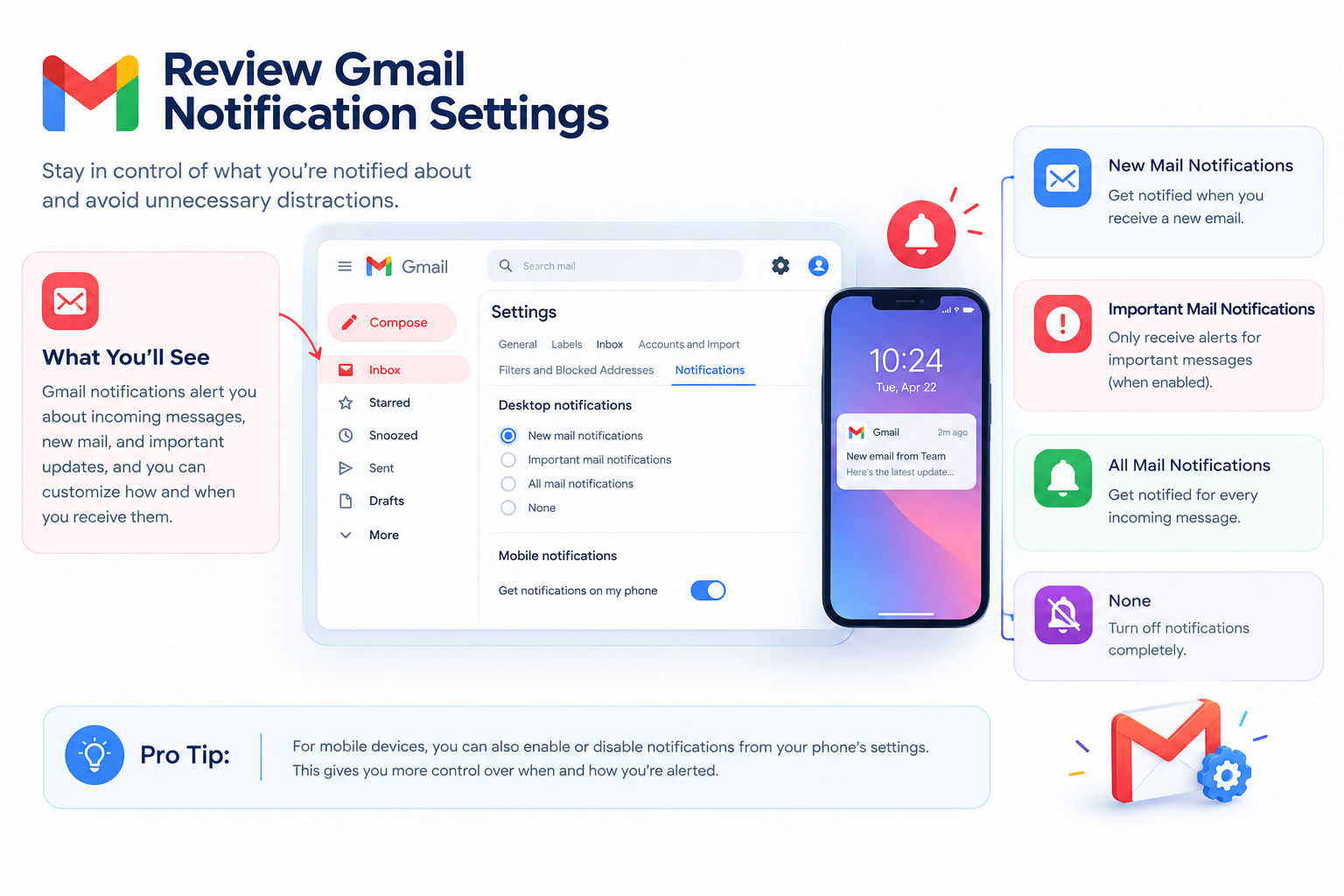
Gmail notifications determine when you receive alerts about incoming messages.
Google Workspace users can configure Gmail desktop notifications, including options for new mail and important mail.
To review notification settings:
Settings → See all settings → Desktop notifications
If you receive a large volume of email, unnecessary notifications can interrupt focused work.
A practical approach is to decide which messages genuinely require immediate attention and configure notifications accordingly.
For example, an employee who receives dozens of routine notifications every day may prefer fewer alerts, while someone responsible for customer support may need more immediate notifications.
8. Choose Your Gmail Inbox Density
Gmail allows you to control how much space each message occupies in your inbox.
The available options are:
- Default
- Comfortable
- Compact
Google documents these three density options in its current Workspace guidance.
Which density should you choose?
Default provides a balanced layout.
Comfortable gives messages more visual space.
Compact allows more messages to appear on screen at once.
This is primarily a workflow preference rather than a productivity rule. Try the options and choose the one that makes your inbox easiest to scan.
9. Manage Gmail Writing Suggestions
Gmail includes writing assistance such as grammar, spelling, autocorrect, and Smart Compose.
Google currently provides controls for these features under Gmail’s General settings.
Smart Compose can suggest text while you write. However, Google specifically notes that Smart Compose is not designed to provide answers and may not always predict factually correct information.
For professional email, treat automated suggestions as assistance rather than something that removes the need to review your message.
Before sending important communication, check:
- Names
- Dates
- Numbers
- Attachments
- Recipients
- The overall meaning of the message
Gmail User Settings vs Google Workspace Admin Settings
This distinction is important for businesses.
User-level Gmail settings generally affect an individual’s email experience. Examples include:
- Inbox type
- Conversation View
- Density
- Signature
- Default reply behavior
- Writing assistance
- Personal notification preferences
Google Workspace administrator settings can affect how Gmail operates across an organization and can control certain services, policies, and features.
For example, Google documents organization-level administration separately from the settings an individual user changes inside Gmail.
Why does this matter?
Suppose an employee cannot change a particular Gmail option.
That does not necessarily mean Gmail is malfunctioning. The setting may be controlled or restricted by the organization’s Google Workspace administrator.
Therefore, don’t assume that changing a personal Gmail setting will change Gmail for everyone in your company.
Related guide: Google Workspace Gmail Administration
Recommended Gmail Settings for Business Users
There is no single Gmail configuration that is right for every company. However, the following is a sensible starting point for many business users:
| Gmail setting | Practical approach |
| Inbox type | Choose based on how you prioritize email |
| Conversation View | Keep enabled if you regularly work with email threads |
| Default reply behavior | Choose based on your normal communication workflow |
| Default text style | Keep formatting simple and readable |
| Signature | Use a professional, consistent format |
| Undo Send | Consider a 30-second cancellation period |
| Notifications | Reduce alerts that don’t require immediate attention |
| Inbox density | Choose based on screen space and reading preference |
| Writing suggestions | Use them as assistance and review important messages |
These are practical recommendations, not Google-mandated settings. The right configuration depends on the user’s role and workflow.
For a company with teams across Dubai, Abu Dhabi, or other Emirates, the same principle applies: standardize what genuinely needs consistency, while allowing employees to personalize settings that affect individual productivity.
Before You Change Gmail Settings
You don’t need to change every Gmail setting.
Before making changes:
- Change only settings that solve a real workflow problem.
- Test important changes before adopting them permanently.
- Remember that some settings are account-specific.
- Check whether a Google Workspace administrator controls the setting.
- Don’t assume a personal Gmail preference affects other employees.
- Review important emails manually even when writing assistance is enabled.
This approach keeps Gmail simple instead of turning configuration into unnecessary maintenance.
Common Mistakes When Managing Gmail Settings
Changing too many settings at once
If several settings are changed simultaneously, it becomes difficult to identify which change affected your workflow.
Confusing user settings with administrator settings
An individual Gmail account and a Google Workspace organization have different levels of control.
Treating Undo Send as email recall
Undo Send only provides a short cancellation period. It shouldn’t be treated as a general method for recalling delivered email.
Using Reply All without checking recipients
If Reply All is your default, always check who will receive the message before sending it.
Over-formatting business emails
Heavy formatting, large images, or unnecessary design elements can make messages harder to read. Simple formatting is usually easier to maintain.
Relying completely on writing suggestions
Grammar and Smart Compose features can assist with writing, but important business communication still requires human review.
Gmail Default Settings Checklist
Use this checklist when reviewing a new or existing Gmail account:
- Inbox type
- Conversation View
- Default reply behavior
- Default text style
- Gmail signature
- Undo Send period
- Notifications
- Inbox density
- Writing suggestions
You do not need to change everything. Keep settings that already work well and adjust only those that improve your workflow.