Google Drive Admin Settings Explained
Google Drive administration is more than managing individual files. Google Workspace administrators can control how users in the organization share Drive content, collaborate with external users, and use certain Drive features. These controls are available primarily through the Google Admin console → Apps → Google Workspace → Drive and Docs. Depending on the setting, administrators […]
Google Drive administration is more than managing individual files. Google Workspace administrators can control how users in the organization share Drive content, collaborate with external users, and use certain Drive features.
These controls are available primarily through the Google Admin console → Apps → Google Workspace → Drive and Docs. Depending on the setting, administrators can apply policies to the whole organization, an organizational unit, or a configuration group. Google notes that configuration-group settings override organizational-unit settings.
For businesses in the UAE, these settings can be particularly useful when employees need to collaborate with customers, suppliers, consultants, or partners while sensitive company information remains protected.
This guide explains the main Google Drive admin settings without going into detailed file-permission management or complete Shared Drive administration.
What Are Google Drive Admin Settings?
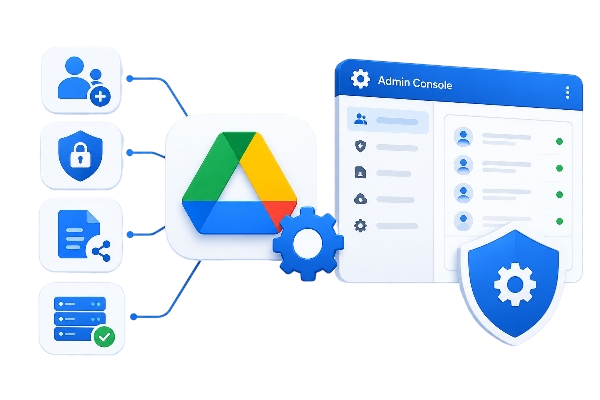
Google Drive admin settings are organization-level controls that determine how users can use and share files within Google Workspace.
Some of the most important areas include:
| Admin Setting | What It Controls |
| External sharing | Whether users can share Drive files outside the organization |
| Allowlisted domains | Which trusted external domains users can share with |
| Public or unlisted publishing | Whether users can make files broadly accessible |
| Organizational units | Which users or departments receive specific policies |
| Configuration groups | More targeted policy assignment |
| Shared Drive controls | Restrictions on external sharing and non-member access |
| Shared Drive creation | Whether users are allowed to create Shared Drives |
Not every Drive feature is controlled from one setting. Some controls apply to the organization, while others apply to a particular Shared Drive, file, folder, or user.
Understanding this distinction makes Drive administration much easier.
Where to Find Google Drive Admin Settings
To access the main Drive sharing settings:
- Sign in to the Google Admin console using an administrator account.
- Go to Apps.
- Select Google Workspace.
- Select Drive and Docs.
- Open Sharing settings.
Google’s current administrator documentation identifies this area for configuring Drive sharing outside the organization. Access requires the appropriate administrator privileges.
Depending on your Google Workspace edition and administrative permissions, additional Drive and Shared Drive controls may be available.
1. External Sharing Settings
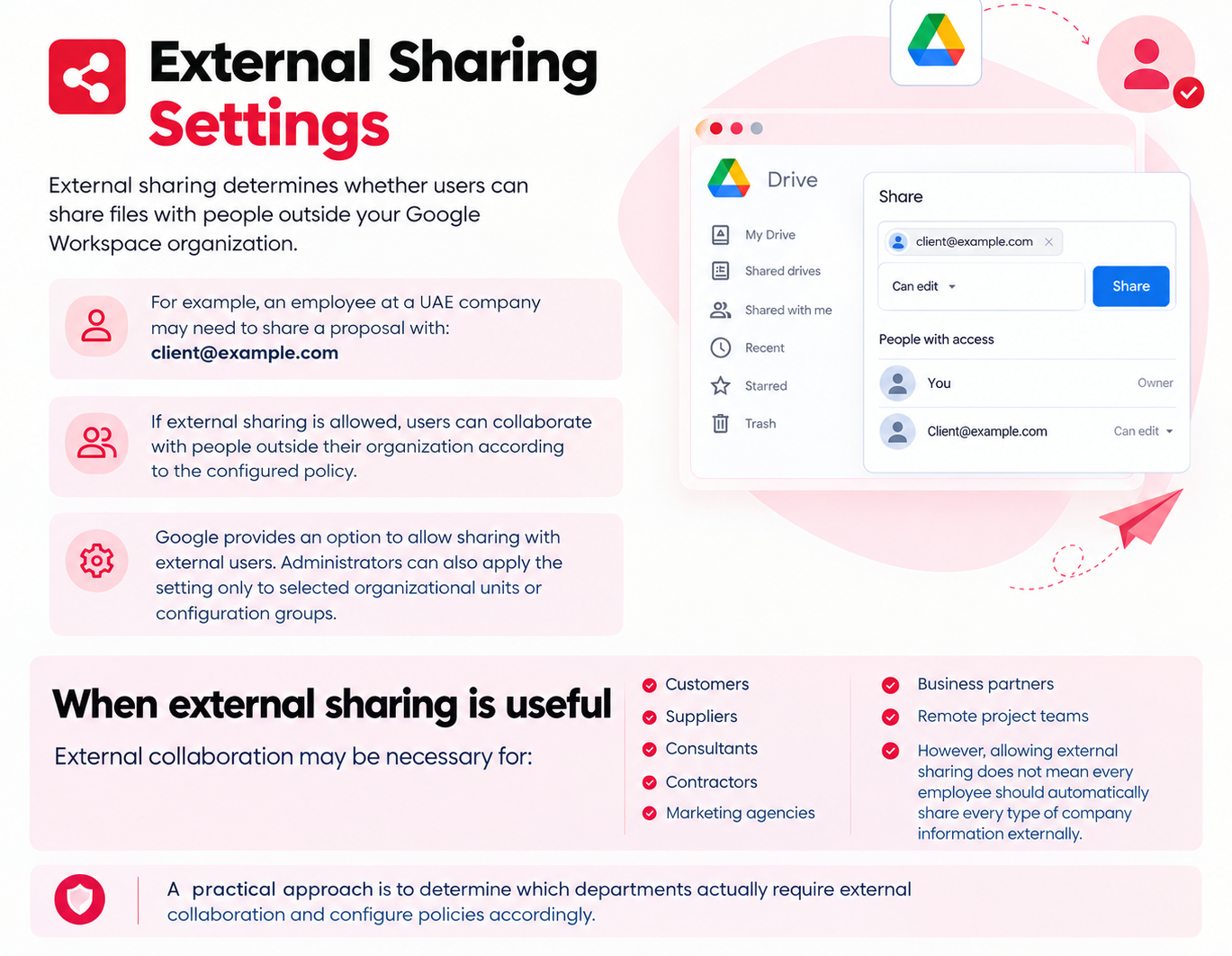
External sharing determines whether users can share files with people outside your Google Workspace organization.
For example, an employee at a UAE company may need to share a proposal with:
client@example.com
If external sharing is allowed, users can collaborate with people outside their organization according to the configured policy.
Google provides an option to allow sharing with external users. Administrators can also apply the setting only to selected organizational units or configuration groups.
When external sharing is useful
External collaboration may be necessary for:
- Customers
- Suppliers
- Consultants
- Contractors
- Marketing agencies
- Business partners
- Remote project teams
However, allowing external sharing does not mean every employee should automatically share every type of company information externally.
A practical approach is to determine which departments actually require external collaboration and configure policies accordingly.
2. Allowlisted Domains
If your organization wants more control over external collaboration, Google Workspace can restrict sharing to allowlisted domains.
For example, a company might allow employees to share files with:
- client-company.com
- partner.ae
- agency.com
while preventing sharing with other external domains.
Google’s Drive sharing settings support an allowlisted-domain option. Administrators can also configure whether users can receive files from domains outside the allowlist.
An important limitation
The allowlist applies to the organization rather than having a separate allowlist for each organizational unit.
This is important when designing a Drive sharing policy for different departments.
For example, if Marketing regularly works with many external agencies while Finance does not, an allowlist should be planned carefully rather than assuming each department can maintain its own separate domain list.
3. Public and Unlisted File Sharing
External sharing and public or unlisted sharing are related, but they are not the same thing.
External sharing generally refers to sharing with people outside your organization.
Public or unlisted publishing can make content available much more broadly.
Google’s Drive administration settings include a control for whether users can publish files on the web or make them visible to the world as public or unlisted files.
This distinction matters for businesses handling confidential information.
For example:
- A marketing team might need to publish public-facing material.
- HR generally has little reason to publish employee documents publicly.
- Finance may need strict controls around sensitive reports.
Therefore, public publishing should be considered separately from normal client or partner collaboration.
4. Organizational Units and Configuration Groups
One of the most useful features for Google Workspace administrators is the ability to apply certain Drive policies to different groups of users.
For example, a company could have:
| Department | Possible Policy |
| HR | Restrictive external sharing |
| Finance | Restrictive external sharing |
| Marketing | External collaboration allowed |
| Sales | External client collaboration allowed |
| IT | Policy based on administrative requirements |
Google allows relevant Drive sharing settings to be applied to organizational units or configuration groups. Google also states that group settings override organizational-unit settings.
This means administrators should check both the user’s OU and any applicable configuration group when troubleshooting unexpected behavior.
Practical example
Suppose a company has disabled external sharing for most employees but created a configuration group for employees who regularly work with external customers.
If a user belongs to that configuration group, its applicable setting can take precedence over the OU setting.
This provides more flexibility than using one Drive policy for the entire organization.
5. Shared Drive Admin Settings
Shared Drives require separate consideration because their sharing restrictions can affect access to files and folders stored inside them.
Google states that administrators and Shared Drive managers can control restrictions such as:
- Sharing files with people outside the organization
- Sharing files with non-members
- Certain folder-access restrictions
- Downloading, copying, or printing for some users and roles
These restrictions can override ordinary file and folder sharing permissions within the Shared Drive.
For example, suppose a file in a Shared Drive was previously shared with an external customer.
If the Shared Drive is later configured to prevent external sharing, that external user can lose access even though their individual file permission still exists.
This is an important point when troubleshooting Drive access.
Shared Drive creation
Whether users can create Shared Drives also depends on whether the organization’s Google Workspace edition supports Shared Drives and whether the administrator allows users to create them.
For detailed Shared Drive administration, membership management, roles, and folder-level restrictions, use a dedicated Shared Drive guide rather than treating those topics as part of this article.
Admin Settings vs File-Level Permissions
This distinction is important.
Admin-level controls
Administrators can establish organization-wide or targeted policies around areas such as:
- External sharing
- Allowlisted domains
- Public or unlisted publishing
- Organizational units
- Configuration groups
- Shared Drive restrictions
File-level controls
Users with the necessary permissions can control access to individual files and folders.
For example, Google Drive supports roles such as:
- Viewer
- Commenter
- Editor
Users can also configure general access for individual files, where permitted by the organization’s policies.
Therefore, an administrator should not assume that changing an organization-level policy directly determines the permission of every individual file.
The organization-level policy establishes what types of sharing are permitted; individual files and folders can then have their own access settings within those boundaries.
For detailed information about individual file permissions, see your dedicated Google Drive Sharing Permissions guide.
A Practical Google Drive Admin Checklist
Before configuring Drive for your organization, review these areas.
Organization-level settings
- Is external sharing required?
- Should users be able to share with any external domain?
- Should external sharing be limited to trusted domains?
- Should public or unlisted publishing be allowed?
Organizational structure
- Which departments need external collaboration?
- Which departments handle confidential information?
- Are organizational units configured correctly?
- Are configuration groups being used?
- Could a group policy override an OU policy?
Shared Drives
- Who can create Shared Drives?
- Can Shared Drive members share with external users?
- Can members share files with non-members?
- Are sensitive projects using appropriate Shared Drive restrictions?
Security review
- Are employees sharing confidential files externally?
- Are broad sharing links being used unnecessarily?
- Are administrators reviewing Drive policies periodically?
- Have policy changes been tested with a controlled group?
Example: Google Drive Settings for a UAE Business
Consider a company with teams in Dubai and Abu Dhabi.
The company needs employees to collaborate with customers and suppliers but wants stronger controls around HR and Finance documents.
A practical configuration approach could be:
Step 1: Define the business requirement
Identify which departments genuinely need external collaboration.
Step 2: Review external sharing
Decide whether employees should be able to share with any external user or only trusted domains.
Step 3: Review public publishing
Keep public or unlisted publishing separate from normal business-to-business collaboration.
Step 4: Apply appropriate policies
Use organizational units or configuration groups where appropriate.
Step 5: Review Shared Drives
Check whether project Shared Drives allow external users or non-members to access content.
Step 6: Test the policy
Use a controlled user or group before applying a significant policy change across the organization.
This approach helps avoid the common mistake of treating Google Drive sharing as one simple organization-wide switch.
Troubleshooting Google Drive Sharing Problems
One of the most common administrator problems is:
“The user cannot share a Google Drive file with the customer.”
Instead of immediately changing permissions, check the policy from the top down.
1. Check the user’s organizational unit
Confirm that the user is receiving the intended Drive policy.
2. Check configuration groups
If the user belongs to a configuration group, check whether its settings override the OU policy. Google specifically notes that group settings override organizational-unit settings for these Drive sharing configurations.
3. Check external sharing
Make sure external sharing is allowed for the applicable users.
4. Check the external domain
If your organization uses an allowlist, confirm that the recipient’s domain is permitted.
5. Check whether the file is in a Shared Drive
A Shared Drive may have more restrictive sharing settings than the user’s normal Drive environment.
6. Check the user’s file permissions
The user may not have sufficient permission to share the particular file or folder.
7. Allow time for policy changes
After changing an administrative setting, give the policy time to take effect before concluding that the configuration has failed.
This troubleshooting order is useful because it starts with organization-level policy and gradually moves toward the individual file.
Best Practices for Google Drive Administrators
1. Configure sharing around business requirements
Do not enable broad external sharing simply because some employees need to work with customers.
Determine who needs external access and why.
2. Use the least access necessary
Where practical, avoid giving users broader sharing capabilities than their role requires.
This is a security best practice rather than a Google Workspace requirement.
3. Use organizational units carefully
Departments handling sensitive information may require different sharing policies from departments that regularly work with external partners.
4. Treat public sharing separately
Allowing employees to collaborate with customers does not necessarily mean they should be able to publish files publicly.
5. Review Shared Drive restrictions
When a file is stored in a Shared Drive, check the Shared Drive’s restrictions when diagnosing access problems. Google confirms that Shared Drive restrictions can override individual file and folder sharing.
6. Test important policy changes
Before making a major organization-wide change, test it with a controlled group where practical.
7. Document your configuration
Keep a simple internal record of:
- External sharing policy
- Allowlisted domains
- Relevant OUs
- Configuration groups
- Shared Drive policies
- Date of the last review
This can make future administration and troubleshooting considerably easier.