How to Control File Sharing Policies in Google Workspace
Google Workspace administrators can control how employees share Google Drive files inside and outside the organization. You can restrict external sharing, limit sharing to approved domains, control public access, and apply different sharing policies to specific groups of users. This is particularly useful when a business needs to balance collaboration with control over company information. […]

Google Workspace administrators can control how employees share Google Drive files inside and outside the organization. You can restrict external sharing, limit sharing to approved domains, control public access, and apply different sharing policies to specific groups of users.
This is particularly useful when a business needs to balance collaboration with control over company information.
In this guide, you’ll learn how to configure Google Workspace file sharing policies, control external sharing, manage shared-drive restrictions, and test changes before applying them across the organization.
What Are Google Workspace File Sharing Policies?
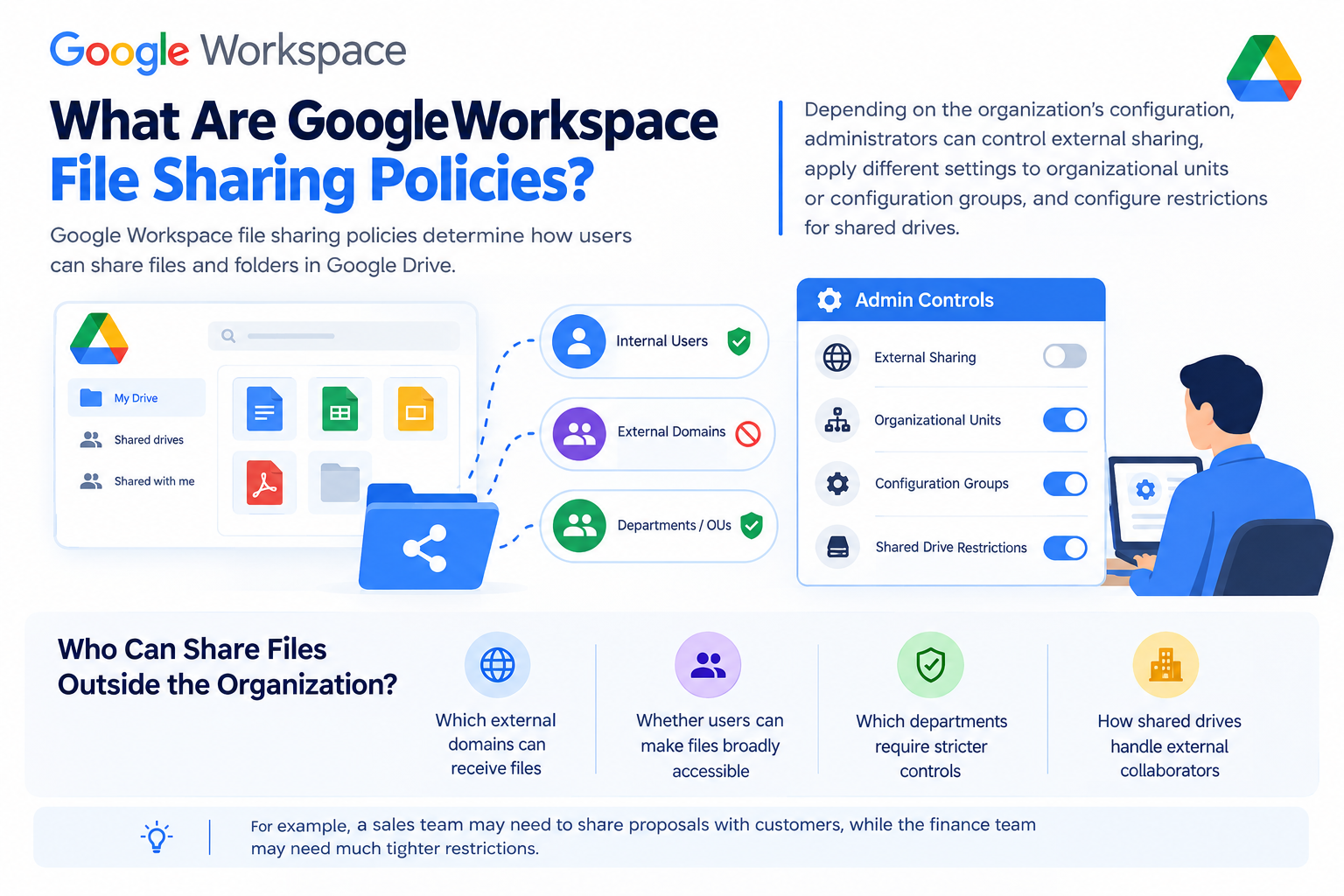
Google Workspace file sharing policies determine how users can share files and folders in Google Drive.
Depending on the organization’s configuration, administrators can control external sharing, apply different settings to organizational units or configuration groups, and configure restrictions for shared drives.
The goal is not necessarily to prevent employees from sharing files. Instead, administrators should determine:
- Who can share files outside the organization
- Which external domains can receive files
- Whether users can make files broadly accessible
- Which departments require stricter controls
- How shared drives handle external collaborators
For example, a sales team may need to share proposals with customers, while the finance team may need much tighter restrictions.
How Google Workspace Sharing Controls Work
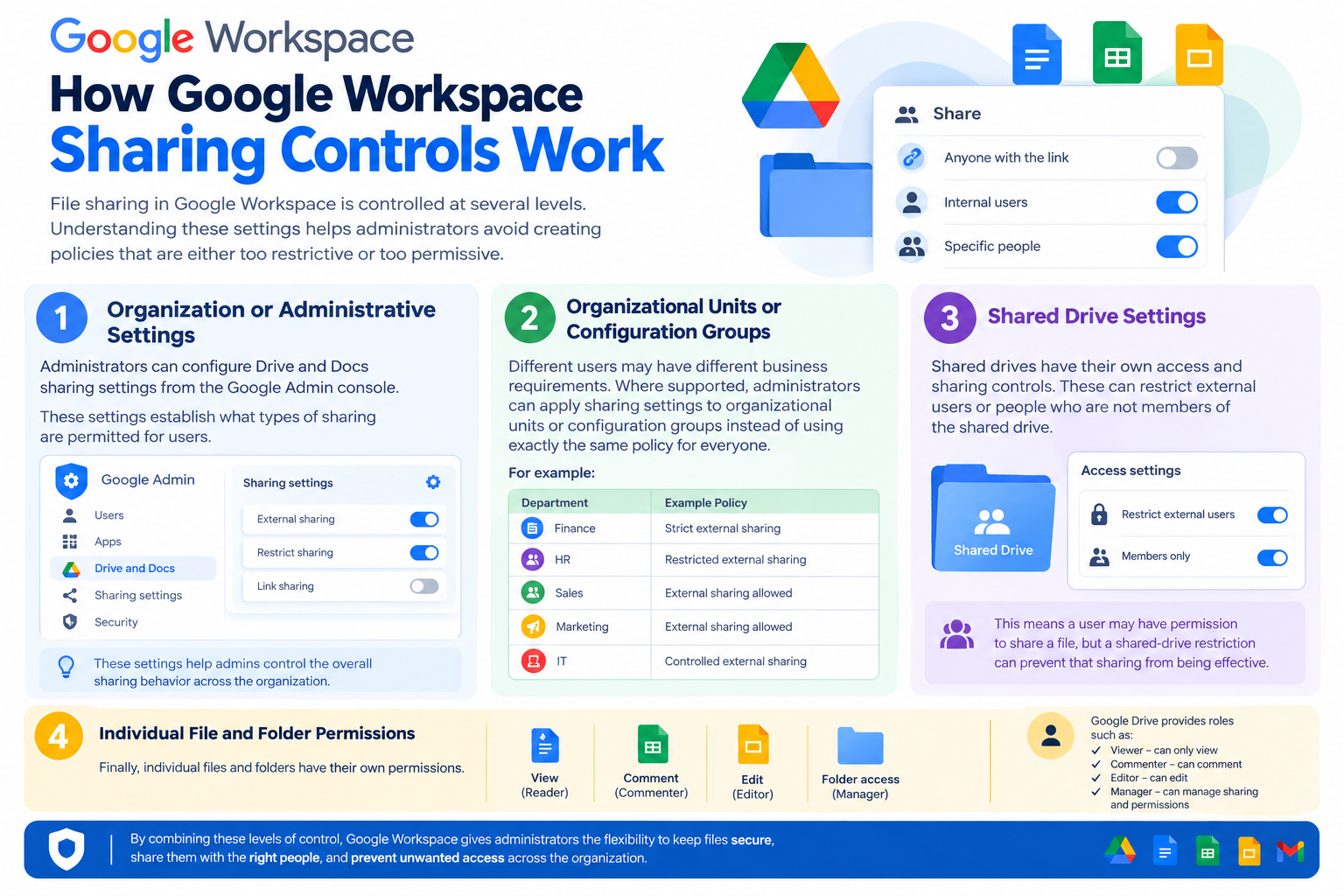
File sharing in Google Workspace is controlled at several levels. Understanding these levels helps administrators avoid creating policies that are either too restrictive or too permissive.
1. Organization or Administrative Settings
Administrators can configure Drive and Docs sharing settings from the Google Admin console.
These settings establish what types of sharing are permitted for users.
2. Organizational Units or Configuration Groups
Different users may have different business requirements. Where supported, administrators can apply sharing settings to organizational units or configuration groups instead of using exactly the same policy for everyone.
For example:
| Department | Example Policy |
| Finance | Strict external sharing |
| HR | Restricted external sharing |
| Sales | External sharing allowed |
| Marketing | External sharing allowed |
| IT | Controlled external sharing |
3. Shared Drive Settings
Shared drives have their own access and sharing controls. These can restrict external users or people who are not members of the shared drive.
This means a user may have permission to share a file, but a shared-drive restriction can prevent that sharing from being effective.
4. Individual File and Folder Permissions
Finally, individual files and folders have their own permissions.
Google Drive provides roles such as:
- Viewer — can view the content
- Commenter — can view and comment
- Editor — can modify the content
The appropriate permission should match what the recipient actually needs.
This layered approach is important because changing an organization-wide sharing policy is different from changing access to one individual file.
How to Change Google Workspace File Sharing Settings
Administrators can manage Drive sharing policies from the Google Admin console.
A typical workflow is:
- Sign in to the Google Admin console.
- Go to Apps → Google Workspace → Drive and Docs.
- Open the relevant Sharing settings.
- Select the appropriate organizational unit or configuration group, where applicable.
- Review the organization’s external-sharing options.
- Configure the level of external access required.
- Review controls for public or broad link sharing.
- Configure domain restrictions or warnings where appropriate.
- Save the changes.
- Test the resulting behavior before applying the policy more broadly.
Google’s current administrator documentation provides the available sharing controls and explains how settings can be applied to organizational units or configuration groups.
Tip: If you’re introducing a restrictive policy, test it with a small group first rather than immediately changing the policy for every employee.
How to Control External File Sharing
External sharing allows employees to collaborate with people outside the organization.
This may be necessary for:
- Customers
- Suppliers
- Consultants
- Contractors
- Agencies
- Business partners
However, unrestricted external sharing can make accidental data exposure easier.
Google Workspace provides different approaches to managing external collaboration.
Allow External Sharing
If employees regularly work with customers or external partners, external sharing may need to remain available.
For example, a UAE marketing agency may need to share campaign documents with clients, while a construction company may need to collaborate with external consultants.
In these situations, completely disabling external sharing may interfere with normal business operations.
Restrict External Sharing
Organizations handling sensitive information may choose to restrict external sharing.
This can be appropriate for departments such as:
- Finance
- Human Resources
- Legal
- Management
- Internal operations
The right restriction depends on what information the department handles and who needs to collaborate externally.
Restrict Sharing to Allowlisted Domains
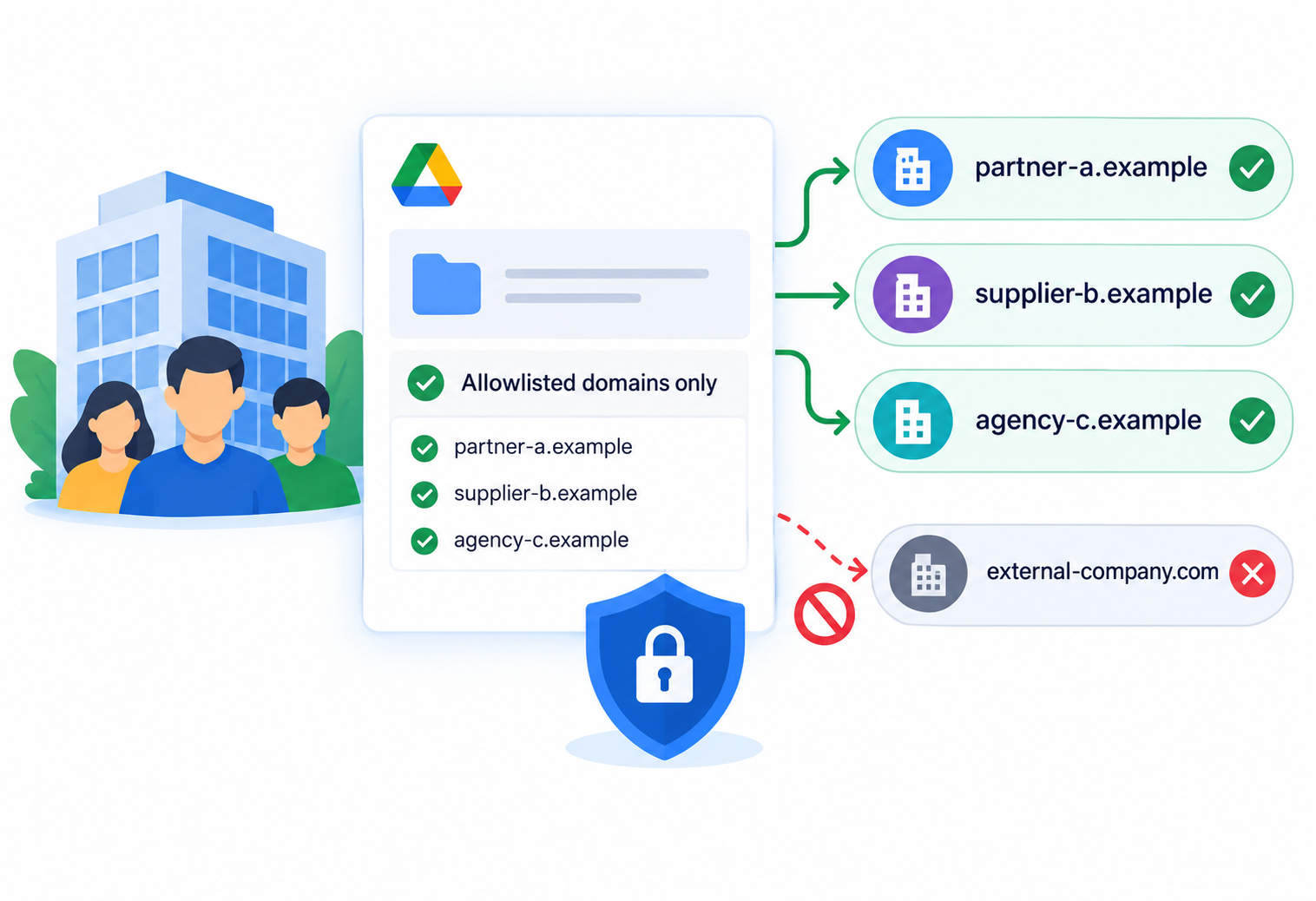
If your organization regularly collaborates with a defined group of external companies, consider using allowlisted domains.
For example, a business could permit sharing with specific partner organizations rather than allowing employees to share with any external domain.
Google Workspace supports domain allowlisting for controlled external collaboration. Administrators can also configure warnings and related external-sharing behavior.
Use Google’s term allowlisted domains rather than treating “trusted domains” as a separate Google Workspace feature.
Example
Suppose a company regularly works with:
- partner-a.example
- supplier-b.example
- agency-c.example
An administrator could use domain controls to create a more predictable external-sharing environment.
This approach is especially useful when a company has established external partners but does not want unrestricted sharing across the internet.
Control Public and Link Sharing
External sharing and link sharing are not exactly the same thing.
A file can be shared with specific people, broadly through a link, or made available under other access configurations depending on the organization’s settings.
For sensitive business information, Restricted access is generally the safer starting point.
Restricted
Only people who have been granted access can open the file.
This is appropriate for information such as:
- Financial documents
- Internal reports
- Employee records
- Business contracts
- Confidential project documents
Anyone With the Link
Broader link access can make collaboration easier, but it also makes it harder to control exactly who receives the information.
Before using broad link sharing, ask:
Does everyone who obtains this link actually need access?
If the answer is no, share the file with specific users or groups instead.
Google Drive provides these access controls as part of its file-sharing functionality.
Public or Web Publishing
Public visibility and publishing are separate considerations from simply sharing a file with a specific external user.
If employees do not have a business requirement to publish information publicly, organizations should consider restricting this capability.
How to Control Sharing in Shared Drives
Shared drives are particularly useful for company-owned and team-managed information.
Unlike an individual’s My Drive, shared-drive content is owned by the organization/team rather than being tied to one employee. This makes shared drives useful for information that needs to remain with the business.
Administrators and shared-drive managers can apply restrictions around external users and non-members.
For example, an organization could have:
Internal Finance Shared Drive
→ External sharing restricted
Client Projects Shared Drive
→ External collaboration permitted
This separation can be easier to manage than placing internal and external projects into the same shared drive.
Why Separate Shared Drives?
Consider using separate shared drives when the access requirements are substantially different.
For example:
| Shared Drive | External Access |
| Finance | Restricted |
| HR | Restricted |
| Internal Operations | Restricted |
| Client Projects | Allowed where required |
| Marketing Projects | Allowed where required |
This gives administrators a clearer boundary between internal information and externally shared work.
Google’s guidance also supports using separate shared drives when different groups have different access requirements.
What Happens When Shared Drive Restrictions Change?
Shared-drive restrictions can affect whether existing file permissions remain effective.
For example, if external sharing is disabled for a shared drive, an external user may no longer be able to access a file even if that person previously had a file-level permission.
This is an important distinction:
File permission
does not always mean
effective access
because higher-level sharing restrictions can prevent that permission from being used.
Administrators should therefore review existing external collaborators before introducing significant shared-drive restrictions.
Use Different Sharing Policies for Different Departments
One organization-wide policy is not always the best solution.
A sales department may legitimately need to share proposals with customers, while the finance department may have little reason to share sensitive spreadsheets externally.
Where applicable, organizational units or configuration groups can be used to apply different sharing controls.
A practical model could look like this:
Finance and HR
Use stricter external-sharing controls.
Sales and Marketing
Allow external collaboration where business requirements justify it.
IT
Use controlled access and test policy changes before wider deployment.
Management
Apply restrictions based on the sensitivity of the information being handled.
This approach provides more flexibility than treating every employee identically.
Visitor Sharing for People Without Google Accounts
Some businesses need to collaborate with people who do not have Google Accounts.
Where visitor sharing is enabled and supported, external visitors can collaborate on eligible Google Drive files after verifying their identity.
This can be useful when working with:
- External consultants
- Customers
- Contractors
- Temporary project participants
However, visitor sharing should be enabled because there is a genuine business requirement for it.
Before enabling it, administrators should consider which teams need the capability and what type of information they will share.
For organizations that routinely collaborate with external users, managed Google Accounts may still provide a more consistent approach to identity and access management.
Apply the Principle of Least Privilege
A useful rule for Google Drive sharing is:
Give users the minimum access they need to complete their work.
For example, if someone only needs to read a document, Viewer access may be sufficient.
If they need to provide feedback, use Commenter.
If they need to modify the document, use Editor.
Avoid giving Editor access simply because it is convenient.
The same principle applies to folders and shared drives. If someone only needs access to one project, they may not need access to an entire shared drive.
Test File Sharing Policies Before Organization-Wide Rollout
A restrictive sharing policy can affect legitimate business workflows.
Before applying a major change to everyone, test the policy with a limited group where possible.
Check scenarios such as:
- Internal file sharing
- External sharing
- Sharing with an approved domain
- Sharing with an unapproved domain
- Link sharing
- Shared-drive access
- External members
- Existing external collaborators
For example, an administrator could first apply a policy to an appropriate organizational unit or configuration group, test the results, and then expand the policy if everything works as expected.
This approach reduces the chance of disrupting active business collaboration.
Recommended Google Workspace File Sharing Policy
There is no universal sharing policy that works for every organization. A practical starting point is:
| Area | Recommended Approach |
| Internal collaboration | Allow |
| External sharing | Controlled |
| Sensitive departments | More restrictive |
| Approved partners | Consider allowlisted domains |
| Public sharing | Restrict unless required |
| Sensitive files | Prefer specific-user access |
| Internal shared drives | Restrict external access |
| External projects | Use dedicated shared drives |
| Link sharing | Use cautiously |
| New policies | Test before broad rollout |
The policy should be reviewed whenever the organization’s collaboration requirements change.
Common File Sharing Policy Mistakes
Giving every employee unrestricted external sharing
This can increase the possibility of accidental data exposure.
Using “Anyone With the Link” unnecessarily
Broad link access can make it difficult to know exactly who can access information.
Applying the same policy to every department
Different teams have different collaboration requirements.
Mixing internal and external projects
Separate shared drives can provide clearer access boundaries.
Changing policies without testing
A new restriction can unintentionally interrupt legitimate business workflows.
Giving users more permission than necessary
If someone only needs to read a document, Editor access may be excessive.
Google Workspace File Sharing Policy Checklist
Before implementing or changing a sharing policy, review:
- Can employees share files outside the organization?
- Does every department actually need the same external-sharing permissions?
- Should external sharing be restricted to allowlisted domains?
- Are public or broad link-sharing options necessary?
- Are Finance and HR subject to stricter controls?
- Are internal and external projects separated into appropriate shared drives?
- Are sensitive files using restricted access?
- Are shared-drive restrictions configured correctly?
- Are Viewer, Commenter, and Editor permissions being used appropriately?
- Is visitor sharing required?
- Has the policy been tested with a limited group before wider deployment?