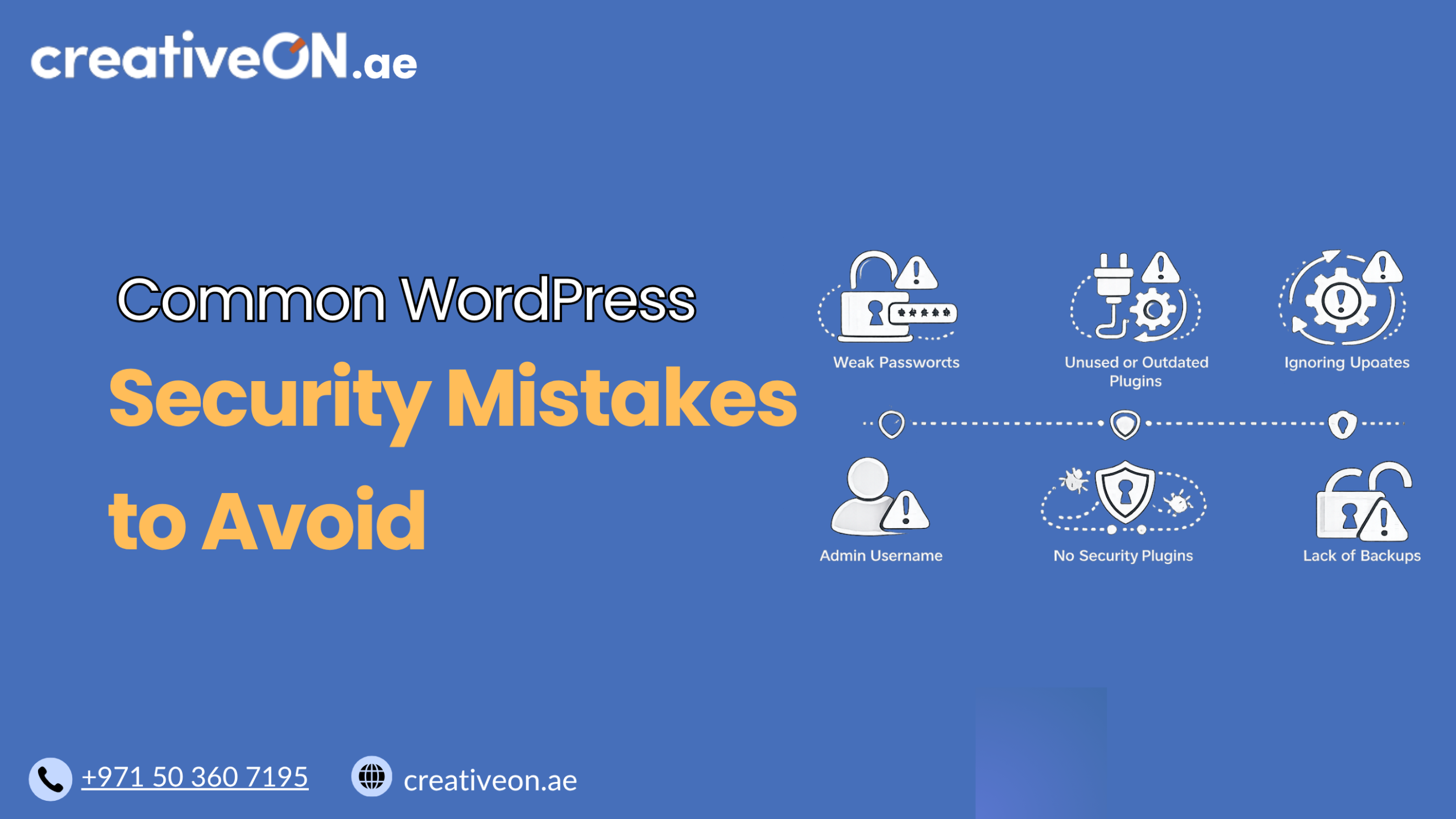
Common WordPress Security Mistakes to Avoid
If you run a WordPress site, security probably isn’t something you think about every day — until something goes wrong. A hacked site, a sudden drop in traffic, or a “your site has been flagged for malware” email from Google can turn into hours (or days) of stress and lost business. The good news? Most […]
If you run a WordPress site, security probably isn’t something you think about every day — until something goes wrong. A hacked site, a sudden drop in traffic, or a “your site has been flagged for malware” email from Google can turn into hours (or days) of stress and lost business.
The good news? Most WordPress security breaches don’t happen because of some sophisticated hacking technique. They happen because of small, avoidable mistakes. In this guide, we’ll walk through the most common WordPress security mistakes site owners make, why they matter, and how to fix them before they become a problem.
This article focuses specifically on avoidable security mistakes — not general hosting security fundamentals. If you’re looking for a broader overview, our WordPress Security Guide covers best practices in more depth.
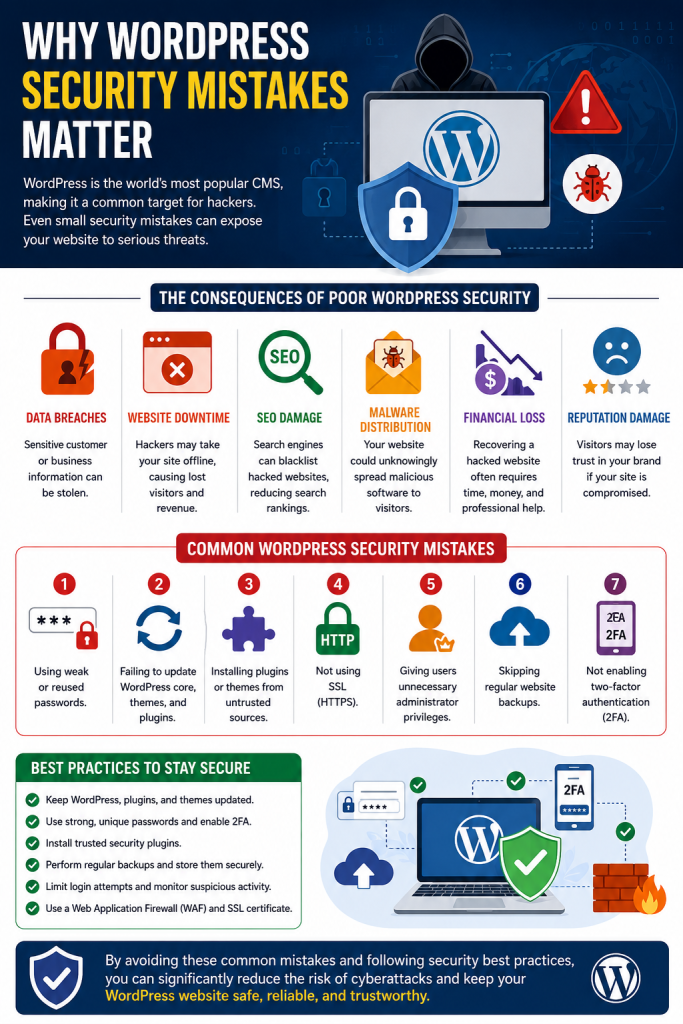
Why WordPress Security Mistakes Matter
WordPress powers a huge share of websites globally, which makes it a frequent target for automated attacks, bots, and scanners looking for weak spots. Attackers aren’t usually targeting you specifically — they’re scanning thousands of sites at once, looking for the same handful of mistakes.
That means even a small business site or a simple blog can get compromised, not because it’s valuable, but because it’s an easy target. A compromised site can lead to:
- Lost customer trust
- Search engines flagging or de-indexing your site
- Downtime while you clean up the damage
- In eCommerce cases, exposure of customer or payment data
Avoiding these mistakes isn’t about being paranoid — it’s about closing the doors that attackers already know how to walk through.
Common WordPress Security Mistakes
1. Using Weak or Reused Passwords
This is still one of the most common causes of compromised WordPress sites. Simple passwords like “admin123” or reused passwords across multiple accounts make brute-force attacks trivial.
Fix it by:
- Using a password manager to generate long, unique passwords
- Requiring strong passwords for every user account, not just the admin
- Enabling two-factor authentication (2FA) for all logins
2. Keeping the Default “admin” Username
Many older WordPress installs still use “admin” as the default username, which pairs badly with weak passwords. Attackers only need to guess the password if they already know the username.
Fix it by:
- Creating a new administrator account with a unique username
- Deleting or demoting the old “admin” account
3. Not Updating WordPress Core, Themes, and Plugins
Outdated software is one of the easiest ways attackers gain access. Every update often includes security patches for vulnerabilities that have already been publicly disclosed — meaning attackers know exactly what to look for on sites that haven’t updated.
Fix it by:
- Enabling automatic updates for minor WordPress releases
- Reviewing and updating plugins and themes regularly
- Removing plugins and themes you no longer use
4. Installing Too Many (or Untrusted) Plugins
Every plugin you install adds more code to your site — and more potential vulnerabilities. Installing plugins from unverified sources or abandoned plugins with no recent updates is a common mistake.
Fix it by:
- Only installing plugins from the official WordPress repository or trusted developers
- Checking a plugin’s last update date and support activity before installing
- Regularly auditing and removing plugins you’re not actively using
5. Skipping SSL/HTTPS
Running a site without SSL means data between your visitors and your server isn’t encrypted. This is a mistake search engines and browsers actively flag, and it directly affects trust and rankings.
Fix it by:
- Installing an SSL certificate (many hosts, including CreativeON, offer this free)
- Making sure your entire site loads over HTTPS, not just the login page
For a deeper look at certificate setup, see our SSL for WordPress guide.
6. Not Having Regular Backups
Even with strong security, no site is 100% immune to attacks, server issues, or accidental mistakes. Without a backup, a single incident can mean losing your site entirely.
Fix it by:
- Scheduling automatic daily or weekly backups
- Storing backups off-server (not just on the same hosting account)
- Testing your backup restoration process occasionally, not just assuming it works
Our WordPress Backup Guide covers backup frequency and storage options in more detail.
7. Ignoring File and Folder Permissions
Incorrect file permissions can leave your WordPress installation more exposed than necessary, allowing unauthorized changes to core files.
Fix it by:
- Setting folders to 755 and files to 644 as a general standard
- Locking down wp-config.php specifically to 440 or 400, since it stores your database credentials and shouldn’t be readable by other processes on the server
- Avoiding overly permissive settings like 777 unless a specific plugin explicitly requires it temporarily
8. Not Limiting Login Attempts
By default, WordPress allows unlimited login attempts, which makes brute-force attacks easier. Bots can try thousands of password combinations without being blocked.
Fix it by:
- Using a security plugin to limit failed login attempts
- Locking out or temporarily banning IPs after repeated failed logins
9. Editing Files Directly Through the WordPress Dashboard
WordPress allows theme and plugin file editing directly from the admin dashboard. If an attacker gains admin access, this feature gives them an easy way to insert malicious code.
Fix it by:
- Disabling file editing in wp-config.php with:
define(‘DISALLOW_FILE_EDIT’, true);
- Making all file changes through a code editor or via your hosting file manager instead
10. Not Monitoring Site Activity
Many site owners only notice something is wrong after real damage has been done — a defaced homepage, spam links, or a Google warning. Without monitoring, small issues go unnoticed until they become big ones.
Fix it by:
- Using a security plugin that scans for malware and suspicious file changes
- Reviewing user activity logs periodically, especially for sites with multiple admins
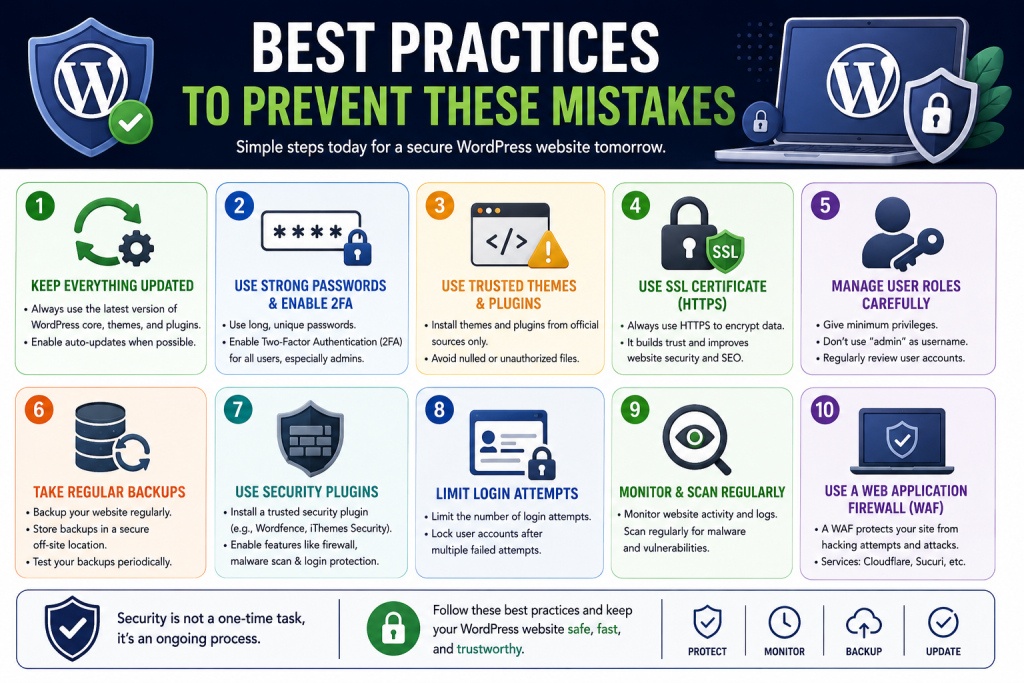
Best Practices to Prevent These Mistakes
- Keep a simple security checklist and review it monthly
- Limit the number of admin-level users
- Use managed WordPress hosting that includes built-in security monitoring and hardening
- Choose plugins carefully and keep your plugin list lean
- Combine strong passwords with 2FA everywhere possible
If you’re unsure whether your current hosting setup covers these basics, our Managed WordPress Hosting guide explains what’s typically included and how it reduces the security workload on your end.
Limitations to Keep in Mind
No single fix makes a WordPress site “unhackable.” Security is about reducing risk, not eliminating it entirely. Even well-maintained sites can be affected by vulnerabilities discovered after the fact. The goal is to avoid the common, preventable mistakes covered above so you’re not an easy target — while accepting that ongoing maintenance, not a one-time setup, is what keeps a site genuinely secure.
Conclusion
Most WordPress security incidents don’t come from advanced attacks — they come from simple mistakes like weak passwords, outdated plugins, or missing backups. The good news is that every mistake on this list is fixable, often in just a few minutes.
By reviewing your site against these common issues regularly, you significantly reduce your risk without needing to become a security expert overnight. For businesses in the UAE running WordPress for eCommerce or client-facing sites, this kind of routine maintenance is especially important, since downtime or data exposure can directly affect customer trust.
If you want ongoing peace of mind, CreativeON’s managed WordPress hosting includes many of these protections built in, so you can focus on running your business instead of patching your website.