How to Manage WordPress Users With WP-CLI
Managing WordPress users through the dashboard works well for smaller websites, but it can become time-consuming when you manage multiple accounts or need to perform repetitive administrative tasks. WP-CLI provides a faster way to manage WordPress users directly from the command line. With the wp user command, administrators can create users, update account details, change […]
Managing WordPress users through the dashboard works well for smaller websites, but it can become time-consuming when you manage multiple accounts or need to perform repetitive administrative tasks.
WP-CLI provides a faster way to manage WordPress users directly from the command line. With the wp user command, administrators can create users, update account details, change roles, reset passwords, delete accounts, and list existing users without opening the WordPress dashboard.
This guide explains how to manage WordPress users with WP-CLI using practical commands that can be used on a WordPress hosting environment.
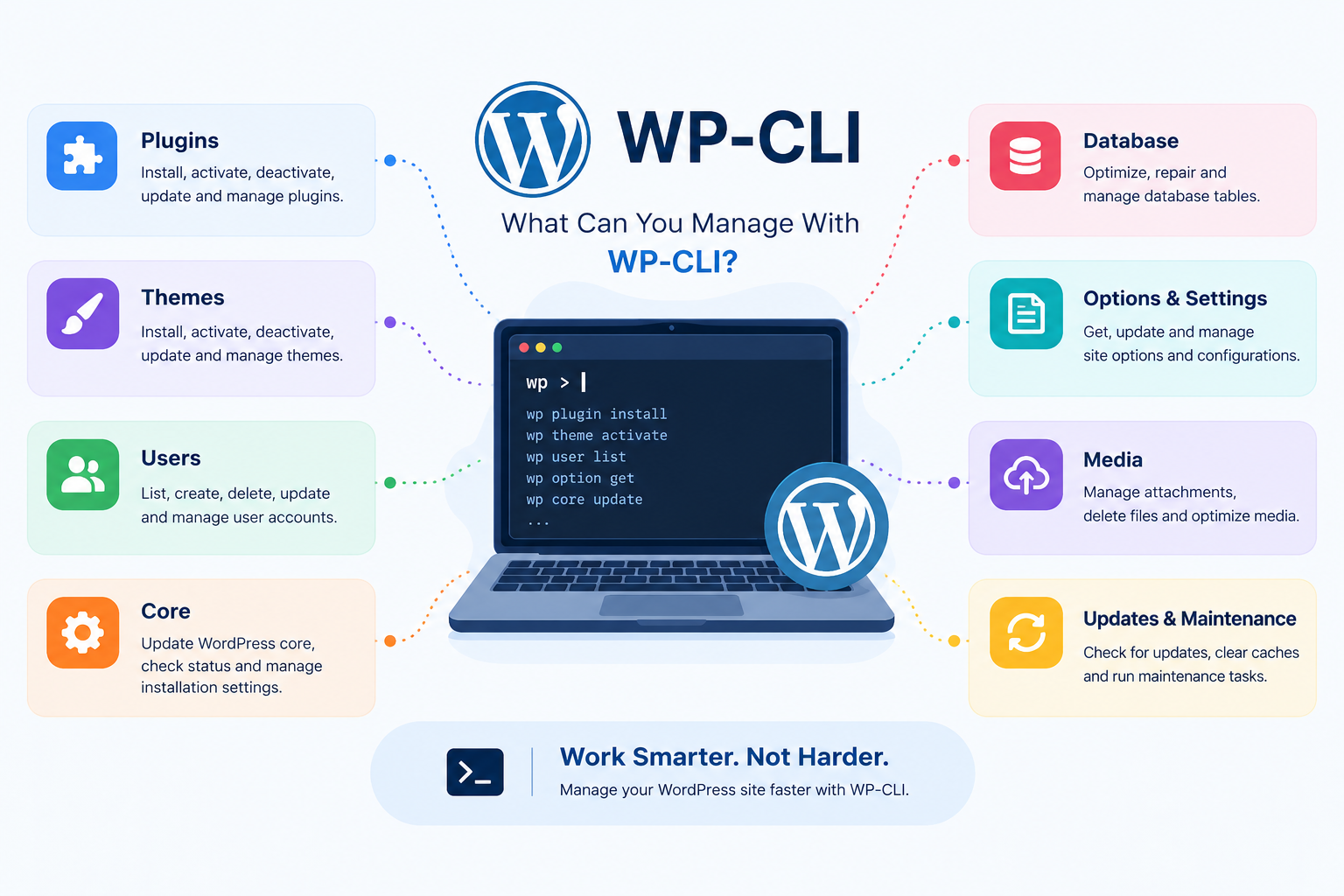
What Can You Manage With WP-CLI?
WP-CLI provides the wp user command for common WordPress user administration tasks.
You can use it to:
- List existing WordPress users
- Create new user accounts
- Update usernames and email addresses
- Change user roles
- Reset passwords
- Delete users
- Transfer posts before deleting a user
- View individual user information
These commands are particularly useful for WordPress administrators, developers, and hosting teams managing websites from the command line.
How to List WordPress Users With WP-CLI
Before making changes, it is often useful to see which users already exist.
Run:
wp user list
This displays information about the site’s users, including their user ID, username, name, email address, and role.
For example:
wp user list
You can also request specific fields:
wp user list —fields=ID,user_login,user_email,roles
To find administrators only:
wp user list –role=administrator
This can be useful when checking which accounts currently have administrative privileges.
How to Create a WordPress User With WP-CLI
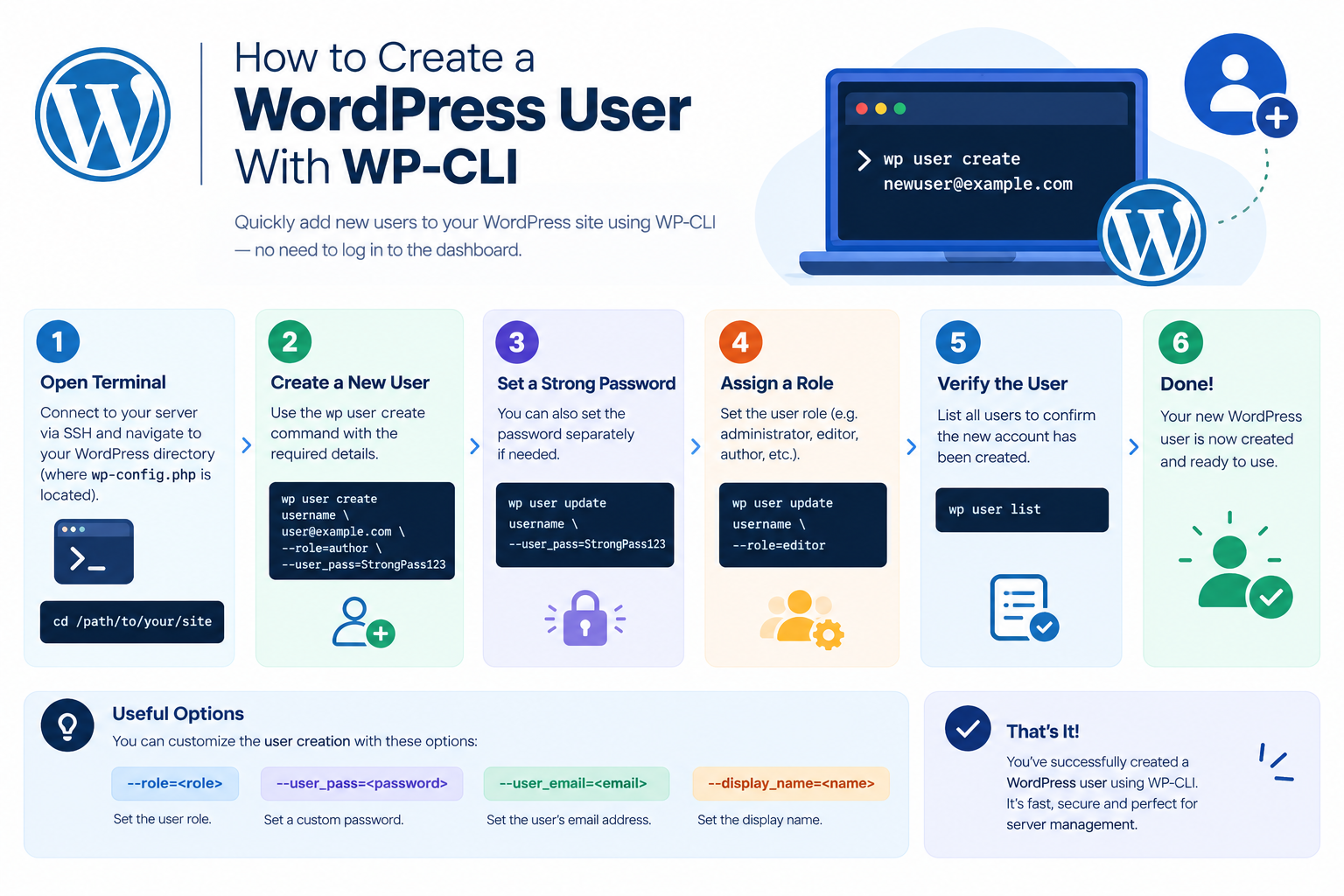
You can create a new WordPress user without using the WordPress dashboard.
The basic command is:
wp user create username user@example.com
For example:
wp user create john john@example.com
WP-CLI will generate a password if one is not supplied.
You can specify a role during account creation:
wp user create john john@example.com –role=editor
You can also provide a display name:
wp user create john john@example.com –role=editor –display_name=”John Smith”
If you need to specify a password, use:
wp user create john john@example.com –role=editor –user_pass=”StrongPasswordHere”
For security, avoid exposing passwords in shell history or shared command logs when possible.
How to Change a WordPress User’s Role
WP-CLI makes it easy to change the role assigned to an existing user.
For example, to change a user to an editor:
wp user set-role john editor
You can also use the user’s ID:
wp user set-role 25 editor
Common WordPress roles include:
- Administrator
- Editor
- Author
- Contributor
- Subscriber
The available roles can vary if plugins or custom code have registered additional roles.
Before changing a user’s role, make sure the new permissions match what the person actually needs.
How to Update WordPress User Details
The wp user update command allows you to modify user information.
For example, to change an email address:
wp user update john –user_email=newemail@example.com
You can update the user’s display name:
wp user update john –display_name=”John Smith”
Other user fields can also be updated when supported by WordPress and WP-CLI.
You can combine multiple fields in one command:
wp user update john –user_email=newemail@example.com –display_name=”John Smith”
This is useful when maintaining user accounts from a hosting server or during administrative tasks.
How to Reset a WordPress User Password With WP-CLI
If a user needs a new password, WP-CLI can update it directly.
For example:
wp user update john –user_pass=”NewStrongPassword”
You can also use the user’s ID:
wp user update 25 –user_pass=”NewStrongPassword”
Use a strong, unique password and avoid putting sensitive credentials into scripts or commands that may be visible to other users on the server.
For broader WordPress security practices, link this section to your dedicated WordPress Security Guide rather than covering security topics in detail here.
How to Delete a WordPress User With WP-CLI
You can remove a user with:
wp user delete john
WP-CLI will normally ask what should happen to content owned by that user.
You can delete the user while reassigning their posts to another user:
wp user delete john –reassign=25
Here, 25 is the user ID of the account that should become the new owner of the content.
You can also delete the user’s content instead:
wp user delete john –yes
Be careful when deleting users. If the account owns important posts, pages, or other content, confirm the appropriate content ownership option before proceeding.
How to Find a User by Email or Username
When managing a large WordPress website, user IDs are not always convenient to remember.
You can search the user list using WP-CLI output and standard command-line tools.
For example:
wp user list –fields=ID,user_login,user_email
This provides a simple list that can be reviewed before performing an administrative action.
You can then use the appropriate username or ID with commands such as:
wp user update
or:
wp user set-role
Checking the account first helps reduce the risk of modifying the wrong user.
How to View Information About a Specific WordPress User
To retrieve information about a particular account, use:
wp user get john
You can request specific fields:
wp user get john –fields=ID,user_login,user_email,roles
This is useful when you need to verify an account before changing its role, email address, or other information.
Managing Users Safely With WP-CLI
WP-CLI can make WordPress administration faster, but commands should be executed carefully because changes happen directly on the website.
Before making user changes:
Verify the WordPress Installation
Make sure you are working inside the correct WordPress installation:
wp core version
This helps prevent running commands against the wrong website when multiple WordPress installations exist on the same server.
Check the User Before Changing It
Use:
wp user get username
Confirm the username, email address, and user ID before making changes.
Be Careful With Administrator Accounts
Administrator accounts have extensive permissions. Do not give administrator access when a less privileged role is sufficient.
Be Careful When Deleting Users
If a user owns content, decide whether that content should be reassigned or removed before deleting the account.
Use Backups Before Large Changes
For major administrative operations, having a recent backup provides an additional recovery option.
If your website uses a dedicated backup workflow, link to the relevant WordPress Backup Guide here rather than covering backup configuration in this article.
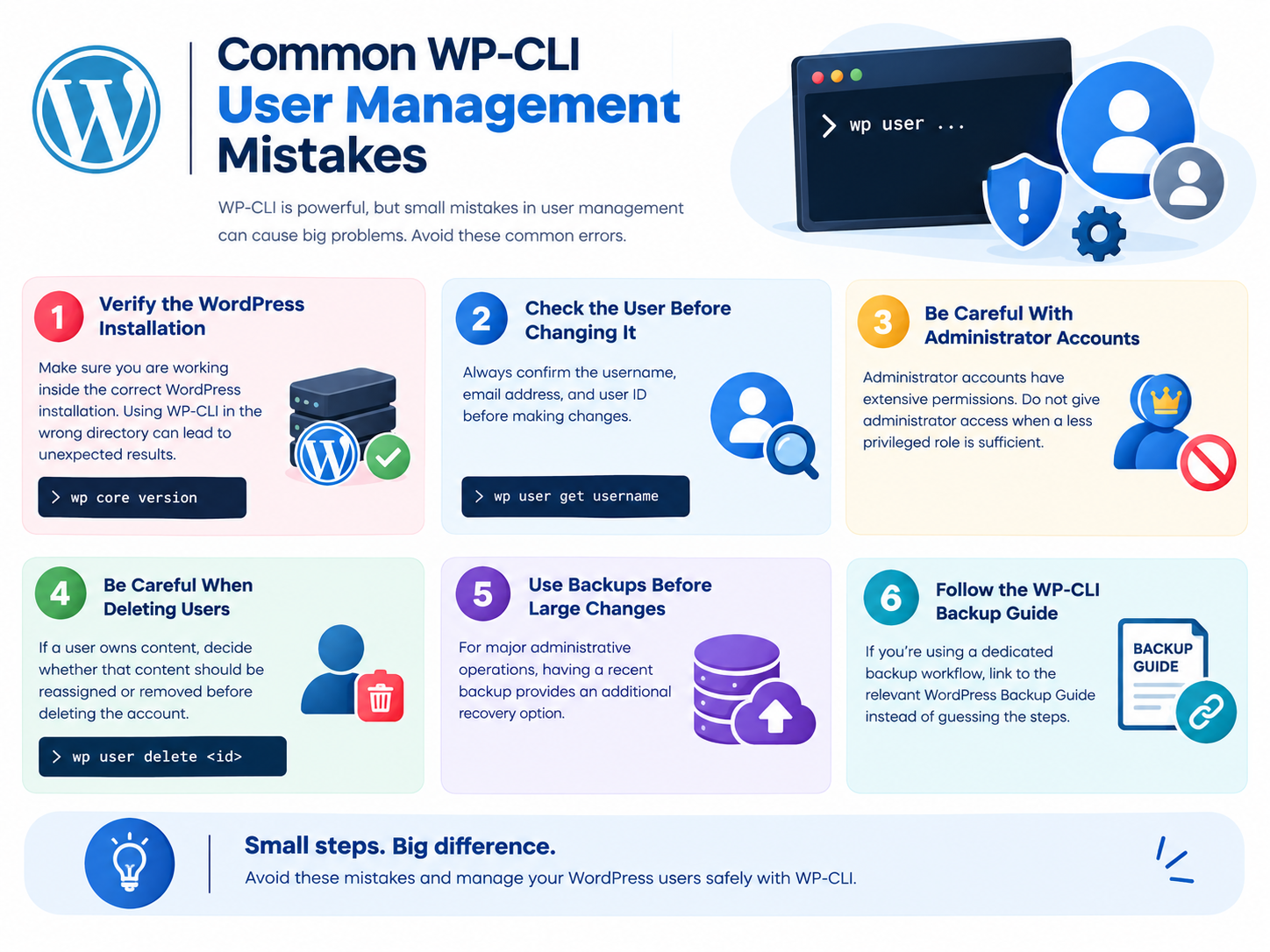
Common WP-CLI User Management Mistakes
A few mistakes can cause unnecessary problems when managing WordPress accounts from the command line.
Changing the Wrong User
Always verify the username or user ID before executing an update or deletion command.
Assigning Excessive Permissions
Giving users administrator access when they only need editor or author permissions increases the potential impact of a compromised account.
Deleting Content Accidentally
Be particularly careful with user deletion commands and content ownership.
Exposing Passwords
Avoid storing plain-text passwords in scripts, shared terminals, or command histories.
Running Commands From the Wrong Website
If your server contains multiple WordPress installations, confirm that your current directory contains the intended WordPress site before executing administrative commands.
Useful WP-CLI User Management Commands
Here are some of the most useful commands in one place:
| Task | Command |
| List users | wp user list |
| List administrators | wp user list –role=administrator |
| View user | wp user get username |
| Create user | wp user create username email@example.com |
| Create editor | wp user create username email@example.com –role=editor |
| Change role | wp user set-role username editor |
| Update email | wp user update username –user_email=new@example.com |
| Change password | wp user update username –user_pass=”NewPassword” |
| Delete user | wp user delete username |
| Delete and reassign content | wp user delete username –reassign=25 |
These commands cover most routine WordPress user administration tasks.