How to Add a New WordPress User
Adding a new WordPress user lets you give writers, editors, developers, and other team members access to your website without sharing your own login credentials. WordPress allows you to create separate accounts and assign permissions based on each person’s responsibilities. In this guide, you’ll learn how to add a new WordPress user, select the right […]
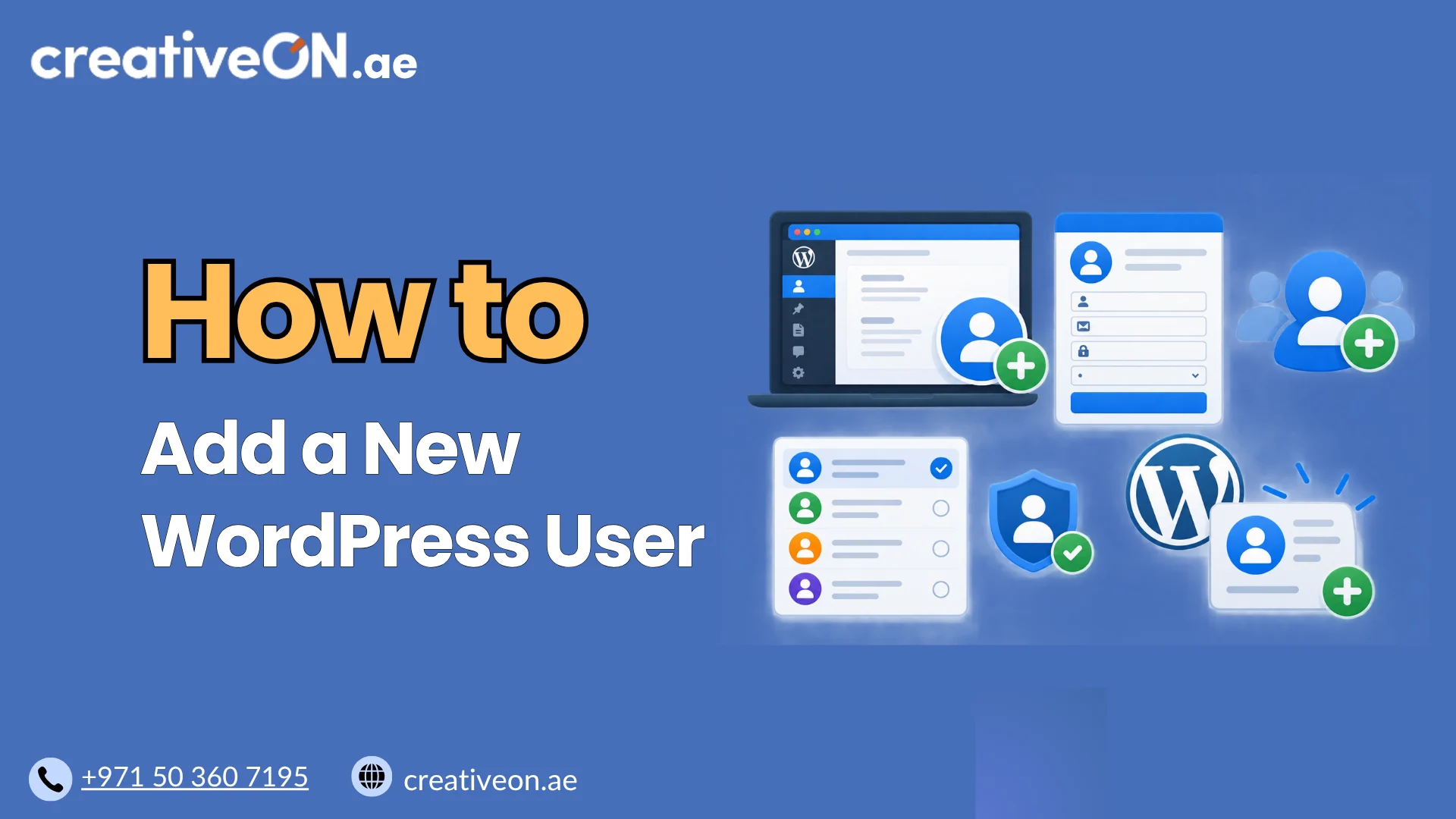
Adding a new WordPress user lets you give writers, editors, developers, and other team members access to your website without sharing your own login credentials. WordPress allows you to create separate accounts and assign permissions based on each person’s responsibilities.
In this guide, you’ll learn how to add a new WordPress user, select the right role, and resolve common account creation issues.
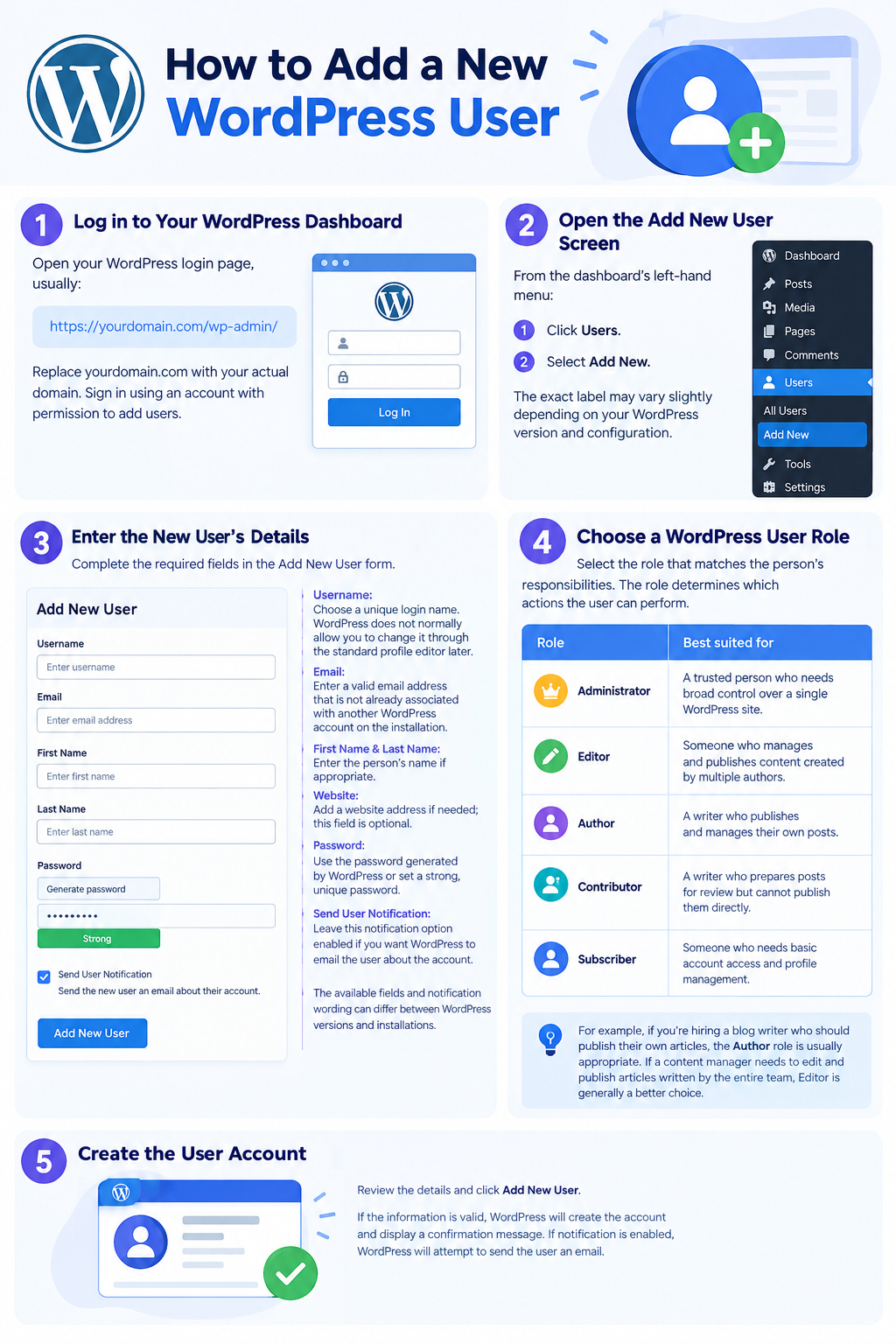
How to Add a New WordPress User
You can create a new account directly from the WordPress dashboard. You generally need an administrator account or another account with the required user-management permissions.
Step 1: Log in to Your WordPress Dashboard
Open your WordPress login page, usually:
https://yourdomain.com/wp-admin/
Replace yourdomain.com with your actual domain. Sign in using an account with permission to add users.
Step 2: Open the Add New User Screen
From the dashboard’s left-hand menu:
- Click Users.
- Select Add New.
The exact label may vary slightly depending on your WordPress version and configuration.
Step 3: Enter the New User’s Details
Complete the required fields in the Add New User form.
- Username: Choose a unique login name. WordPress does not normally allow you to change it through the standard profile editor later.
- Email: Enter a valid email address that is not already associated with another WordPress account on the installation.
- First Name and Last Name: Enter the person’s name if appropriate.
- Website: Add a website address if needed; this field is optional.
- Password: Use the password generated by WordPress or set a strong, unique password.
- Send User Notification: Leave the notification option enabled if you want WordPress to email the user about the account.
The available fields and notification wording can differ between WordPress versions and installations.
Step 4: Choose a WordPress User Role
Select the role that matches the person’s responsibilities. The role determines which actions the user can perform.
| Role | Best suited for |
| Administrator | A trusted person who needs broad control over a single WordPress site |
| Editor | Someone who manages and publishes content created by multiple authors |
| Author | A writer who publishes and manages their own posts |
| Contributor | A writer who prepares posts for review but cannot publish them directly |
| Subscriber | Someone who needs basic account access and profile management |
For example, if you’re hiring a blog writer who should publish their own articles, the Author role is usually appropriate. If a content manager needs to edit and publish articles written by the entire team, Editor is generally a better choice.
Security tip: Do not grant Administrator access simply because someone needs to edit content. Give users only the permissions necessary for their work. Plugins may also introduce custom roles or change existing permissions.
WordPress.org
+1
Step 5: Create the User Account
Review the details and click Add New User.
If the information is valid, WordPress will create the account and display a confirmation message. If notification is enabled, WordPress will attempt to send the relevant account email.
Ask the new user to check their inbox and spam folder if they do not receive the message. They may need to use the password or password-reset link provided by the configured notification workflow.
Best Practices for WordPress User Management
Follow these practices when creating accounts for your team.
- Use individual accounts: Avoid sharing administrator credentials among multiple people.
- Use strong passwords: Encourage unique passwords and enable multi-factor authentication where available.
- Limit permissions: Choose the lowest role that allows the user to complete their assigned tasks.
- Review access regularly: Update roles or remove accounts when responsibilities change.
- Keep WordPress updated: Apply supported security updates to WordPress, themes, and plugins.
If you want to learn more about protecting your website, see our dedicated guide to WordPress Security Best Practices.
Important Note for WordPress Multisite Users
If your website uses WordPress Multisite, account creation works differently in some situations. A network administrator can create a network-level account, but that account does not automatically gain access to every site in the network. The user must also be assigned to the relevant site with an appropriate role.
WordPress Developer Resources
+1
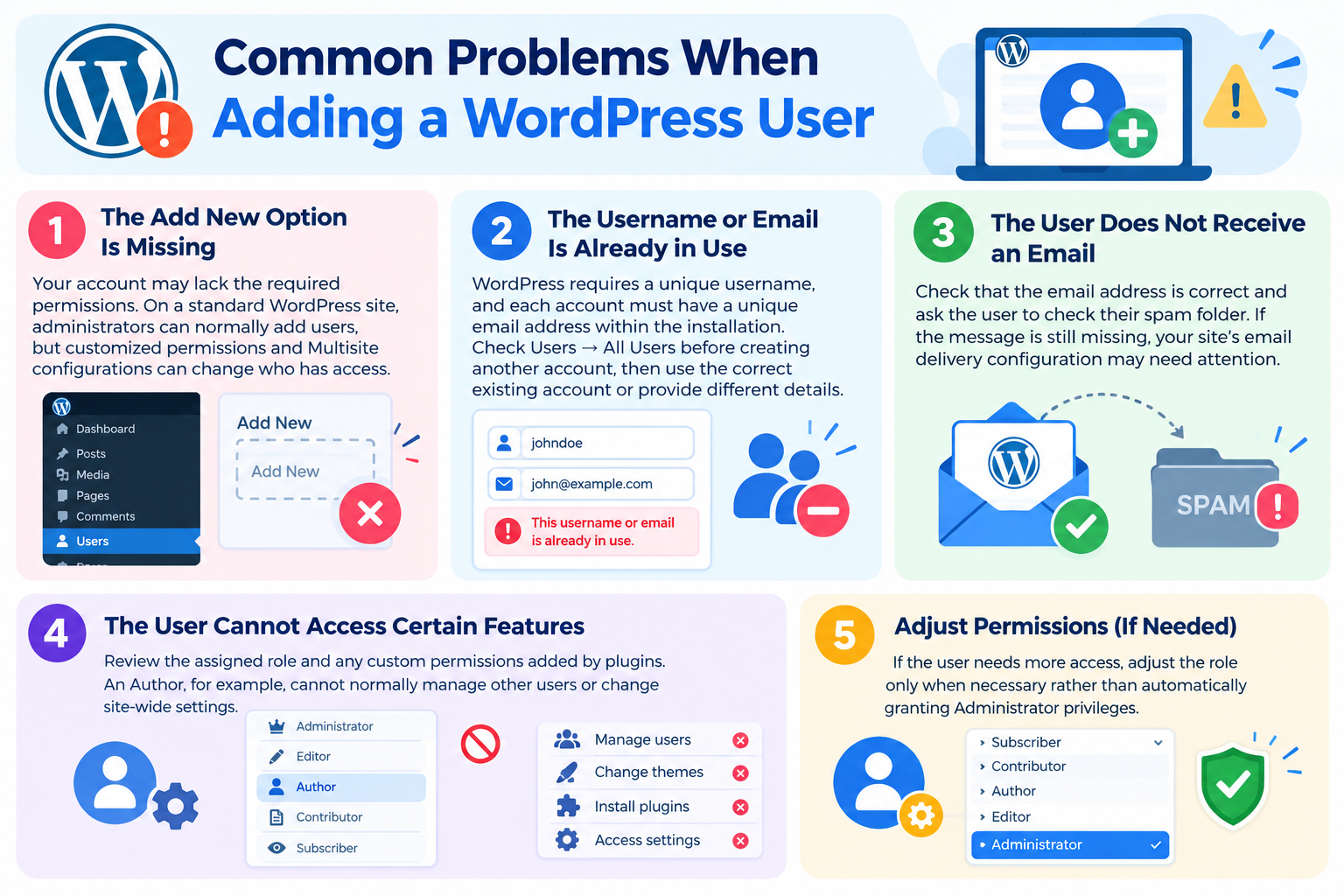
Common Problems When Adding a WordPress User
The Add New Option Is Missing
Your account may lack the required permissions. On a standard WordPress site, administrators can normally add users, but customized permissions and Multisite configurations can change who has access.
Ask your site administrator to review your permissions.
The Username or Email Is Already in Use
WordPress requires a unique username, and each account must have a unique email address within the installation. Check Users → All Users before creating another account, then use the correct existing account or provide different details.
The User Does Not Receive an Email
Check that the email address is correct and ask the user to check their spam folder. If the message is still missing, your site’s email delivery configuration may need attention.
The User Cannot Access Certain Features
Review the assigned role and any custom permissions added by plugins. An Author, for example, cannot normally manage other users or change site-wide settings.
If the user needs more access, adjust the role only when necessary rather than automatically granting Administrator privileges.