How to Change a WordPress User Role (Step-by-Step Guide)
Changing a WordPress user role allows you to control what someone can do on your website without changing their login details. You might need to give a content writer permission to publish articles, allow an editor to manage posts, or reduce a team member’s access to improve website security. WordPress makes it possible to change […]
Changing a WordPress user role allows you to control what someone can do on your website without changing their login details. You might need to give a content writer permission to publish articles, allow an editor to manage posts, or reduce a team member’s access to improve website security.
WordPress makes it possible to change user roles directly from the admin dashboard. In this guide, you will learn how to change an existing user’s role, update multiple users at once, choose the appropriate permissions, and resolve common problems.
What Is a WordPress User Role?
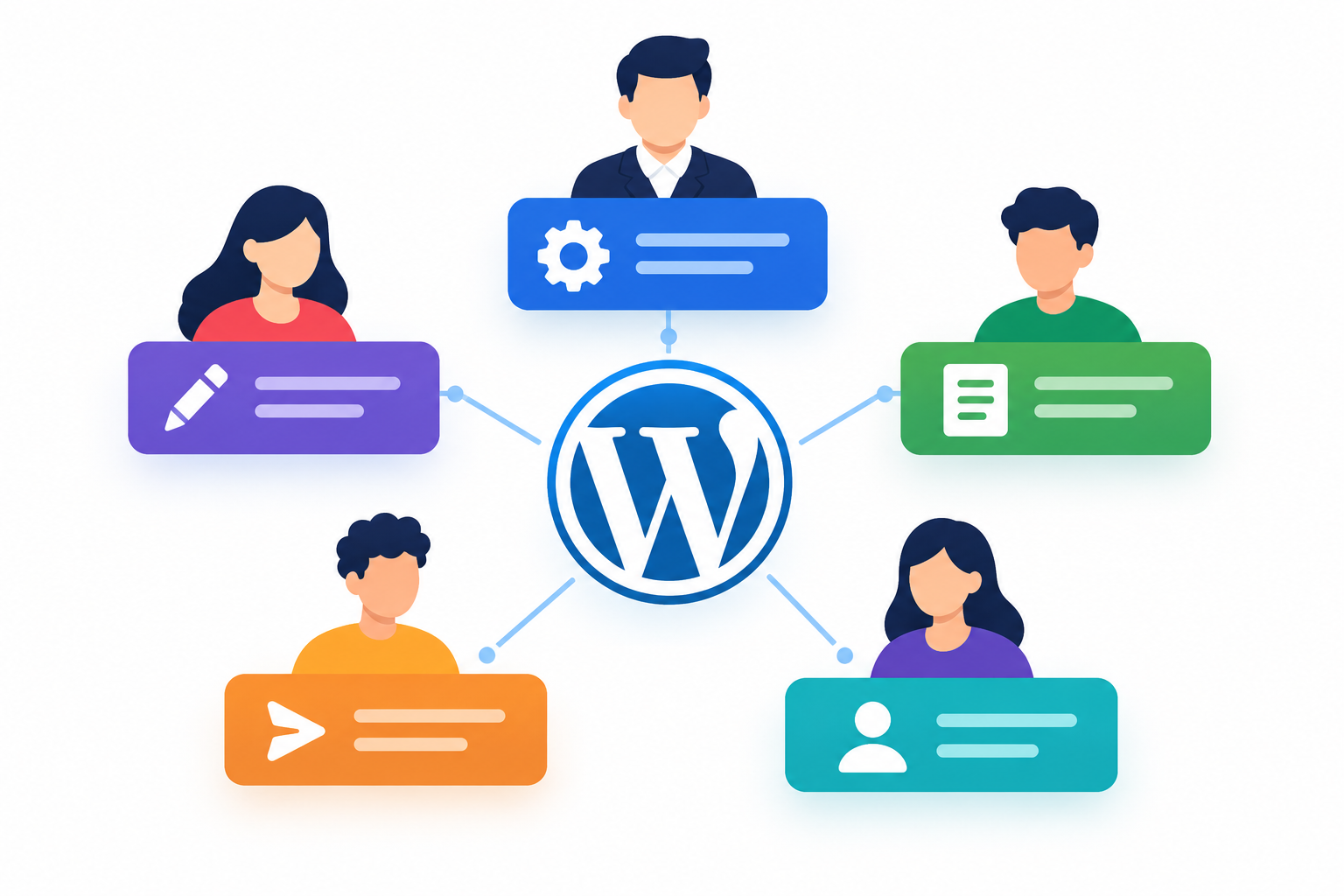
A WordPress user role is a collection of permissions that determines which actions a user can perform on a website. These permissions are also called capabilities.
WordPress provides several default user roles for different responsibilities.
| User role | Main permissions |
| Administrator | Manages most website settings, users, themes, and plugins on a standard single-site installation |
| Editor | Creates, edits, publishes, and manages posts, including content written by other users |
| Author | Writes, edits, publishes, and manages their own posts |
| Contributor | Writes and edits their own posts but cannot publish them by default |
| Subscriber | Has basic account permissions, including profile management |
WordPress Multisite installations also have a Super Admin role, which provides network-level administrative control. A site’s Administrator does not automatically have all Super Admin permissions.
Plugins and custom code may introduce additional roles or change existing capabilities, so actual permissions can vary between websites.
How to Change a WordPress User Role
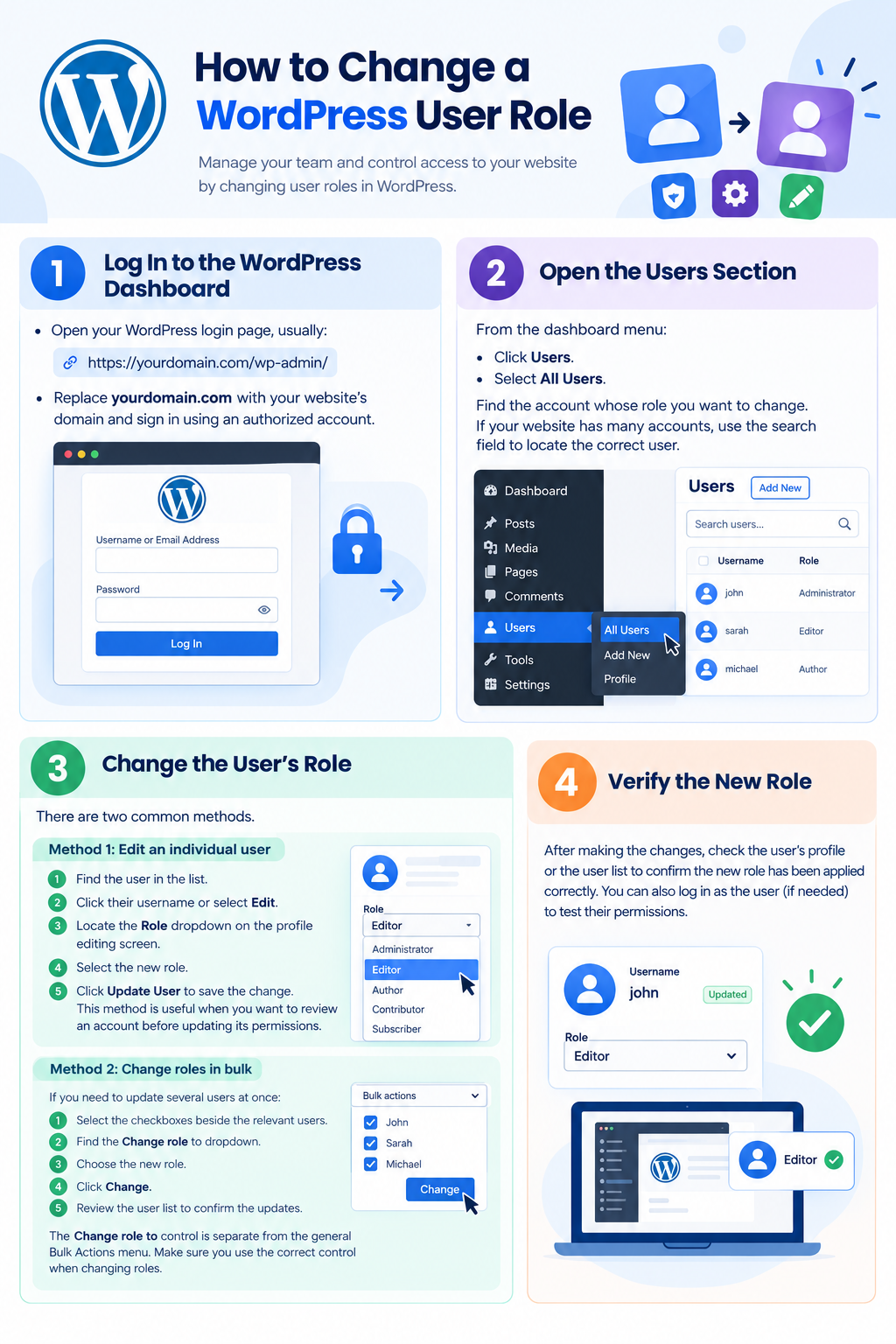
You can change an existing user’s role through the WordPress dashboard if your account has the necessary permissions to manage users.
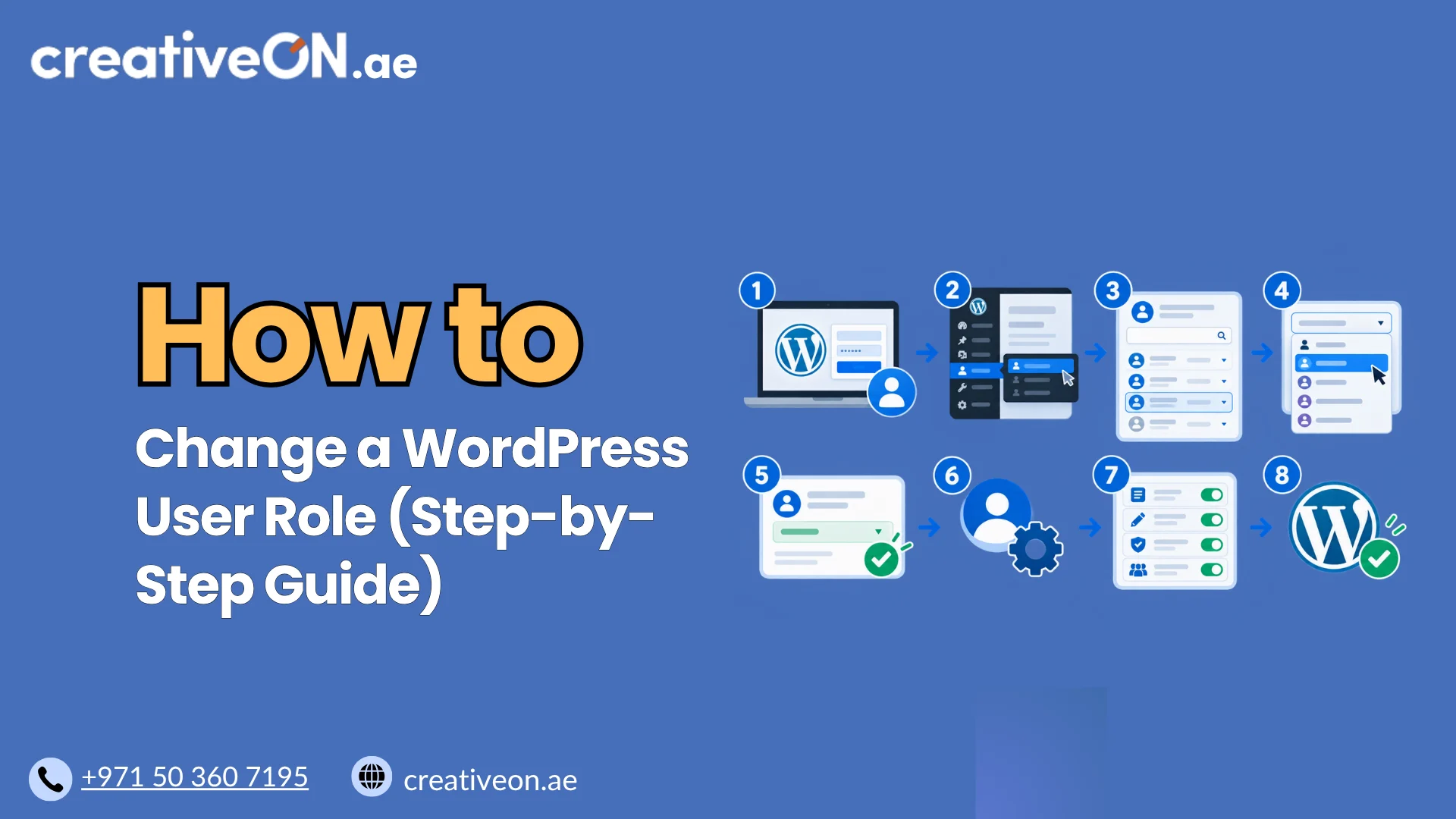
Step 1: Log In to the WordPress Dashboard
Open your WordPress login page, usually:
https://yourdomain.com/wp-admin/
Replace yourdomain.com with your website’s domain and sign in using an authorized account.
Step 2: Open the Users Section
From the dashboard menu:
- Click Users.
- Select All Users.
- Find the account whose role you want to change.
If your website has many accounts, use the search field to locate the correct user.
Step 3: Change the User’s Role
There are two common methods.
Method 1: Edit an individual user
- Find the user in the list.
- Click their username or select Edit.
- Locate the Role dropdown on the profile editing screen.
- Select the new role.
- Click Update User to save the change.
This method is useful when you want to review an account before updating its permissions.
Method 2: Change roles in bulk
If you need to update several users at once:
- Select the checkboxes beside the relevant users.
- Find the Change role to dropdown.
- Choose the new role.
- Click Change.
- Review the user list to confirm the updates.
The Change role to control is separate from the general Bulk Actions menu. Make sure you use the correct control when changing roles.
Step 4: Verify the New Role
Return to Users → All Users and check that the intended role appears beside each account.
Where appropriate, ask the user to confirm that they can access the features required for their work. If they cannot perform a specific action, review the role’s capabilities and any plugin-specific permissions before granting broader access.
Which WordPress User Role Should You Choose?
The correct role depends on what the person needs to do.
| User responsibility | Recommended role |
| Managing website settings and administration | Administrator, when full access is necessary |
| Reviewing and publishing content from multiple writers | Editor |
| Publishing their own blog posts | Author |
| Writing content that another person must approve | Contributor |
| Maintaining a basic account profile | Subscriber |
These recommendations apply to default WordPress roles. Membership, eCommerce, and other plugins may require additional permissions.
Best practice: Assign the lowest level of access that allows the user to complete their responsibilities. Do not give someone Administrator access simply because they need to edit a page or publish an article.
Best Practices for Managing WordPress User Roles
Changing user roles is straightforward, but careful permission management helps protect your website.
1. Follow the Principle of Least Privilege
Give each person only the permissions they need. For example, a content writer usually does not need access to plugins, themes, or website-wide settings.
2. Use Separate Accounts
Avoid sharing a single Administrator account among team members. Individual accounts make access easier to manage and help establish accountability.
3. Review Temporary Access
Developers, contractors, and agencies may need additional permissions for particular tasks. Grant elevated access only when necessary, and review or revoke it when the work is complete.
4. Secure Privileged Accounts
Use strong, unique passwords and enable two-factor authentication where practical, especially for accounts with administrative permissions.
5. Review Accounts When Responsibilities Change
Changing a user’s role does not disable or delete their account. If an employee or contractor no longer needs access, review whether their account should be disabled or removed under your organization’s access policy.
For more guidance, see CreativeON’s related guide on WordPress Security Best Practices, when available.
Common WordPress User Role Problems and Solutions
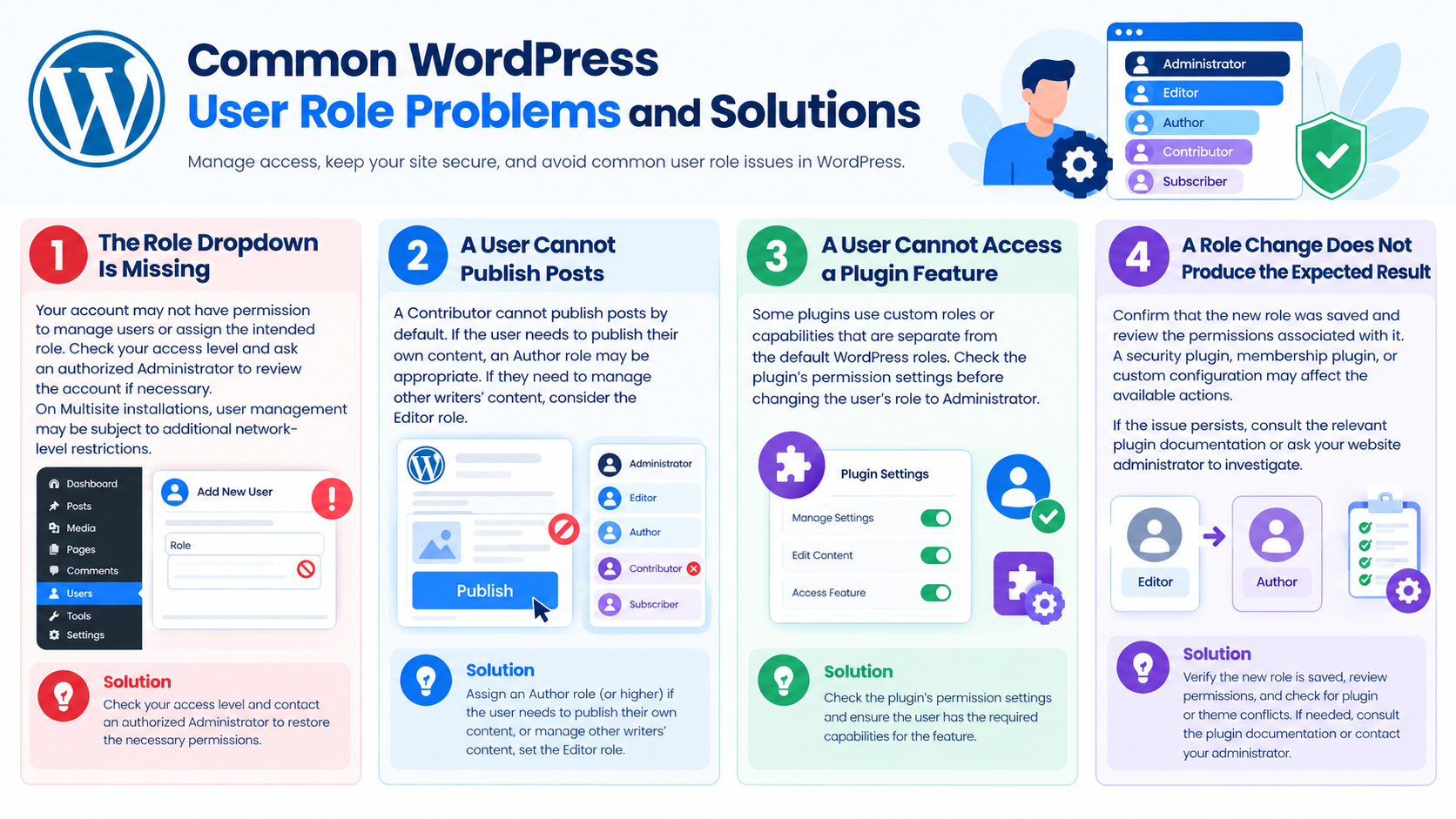
The Role Dropdown Is Missing
Your account may not have permission to manage users or assign the intended role. Check your access level and ask an authorized Administrator to review the account if necessary.
On Multisite installations, user management may be subject to additional network-level restrictions.
A User Cannot Publish Posts
A Contributor cannot publish posts by default. If the user needs to publish their own content, an Author role may be appropriate. If they need to manage other writers’ content, consider the Editor role.
A User Cannot Access a Plugin Feature
Some plugins use custom roles or capabilities that are separate from the default WordPress roles. Check the plugin’s permission settings before changing the user’s role to Administrator.
A Role Change Does Not Produce the Expected Result
Confirm that the new role was saved and review the permissions associated with it. A security plugin, membership plugin, or custom configuration may affect the available actions.
If the issue persists, consult the relevant plugin documentation or ask your website administrator to investigate.