How to Change the WordPress Admin Email
Changing your WordPress admin email ensures that important website notifications reach the correct inbox. You may need to update it when changing website ownership, replacing an employee, or switching to a business email address. To change the main WordPress administration email, go to Settings → General → Administration Email Address, enter the new address, and […]

Changing your WordPress admin email ensures that important website notifications reach the correct inbox. You may need to update it when changing website ownership, replacing an employee, or switching to a business email address.
To change the main WordPress administration email, go to Settings → General → Administration Email Address, enter the new address, and save your changes. You may then need to confirm the change through an email sent to the new address.
Before proceeding, understand that the site administration email and the administrator user’s email address are separate settings. The correct method depends on which address you want to update.
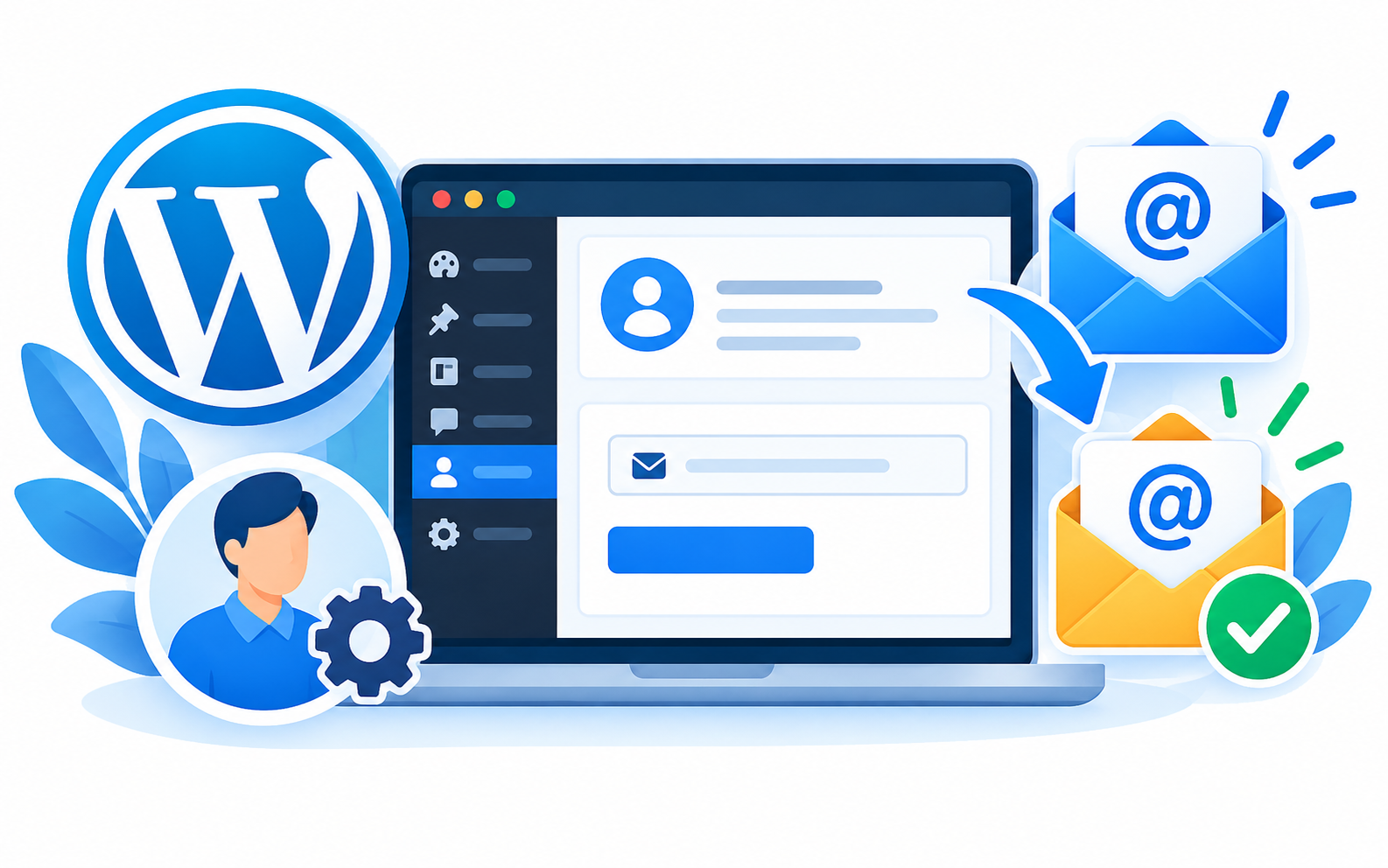
How to Change the WordPress Admin Email in Settings
Follow these steps to change the WordPress site administration email through the dashboard.
- Log in to WordPress. Open your website’s admin dashboard, usually at yourdomain.com/wp-admin.
- Open General Settings. Navigate to Settings → General.
- Find the Administration Email Address field. This contains the current email address used for site administration.
- Enter the new email address. Replace the existing address with the email you want to use.
- Save your changes. Click Save Changes at the bottom of the page.
- Confirm the new address. If WordPress requests confirmation, open the email sent to the new address and click the confirmation link.
If confirmation is pending, the existing administration email generally remains active until the new address is confirmed. Check the dashboard notice to see whether the change has been completed.
Tip: Make sure you can access the new inbox before changing the address. Check the spam or junk folder if the confirmation email does not arrive.
How to Change the WordPress Administrator User Email
If you want to change the email associated with your individual WordPress administrator account, you need to update your user profile instead.
- Log in to your WordPress dashboard.
- Navigate to Users → Profile, or open Users → All Users and select the relevant administrator.
- Find the Email field in the user profile.
- Enter your new email address.
- Click Update Profile.
- Follow any confirmation instructions displayed by your WordPress installation.
This changes the email associated with that user account. It does not automatically change the site administration email under Settings → General.
If you manage a business website, check both settings when changing the person responsible for website administration.
What to Do If the WordPress Admin Email Confirmation Does Not Arrive
Sometimes, WordPress saves a pending change but the confirmation email never reaches the new inbox. Try these steps before attempting advanced recovery methods.
- Check the spam folder: Email providers may filter automated messages.
- Verify the address: Check for spelling errors and confirm that the mailbox is active.
- Check the WordPress dashboard: Return to Settings → General and look for a pending confirmation notice.
- Test email delivery: Check whether your website can send other notification emails.
- Review email configuration: If WordPress emails are consistently missing, investigate your site’s mail configuration or SMTP setup.
SMTP can improve email delivery reliability, but it is not automatically required for every WordPress website. First determine whether the problem affects only the confirmation email or all outgoing messages.
For more help, link this section to a dedicated CreativeON guide on [configuring SMTP for WordPress] if that article is available.
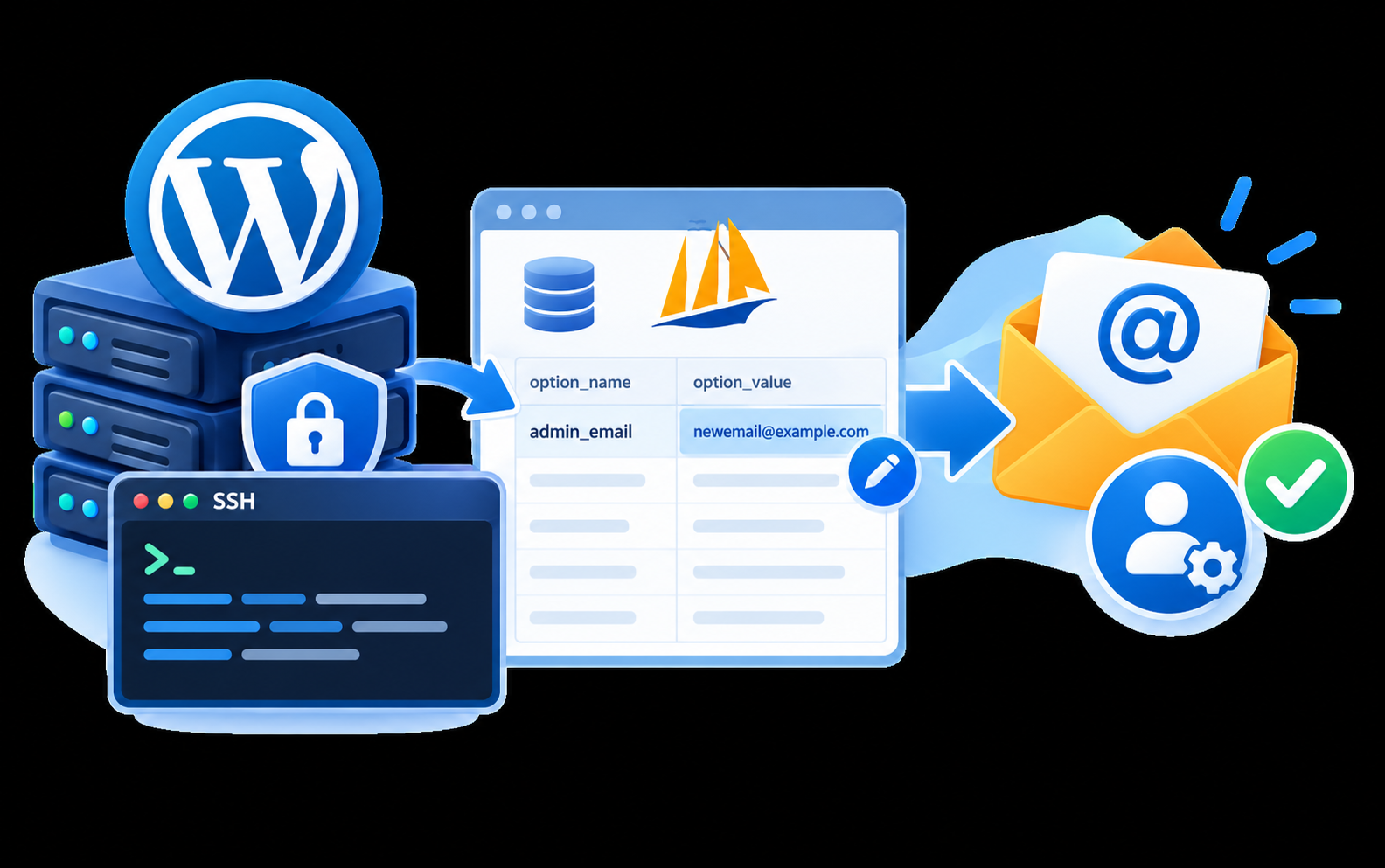
How to Change the WordPress Admin Email Without Dashboard Access
If you cannot update the administration email through WordPress settings, you may be able to use WP-CLI or phpMyAdmin through your hosting environment. These are advanced options and should be used carefully.
Method 1: Update the Email Using WP-CLI
If SSH access and WP-CLI are available, navigate to your WordPress installation directory and run:
wp option update admin_email newemail@example.com
Replace newemail@example.com with the intended email address.
This command updates the site’s administration email option directly. It is different from changing the email address of an individual administrator account.
Because this method changes the option directly, it can bypass the normal confirmation workflow. Use it only when you have the necessary permissions and understand the implications.
Method 2: Update the Email Using phpMyAdmin
If WP-CLI is unavailable, phpMyAdmin may provide another recovery option.
- Create a backup of your WordPress database.
- Open phpMyAdmin through your hosting control panel.
- Select the database used by your WordPress installation.
- Open the options table, commonly named wp_options. Your table prefix may be different.
- Find the row where option_name is admin_email.
- Update its option_value to the new email address and save the change.
Be careful not to edit unrelated records. The site administration email is stored separately from individual user email addresses, so changing the wrong database field will not achieve the intended result.
If you are unfamiliar with database administration, ask your hosting support team for assistance. Keep a backup so that you can recover if an incorrect value is changed.