How to Change the WordPress Site Language
Changing your WordPress site language allows you to display WordPress’s built-in interface text in your preferred language. Whether you manage a business website, blog, or online store, you can change this setting directly from the WordPress dashboard without reinstalling WordPress. However, changing the site language does not automatically translate your existing pages, posts, or product […]
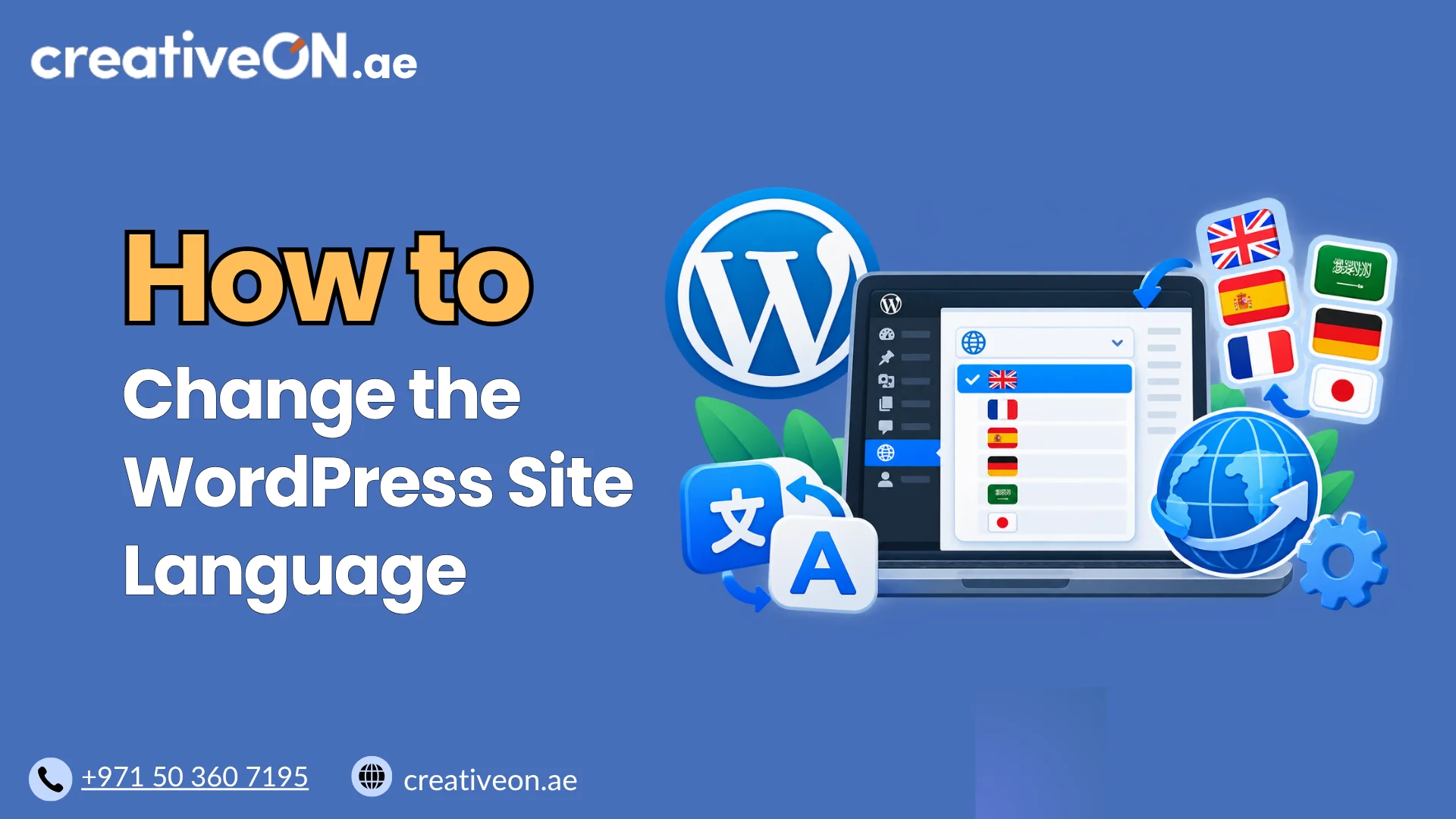
Changing your WordPress site language allows you to display WordPress’s built-in interface text in your preferred language. Whether you manage a business website, blog, or online store, you can change this setting directly from the WordPress dashboard without reinstalling WordPress.
However, changing the site language does not automatically translate your existing pages, posts, or product descriptions. This guide explains how to change the WordPress site language, set a different dashboard language for your account, and resolve common language-setting problems.
How to Change the WordPress Site Language
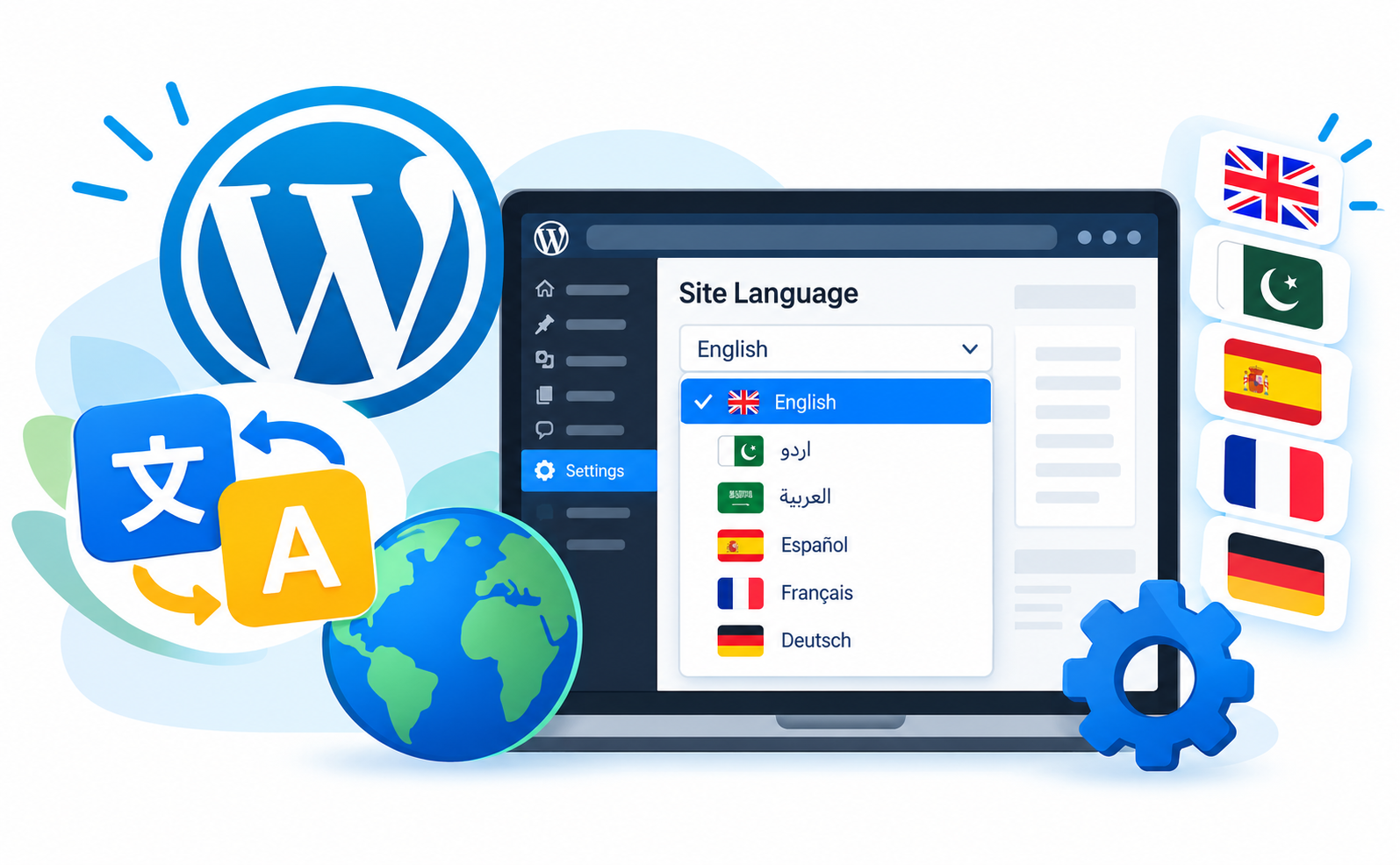
You can change your website’s default language through the WordPress General Settings screen.
Follow these steps:
- Log in to WordPress. Open your administration area, usually at yourdomain.com/wp-admin.
- Open General Settings. Navigate to Settings → General from the dashboard menu.
- Find Site Language. Scroll down to the Site Language dropdown menu.
- Select your preferred language. Choose an available option, such as English, Urdu, Arabic, or another supported language.
- Save your changes. Scroll to the bottom and click Save Changes.
WordPress will apply the selected language and install the required language files when they are available and can be downloaded successfully.
After saving, check your dashboard and public website to confirm that the relevant interface text displays as expected.
Important: If you only want to change the language of your personal WordPress dashboard, you do not need to change the site’s default language. You can configure your individual language preference instead.
What Changes When You Change the WordPress Site Language?
The Site Language setting determines the default language WordPress uses for its translated interface text. Depending on the available translations and your installed theme and plugins, this can affect:
- WordPress administration screens and menu labels.
- Built-in interface text and certain system messages.
- Default comment form labels and other translated interface elements.
- Theme and plugin text that uses compatible translation files.
The exact result depends on which translations are available and how your theme and plugins implement them.
Does Changing the Site Language Translate Existing Content?
No. Changing the WordPress site language does not automatically translate content you have written or uploaded.
For example, if your website contains English blog posts and you change the default language to Arabic, those posts will generally remain in English. Some translated interface elements may change to Arabic, but your article text, product descriptions, and other custom content will not be translated automatically.
If your goal is to offer the entire website in multiple languages, you will need a separate multilingual solution to manage translated content and language navigation.
For further guidance, link this section to CreativeON’s dedicated WordPress multilingual website guide, if available.
WordPress Site Language vs. Dashboard Language
WordPress provides separate settings for the site’s default language and an individual user’s administration language.
| Setting | What it changes |
| Site Language | The default language WordPress uses for translated interface text across the site. |
| User Profile Language | The language used for that user’s WordPress administration screens, where translations are available. |
| Multilingual plugin or translation solution | Helps manage translated pages and posts and may provide language switching for visitors. |
These settings serve different purposes. For example, a company may maintain a website in English while allowing an Arabic-speaking administrator to use the WordPress dashboard in Arabic.
How to Change Your WordPress Dashboard Language
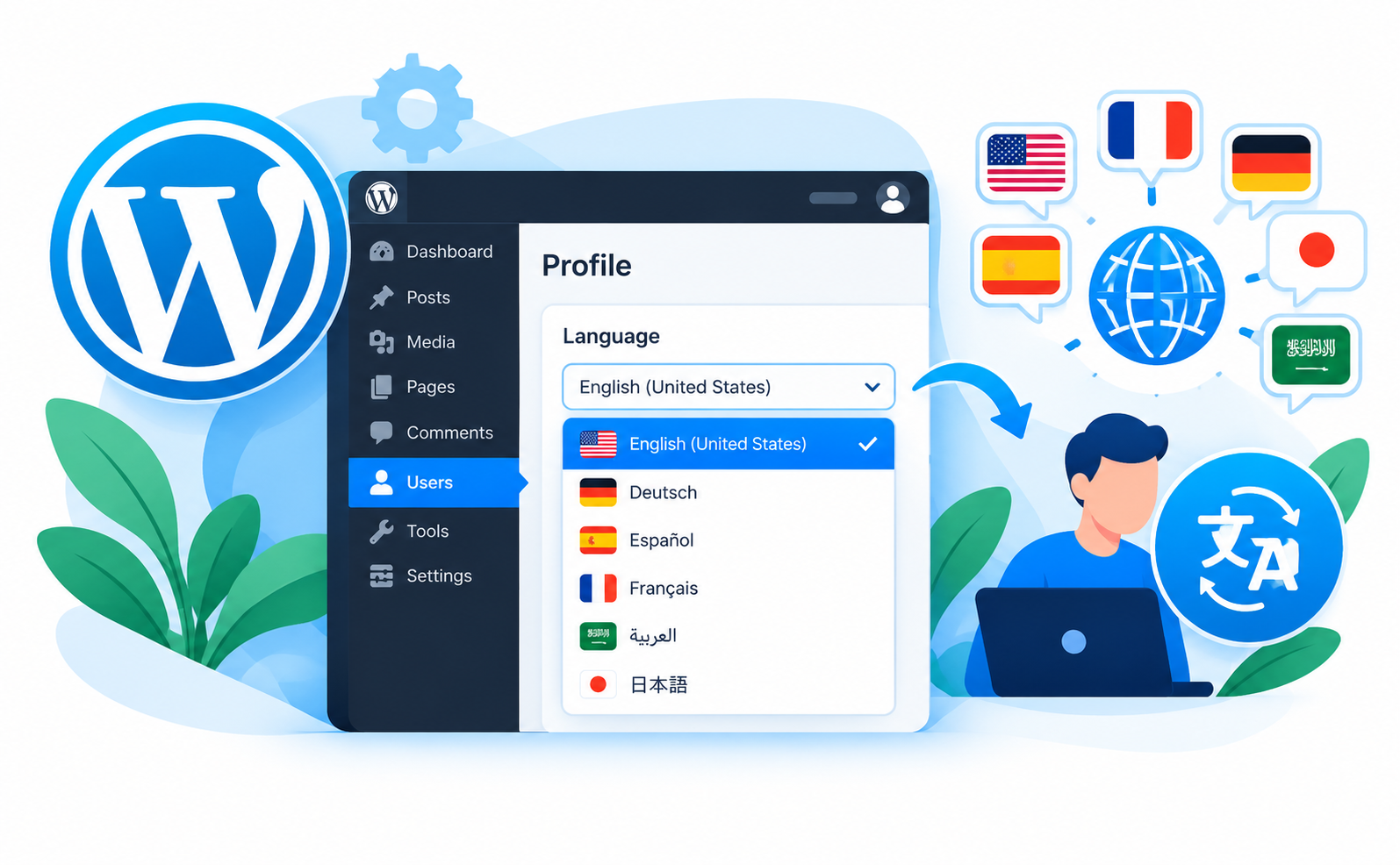
If you want to change only the language of your administration area, follow these steps:
- Log in to the WordPress dashboard.
- Go to Users → Profile.
- Find the Language option under Personal Options.
- Select your preferred language.
- Click Update Profile.
Your dashboard will use the selected language where translations are available. The site’s default language remains unchanged.
This is particularly useful for websites managed by teams whose members prefer different languages.
How to Fix Common WordPress Site Language Problems
If the language does not change as expected, work through the following checks in order.
1. Your Preferred Language Is Missing
Open Settings → General → Site Language and check the available options.
If the language is not listed or cannot be installed:
- Confirm that you have sufficient permissions to change general settings.
- Check whether your WordPress installation can access the required language files.
- Ask your hosting provider to investigate any server restrictions or download failures if necessary.
Avoid downloading language files from untrusted websites.
2. Your Dashboard Still Uses the Previous Language
First, revisit Settings → General and confirm that the new site language was saved.
Next, open Users → Profile and check the individual Language setting. Your profile preference may differ from the site’s default language.
If both settings are correct, log out and back in if necessary, then check whether the relevant interface text has changed.
3. Your Theme or Plugins Still Display English Text
A language change does not guarantee that every theme or plugin has a complete translation.
To investigate:
- Check whether the theme or plugin supports your selected language.
- Update the relevant theme or plugin if a compatible translation is available.
- Review its documentation for any separate language settings.
- Contact the developer if important interface text remains untranslated.
For example, an online store may display some WooCommerce interface text in the selected language while a third-party checkout extension still displays English labels.
Do not assume that the WordPress language setting is broken simply because some plugin text remains unchanged.
4. The Public Website Does Not Reflect the Change
If the dashboard shows the new language but the public website appears unchanged, first identify which text is still displaying in the previous language.
Then:
- Check whether the affected text belongs to WordPress, your theme, a plugin, or your own content.
- Verify that the relevant translation exists.
- Clear the relevant page cache if an older version of the interface may be cached.
- Review theme or plugin language settings if the problem affects only specific components.
Caching is one possible cause, but missing translations and custom text are also common explanations. Clearing the cache will not translate content that has no translation available.
5. The Site Language Option Is Missing
If you cannot find the Site Language option, verify that you are logged in with an account that has sufficient permissions to manage general settings.
On a WordPress Multisite installation, network configuration and administrator permissions may affect which options are available.
If the setting remains missing, investigate whether a plugin or custom configuration is modifying the administration interface. Avoid editing configuration files until you have identified the cause.
Special Considerations for Arabic and Urdu Websites
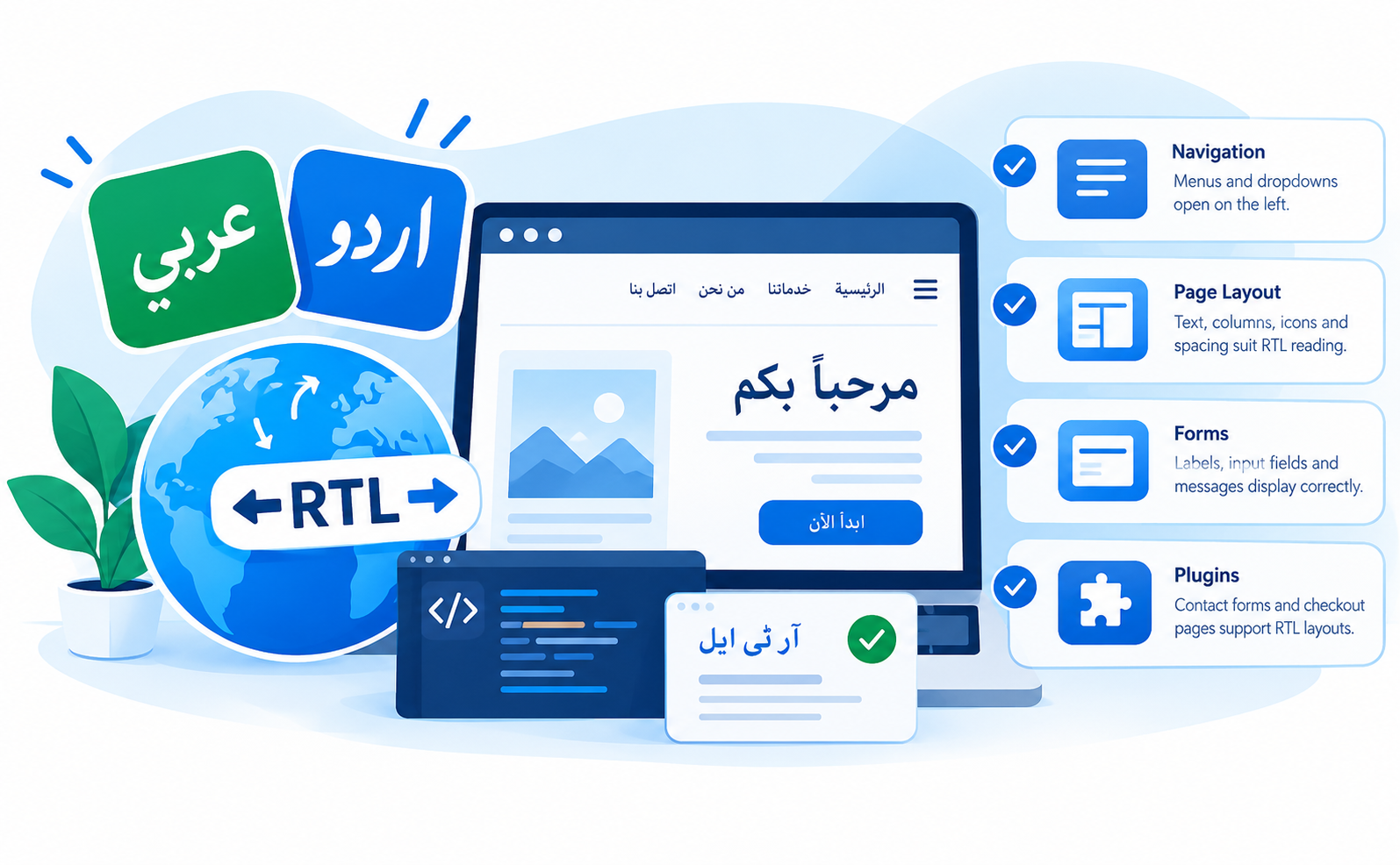
Arabic and Urdu are written from right to left (RTL). Selecting either language may enable RTL behavior in supported WordPress administration screens and compatible themes.
However, selecting an RTL language does not guarantee that every part of your public website will display correctly.
After changing the language, check:
- Navigation: Menus and dropdowns should open and align correctly.
- Page layout: Text alignment, columns, icons, and spacing should suit RTL reading.
- Forms: Labels, input fields, and validation messages should display properly.
- Plugins: Important components, including contact forms and checkout pages, should support RTL layouts.
- Mixed-language content: English text, numbers, and punctuation should remain readable alongside Arabic or Urdu.
If your theme does not support RTL layouts correctly, you may need an RTL-compatible theme or additional styling.
This article covers the language-setting process and basic verification only. More advanced RTL design and multilingual configuration should be covered in separate guides.
Best Practices When Changing Your WordPress Site Language
Before and after changing the language, follow these practical recommendations:
- Choose the right default language: Select the language appropriate for your website’s primary audience.
- Separate interface language from content translation: Translate your pages and posts separately if visitors need them in another language.
- Check theme and plugin compatibility: Important visitor-facing elements should support the selected language.
- Test important pages: Review the homepage, navigation, contact forms, and checkout process after the change.
- Check RTL layouts when necessary: Test Arabic and Urdu pages carefully rather than assuming the layout is correct.
- Avoid unnecessary file changes: Use the dashboard settings first and modify configuration files only when troubleshooting requires it.
If you are making broader website changes, CreativeON’s related WordPress backup guide can help you prepare for changes involving files or configuration. For problems involving a migrated installation, see the relevant WordPress migration guide, if available.