How to Change Your WordPress Site Title
Your WordPress site title identifies your website and may appear in places such as your website header, browser title, or other theme-generated areas. If you have changed your business name, corrected the title, or want to update your website branding, you can change the site title from your WordPress dashboard. This guide explains how to […]
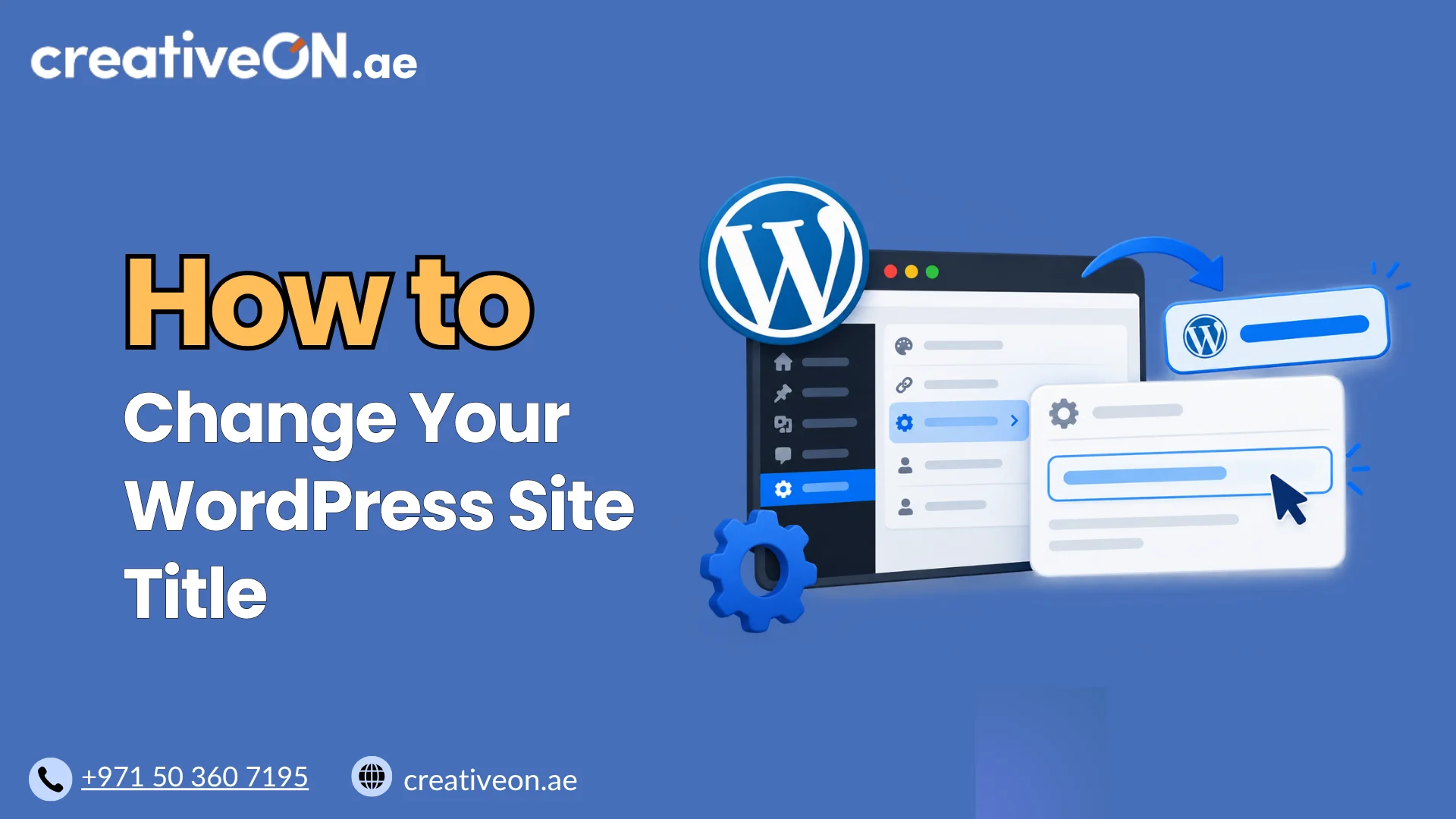
Your WordPress site title identifies your website and may appear in places such as your website header, browser title, or other theme-generated areas. If you have changed your business name, corrected the title, or want to update your website branding, you can change the site title from your WordPress dashboard.
This guide explains how to change your WordPress site title, where to find the setting, and what to check if the old title continues to appear.
What Is the WordPress Site Title?
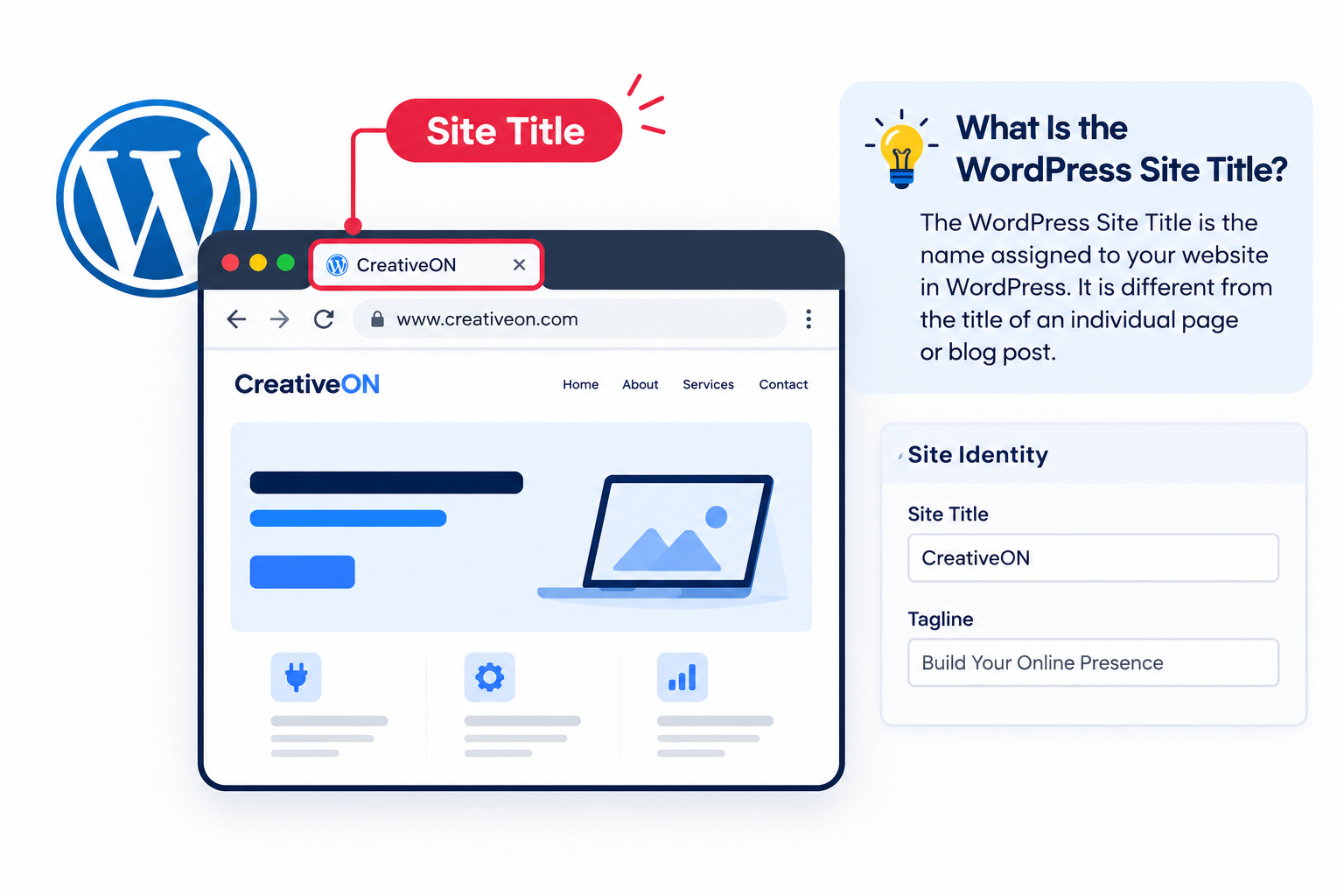
The WordPress Site Title is the name assigned to your website in WordPress. It is different from the title of an individual page or blog post.
For example:
- Site Title: CreativeON
- Page Title: Managed WordPress Hosting
- Blog Post Title: How to Change Your WordPress Site Title
Depending on your theme and configuration, the Site Title may be displayed in your website header, browser title, or other areas of your WordPress site.
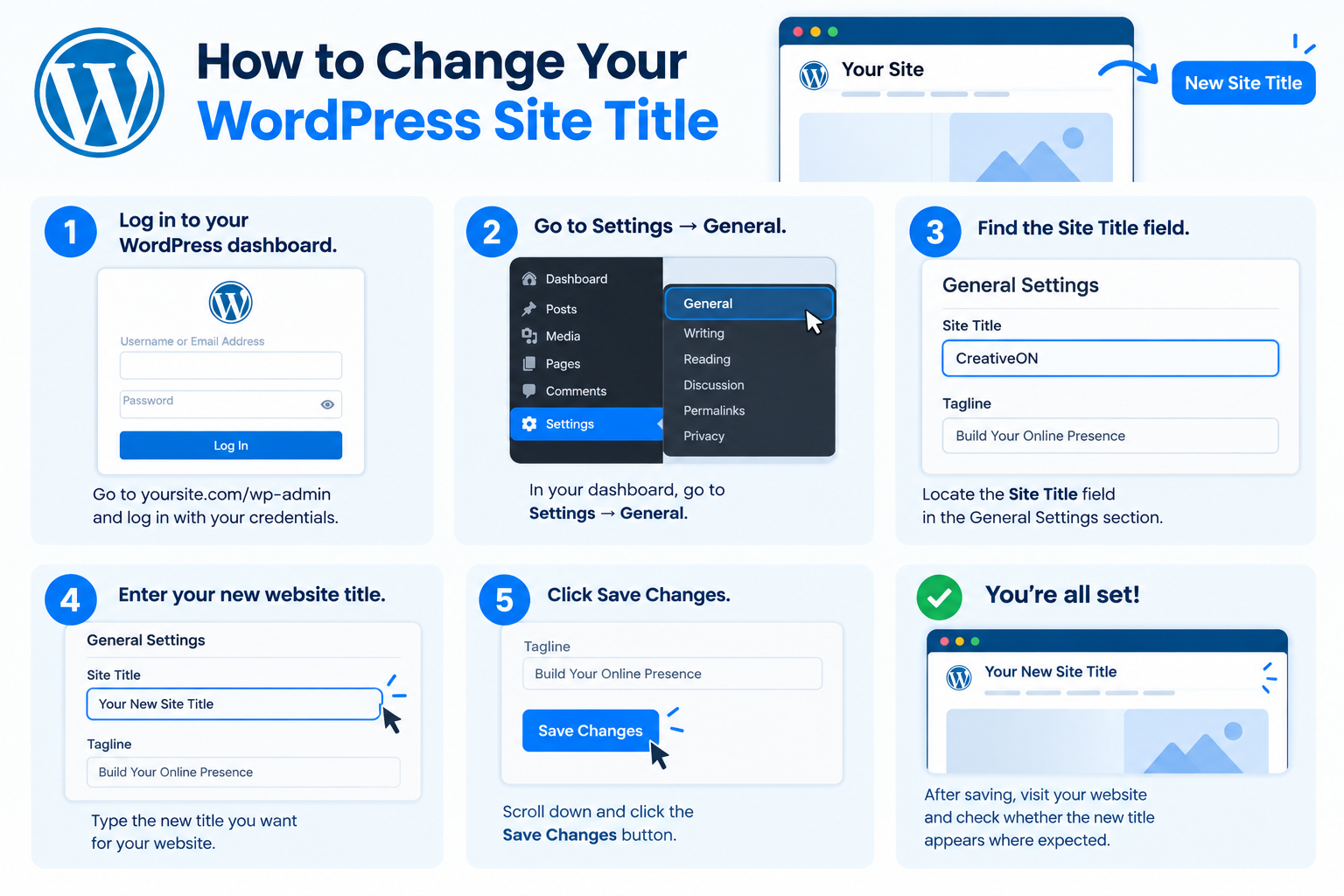
How to Change Your WordPress Site Title
The standard way to change the site title is through Settings → General.
Change the Site Title from WordPress Settings
- Log in to your WordPress dashboard.
- Go to Settings → General.
- Find the Site Title field.
- Enter your new website title.
- Review the Tagline if you also want to change it.
- Click Save Changes.
WordPress will save the new Site Title.
After saving, visit your website and check whether the new title appears where expected.
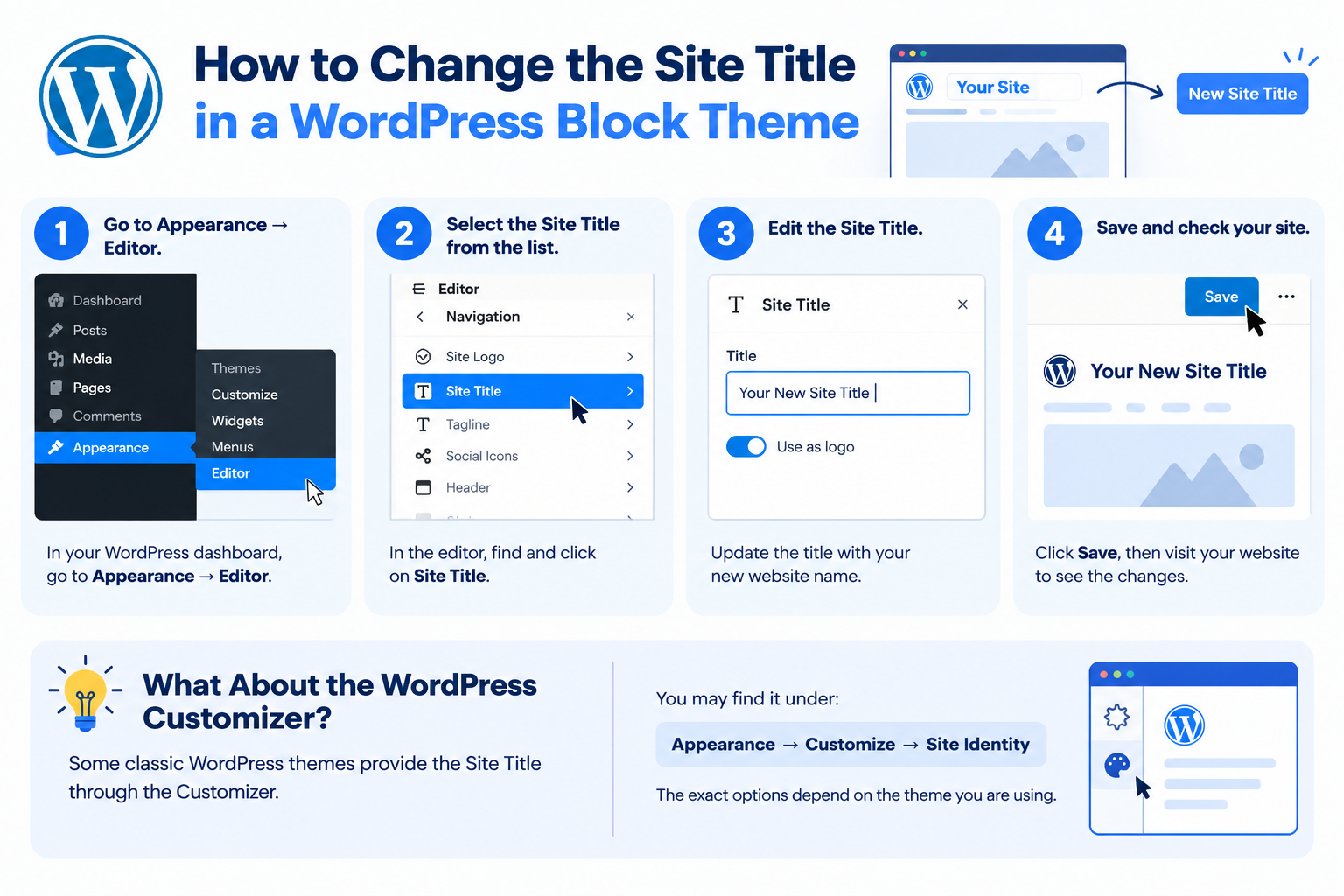
How to Change the Site Title in a WordPress Block Theme
If your website uses a modern WordPress block theme, the Site Title can be managed through the Site Editor.
Go to:
Appearance → Editor → Identity
Depending on your WordPress version and theme, you may see options for the:
- Site Title
- Site Tagline
- Site Logo
- Site Icon
Edit the Site Title, save your changes, and then check the website.
What About the WordPress Customizer?
Some classic WordPress themes provide the Site Title through the Customizer.
You may find it under:
Appearance → Customize → Site Identity
The exact options depend on the theme you are using.
Can You Change the Site Title Without Changing Your Domain?
Yes.
Your WordPress Site Title and your domain name are separate.
For example, you can have:
- Domain: example.com
- Site Title: Example Business
Changing the Site Title does not change your domain or website URL.
If you need to change your domain, that is a separate process and should not be confused with changing the WordPress Site Title.
WordPress Site Title vs. Page Title
The Site Title identifies the overall website, while a page or post title identifies a specific piece of content.
For example:
Site Title:
CreativeON
Page Title:
WordPress Hosting
Post Title:
How to Change Your WordPress Site Title
Changing the Site Title does not automatically change the titles of your existing pages and posts.
WordPress Site Title vs. Browser or SEO Title
The Site Title can sometimes be used as part of the title shown in a browser tab or generated by your theme or SEO configuration. However, it is not necessarily the same as the title of every page in the browser or search results.
For example, your website could have:
Site Title: CreativeON
while a page could have a browser or SEO title such as:
Managed WordPress Hosting – CreativeON
If you use an SEO plugin, check its title settings before assuming that changing the WordPress Site Title will change every page title.
For broader guidance, refer to your dedicated WordPress SEO guide rather than changing SEO settings unnecessarily.
How to Choose a Good WordPress Site Title
Your Site Title should clearly identify your website or business.
Before saving a new title:
- Use your official business or website name.
- Keep it clear and easy to recognize.
- Avoid unnecessarily long titles.
- Don’t fill the Site Title with keywords.
- Make sure it matches your website branding.
For example:
Good:
CreativeON
Less useful:
Best Cheap Premium WordPress Hosting Provider for Businesses
The Site Title should primarily identify your website rather than act as a list of keywords.
Why Is My Old WordPress Site Title Still Showing?
If you changed the Site Title but still see the old name, check where the old title is coming from.
Possible sources include:
- Your WordPress theme
- Site Identity settings
- An SEO plugin
- A header or logo element
- A page builder
- WordPress or server-side caching
- Your browser cache
First confirm that the new Site Title was saved under Settings → General or the relevant Site Editor settings.
If the setting is correct but the old title remains visible, clear the relevant cache and refresh the page.
If only the browser title or search title is different, check your theme or SEO plugin’s title settings rather than changing the Site Title again.
What Happens When You Change the Site Title?
Changing the WordPress Site Title does not change your:
- Domain name
- Existing pages
- Blog posts
- WordPress users
- Website files
- Website URL structure
It changes the Site Title value used by WordPress and by any theme or configuration that uses that value.
If you are changing the title as part of a larger business rebrand, you may also need to review your logo, page content, and other branding separately.