How to Find Old WordPress Posts
Finding an older post in WordPress can become difficult when your website contains hundreds or thousands of published articles. Scrolling through the Posts section page by page is not an efficient way to locate specific content. Fortunately, WordPress provides several built-in options to help you find old posts quickly. You can search by title or […]
Finding an older post in WordPress can become difficult when your website contains hundreds or thousands of published articles. Scrolling through the Posts section page by page is not an efficient way to locate specific content.
Fortunately, WordPress provides several built-in options to help you find old posts quickly. You can search by title or keyword, filter posts by publication date or category, sort articles by date, and browse your website’s archives.
In this guide, you’ll learn how to find old WordPress posts using different methods, whether you remember the article title, its approximate publication date, or only a few words from its content.
1. Find Old WordPress Posts From the Dashboard
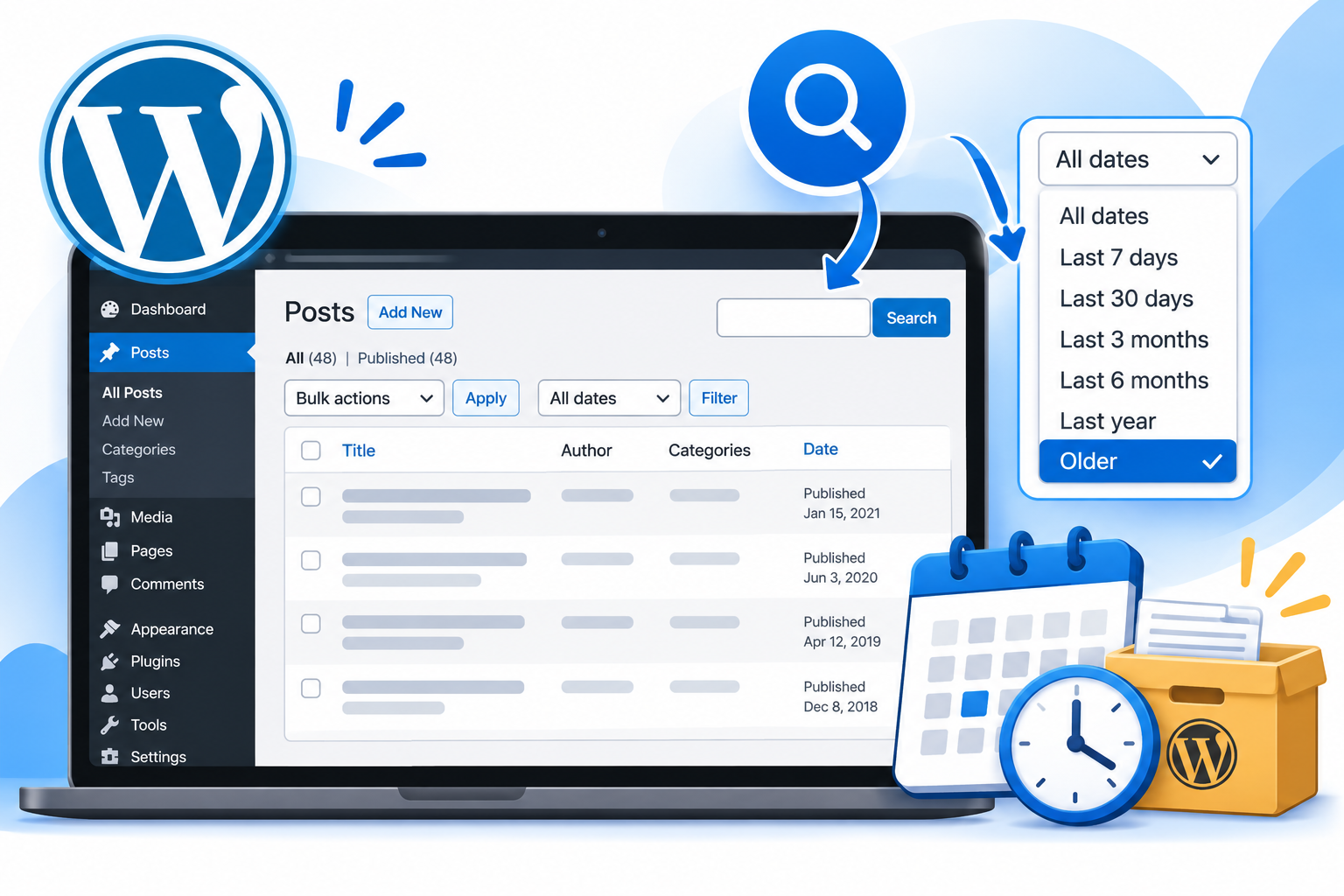
The easiest way to find older posts is through the WordPress administration dashboard. The Posts section includes search and filtering options that help you locate existing articles.
Follow these steps:
- Log in to your WordPress admin dashboard.
- Navigate to Posts → All Posts.
- Enter the article title or a relevant keyword in the search field.
- Click Search Posts.
- Review the matching results and open the required article.
You do not need to remember the complete title. If you remember a distinctive word or phrase, try searching for it.
For example, if your article was about WordPress security but you cannot remember its exact title, search for terms such as “security,” “WordPress protection,” or “website security.”
Tip: If your website contains many articles, check the publication date and author columns to identify the correct post.
2. Find WordPress Posts by Publication Date
If you remember approximately when an article was published, filtering posts by date is one of the most useful methods.
WordPress includes a date filter in the All Posts section.
To use it:
- Open Posts → All Posts.
- Locate the date dropdown above the posts list.
- Select the month and year when the article was published.
- Click Filter.
- Review the matching posts.
For example, if you are looking for an article published in March 2022, select March 2022 from the date filter.
WordPress will display posts published during that month, making it easier to locate the required article.
3. Sort Old WordPress Posts by Date
Another useful option is sorting posts by their publication date.
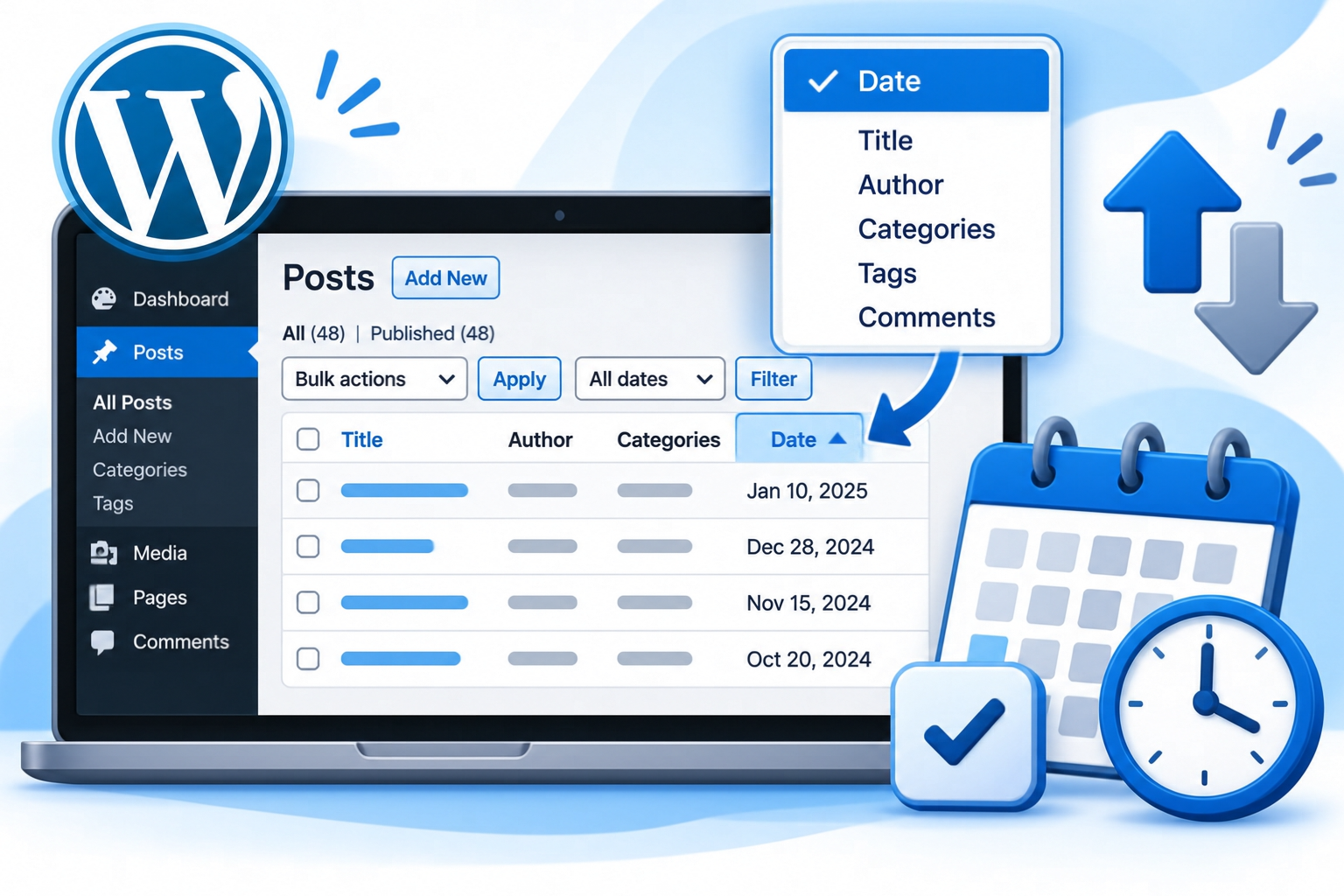
The WordPress Posts table includes a Date column that can be used to change the order of displayed articles.
Follow these steps:
- Navigate to Posts → All Posts.
- Locate the Date column.
- Click the Date heading to change the sorting order.
- Browse the results to find older or newer articles.
This method is particularly useful when you want to review your website’s publishing history without searching for a specific title.
If your website has hundreds of posts, you can also adjust the number of posts displayed on each administration page.
To do this:
- Open the All Posts screen.
- Click Screen Options near the top-right corner.
- Find the number of items displayed per page.
- Enter your preferred number.
- Click Apply.
Displaying more posts per page can reduce the number of pages you need to browse.
4. Find Old Posts by Category or Tag
WordPress categories and tags help organize related articles. They can also make it easier to find older content when you remember its subject but not its title.
Finding posts by category
- Go to Posts → All Posts.
- Locate the category dropdown.
- Select the relevant category.
- Click Filter.
- Review the matching articles.
For example, if you are searching for an older article about website security, select your Security category to narrow down the results.
Finding posts by tag
Tags provide another way to locate related articles.
If the Tags column is visible in your Posts table, click an existing tag name to display posts associated with that tag.
Unlike categories, the standard WordPress All Posts screen does not provide a dedicated tag dropdown alongside the date and category filters.
Both categories and tags can be useful when managing a large WordPress blog with many related articles.
5. Find Old Posts by Author
If your WordPress website has multiple authors or content contributors, filtering posts by author can help you locate older articles.
The Posts table includes an Author column showing who published each article.
To find posts by a particular author:
- Navigate to Posts → All Posts.
- Locate the Author column.
- Click the author’s name.
- WordPress will display posts associated with that author.
This method is especially helpful for business websites, online publications, and blogs where several writers contribute content.
6. Find Old Posts Using Your Website’s Archives
Another way to find older WordPress posts is through your website’s public archives.
WordPress supports date-based archives that allow visitors to browse published posts by month and year.
Depending on your theme and website configuration, you may find archive links in:
- Blog sidebar widgets.
- Monthly archive sections.
- Category archive pages.
- Blog pagination.
- Custom archive pages.
For example, if your website provides a monthly archive for January 2023, you can open it to view posts published during that month.
Keep in mind that archive presentation depends on your WordPress theme and configuration. Some websites may not display archive links by default.
7. Search for Old WordPress Posts Using Google
If you cannot locate an article through the WordPress dashboard, Google can provide another way to find publicly indexed posts.
You can use Google’s site: search operator to restrict results to your website.
For example:
site:example.com wordpress security
Replace example.com with your website’s domain.
You can also search for an exact phrase:
site:example.com “your remembered article phrase”
This method is useful when you remember a phrase from an article but cannot remember its title.
However, Google only displays pages that it has indexed and considers relevant to the search. Posts that are unpublished, password-protected, deleted, or not indexed may not appear.
8. Find Old Drafts and Unpublished WordPress Posts
Sometimes, the article you are looking for was never published. It may still exist as a draft or another unpublished post.
To locate these articles:
- Navigate to Posts → All Posts.
- Check the status links above the posts list.
- Select Drafts to view unpublished articles.
- Check Pending for posts awaiting review.
- Check Scheduled for posts set to publish later.
You can also use the search field to look for the article title or a relevant keyword.
Remember that unpublished posts are not normally visible to public website visitors, so searching Google will not usually help locate them.
9. What If You Cannot Find an Old WordPress Post?
If none of the methods above works, consider these possibilities:
- The post was deleted: Check Posts → Trash.
- The post is still a draft: Review the Drafts section.
- The post belongs to another author: Use the author filter.
- The post has a different title: Search using words from its content.
- The post was published on another website: Verify the website or WordPress installation.
- The post was permanently deleted: Check whether a recent website backup contains it.
WordPress normally retains deleted posts in the Trash for 30 days before automatically removing them. This period can be changed through configuration.
If the post is still in Trash, you can restore it using the Restore option.
If it has been permanently deleted, recovery may require a website backup or another available copy of the content.
For this reason, maintaining regular website backups is important, particularly if your website publishes articles frequently.
Best Practices for Managing Older WordPress Posts
A few simple practices can make older content easier to locate as your website grows.
- Use descriptive titles that clearly explain each article’s subject.
- Organize related posts into meaningful categories.
- Apply relevant tags consistently.
- Avoid creating multiple categories for nearly identical topics.
- Maintain a consistent publishing structure.
- Keep regular website backups.
- Review your WordPress post archive periodically.
These practices make it easier to manage a growing article library and locate specific content when needed.