How to Edit a WordPress Post: A Step-by-Step Guide
Editing a WordPress post allows you to correct mistakes, update outdated information, improve readability, and keep your website content accurate. Whether you want to change a heading, replace an image, update a link, or revise an existing article, WordPress provides several tools to make the process straightforward. In this guide, you will learn how to […]
Editing a WordPress post allows you to correct mistakes, update outdated information, improve readability, and keep your website content accurate. Whether you want to change a heading, replace an image, update a link, or revise an existing article, WordPress provides several tools to make the process straightforward.
In this guide, you will learn how to edit a WordPress post using the dashboard, make quick changes without opening the full editor, update categories and tags, manage post URLs, and check your work before publishing changes.
How to Edit a WordPress Post in the Dashboard
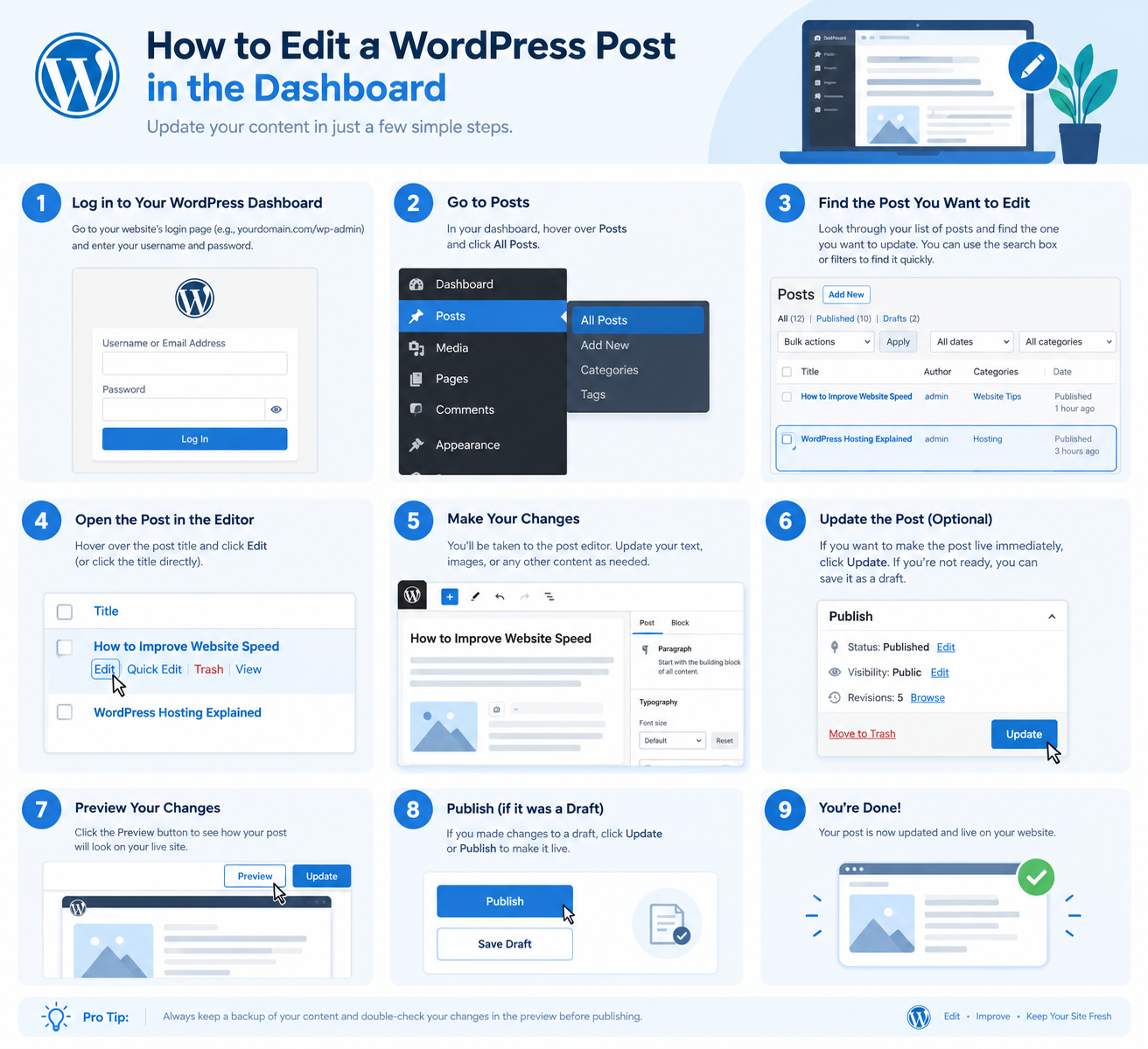
The standard way to edit an existing WordPress post is through the WordPress administration dashboard.
Follow these steps:
- Log in to WordPress. Visit yourdomain.com/wp-admin and enter your login credentials.
- Open All Posts. From the dashboard menu, select Posts → All Posts.
- Find your article. Browse the list or use the search field to locate the post you want to change.
- Open the editor. Hover over the post title and click Edit.
- Make your changes. Update the text, headings, images, links, or other elements as needed.
- Save your changes. Click Update to publish changes to an existing published post.
- Review the live article. Open the post on your website and check that the updated content displays correctly.
If the post is still a draft, WordPress may show options such as Save draft or Publish instead of Update.
Important: Updating a published post modifies the existing article. It does not create a new post or change the URL automatically.
How to Quickly Edit a WordPress Post Without Opening the Editor
WordPress includes a Quick Edit option that lets you change certain post details directly from the All Posts screen.
This is useful when you only need to update a title, slug, publication date, categories, tags, or publication status rather than edit the article’s body.
Steps to Use Quick Edit
- Navigate to Posts → All Posts.
- Hover over the post you want to modify.
- Click Quick Edit.
- Update the available fields, such as the title, slug, categories, or tags.
- Click Update to save your changes.
The available fields can vary depending on your WordPress setup and permissions.
Quick Edit is not intended for changing paragraphs, editing images, or restructuring the article. For those tasks, open the full editor.
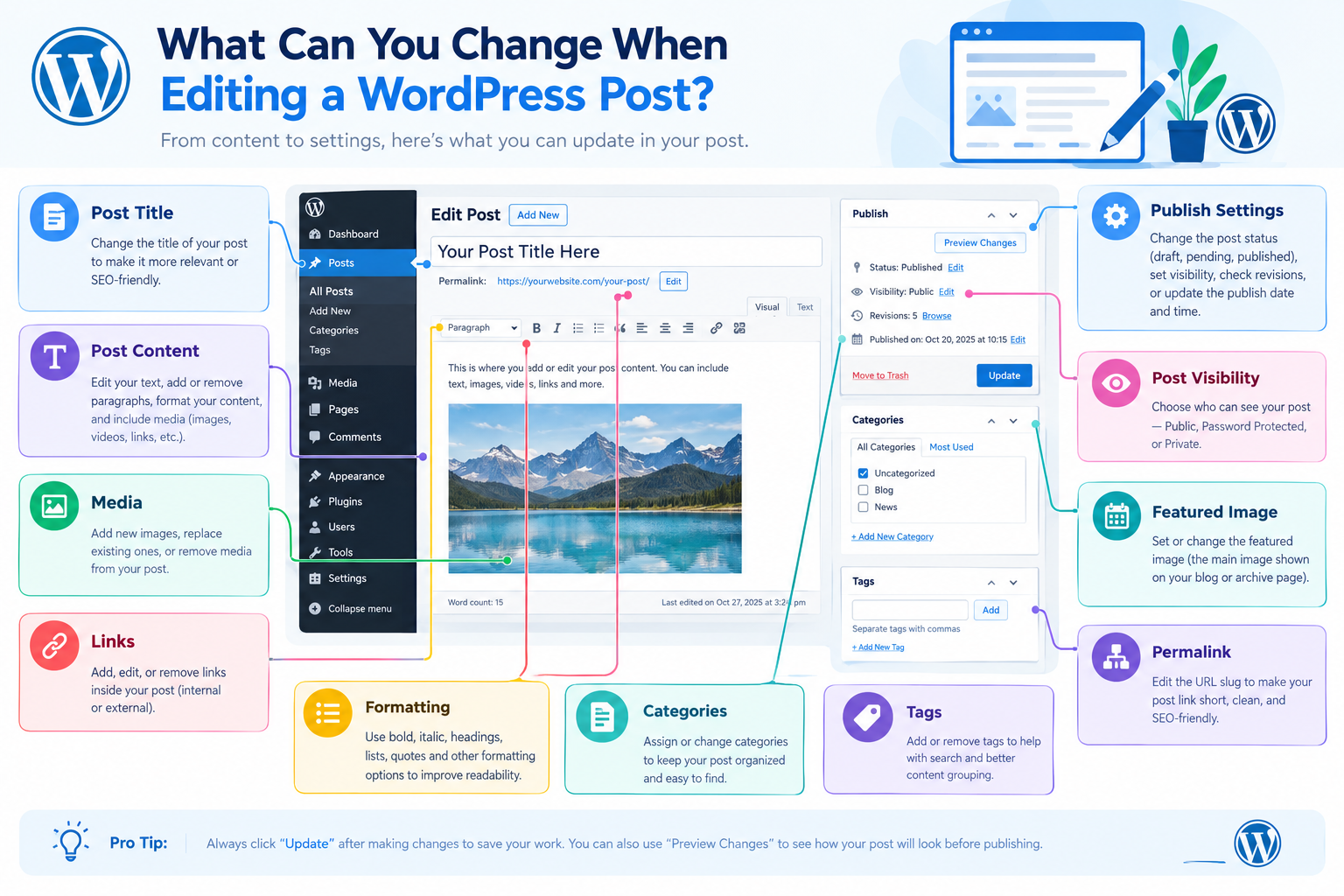
What Can You Change When Editing a WordPress Post?
The WordPress editor lets you modify several parts of an existing article without creating a new post.
1. Edit the Post Title
Click the title field at the top of the editor and enter your revised headline.
A good title should clearly describe the article and match the information it provides. If your article already attracts visitors from search engines, avoid changing an established title without a clear reason.
For example, you might correct a misleading headline or make the topic clearer to readers.
2. Update the Post Content
Select the paragraph or content block you want to edit. You can correct spelling, replace outdated information, add missing details, and remove unnecessary text.
When updating an existing article:
- Check that the information is still accurate.
- Remove obsolete instructions or references.
- Improve confusing sentences.
- Preserve useful information that readers may need.
- Keep the article focused on its original purpose.
For example, if a WordPress tutorial contains outdated dashboard instructions, update the relevant steps rather than rewriting unrelated sections.
3. Change Headings and Formatting
WordPress uses content blocks for headings, paragraphs, lists, images, and other elements in the Block Editor.
To edit a heading:
- Select the heading block.
- Change the heading text.
- Use the block toolbar to adjust its level if necessary.
- Review the content hierarchy before saving.
Use heading levels logically. The post title is normally the page’s H1, while major sections use H2 headings and subsections use H3 headings where appropriate.
4. Add, Replace, or Remove Images
Select an existing image block to access its editing options. Depending on the interface, you can replace the image, remove it, or adjust its available settings.
To add a new image, insert an Image block and upload a file or choose one from the Media Library.
Before updating the post, check that:
- The correct image appears.
- The image has suitable dimensions.
- Alternative text describes the image when appropriate.
- The image does not unnecessarily increase page loading time.
5. Update Internal and External Links
Select the linked text or button and use the link controls to edit its destination.
Check that:
- Internal links point to the correct articles or pages on your website.
- External links lead to relevant, trustworthy resources.
- Anchor text accurately describes the destination.
- Important links have not been removed accidentally.
Internal links can help visitors discover related resources and understand how your website’s content connects.
6. Change Categories and Tags
You can usually manage categories and tags from the post settings sidebar.
To change categories:
- Open the post editor.
- Find the Categories panel in the post settings.
- Select or deselect the relevant categories.
- Save your changes.
To change tags:
- Open the Tags panel.
- Add relevant tags or remove unnecessary ones.
- Click Update to save the post.
Use categories to organize content into broad subject areas and tags to identify more specific topics. Avoid adding unrelated categories or creating multiple near-identical tags without a clear organizational purpose.
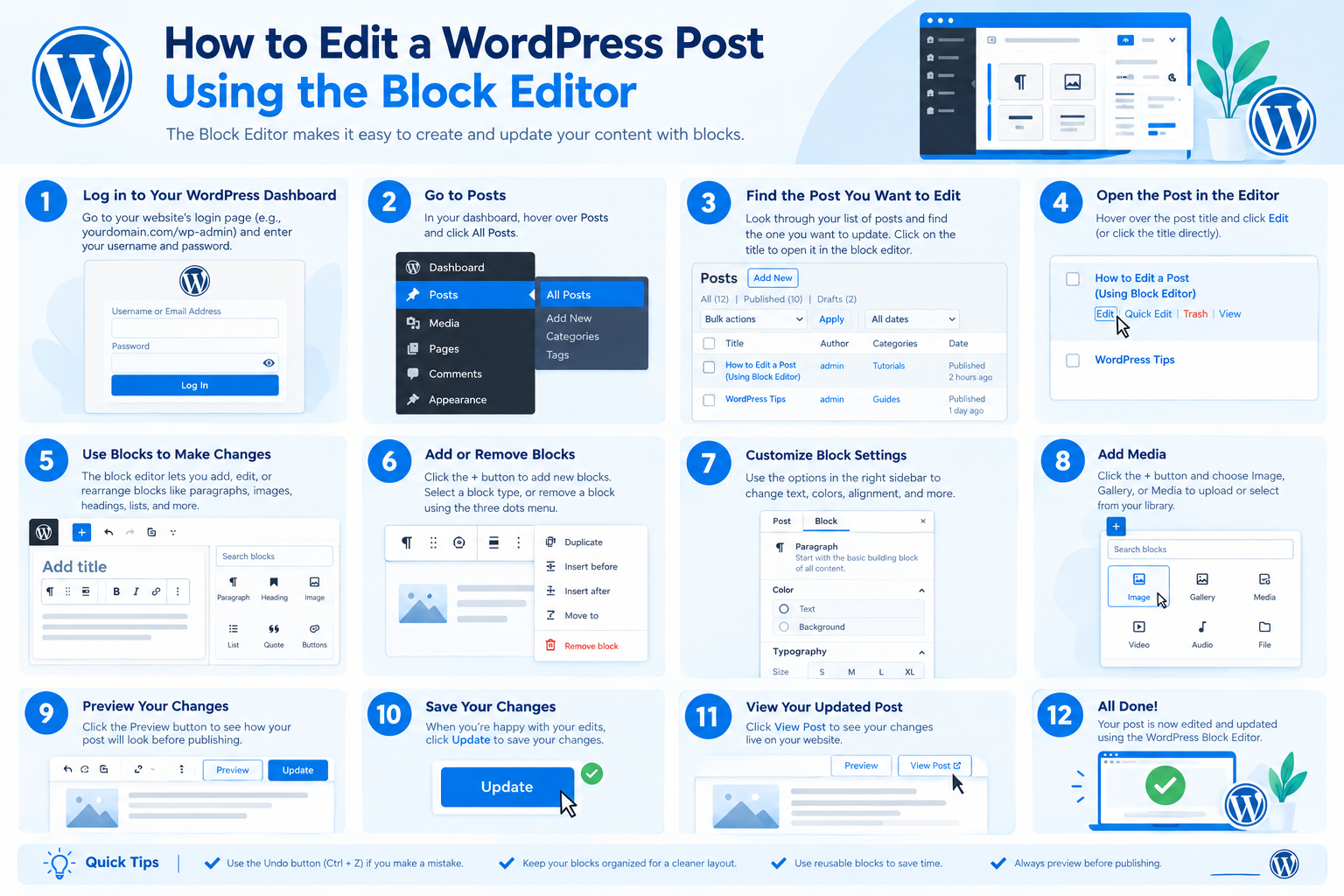
How to Edit a WordPress Post Using the Block Editor
The Block Editor, also known as Gutenberg, is the standard editing interface for many WordPress websites.
Instead of editing an entire article in one large text field, you work with individual blocks. Each paragraph, heading, image, or list can be selected and modified separately.
Here are some common actions:
- Insert a block: Click the plus (+) button and select the block you need.
- Move a block: Use the movement controls in the block toolbar or the available drag-and-drop controls.
- Delete a block: Select it and open its options menu.
- Edit block settings: Select a block and use the settings sidebar to adjust its available options.
- Open post settings: Use the Settings icon, commonly displayed as a gear, to access post-level settings and block-specific controls.
The sidebar may show separate Post and Block settings. Post settings typically contain information such as categories, tags, and the permalink, while Block settings control the selected content element.
If your website uses the Classic Editor plugin or a page-building plugin, the interface may look different. The basic workflow remains the same: open the post, make your changes, save them, and review the result.
How to Edit a Published WordPress Post Without Losing Changes
Editing a published article is usually straightforward, but a few precautions can help you avoid accidental content loss.
Follow These Steps Before Updating
- Review the existing article. Identify exactly what needs to change.
- Make focused edits. Avoid removing useful content simply to shorten the article.
- Check the save status. Make sure your changes have been saved successfully.
- Preview the article. Look for formatting problems, missing images, and broken links.
- Click Update. Confirm that WordPress completes the update.
- Check the live page. Verify the final result in your browser.
What If You Accidentally Delete Content?
WordPress provides a Revisions feature for many posts. Revisions allow you to compare earlier saved versions and restore a previous version when one is available.
To recover an earlier version:
- Open the post editor.
- Locate the Revisions option, if available.
- Open the revision history.
- Compare the available versions.
- Restore the appropriate version after reviewing the differences.
Revision availability can depend on your WordPress configuration and whether previous versions were saved. Revisions are useful for recovering content, but they should not replace regular website backups.
For important business websites, consider taking a backup before making extensive changes.
How to Edit the URL of a WordPress Post
A WordPress post URL, also known as its permalink, usually contains a slug that identifies the article.
To change the slug:
- Open the post in the editor.
- Find the URL or permalink setting in the post settings.
- Edit the slug.
- Save or update the post.
- Test the resulting URL in your browser.
SEO warning: Changing the title alone does not normally change an existing post’s URL. Editing the slug is a separate action.
If you change a published URL, visitors and search engines may continue to encounter the old address through existing links, bookmarks, or search results. Where appropriate, configure a permanent 301 redirect from the old URL to the new one and update relevant internal links.
Avoid changing a working URL simply to add another keyword. Make the change only when there is a clear benefit.
SEO Checklist Before Updating a WordPress Post
When editing an article that already attracts visitors, a quick review can help preserve its usefulness and search visibility.
Before clicking Update, check the following:
- Title: Does the title accurately represent the revised content?
- Content accuracy: Are the instructions, examples, and facts current?
- Search intent: Does the article still answer the question it was written to address?
- Internal links: Do the links lead to relevant, existing pages?
- External links: Are the destinations still accessible and relevant?
- Images: Are the images correct, appropriately sized, and described with useful alt text where needed?
- URL: Have you avoided unnecessary slug changes?
- Formatting: Are headings, paragraphs, lists, and images displayed properly?
- Mobile view: Is the updated content readable on smaller screens?
- Saving: Have you clicked Update and confirmed that the changes were saved?
This checklist is particularly useful when refreshing older articles, updating tutorials, or maintaining a growing WordPress knowledge base.
Common Mistakes to Avoid When Editing WordPress Posts
Avoid these common problems when making changes to published articles.
- Changing URLs without planning redirects: This can lead to broken links and lost access through the old address.
- Deleting useful information: Removing relevant sections can make an article less helpful.
- Forgetting to save: Changes may not be published if you leave the editor without completing the save process.
- Ignoring mobile formatting: Images, tables, and headings may need to be checked on smaller screens.
- Changing SEO elements unnecessarily: Avoid modifying established titles and URLs without a clear reason.
- Assuming every user can edit every post: Available actions depend on user permissions and WordPress roles.
- Ignoring caching: If the saved changes do not appear immediately, a browser, WordPress, server, or CDN cache may be showing an older version.
If your changes are not visible, first confirm that the update succeeded. Then refresh the page, clear the relevant cache if necessary, and check the live article again.