How to Edit a WordPress Page: Step-by-Step Guide
Editing an existing WordPress page allows you to update text, replace images, correct outdated information, and improve your page layout without creating a new page. You can make these changes from the WordPress dashboard using the Block Editor or a page builder such as Elementor. In this guide, you’ll learn how to edit a WordPress […]
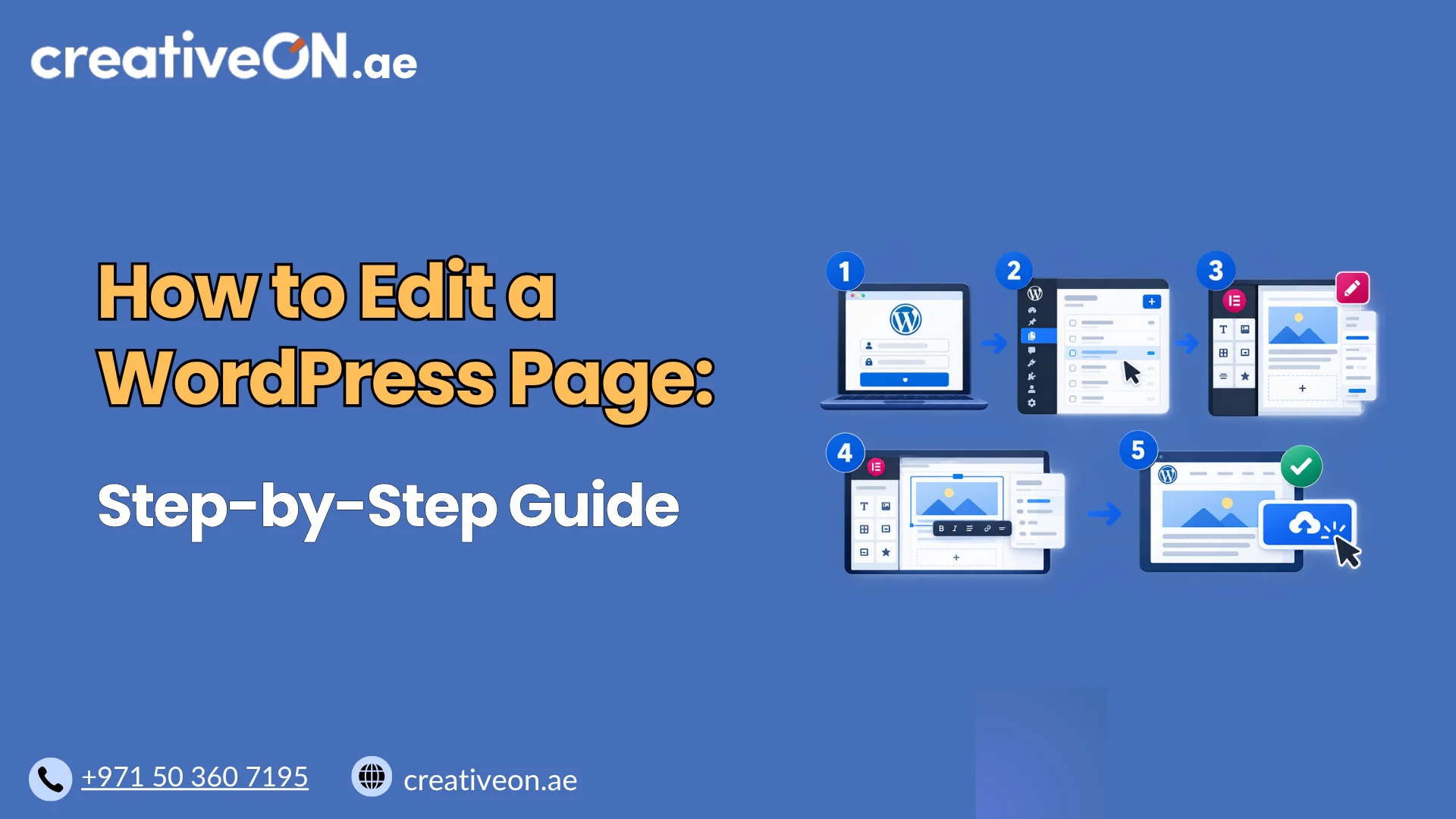
Editing an existing WordPress page allows you to update text, replace images, correct outdated information, and improve your page layout without creating a new page. You can make these changes from the WordPress dashboard using the Block Editor or a page builder such as Elementor.
In this guide, you’ll learn how to edit a WordPress page, preview your changes, update the published version, and resolve common editing problems.
How to Edit a WordPress Page
Follow these steps to update an existing page on your WordPress website.
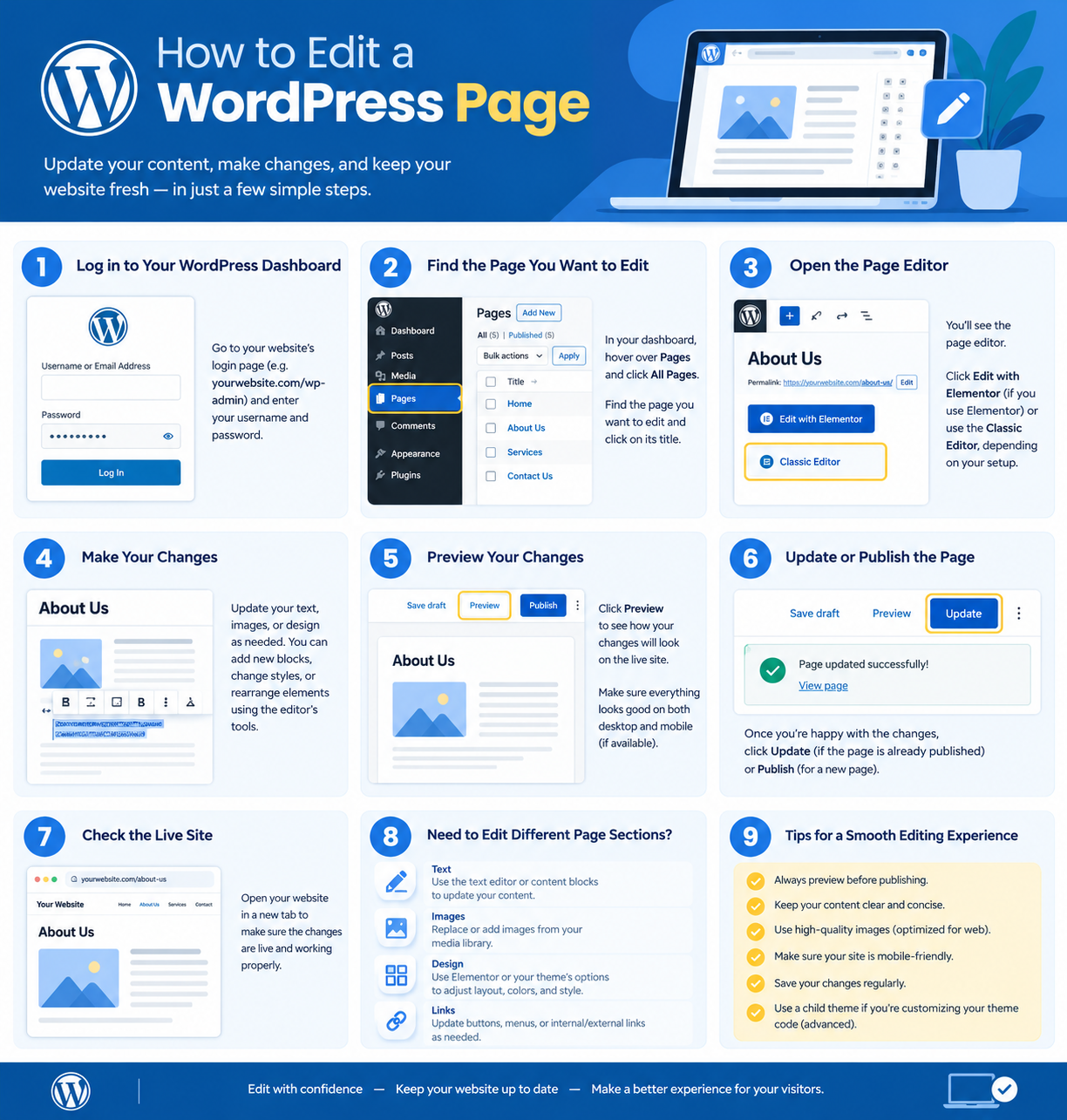
Step 1: Log In to Your WordPress Dashboard
Open your WordPress login page, usually available at:
https://yourdomain.com/wp-admin/
Replace yourdomain.com with your website’s domain. Enter your login credentials to access the dashboard.
You need an account with sufficient permissions to edit pages. If you cannot access the dashboard, contact your website administrator or hosting support team.
Step 2: Find the Page You Want to Edit
From the WordPress dashboard:
- Navigate to Pages → All Pages.
- Find the page you want to update.
- Hover over its title.
- Click Edit.
You can use the search field to find a page by its title. If you want to change the page’s content, images, or layout, open the full editor rather than relying on Quick Edit, which provides only limited options.
Step 3: Edit the Page Content
WordPress commonly uses the Block Editor, also known as Gutenberg, for editing page content.
Click an existing block to change its content or select the + button to add a new block.
Common blocks include:
- Paragraph: Add or edit text.
- Heading: Organize content into sections.
- Image: Insert or replace an image.
- List: Present information using bullets or numbered steps.
- Button: Add a link or call to action.
- Columns: Arrange content in multiple columns.
For example, if you manage a service page, you can update service descriptions, correct contact details, replace outdated images, or change a button’s text and destination.
Keep the content relevant to the page’s purpose. Avoid adding unnecessary sections when a simple update will meet the reader’s needs.
Step 4: Check the Page Title and URL
You can normally change the page title directly in the editor.
If you also need to change the URL slug, open the page settings and locate the URL or permalink option. Its location may vary depending on your WordPress version and editor interface.
Important: Changing a page title does not necessarily change its existing URL. If you only want to update the content, leave the URL unchanged.
If you must change a published URL:
- Choose a clear, relevant slug.
- Set up a permanent redirect from the old URL to the new one.
- Update internal links that point to the old address.
- Check that the new URL loads correctly.
Avoid changing published URLs unnecessarily, as other websites and search engines may already reference them.
Step 5: Preview Your Changes
Before publishing, use the editor’s Preview option to review the page.
Check the following:
- Text formatting and heading hierarchy.
- Image sizes, alignment, and cropping.
- Button destinations and other links.
- Spacing between sections.
- Readability on mobile devices.
The editing screen may not look exactly like the live website because your theme, plugins, and page builder can affect the final appearance.
If you only want to change the content of one page, you generally do not need to edit the site’s shared header, footer, or template. Those elements may be managed separately through your theme or Site Editor.
Step 6: Save or Update the Page
Once you are satisfied with the changes, use the available save or publishing controls.
- Update: Normally saves changes to an already published page and makes them live.
- Save Draft: Saves an unpublished draft without publishing it.
- Publish: Makes a new page publicly available when you are ready.
The exact labels may differ depending on your WordPress version and editor.
After updating a published page, open it in a new browser tab and confirm that the changes appear correctly. Test important links, buttons, and forms before considering the task complete.
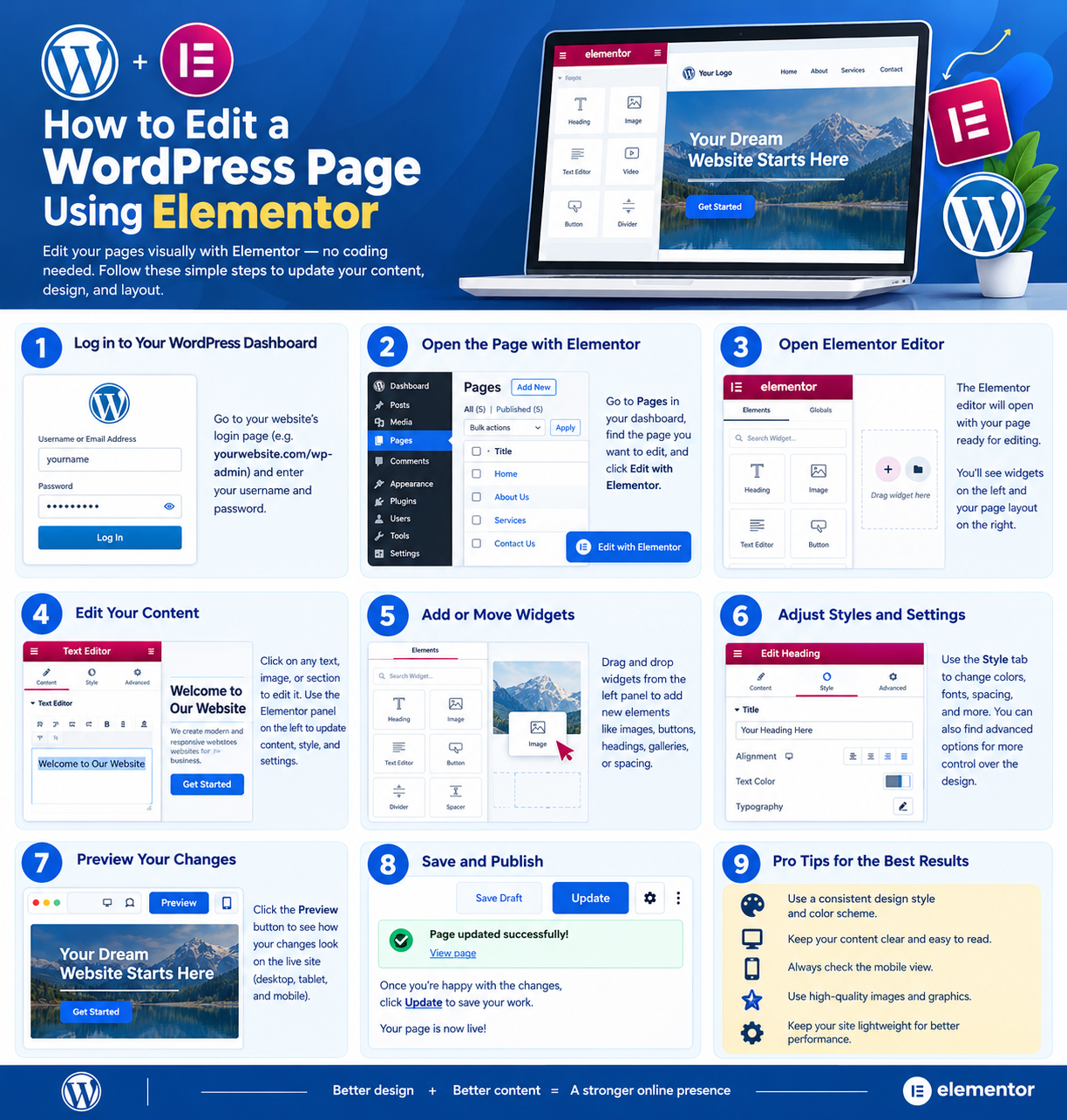
How to Edit a WordPress Page Using Elementor
If your page was built with Elementor, use its visual editor to preserve the intended layout and design.
Follow these steps:
- Go to Pages → All Pages.
- Find the page you want to edit.
- Click Edit with Elementor.
- Select the text, image, button, or section you want to change.
- Make the required adjustments in the editing panel.
- Preview the desktop, tablet, and mobile layouts.
- Click Update to save the changes.
Elementor allows you to adjust content, typography, spacing, images, and responsive settings through a visual interface.
If the page was originally designed in Elementor, avoid switching to another editor without understanding how its layout is constructed. Doing so may cause formatting or design problems.
If you need to make substantial changes to an important page, consider testing them on a staging site before updating the live version.
How to Edit a WordPress Page Without Affecting the Live Website
Minor text corrections can usually be made directly on a published page. However, major layout changes may require additional precautions.
Before making significant changes:
- Create a backup: Keep a recoverable copy of your website.
- Use a staging site: Test major content or design changes on a separate copy before publishing.
- Review your changes: Check the layout, links, forms, and mobile display.
- Confirm permissions: Make sure your account has the appropriate access.
A staging environment is particularly useful when updating important business pages, landing pages, or pages that receive regular visitors.
For more information, see our guide to WordPress Backup Best Practices and our WordPress Staging Environment Guide.
Common WordPress Page Editing Problems
If your changes do not save or appear as expected, use the following checks to identify the likely cause.
Changes Are Not Appearing on the Live Page
Sometimes, your browser or website cache displays an older version of a page.
Try these steps:
- Confirm that the page update completed successfully.
- Reload the page or open it in a private browser window.
- Clear your browser cache if necessary.
- Purge your WordPress caching plugin’s cache.
- Clear the hosting or CDN cache if your website uses one.
Check the page again before making further edits. Repeatedly changing the content will not solve a caching problem.
The Page Layout Looks Different After Editing
Unexpected layout changes can occur if you switch editors, remove required blocks, change theme settings, or modify page-builder elements.
To troubleshoot the problem:
- Reopen the page using its original editor.
- Review the most recent changes.
- Check the desktop and mobile layouts.
- Restore an earlier revision if the content needs to be recovered.
If the problem involves a shared header, footer, or template, check the relevant theme or template settings instead of repeatedly editing the page content.
You Cannot Edit the Page
If the Edit option is missing or access is denied, your WordPress account may not have the necessary permissions.
Check your user role first. If you have sufficient permissions but the editor still fails to load, review any error messages and consider whether a recent plugin or theme change caused the problem.
Test suspected plugin conflicts on a staging site rather than disabling plugins on a live website without preparation.
The Update Button Is Not Working
A failed update may result from a browser issue, a plugin conflict, a server error, or an interrupted connection.
Try refreshing the editor after checking whether your changes have been saved elsewhere. If the problem continues, review any displayed error messages and ask your website administrator or hosting provider to investigate server-side issues when appropriate.
You Need to Restore an Earlier Version
WordPress revisions may allow you to recover previously saved page content.
Open the editor and look for the Revisions option, if available. Review the earlier versions and restore the appropriate one.
Keep in mind that revisions may not restore every setting managed by a theme, plugin, or page builder. For major recovery needs, you may need a suitable website backup.
Best Practices for Editing WordPress Pages
Use this checklist to keep your pages accurate and functional.
- Keep information current: Verify service details, prices, contact information, and other important content.
- Preserve existing URLs: Avoid unnecessary changes to published page addresses.
- Use clear headings: Organize content so visitors can quickly find the information they need.
- Optimize images: Use appropriately sized images and meaningful alternative text where appropriate.
- Test links and forms: Confirm that visitors can complete important actions.
- Check mobile layouts: Make sure content and buttons display properly on smaller screens.
- Back up before major changes: Protect important content before significant edits.
- Verify the live page: Confirm that the saved changes appear as expected.
If you are updating a page for search visibility, prioritize useful, accurate content and a clear structure. Avoid repeating keywords unnecessarily or changing page URLs without a good reason.