How to Create a WordPress Post: A Step-by-Step Guide
Creating a WordPress post allows you to publish blog articles, tutorials, company updates, and news on your website. WordPress provides a built-in editor that makes it easy to write content, add images, organize posts, and publish them without coding. In this guide, you’ll learn how to create a WordPress post, format its content, configure essential […]
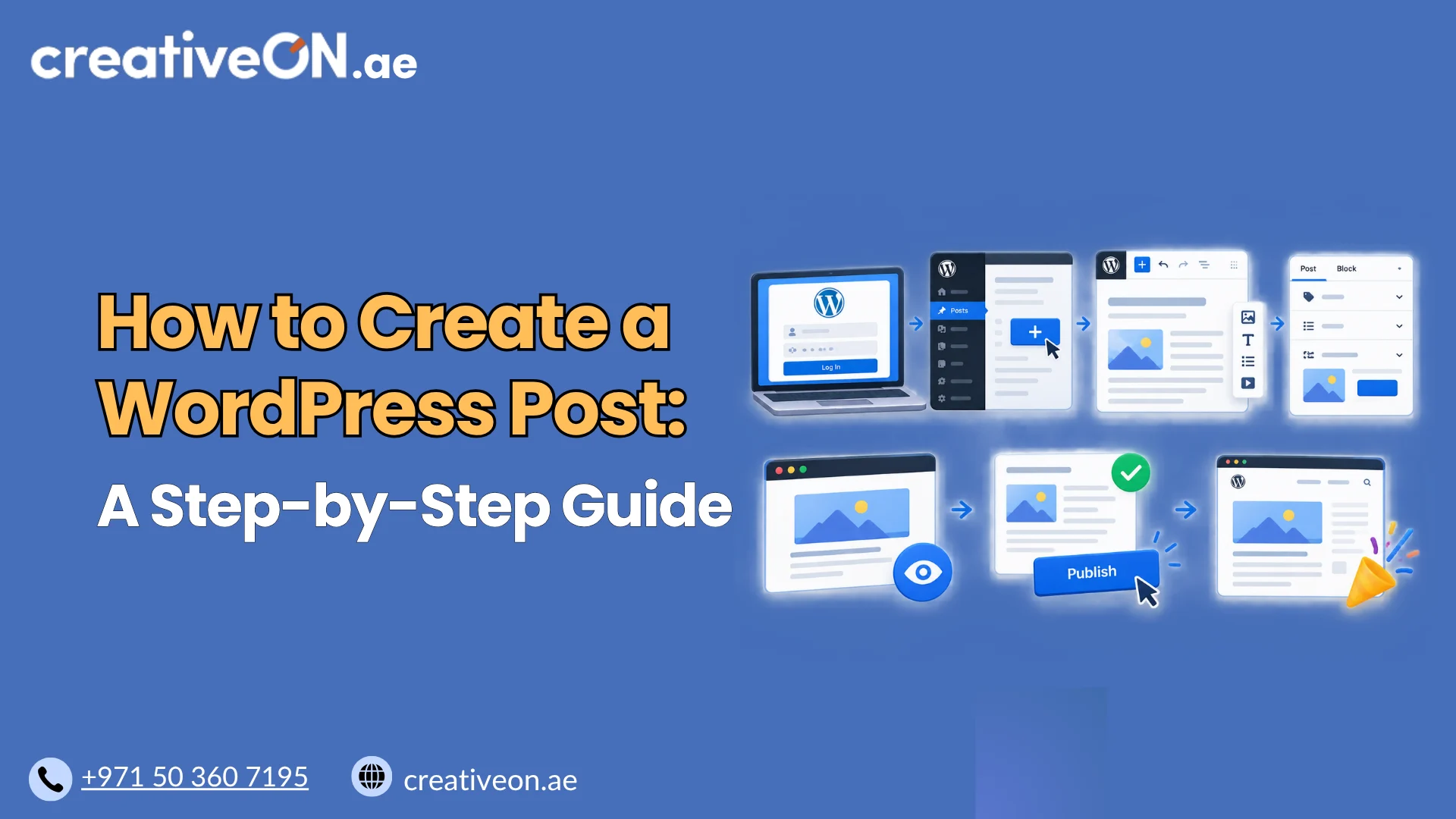
Creating a WordPress post allows you to publish blog articles, tutorials, company updates, and news on your website. WordPress provides a built-in editor that makes it easy to write content, add images, organize posts, and publish them without coding.
In this guide, you’ll learn how to create a WordPress post, format its content, configure essential settings, preview it, and publish or schedule it.
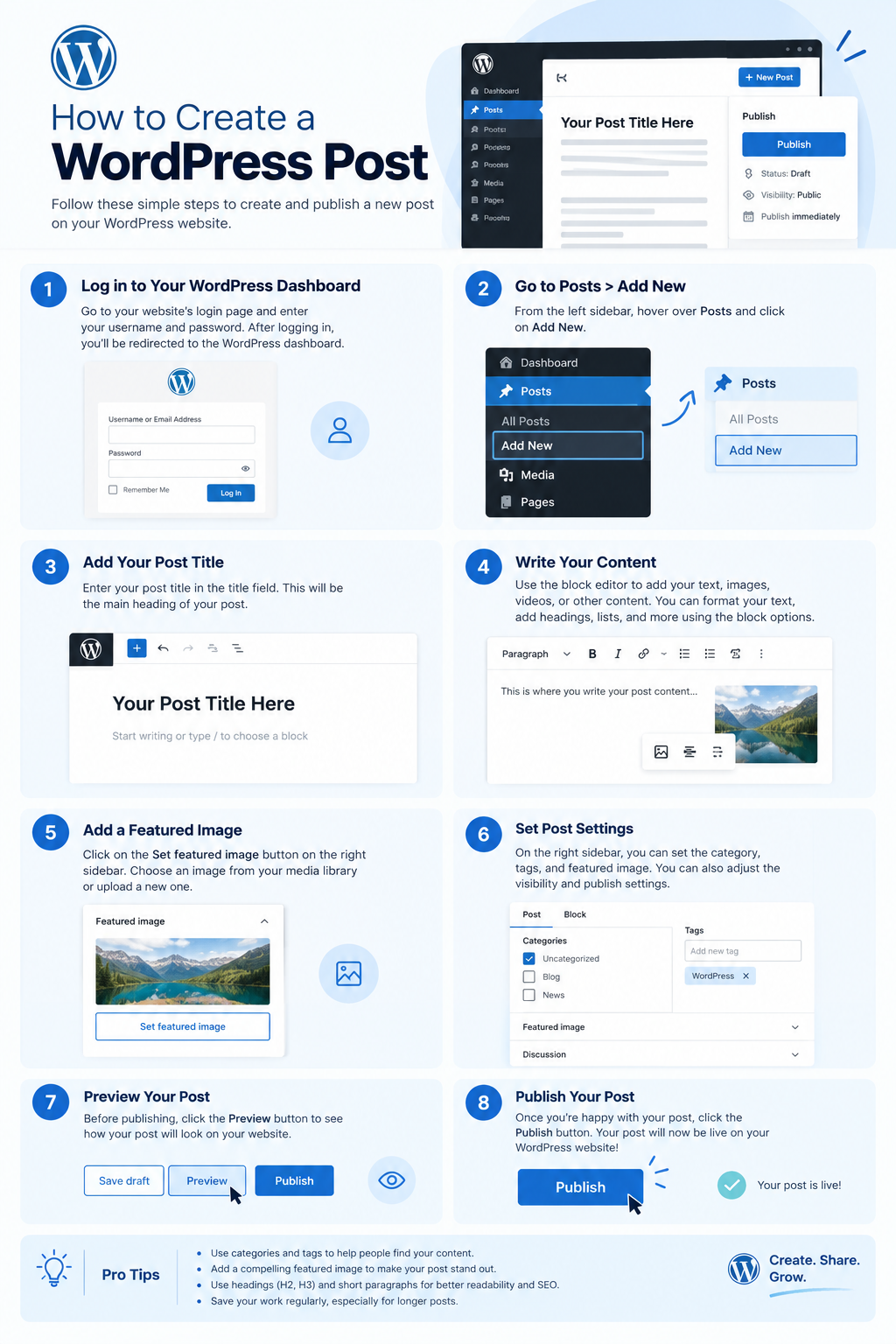
How to Create a WordPress Post
Follow these steps to create and publish a blog post using the WordPress dashboard.
Step 1: Log In to Your WordPress Dashboard
Open your website’s WordPress administration area, usually available at:
https://yourdomain.com/wp-admin/
Replace yourdomain.com with your actual domain name. Enter your login credentials to access the dashboard.
You need a user account with sufficient permissions to create posts. Depending on your role, you may be able to publish articles directly or save them for review by an editor.
Step 2: Open the Post Editor
From the dashboard:
- Select Posts from the left-hand menu.
- Click Add New Post or Add New, depending on your WordPress version.
The WordPress block editor will open. It allows you to build an article using separate content blocks, such as paragraphs, headings, images, and lists.
If your website uses the Classic Editor plugin or another editing interface, some options may look different.
Step 3: Enter a Clear Post Title
Click the title field at the top of the editor and enter a descriptive title that explains what readers will learn.
For example:
How to Secure Your WordPress Website
A useful title should accurately represent the article and help readers understand its purpose. Keep it concise and avoid vague wording.
For SEO, make the title descriptive and relevant to the page’s subject. Including your target keyword naturally can help communicate relevance, but repeating keywords unnecessarily is not beneficial.
Step 4: Write and Format Your Content
Click the content area below the title and start writing. Press Enter to create a new paragraph or use the + block inserter to add another content type.
Common blocks include:
- Paragraph: For the main article text.
- Heading: To organize content into sections.
- List: To present steps, recommendations, or key points.
- Image: To illustrate your explanation.
- Quote: To highlight a relevant quotation.
- Buttons: To guide readers to a relevant page or action.
Use Heading 2 for main sections and Heading 3 for subsections where appropriate. Keep paragraphs focused and arrange the information in a logical order.
You can move, duplicate, or edit blocks using the editor toolbar and block settings. To find a particular block quickly, use the block inserter’s search function.
Step 5: Add Images and a Featured Image
Images can make your WordPress post easier to understand. To insert an image into the article:
- Click the + block inserter.
- Search for and select the Image block.
- Upload an image, select one from the Media Library, or use another available insertion option.
- Add appropriate alternative text when the image conveys meaningful information.
A featured image is different from an image inserted into the article. It is assigned through the post settings and may appear on blog archives, article pages, or social sharing previews, depending on your theme and configuration.
To set one, open the post settings sidebar, find Featured image, and select or upload an appropriate image.
For better performance, use suitably sized, compressed images. Write alternative text that describes the image’s purpose rather than filling it with keywords.
Step 6: Choose Categories and Tags
Categories and tags help organize WordPress posts.
Categories group articles into broader topics. For example, a business website might use categories such as WordPress Tutorials, Website Security, and Hosting Guides.
Tags describe specific subjects covered in an article. A post about website backups might use tags related to backup procedures or restoration.
To organize your post:
- Open the post settings sidebar.
- Locate the Categories section.
- Select an appropriate category or create one if needed.
- Add relevant tags if they provide useful organization.
Use categories consistently across your website. Tags are optional, so avoid creating unnecessary labels that do not help readers discover related content.
Step 7: Review the Permalink and Post Settings
Before publishing, review the settings available in the editor’s sidebar. Depending on your WordPress version, theme, and plugins, you may see options for:
- Permalink: The URL or slug for your post.
- Author: The person credited with writing the article.
- Featured image: The image associated with the post.
- Discussion: Whether comments are enabled.
- Template: The layout used to display the post, if supported.
- Excerpt: A short summary that may be displayed in blog listings.
Keep the post slug short, readable, and relevant to the content. For example:
https://yourdomain.com/wordpress-security-guide/
WordPress may generate the initial slug from your title. You can usually edit it before publication, subject to your website’s settings and permissions.
If your site uses an SEO plugin, you may also be able to set an SEO title and meta description. These are separate from the article’s main title and body content.
Step 8: Preview and Check Your Post
Before making the article public, use the Preview option in the editor toolbar to see how it appears on your website.
Review the available desktop and mobile previews, where supported, and check that:
- The title and headings are correct.
- Paragraphs, lists, and images display properly.
- Internal and external links lead to the correct destinations.
- The featured image appears as expected.
- The content is readable on smaller screens.
- No placeholder text or accidental formatting remains.
Previewing helps you catch presentation problems before visitors see the published article.
Step 9: Publish or Schedule Your WordPress Post
When the article is ready, click Publish in the editor’s upper-right corner.
WordPress may show a confirmation panel with publication and visibility settings. Review the options and confirm publication when prompted.
If you are not ready to make the article public, select Save draft. Your work will remain available in the dashboard for further editing.
You can also schedule a post for a future date and time when the scheduling option is available:
- Open the post’s publishing settings.
- Select the date and time for publication.
- Confirm the scheduling details.
- Click the relevant Schedule control to save the scheduled publication.
Check the scheduled date and time carefully, particularly if you manage a business blog with a regular publishing calendar.
After publication, use View Post if available, or open the post from the Posts list, to confirm that the article appears correctly on your website.
WordPress Post Publishing Checklist
Before publishing, make sure you have reviewed the following:
- The title accurately describes the article.
- Headings and paragraphs are formatted correctly.
- Images are relevant and appropriately sized.
- The correct category is selected.
- The permalink is clear and descriptive.
- The excerpt is added if your site uses one.
- The featured image and links have been checked.
- The article has been previewed on desktop and mobile.
- The publication status and date are correct.
This short review can help you avoid common publishing mistakes and maintain a consistent standard across your website.
Common Mistakes to Avoid
When creating a WordPress post, avoid these frequent errors:
Publishing without previewing: Layout problems, broken links, or missing images may go unnoticed.
Using the wrong content type: Blog articles generally belong in posts, while permanent information such as About Us and Contact usually belongs in pages. For more detail, see our guide to WordPress Posts vs Pages.
Using unclear permalinks: Descriptive URLs are easier to understand and share.
Creating too many categories and tags: Unnecessary labels can make your content structure harder to maintain.
Uploading oversized images: Large image files can increase page loading times.
Forgetting to save changes: Save drafts during longer writing sessions and check that your latest edits have been saved before leaving the editor.