How to Create a WordPress Page: Step-by-Step Guide
Creating a page in WordPress allows you to publish important website content, such as an About Us page, Contact page, or Services page. With the built-in WordPress editor, you can add text, images, buttons, and other content without writing code. In this guide, you will learn how to create a WordPress page, configure its basic […]
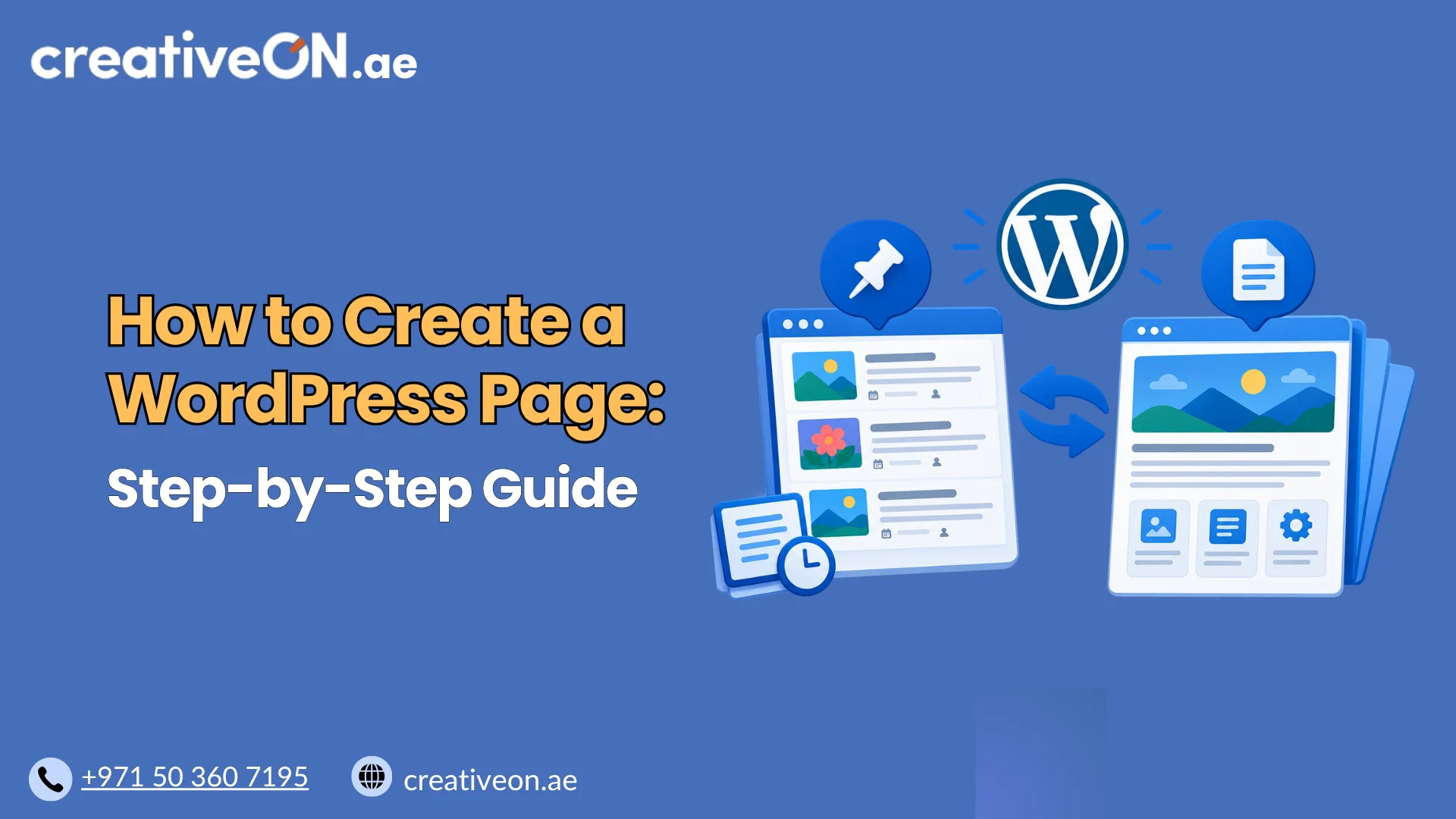
Creating a page in WordPress allows you to publish important website content, such as an About Us page, Contact page, or Services page. With the built-in WordPress editor, you can add text, images, buttons, and other content without writing code.
In this guide, you will learn how to create a WordPress page, configure its basic settings, preview the layout, and publish it on your website.
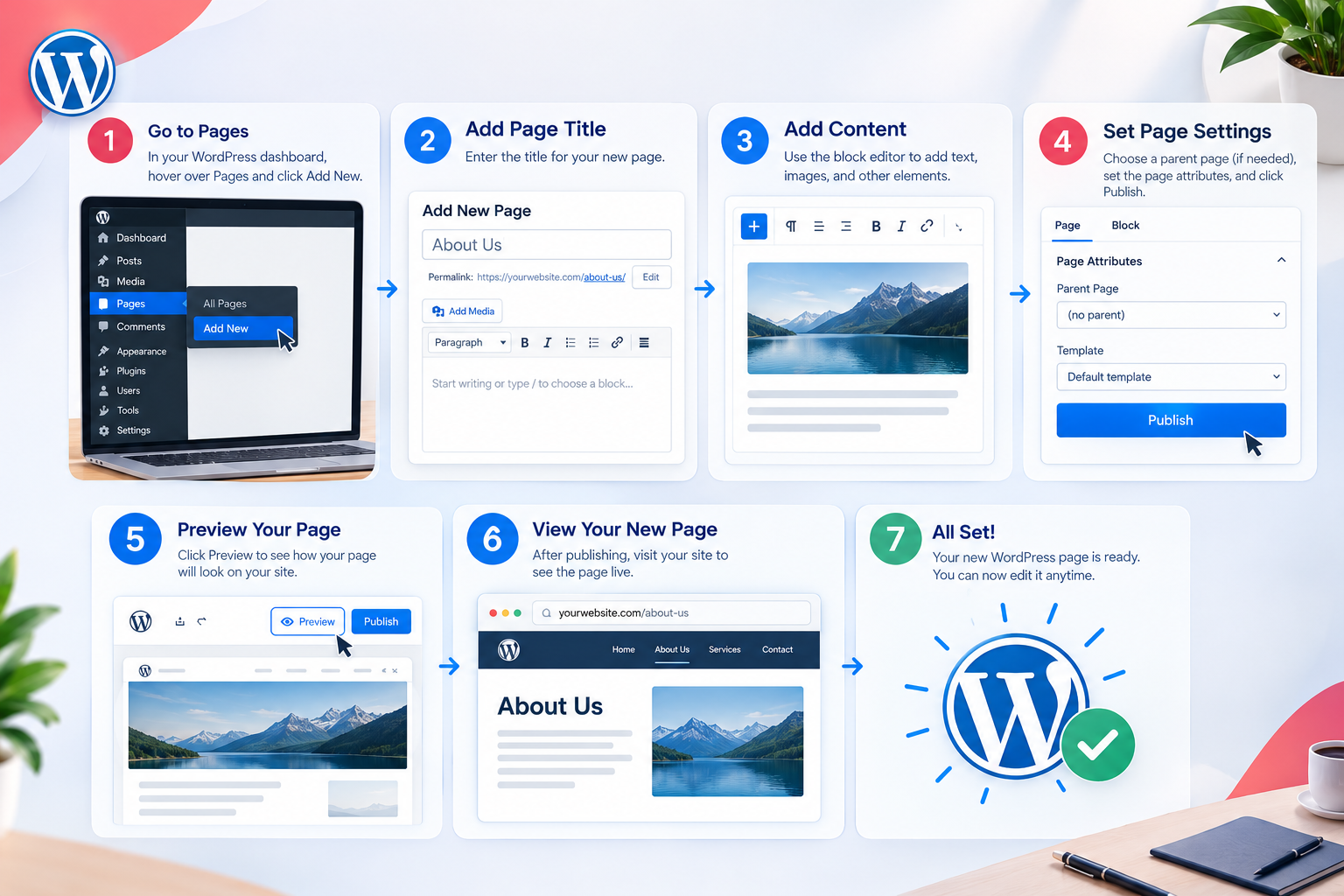
How to Create a WordPress Page Step by Step
Follow these steps to create and publish a new page using the WordPress dashboard.
Step 1: Log In to Your WordPress Dashboard
Open your WordPress login page, usually available at yourdomain.com/wp-admin, and enter your login credentials.
After logging in, you can manage your website’s pages, posts, media, appearance, and other settings from the dashboard.
Step 2: Create a New Page
From the dashboard menu:
- Click Pages.
- Select Add New Page.
WordPress will open the page editor, where you can enter a title and build your page content.
If you want to modify an existing page instead, navigate to Pages → All Pages and select the page you want to edit.
Step 3: Add a Page Title
Enter a clear, descriptive title at the top of the editor.
Common examples include:
- About Us
- Contact Us
- Our Services
- Frequently Asked Questions
- Privacy Policy
Choose a title that accurately describes the page and helps visitors understand its purpose.
WordPress may use the title to generate the page’s default URL slug. You can usually customize the slug in the page settings before publishing.
Step 4: Add Content Using the WordPress Block Editor
WordPress uses the Gutenberg block editor by default. It lets you build pages using individual blocks for different types of content.
To add content:
- Click the content area below the title.
- Type your text or select the plus (+) button to add a block.
- Choose the block you need, such as Paragraph, Heading, Image, List, or Buttons.
- Repeat the process to add and arrange the remaining content.
For example, a Services page might contain an introduction, a list of services, brief descriptions, and a button linking to your Contact page.
Use headings to divide longer content into logical sections. Keep paragraphs concise and arrange information in an order that makes sense to visitors.
Step 5: Add Images and Other Elements
You can make your page more useful by adding relevant images and visual elements.
To insert an image:
- Select the plus (+) button in the editor.
- Choose the Image block.
- Upload an image, select one from the Media Library, or use another available image source.
- Add appropriate alternative text when the image communicates meaningful information.
You can also insert lists, buttons, tables, and other supported blocks as needed.
Optimize images before uploading them by using suitable dimensions and efficient file formats. This helps avoid unnecessarily large files that can slow down page loading.
Step 6: Configure the Page Settings
Before publishing, review the settings available in the editor’s sidebar. The options depend on your WordPress version, theme, plugins, and user permissions.
Pay attention to these settings:
- URL slug: Choose a short, descriptive ending for the page URL.
- Parent page: Assign a parent if the page belongs within a hierarchy of related pages.
- Template: Select an available template if your theme offers different page layouts.
- Featured image: Add one if your theme or design uses featured images for pages.
- Visibility: Confirm whether the page should be public, private, or password-protected.
For example, a Services page might use the URL example.com/services/.
A descriptive URL makes the page address easier to understand. If you change the URL of an existing published page, consider redirecting the old URL to the new one, particularly if the old address has backlinks, search visibility, or existing visitors.
Step 7: Preview Your Page
Before publishing, use the Preview option to see how the page appears on your website.
Review the layout on desktop and mobile devices where possible.
Check that:
- The title and headings display correctly.
- Text is readable and properly formatted.
- Images and buttons appear in the correct positions.
- Links and forms work as expected.
- The page is easy to navigate on smaller screens.
If you use a page builder such as Elementor, you may need to open its editor to adjust the layout and design.
Step 8: Publish Your WordPress Page
Once you are satisfied with the content and layout:
- Click Publish.
- Review the publication settings if prompted.
- Confirm publication.
Your page should now be available at its assigned URL, provided it is publicly accessible and no additional restrictions prevent access.
Visit the published page to make sure it loads correctly.
If you are still working on the content, save it as a draft instead. You can return to the editor and publish it when it is ready.
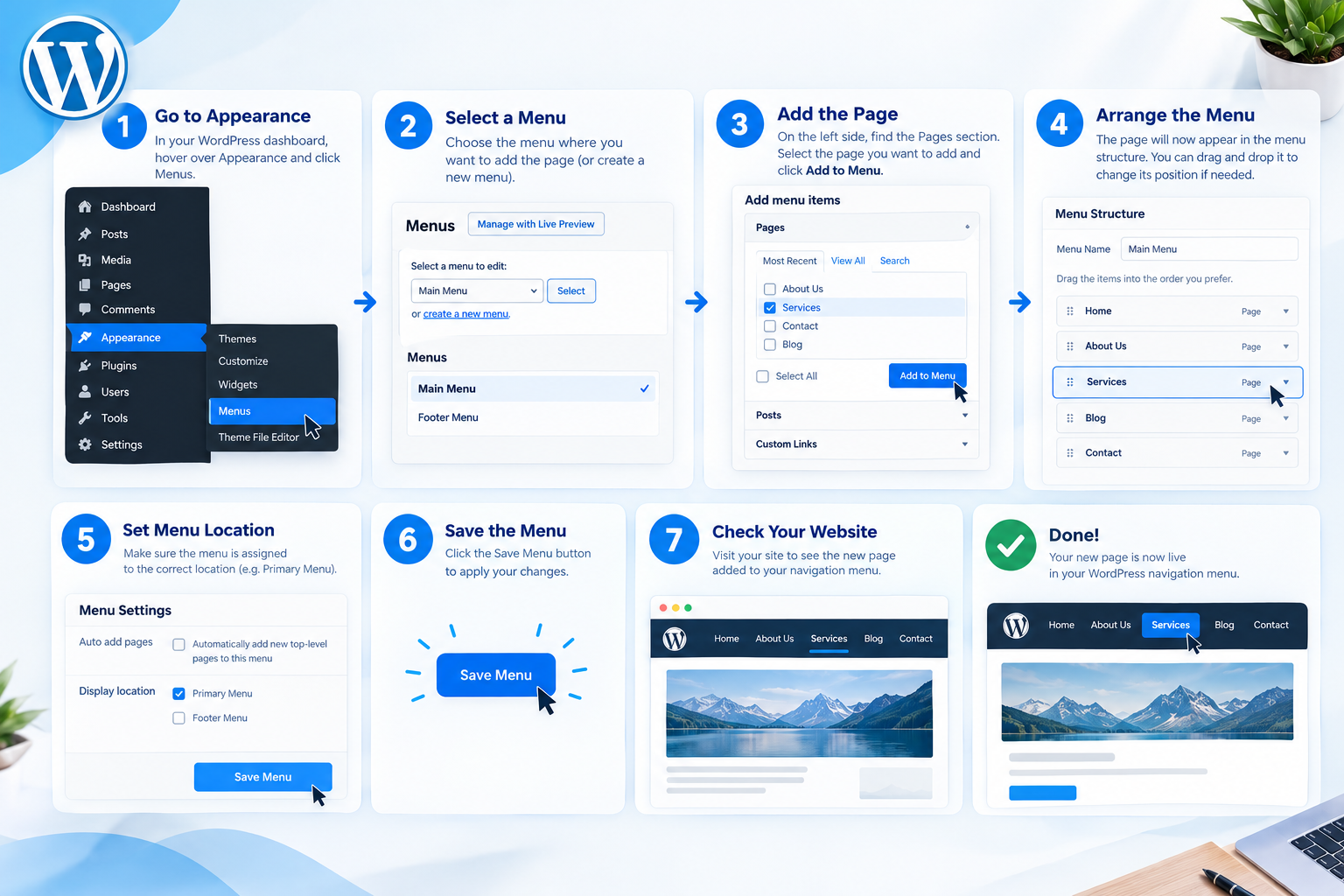
How to Add a WordPress Page to Your Navigation Menu
Publishing a page does not always add it to your website’s navigation automatically. Whether it appears in a menu depends on your theme and navigation configuration.
For Classic Themes
If your theme uses the classic menu system:
- Go to Appearance → Menus.
- Select the menu you want to edit.
- Add the new page to the menu.
- Arrange its position and save the menu.
For Block Themes
If your theme uses the Site Editor:
- Go to Appearance → Editor.
- Open the area containing your Navigation block, usually in the header.
- Edit the navigation and add a link to your page if needed.
- Save your changes.
Some themes use a Page List block that can display published pages automatically. If your page already appears in the navigation, you may not need to add it manually.
Common Problems When Creating a WordPress Page
If your new page does not appear as expected, check these common issues.
The page is missing from the menu. Check your navigation settings and add the page if necessary. Publishing a page and adding it to a menu are separate actions in many configurations.
The page is not publicly accessible. Confirm that it has been published and is not set to private or password-protected.
The URL is incorrect. Review the page slug and any relevant permalink or parent-page settings. If you change an established URL, arrange an appropriate redirect from the previous address.
Changes are not visible. Your browser or website caching system may be showing an older version. Refresh the page and clear the relevant cache if necessary.
The layout looks different on mobile. Review the page using a mobile preview and adjust the content or layout settings in your editor or page builder.