How to Preview a WordPress Post Before Publishing
Before publishing a WordPress post, it is important to check how it will appear to website visitors. Even when your content looks correct in the editor, the front-end display may differ. Images might be misplaced, headings may have inconsistent spacing, or the layout may not display properly on mobile devices. WordPress includes a built-in preview […]
Before publishing a WordPress post, it is important to check how it will appear to website visitors. Even when your content looks correct in the editor, the front-end display may differ. Images might be misplaced, headings may have inconsistent spacing, or the layout may not display properly on mobile devices.
WordPress includes a built-in preview feature that lets you review your post before making it public. You can check its appearance, inspect formatting, and identify potential problems without publishing the content.
In this guide, you’ll learn how to preview a WordPress post using the Block Editor and Classic Editor, check its appearance on different devices, review changes to published posts, and fix common preview problems.
What Is a WordPress Post Preview?
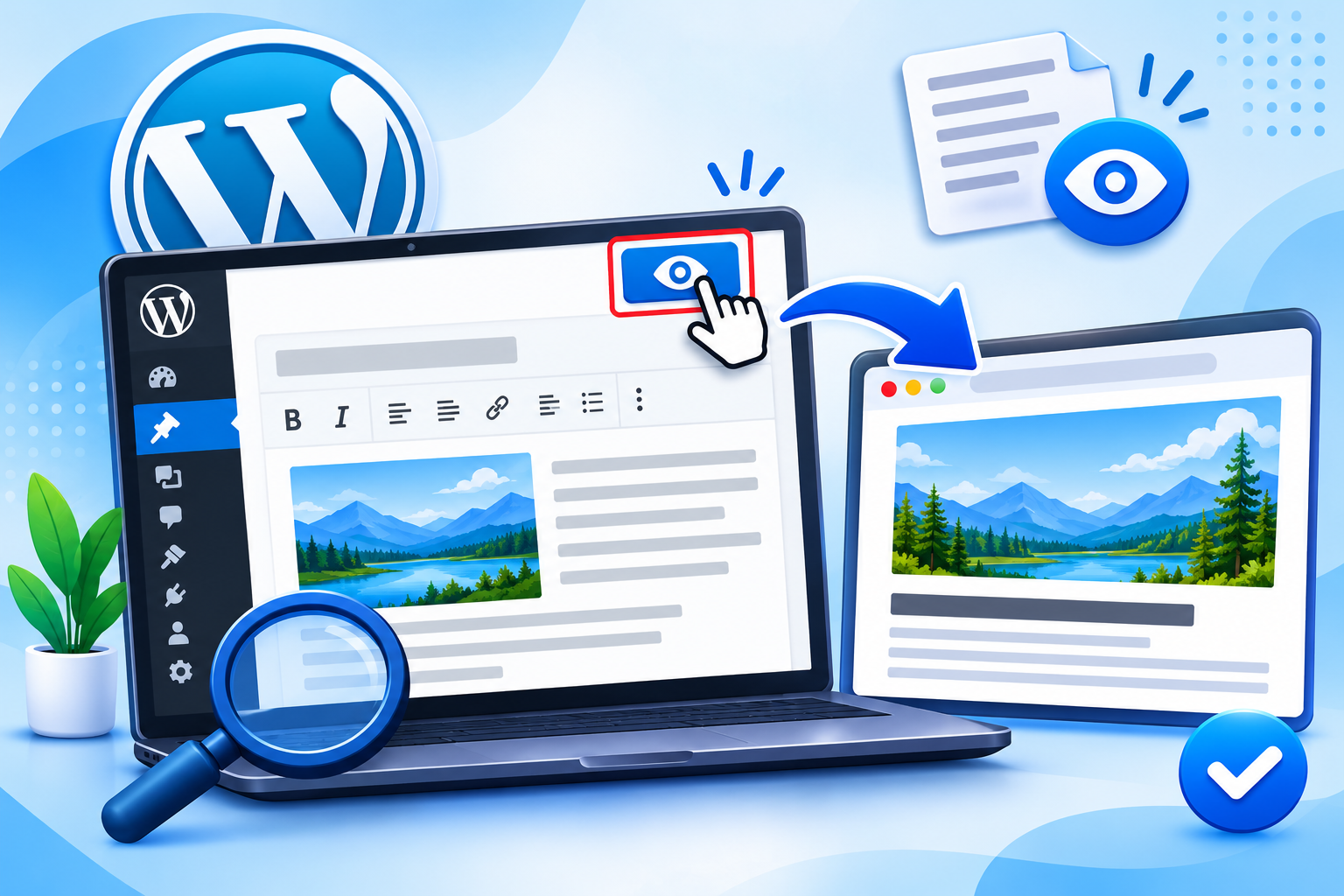
A WordPress post preview allows you to see how your content will appear on the front end of your website before publishing it.
The WordPress editor displays your content while you are writing, but the front-end preview provides a better understanding of how visitors will experience the finished article.
You can use the preview feature to check:
- Post titles, headings, and paragraph formatting.
- Featured images and content images.
- Font sizes, spacing, and alignment.
- Internal and external links.
- Tables, buttons, and embedded content.
- Desktop, tablet, and mobile layouts.
Previewing is particularly useful for bloggers, business websites, and content teams that regularly publish articles.
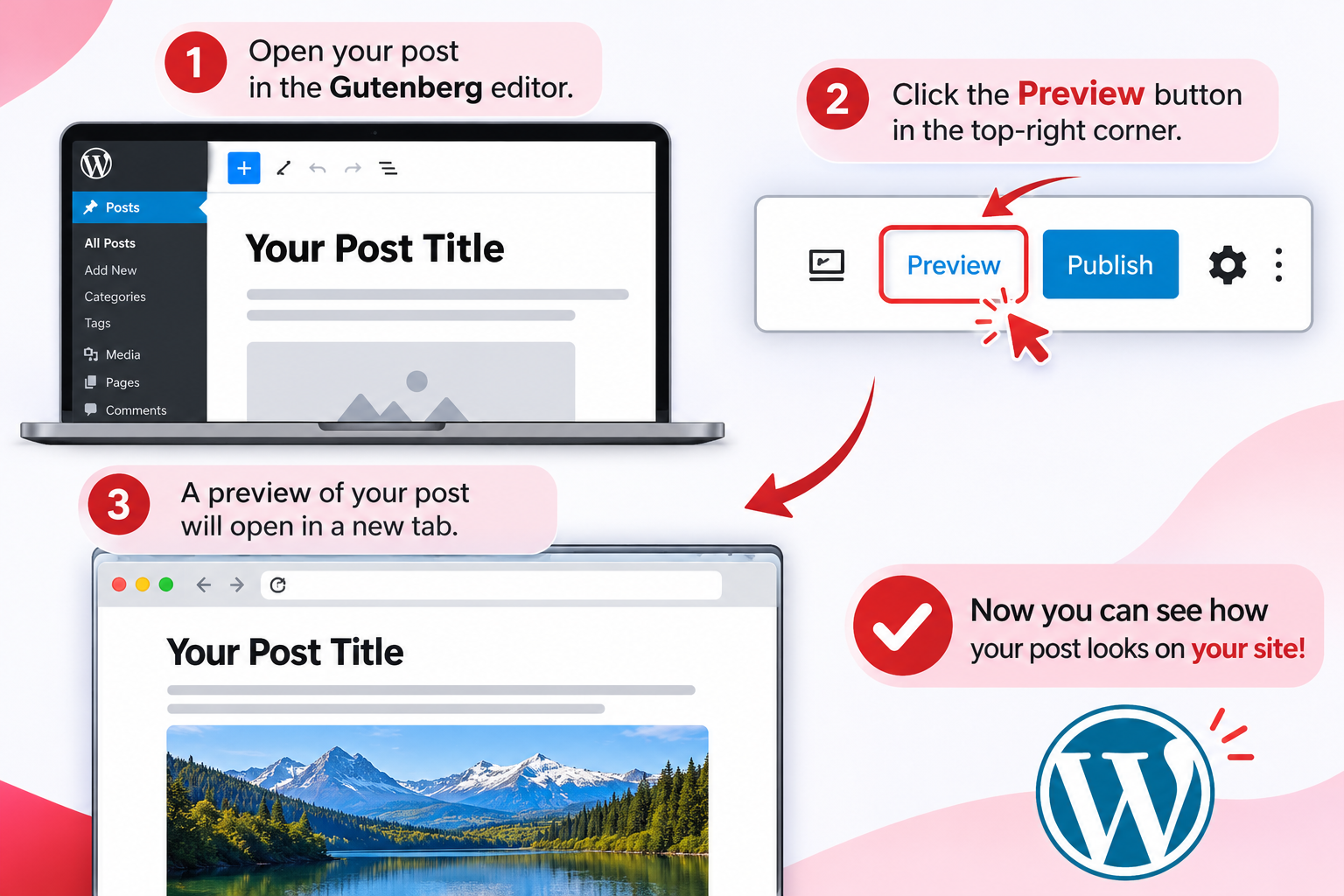
How to Preview a WordPress Post in Gutenberg
The Gutenberg Block Editor includes a built-in View feature that allows you to preview your content before publishing it.
Follow these steps:
1. Open Your WordPress Post
First, log in to your WordPress dashboard.
Navigate to:
Posts → All Posts
Find the post you want to review and click Edit.
If you are creating a new article, navigate to Posts → Add New Post and add your content.
2. Click the View Button
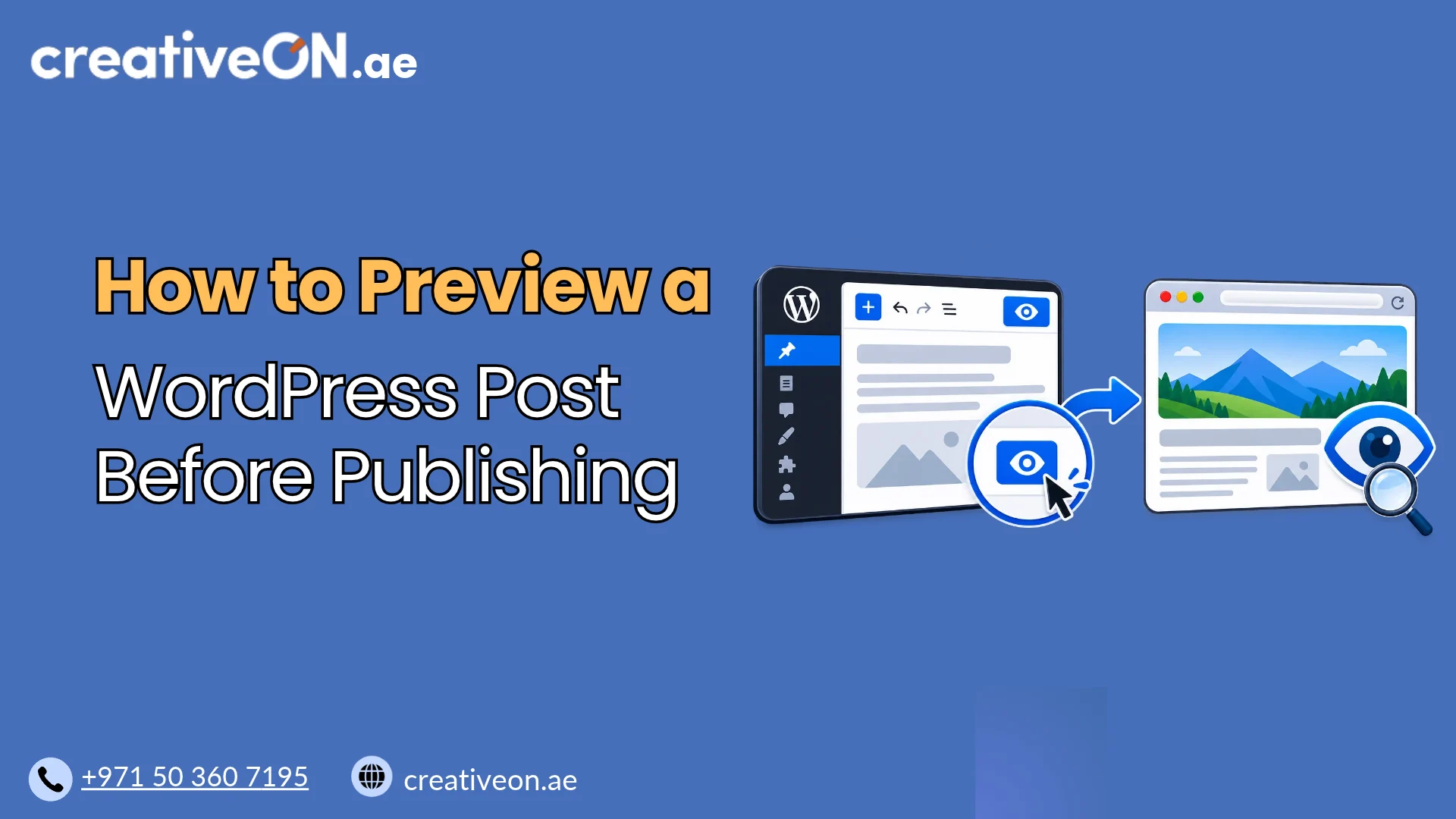
Once your content is ready, look at the top-right corner of the Gutenberg editor.
Click the View button, which is represented by an icon resembling an open laptop.
Depending on your WordPress version and editor configuration, you may see options such as:
- Desktop
- Tablet
- Mobile
- Preview in new tab
Select Preview in new tab to open the front-end version of your post in a separate browser tab.
3. Review Your Post
Your post will open in preview mode. Carefully examine its appearance to make sure everything displays correctly.
Pay attention to:
- Whether the title appears correctly.
- Whether headings and paragraphs are properly formatted.
- Whether images load and display in the correct positions.
- Whether links point to the intended destinations.
- Whether lists and tables are readable.
- Whether the layout matches your website’s design.
If you find an issue, return to the editor, make the necessary changes, save your latest edits, and refresh or reopen the preview.
Important: An already-open preview may not automatically reflect subsequent edits. Save your latest changes and refresh the preview tab to review the updated version.
How to Preview a WordPress Post in the Classic Editor
Some WordPress websites still use the Classic Editor instead of Gutenberg. The preview process is slightly different.
Follow these steps:
- Log in to your WordPress dashboard.
- Navigate to Posts → All Posts.
- Find the post you want to preview and click Edit.
- Locate the Publish panel on the right side of the editor.
- Click the Preview button.
- Your post will open in a new browser tab.
Review the front-end appearance and return to the editor if you need to make corrections.
After making additional changes, save the draft and open a fresh preview to check the latest version.
How to Preview a WordPress Post on Different Devices
A post that looks good on a desktop screen may not display correctly on smaller devices.
The Gutenberg editor provides responsive preview options that let you check your content at different screen widths.
To use these options:
- Open your post in the Block Editor.
- Click the View button.
- Select the device preview option.
- Choose Desktop, Tablet, or Mobile.
- Review how your content fits the selected screen size.
When checking the mobile layout, pay particular attention to:
- Image sizes and alignment.
- Heading and paragraph readability.
- Table responsiveness.
- Button placement and spacing.
- Content extending beyond the screen.
- Navigation and sidebar behaviour.
Note: The editor’s device preview changes the editor canvas width. It is useful for checking responsive layouts, but it is not a perfect replacement for opening the front-end preview on an actual smartphone or tablet.
How to Preview Changes to a Published WordPress Post
You may sometimes need to update an existing article without immediately making those changes visible to visitors.
WordPress allows you to edit a published post and preview your changes before updating it.
Follow these steps:
- Navigate to Posts → All Posts.
- Find the published article you want to edit.
- Click Edit.
- Make the required changes.
- Save your changes where appropriate.
- Open the preview and review the updated version.
- Make any additional corrections.
- Click Update when everything is ready.
This approach is particularly helpful when updating older articles, replacing images, correcting information, or improving content formatting.
Important: Previewing does not automatically publish your changes. The existing published version generally remains visible to visitors until you update the post.
Can You Share a WordPress Post Preview Link?
Yes, but sharing an unpublished WordPress post preview requires some attention to user permissions.
By default, preview links for draft posts generally require an authorized WordPress user who has the necessary access to view that content.
If you want someone outside your WordPress dashboard to review an unpublished article, the standard preview link may not work for them.
You have a few options:
- User accounts: Create an appropriate WordPress account for the reviewer with the necessary permissions.
- Preview plugins: Use a trusted plugin that supports sharing private preview links.
- Editorial collaboration tools: Use a workflow that allows external reviewers to access unpublished content securely.
Some preview plugins also offer link expiration and access restrictions.
Avoid sharing administrator credentials just to let someone review an article. Always check the permissions and security settings of any plugin used for external previews.
How to Fix Common WordPress Preview Problems
Sometimes a WordPress preview does not display your latest changes or looks different from the editor. Here are common problems and their solutions.
| Problem | Possible solution |
| Preview shows older content | Save the latest changes and open a fresh preview |
| Latest edits are not visible | Refresh the preview tab after saving |
| Images are missing | Check image URLs and Media Library files |
| Preview link does not work | Check login status and user permissions |
| Layout looks different | Check theme styles and responsive settings |
| Changes are not appearing | Check browser and website caching |
| Page displays incorrectly | Review plugins, blocks, and theme compatibility |
Preview Shows an Older Version
If your preview displays outdated content, first save your latest changes and open a fresh preview.
If the preview is already open, refresh the browser tab. Also check whether you are viewing the correct post and its latest saved version.
Images Are Not Displaying
Check whether the images were uploaded successfully to your WordPress Media Library.
Also verify that image URLs are correct and that the files are accessible.
Preview Looks Different from the Editor
The WordPress editor and your website’s front end may use different styling.
Your active theme, custom CSS, and plugins can affect how content appears after rendering.
Review the post using the front-end preview rather than relying entirely on the editor.
Changes Are Not Appearing
If saved changes still do not appear, try these steps:
- Save the latest version of your post.
- Open a fresh preview.
- Refresh the browser tab.
- Check the page in a private browsing window.
- Clear the relevant browser or website cache if the issue persists.
If the problem continues, check whether a plugin or theme is interfering with the preview.
Best Practices Before Publishing a WordPress Post
Before publishing an article, take a few minutes to complete a final review.
Use this checklist:
- Check the post title and headings.
- Review paragraphs, lists, and formatting.
- Check featured and content images.
- Test internal and external links.
- Review desktop, tablet, and mobile layouts.
- Check tables, buttons, and embedded content.
- Verify that the correct featured image is selected.
- Check the final URL or permalink.
- Correct spelling and grammatical mistakes.
Following this simple process can help prevent avoidable publishing errors and improve the reading experience.