How to Enable or Disable Google Workspace Services for Users
Introduction Not every employee in your organization needs access to every Google Workspace app. For example, a frontline worker may only need Gmail and Google Calendar, while your finance team may require Google Drive and Google Sheets but not Google Chat. Giving users access only to the services they need helps improve security, simplifies administration, […]
Introduction
Not every employee in your organization needs access to every Google Workspace app. For example, a frontline worker may only need Gmail and Google Calendar, while your finance team may require Google Drive and Google Sheets but not Google Chat. Giving users access only to the services they need helps improve security, simplifies administration, and ensures your organization follows internal policies.
Google Workspace makes this easy through the Admin console. As an administrator, you can enable or disable individual Google Workspace services for your entire organization, specific organizational units (OUs), or selected groups. This flexibility allows businesses to provide the right tools to the right people without affecting everyone else.
In this guide, you’ll learn how to enable or disable Google Workspace services, understand what happens when access is changed, and follow best practices to manage apps effectively.
Why Would You Enable or Disable Google Workspace Services?
There are many situations where restricting access to certain applications makes sense. While Google Workspace includes a wide range of productivity tools, not every service is relevant for every user.
Common reasons include:
- Limiting unnecessary applications
- Improving data security
- Meeting company compliance requirements
- Reducing distractions
- Controlling access for students
- Creating department-specific app access
- Managing temporary employees or contractors
For example, a school may disable Google Chat for younger students while keeping Google Classroom and Google Drive available. Similarly, a business may restrict Google Meet for warehouse staff who never participate in online meetings.
Before You Begin
Before changing any service settings, make sure you:
- Have Super Admin or delegated administrator privileges.
- Know which Organizational Unit (OU) or Group contains the users.
- Understand which services depend on others.
- Inform users if the change may interrupt their work.
Planning ahead helps avoid unexpected disruptions.
How to Enable or Disable Google Workspace Services
Google Workspace allows administrators to manage service access from a single location within the Admin console.
Step 1: Sign in to the Google Admin Console
Log in using an administrator account.
Step 2: Open Apps
From the Admin console dashboard, navigate to:
Apps → Google Workspace
Here you’ll see the list of available Google Workspace services.
Step 3: Select the Service
Choose the application you want to manage, such as:
- Gmail
- Google Drive
- Google Meet
- Google Calendar
- Google Chat
- Google Docs
- Google Vault
- Google Sites
Each service has its own settings page.
Step 4: Choose the Users
Instead of changing settings for everyone, you can apply them to:
- Entire organization
- Organizational Units
- Groups
Using Organizational Units allows departments to have different app access without affecting other teams.
Step 5: Turn the Service On or Off
Locate the Service Status option and choose:
- ON
- OFF
Save your changes.
Google may take several minutes before the changes apply to all users.
What Happens When You Disable a Service?

Disabling a service doesn’t necessarily delete user data. In most cases, it simply prevents users from accessing that application.
For example:
Service | Effect of Disabling |
Gmail | Users cannot send or receive email |
Google Drive | Users cannot access Drive files |
Google Meet | Users cannot create or join meetings |
Google Chat | Messaging becomes unavailable |
Google Calendar | Calendar access is removed |
Some data may remain available if the service is later re-enabled, but retention depends on the specific Google Workspace service and your organization’s policies.
Organizational Units vs Groups
Google Workspace gives administrators two flexible ways to control service access.
Organizational Units (OUs)
Best for:
- Departments
- Branch offices
- Schools
- Permanent user groups
Examples:
- HR
- Sales
- Finance
- Students
- Teachers
Groups
Best for:
- Temporary projects
- Contractors
- Pilot users
- Beta testing
Groups provide more flexibility because users can belong to multiple groups simultaneously.
Best Practices for Managing Google Workspace Services
Managing services effectively is about more than simply switching apps on or off. Consider these best practices:
- Give users access only to the applications they need.
- Test changes with a small group before rolling them out organization-wide.
- Use Organizational Units for long-term management.
- Use Groups when users require temporary access.
- Document administrative changes for future reference.
- Review enabled services regularly.
- Inform users before disabling critical applications.
These practices reduce support requests and help maintain a secure Google Workspace environment.
Common Mistakes to Avoid
Administrators sometimes encounter issues because of simple configuration mistakes.
Avoid:
- Disabling Gmail without understanding its impact.
- Applying changes to the wrong Organizational Unit.
- Forgetting inherited settings.
- Disabling apps without notifying users.
- Making multiple changes at once without testing.
Taking a few extra minutes to verify settings can prevent unnecessary downtime.
When Should You Disable a Google Workspace Service?
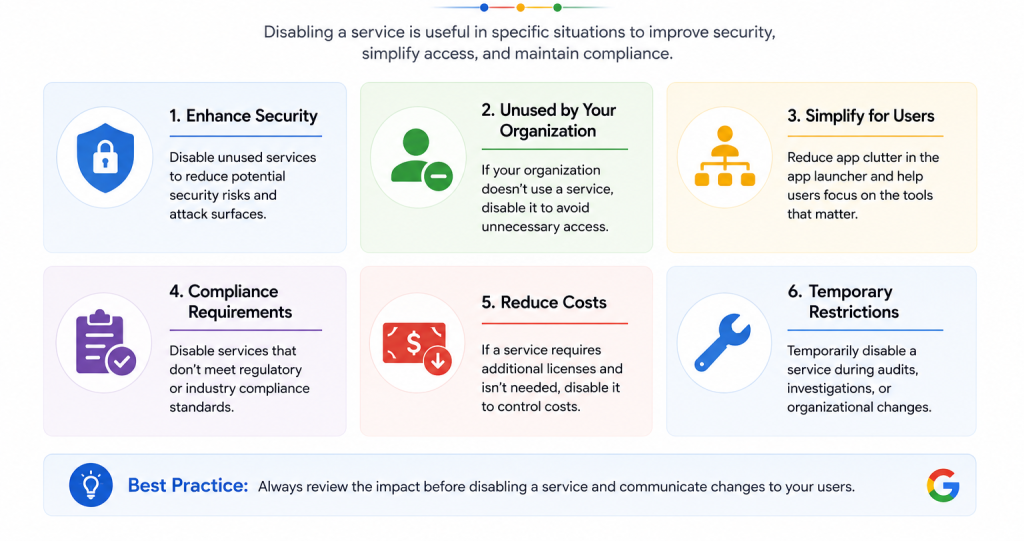
Disabling services can be beneficial in several situations:
- New employees waiting for onboarding.
- Employees leaving the organization.
- Student accounts with limited access.
- Compliance or security requirements.
- Department-specific restrictions.
- Temporary project-based permissions.
The goal is to ensure users only have access to the tools they actually require.
Internal Linking Opportunities
After learning how to manage Google Workspace services, readers may also find these topics helpful:
- Google Workspace Admin Console Guide (Feature Page)
- Gmail Administration Guide (Feature Page)
- Google Drive Administration Guide (Feature Page)
- How to Assign Admin Roles in Google Workspace (Supporting Article)
- How to Create Organizational Units (Supporting Article)
- How to Manage User Accounts in Google Workspace (Supporting Article)
Visual Content Recommendations
To make this guide more useful, consider adding:
- Screenshot of Apps → Google Workspace in the Admin console.
- Screenshot showing the Service Status setting.
- Flowchart illustrating how Organizational Units inherit service settings.
- Comparison table for Organizational Units vs Groups.
- Workflow diagram showing how service changes affect users.
Suggested image ALT text:
- Enable or disable Google Workspace services in Admin console
- Google Workspace Admin console Apps settings
- Manage Google Workspace services for users
- Google Workspace service status settings
Frequently Asked Questions
Yes. You can apply service settings to a specific Organizational Unit instead of the entire organization.
Usually no. In most cases, users simply lose access while the underlying data remains subject to your organization’s retention and lifecycle policies.
Most changes apply within a few minutes, although larger organizations may experience a longer propagation time.
Yes. Services can generally be re-enabled if your subscription includes them.
Yes. Google Workspace allows administrators to assign services based on Organizational Units or Groups.
Conclusion
Enabling or disabling Google Workspace services is one of the simplest ways to tailor Google Workspace to your organization’s needs. By assigning the right apps to the right users, administrators can improve security, simplify management, and provide employees with a more focused workspace.
As your organization grows, regularly reviewing service access helps ensure that users have the tools they need—without unnecessary applications that could create security or compliance risks.
If your business needs assistance configuring Google Workspace, CreativeON can help you implement best practices, manage administrative settings, and optimize your Google Workspace environment for organizations across the UAE.